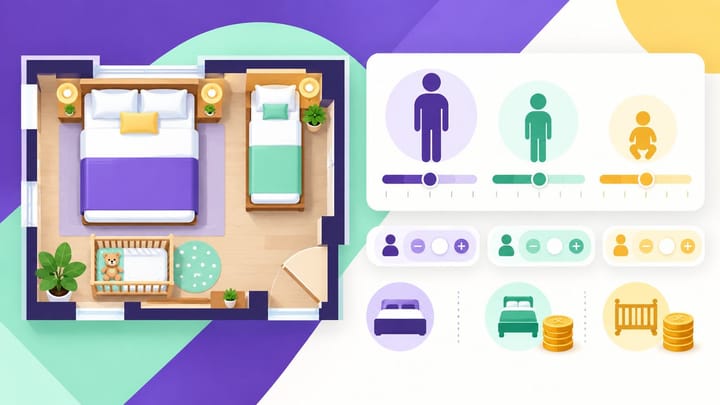
1. Set age rules, room capacity, child prices, and extra-bed charges as separate decisions that must agree.
2. Check each room and rate plan; a property-wide child policy alone does not prove every offer sells correctly.
3. Test family searches at the age boundaries and verify how the booked guest counts and charges reach the PMS.
An Agoda YCS child policy setup can look correct at property level and still produce a surprise at reception. The family may have booked a child sharing existing bedding, while staff expected an extra-bed fee. Or the hotel may advertise children as welcome but exclude them from a particular room.
Agoda's merchant system is now called Agoda Partner Portal; YCS is its former name. Use the current Portal settings to connect four decisions: which ages you accept, how many people fit, what children pay, and when extra bedding costs more.
Decide the Family Offer Before Editing Settings
Write the intended rule for each room type in plain language. For example: "Two adults and one child may share existing bedding. An extra bed is available for a separate charge. The room cannot hold a fourth guest." This is an operating example, not an Agoda default.
Ask housekeeping and reception to confirm capacity. A free-child allowance is a pricing decision. Sell extra beds only where the room can accommodate them.
Separate the stay price from breakfast, extra-bed, and cot charges. Identify which items are included in the selected offer and which require a request or payment at the property. The booking summary and the front desk explanation should describe the same arrangement.
Platforms can classify children differently. Keep the hotel's promise consistent when translating it into each channel's age settings.
Set Age Rules and Apply Child Prices to Offers
Menu labels may vary by property type and account configuration. Hotels and multi-unit properties may see either a guided setup or separate policy and rate-plan controls. Follow the route visible in your account and check the saved result.
- Select the correct property, then open Property > Property settings > Property age policy.
- Set the minimum guest age and the infant and child age definitions available in your account. Save the policy.
- If a guided child-pricing setup appears, configure age groups and choose property-wide pricing or pricing by rate plan.
- If your account uses Basic settings for children, save the age ranges and default child prices there.
- For the separate rate-plan route, open Rates and availability > Rate plans, select the plan, enable Advanced setup, and open Child rates. Apply the basic settings and review any room-specific changes.
- Save the changes and reopen each affected offer to confirm its child-price settings.
Use the controls your property has. If a field is missing, identify the account's setup route before changing unrelated room rates.
Check Age Boundaries and Plan Coverage
Test the oldest child in one band and the youngest in the next. A policy intended to treat a young child differently from an older child needs to produce that result in search and checkout. Record the exact ages used in testing.
Review breakfast-included, room-only, refundable, and non-refundable offers where relevant. A free stay on one plan should not silently become a paid stay on another unless that difference is intentional and visible. In the guided setup, a rate plan without child prices can treat children as adults.
If adult room rates are updated from the PMS while child rules are maintained in the Portal, staff need to know which system owns each setting. Smart Order's OTA channel manager connects rate, inventory, and reservation updates with the PMS. After a base-rate change, the team can review the family selling price while keeping Agoda's child-policy controls aligned with the intended offer.
Keep Room Sales and Front Desk Records Aligned
Connect your room rates, availability, and reservations so family booking checks start from the same current room information.
Verify Room Occupancy and Free-Child Limits
Open Property > Room setup, select the room, and review its occupancy controls. In accounts showing a Room occupancy tab, confirm that children are allowed and review the room's free-child limit or inherited property value. Save and recheck any override.
Where the guided setup presents Base occupancy and Additional guest allowed, verify the resulting maximum occupancy. Review adult and child limits if advanced combinations are enabled. Set them from the actual room arrangement, not from a target number of bookings.
Free Children Still Need Capacity
Some accounts expose an Occupancy control switch that affects whether free children count inside the occupancy limit or add to it. Check the resulting capacity carefully before saving. Do not switch it off just to make a family search return the room.
For example, a room sold for two adults and one child should reject a search for two adults and two children if it cannot accommodate that family. A correct price with an incorrect guest limit is still a broken offer.
Room Overrides Need Their Own Review
A double room and family suite may share the same property age bands but allow different numbers of children. Check the room rule after changing a property default. Decide whether the room should inherit the property value or retain a specific override.
For a single-unit home, the setup may sit under Property > Room setup > Basic Details > Edit. Check the unit's maximum occupancy, permission for children, and free-child count there. Do not apply a hotel rate-plan procedure to a different property format without checking the available controls.
Separate Existing Bedding, Extra Beds, Breakfast, and Cots
A child staying in existing bedding and a child requiring an extra bed are different offers. State when an extra bed is required, how many the room permits, and what charge applies. Match the inventory of available extra beds to what reception can actually provide.
Check the selected price type before entering an amount. A fixed charge and a percentage-based child price can produce different totals when adult rates change. Test the result on a normal weekday and a higher-priced date rather than assuming the charge remains fixed.
Review breakfast separately. A child included in the room price may still have a breakfast charge, depending on the offer. Staff should not add breakfast twice when it already appears in the booking breakdown.
Treat baby-cot availability and cot pricing as their own settings. In the guided child-facilities setup, the cot charge is not applied at booking and the guest must request the cot at check-in. Make the request and payment treatment clear in the guest-facing policy and handover notes.
Where bedding is subject to request, track that request separately from the confirmed booking. A family reservation does not by itself prove an extra bed or cot has been allocated. The arrival team needs the confirmed guest mix and the bedding arrangement they must prepare.
Test the Guest Price and the PMS Arrival Record
Use the same dates, room, rate plan, currency, and promotion conditions across tests. Otherwise a changing discount can hide a child-pricing error. Start with dates that have available rooms and no unrelated selling restrictions.
- Search for adults only to establish the base offer and price.
- Add one child at the lower and upper boundaries of each configured age band.
- Test a family at the maximum allowed occupancy and one above it.
- Compare room-only and breakfast offers, including extra-bed and cot wording.
- Use an authorized test reservation where appropriate, then check guest counts, room type, total, and included charges in the PMS.
Guest searches and checkout review can establish pricing and capacity outcomes. Agree cancellation and reconciliation arrangements before making a payable test booking.
When a booking arrives, compare the Agoda confirmation with the PMS reservation record. If child ages are supplied, verify them. If only guest counts are available, retain the confirmed age information in the approved guest record rather than inventing it.
Keep included child and bedding charges distinct from amounts payable at the property. A booking total may already contain the child price even if the PMS does not show a separate line with that name. Check the breakdown before adding another charge.
A Family Cannot Find the Room
Check whether children are allowed for that room, the accepted ages, occupancy, and available room count. Then test the rate plan. Changing adult rates will not fix a room that excludes the searched family.
The Price Jumps at an Unexpected Age
Review the band boundary, child-price settings, and coverage of the selected plan. Correct the specific rule, save it, and rerun the same search. Keep the test conditions unchanged so the result can be compared.
Reception Expects a Fee the Booking Does Not Show
Check whether the offer includes the fee, treats it as payable at the property, or sells existing bedding instead. Review the promise made when that reservation was booked before asking the guest for more money.
For later review, keep confirmed reservation amounts and actual collections available in hotel reporting and analysis. Retest affected offers after adding a room, copying a rate plan, changing an age rule, or changing bedding arrangements.
Frequently Asked Questions
Can free-child limits differ by room type?
Yes. Review each room's free-child allowance or inherited property value. Keep the room's physical capacity consistent with the offer.
Does a free child automatically receive an extra bed?
No. Existing bedding, extra beds, and cots require separate rules. Explain what the selected booking includes and what must be requested.
Will changing the property policy update every rate plan?
Check the saved plan settings and any room overrides. A property default alone does not prove every offer has the intended child price.
Does ordinary PMS rate sync replace child-policy setup?
Base-rate and inventory updates do not establish that age rules, child prices, or bedding policies changed. Verify the relevant Portal settings and the resulting family offer.
Should new child rules be applied to existing bookings?
Review the policy and price confirmed at booking. Resolve discrepancies against that agreed offer rather than automatically applying today's settings.
