Log in to Booking.com Extranet ↓
1. The Booking.com Extranet is the backend dashboard where hotel owners and property managers control listings, rates, availability, reservations, and guest messages
2. Access the login page at account.booking.com — bookmark it and always verify the domain before entering credentials
3. The Extranet covers rate management, reservation handling, guest messaging, review responses, and performance analytics
4. Managing multiple OTAs from separate extranets creates double-booking risk and significant manual overhead — a PMS eliminates both
5. Smart Order connects Booking.com, Airbnb, Agoda, Expedia, and 8 more OTAs in real time from $5/room/month
Booking.com Extranet Login: Step-by-Step
Where to Access the Extranet Login Page
The Booking.com Extranet login page is at account.booking.com — use the login button at the top of this page or go directly to `account.booking.com`.
Bookmark this page. Phishing sites mimic the Extranet login — always verify you are on the correct domain before entering your credentials. The Extranet is also accessible via the Booking.com Pulse app on iOS and Android for managing urgent tasks on the go, though the full desktop Extranet offers more functionality.
How to Log In
Step 1 — Go to the Booking.com Extranet sign-in page.
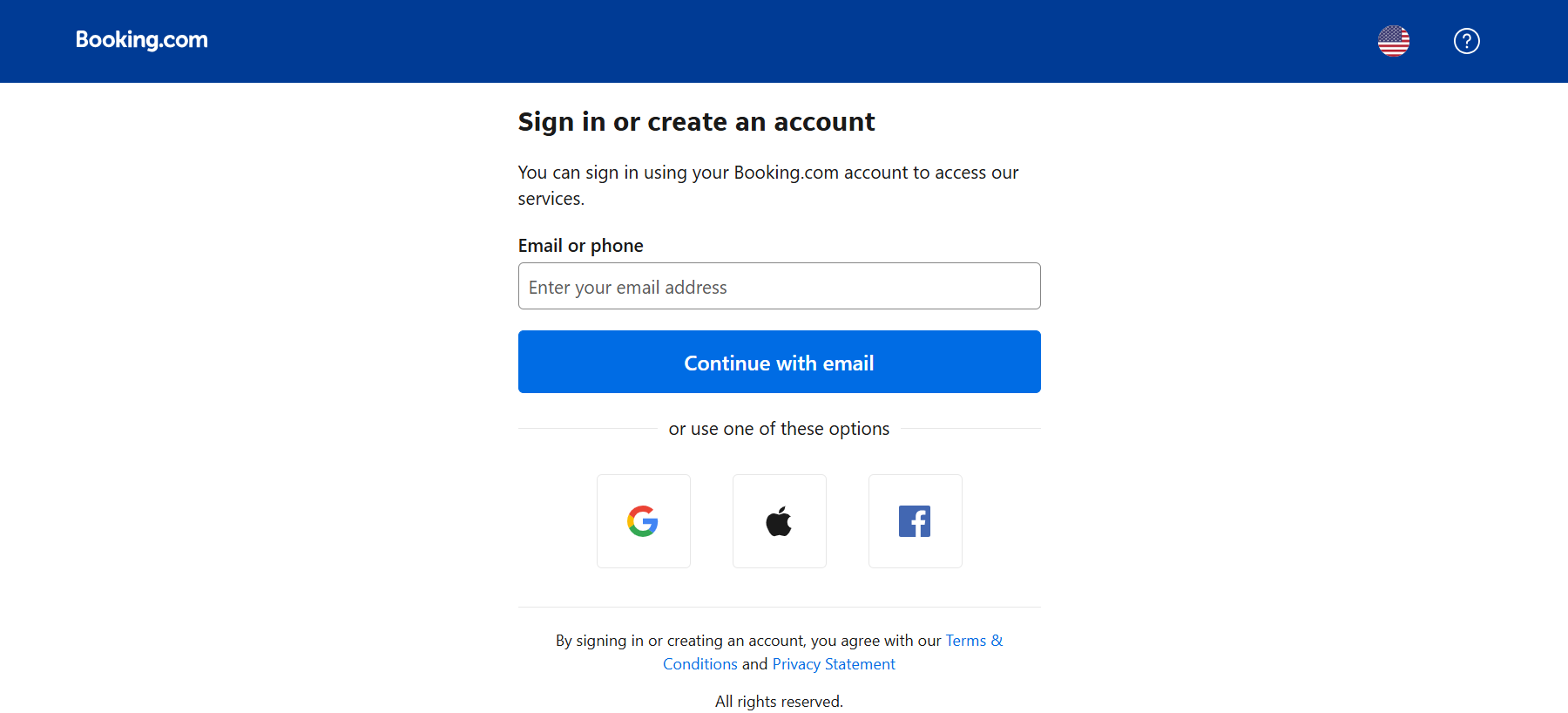
Navigate to account.booking.com. You will see fields for your login name (usually your email address) and password.
Step 2 — Enter your credentials.
Use the email address and password associated with your Booking.com property account. If you manage multiple properties, the same credentials may grant access to all of them from a single login.
Step 3 — Complete two-factor authentication.
Booking.com requires 2FA for all Extranet logins. Enter the verification code sent to your registered phone number or email to complete sign-in.
Step 4 — Select your property.
If your account is linked to multiple properties, select the property you want to manage from the list that appears after login.
Two-Factor Authentication (2FA)
2FA is mandatory for all Booking.com Extranet accounts. When you log in, Booking.com sends a code to your registered contact method — phone number (SMS) or email. Enter the code within the validity window to proceed.
If you are not receiving codes, check that your registered contact details are current. You can update them in Account → Security settings once you are logged in.
Common Login Problems and Fixes
Forgotten password: Use the "Forgot password" link on the login page. Booking.com sends a reset link to your registered email address.
Account locked: Repeated failed login attempts trigger a temporary lockout. Wait 30 minutes and try again, or contact Booking.com Partner Support to unlock the account.
2FA code not arriving: Check spam/junk folders for email codes. For SMS, verify your phone number is correct in account settings. If the issue persists, contact Booking.com Partner Support.
Correct credentials not working: Confirm you are using property manager credentials — your guest Booking.com account and your Extranet account are separate systems and do not share login details.
Managing More Than One OTA?
Smart Order syncs Booking.com, Airbnb, Agoda, Expedia, and 8 more OTAs in real time — from $5/room/month, with a unified inbox for all guest messages and no per-booking fees.
How to Use the Booking.com Extranet
Managing Rates and Availability
The Rates & Availability section is where you set nightly prices, minimum stay requirements, and open or close specific dates. Changes go live on Booking.com immediately. If you are listed on multiple OTAs, you need to replicate every update in each platform's separate dashboard — unless you use a channel manager.
Handling Reservations
The Reservations tab shows all confirmed, pending, and cancelled bookings with guest details, dates, and booking source. No-show and cancellation actions are handled within each reservation record.
Communicating with Guests
The built-in Inbox routes messages from guests who booked through Booking.com. Response time is tracked and affects your property's visibility score — Booking.com's algorithm rewards fast replies.
Responding to Reviews
The Reviews section shows guest ratings and comments. You can post a public response to any review directly from the Extranet. Responding to reviews — positive and negative — signals to prospective guests that the property is actively managed.
Tracking Performance
The Analytics section provides data on impressions, bookings, and revenue. The Opportunities tab surfaces specific recommendations for improving your property's ranking on Booking.com.
When to Go Beyond the Extranet: Managing Multiple OTAs
The Booking.com Extranet works well for properties listed exclusively on Booking.com. Once you add Airbnb, Agoda, Expedia, or other platforms, manual extranet management creates two compounding problems:
- Double-booking risk. Each OTA shows your availability independently. In the time it takes to manually close dates on a second platform after a booking arrives, another guest can book the same dates there.
- Update overhead. Every rate change, date closure, or availability update must be repeated across every platform's separate dashboard — every time.
A property management system solves both. Smart Order connects to 11 OTAs — Booking.com, Airbnb, Agoda, Expedia, Traveloka, Trip.com, Tiket.com, HostelWorld, TuJia, XiaoZhu, and Rakuten Travel — via real-time two-way API sync. When a booking arrives on any platform, availability closes everywhere else within seconds.
Beyond sync, Smart Order includes:
- Unified inbox — read and reply to guest messages from all connected OTAs in one dashboard, including direct Airbnb replies
- Direct booking engine — commission-free reservations from your own booking page
- PriceLabs integration — automatic rate adjustments based on demand signals and occupancy patterns
- Front desk and housekeeping tools — reservations, check-in/check-out, and room status management in one system
Over 200,000 properties globally use Smart Order to manage their OTA distribution.
How to Connect Booking.com to a PMS
Connecting Smart Order to Booking.com is done through Booking.com's Connectivity Provider system inside your Extranet. No technical setup is required — the connection is made entirely through the settings panel.
- Log in to the Booking.com Extranet
- Go to Account → Connectivity provider
- Search for and select Smart Order International as your connectivity provider
- Authorize the connection — Smart Order immediately begins syncing your availability and rates to Booking.com
- Map your room types in Smart Order to confirm the connection is live
For step-by-step instructions with screenshots, see the Smart Order Booking.com connection guide below.
 Smart Order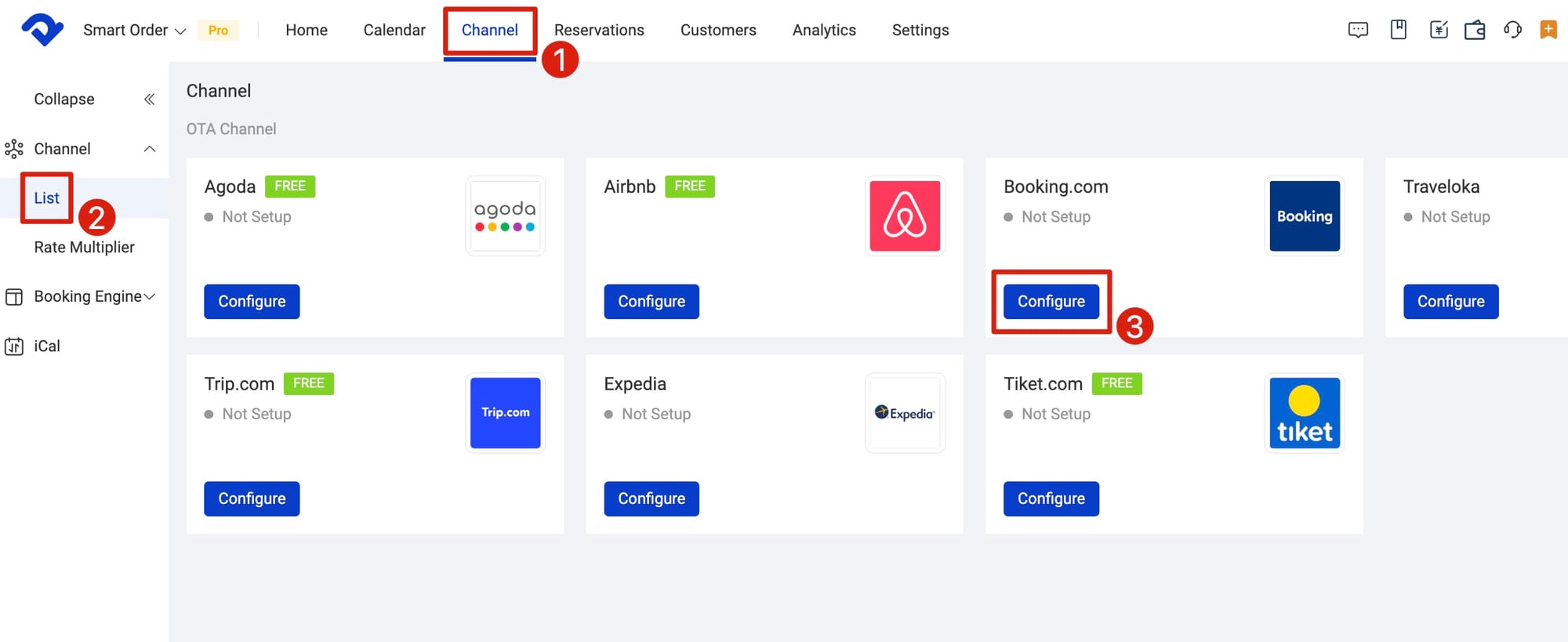
Connect Booking.com to Smart Order
Set up the Booking.com integration in minutes — real-time two-way sync, unified inbox, and direct booking engine from $5/room/month.
FAQ
What is the Booking.com Extranet?
The Booking.com Extranet is the private backend dashboard for hotel owners and property managers registered on Booking.com. It is where you manage your listing, set rates and availability, handle reservations, communicate with guests, and track performance. Guests never see the Extranet — it is a property-side management tool only.
Can multiple users access the Booking.com Extranet?
Yes. You can add team members with individual login credentials and assign different permission levels. A front desk staff member can have access to reservations without access to financial reports or account settings.
Is the Booking.com Extranet free?
Yes. Access to the Extranet is included for any registered Booking.com property. Booking.com earns revenue through commission on completed bookings, not through Extranet access fees.
How do I update prices in the Booking.com Extranet?
Go to Rates & Availability in the Extranet. You can set prices by room type, date range, or season. Changes go live on Booking.com immediately. If you are connected to a channel manager or PMS, rate updates made there push to Booking.com automatically.
How can I find my Property ID without logging in?
Your Property ID appears in the URL of your public Booking.com listing page. The numeric segment in the URL is your Property ID. You can also find it in confirmation emails from Booking.com.
What should I do if the Connectivity Provider connection fails?
First, check that Smart Order is still listed as your active Connectivity Provider in Account → Connectivity provider in the Extranet. If the connection appears active but sync is not working, follow the troubleshooting steps in the Smart Order Booking.com connection guide or contact Smart Order support directly.
How do I connect Booking.com to a channel manager or PMS?
In the Booking.com Extranet, go to Account → Connectivity provider, search for your PMS or channel manager by name, and authorize the connection. Smart Order users select Smart Order International from the provider list. Once connected, availability, rates, and reservations sync in real time across all connected OTAs.
