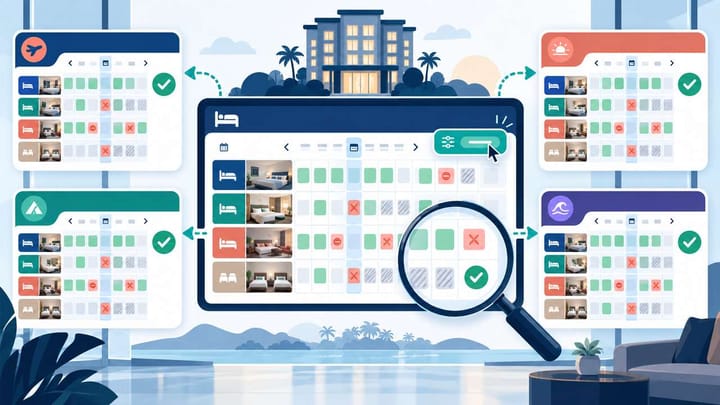
1. Record which rooms, dates, and quantities should change.
2. Make the update in the system that normally controls OTA inventory.
3. Check the result for every connected OTA, not only the largest channel.
4. Test important dates as a guest and record any exceptions.
A large inventory change can save hours of manual work, but one missed room or date can cause an overbooking or remove valid sales. Bulk inventory update verification means confirming that the intended room count reached every connected OTA.
Hotel managers do not need to review every technical message. They need a practical answer to three questions: Did the correct rooms change? Did every OTA receive the change? Can guests now book only what the hotel can actually sell?
Write Down the Intended Result First
Before making the update, record the property, room types, date range, current availability, and new availability. Note any dates that should remain different, such as weekends, event nights, or sold-out days.
This short record prevents a common problem: the team notices an unexpected number later but cannot tell whether it came from the bulk update or was already there.
Be precise about what is being changed. Five available rooms is different from a sell limit of five. Closing sales is different from marking rooms out of order. If the screen offers several controls, confirm that you are changing the sellable quantity sent to channels.
For dorms, record whether the number represents beds or rooms. For private rooms, confirm whether each unit is sold once as a whole room. Never copy the same quantity between products without checking what the number means.
Make the Update From the Usual Control Point
If the hotel normally manages OTA availability through a PMS or channel manager, make the bulk change there. Do not edit several OTA extranets at the same time unless the property is handling an emergency.
Check that each channel connection is active before saving. Then select the correct property, room types, and date range. Review the first and last date carefully so the update does not stop one day early or extend into the next season.
Make one clear change at a time. For example, update inventory first, then handle any rate or restriction changes separately. If several actions are combined, it becomes harder to identify which one caused an unexpected result.
Manage Connected Inventory With Fewer Manual Steps
Use Smart Order to keep room availability and day-to-day channel work in one operational view.
Use This Five-Step Verification
- Check the PMS result. Reopen the selected room types and dates. Confirm the new quantities were saved, including the first and last date.
- Check every OTA status. Review the channel screen for success, pending, warning, or failed results. Do not treat a pending update as complete.
- Open each OTA extranet. Check representative dates for the correct room. The extranet should show the same sellable quantity as the controlling system.
- Search as a guest. Test important dates and occupancy combinations. Confirm sellable rooms appear and zero-inventory rooms cannot be booked.
- Record exceptions. Write down the OTA, room, date, expected quantity, visible quantity, and person responsible for follow-up.
The goal is not to inspect every calendar cell. It is to confirm the full date range and test the places where mistakes are most likely to occur.
Which Dates Should You Check?
Always check the first and last date of the update. Add one weekday and one weekend, plus any event night or date where the quantity changed to zero.
If availability increased, check at least one of those dates. Increasing inventory carries a higher overbooking risk than reducing it. Also check any date where only one room remains, because the last-room position is commercially sensitive.
Review every room type included in the bulk change. If a room has separate single-occupancy, breakfast, non-refundable, or promotional offers, check whether those offers share the same inventory or are controlled separately.
Finally, check every connected OTA. Low-volume channels are easy to overlook and may retain old availability for longer because staff rarely open their extranets.
What Common Results Mean
Every OTA shows the wrong number
The original bulk selection is probably wrong. Recheck the property, room type, dates, and quantity in the PMS. Correct the source before sending another update.
One OTA shows the wrong number
Focus on that channel. Check whether its connection is active and whether the PMS room is linked to the correct OTA room. Similar room names can hide an incorrect connection.
Only some dates are wrong
Check the start and end dates, month boundaries, existing overrides, and event-night settings. Correct only the affected dates instead of repeating the full batch.
The OTA extranet is correct, but guests cannot book
Availability may not be the cause. Check whether the rate plan is open, whether a minimum stay applies, and whether the guest search uses the correct occupancy and booking window.
The correct quantity later changes back
Another source may have overwritten it. Look for a later PMS update, a scheduled rule, another user, or a direct extranet edit. Identify which system made the most recent change before editing again.
Correct Exceptions Safely
Do not resend the entire bulk update because one OTA or date is wrong. A full resend can overwrite correct event pricing, closures, or manual adjustments.
First correct the cause: the wrong date selection, inactive connection, room link, or existing override. Then update only the affected room and dates. Save once and repeat the same PMS, extranet, and guest checks.
For an urgent sold-out date, close the affected OTA offer manually if the hotel's procedure allows it. Record the temporary change and make sure the PMS is corrected before automated updates resume.
If the result remains unclear, use one low-risk future date. Change the availability by one room, note the time, and check whether that exact change appears on the OTA. Restore the intended value immediately after the test. Avoid event nights and the hotel's last available room.
Create a Useful Handover Record
The final record should be short enough for the next shift to understand. Include who made the update, which rooms and dates changed, the intended quantities, which OTAs were checked, and any unresolved exceptions.
Add screenshots only where they show a real difference. A screenshot of a general success screen is less useful than one showing the exact room, date, and quantity.
Continue watching the next booking or cancellation that affects the updated room pool. Confirm that availability changes by the expected amount and the new value reaches the channels. This catches problems that a one-time calendar check may miss.
Smart Order's hotel reports can help managers review room sales and unusual inventory movement without turning every check into a technical investigation.
Give Managers a Clearer View of Inventory Changes
Bring hotel operations, availability, and follow-up work together with Smart Order.
Frequently Asked Questions
Does a successful PMS message prove every OTA is updated?
No. Reopen the value in each OTA extranet and test important dates from the guest side.
Do we need to check every date?
Not usually. Check the range boundaries, weekends, event dates, zero inventory, increased inventory, and each room type and OTA.
Can we correct one OTA directly?
Use a direct edit only for an approved emergency override. If the PMS controls inventory, the next automatic update may replace the manual value.
How long should the hotel wait before checking?
Check the PMS and channel status immediately. Check the OTA extranet after the update is accepted, then run the guest search after the normal display period for that connection.
What information helps support investigate?
Provide the property, OTA, room type, dates, expected and visible quantities, timestamps, and screenshots. Include the update reference if one is shown.
