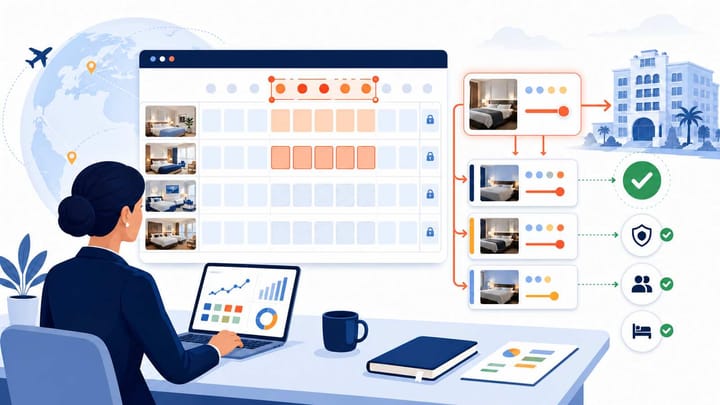
1. Confirm whether eBooking or a connected channel manager is authorized to send Trip.com rates.
2. Open the rates-and-availability area available in your account, then select the exact property, room type, rate plan, dates, and currency before entering a new rate.
3. Review linked-rate behavior, promotions, occupancy pricing, inventory, and restrictions without assuming every account uses the same menu labels.
4. Save once, reopen the edited dates, and run a like-for-like guest search to confirm the final offer.
Knowing how to change rates in Trip.com eBooking is not just a matter of finding a price field. The operational risk is changing the wrong room, rate plan, date range, or source system and then discovering that the intended offer is unavailable or priced differently on Trip.com.
The safest method is to identify the authoritative rate source, edit only the intended product, protect connected pricing and restrictions, and verify the stored and guest-facing results. Trip.com describes eBooking as its accommodation partner extranet for managing rates and availability, but available tools and labels can differ by account, language, property setup, and interface release.
Before You Change a Trip.com Rate
First determine which system controls Trip.com. If a channel manager, central reservation system, or PMS connection is the approved rate source, make the change there. A manual eBooking value may be replaced by a later synchronization message, leaving staff with a temporary price they cannot reproduce or explain.
Hotels using Smart Order's hotel channel manager should update the approved mapped rate there and use eBooking to confirm what Trip.com received.
Trip.com's partner FAQ confirms that eBooking manages rates and availability. Trip.com's connectivity platform separately confirms that connected systems can create or update rates, inventory, and restrictions. These are different operating paths, so the hotel should not edit both unless a documented exception requires it.
Prepare a short change brief before opening the editor:
- Property and user account
- Room type and rate plan
- Start date, end date, and applicable weekdays
- Occupancy, meal basis, cancellation terms, and payment model
- Currency, tax basis, current rate, and intended rate
- Source system, reason for change, and rollback date
Check whether the intended plan uses another plan as its price source or has account-specific adjustments. Do not assume that every non-refundable, member, mobile, or campaign offer is automatically derived from BAR. The relationship depends on how the hotel's products and promotions are configured.
How to Change Rates in Trip.com eBooking
Use the Rate Editor Available in Your Account
Trip.com does not publish a universal public, button-by-button calendar guide for every eBooking account. Follow the labels visible in your account and treat the sequence below as an operational control procedure rather than a promise that every menu will have the same name.
- Sign in at Trip.com eBooking with a user permitted to edit rates.
- If the account manages multiple properties, confirm the correct property before opening its rate tools.
- Open the area used by your account to manage Rates & Availability, room prices, or the availability calendar.
- Set the intended date or date range. Check the year, start date, end date, and any weekday filters before continuing.
- Select the exact room type. Similar room names, bed types, or occupancy variants are not interchangeable.
- Select the intended rate plan and confirm its meal basis, cancellation terms, occupancy, payment model, and any linked-rate setup.
- Enter the new rate in the property's configured currency and price basis. Use the same tax treatment as the existing setup.
- Review availability, stop-sell controls, and stay restrictions displayed with the rate. Leave them unchanged unless the same commercial decision requires an inventory or restriction update.
- Save or update the selection and wait for the account's confirmation message.
- Reopen the same room, plan, and dates to confirm that eBooking stored the intended value.
Menu labels may vary by account language, property configuration, contract, and interface release. If the rate editor in your account does not match this sequence, use the in-account help or Hotel Support chat before changing unfamiliar controls.
Avoid Bulk-Edit Errors
Bulk editing is efficient only when every selected date should receive the same instruction. Confirm weekends, events, seasonal periods, existing price variations, and rollback dates before applying one value across a long range.
When the hotel intends to change price only, do not also overwrite availability or restrictions. When inventory or stay rules must change, record them as separate approved fields so staff can verify each result independently.
Update Trip.com From One Rate Source
Keep room mappings, rates, inventory, and supported restrictions aligned instead of maintaining a second manual calendar.
Protect Rate Plans and Confirm the Result
Complete the Rate Plan Checks
A price update should pass the controls below before the hotel considers it complete. This is an editorial operating checklist, not a screenshot of the Trip.com eBooking interface.
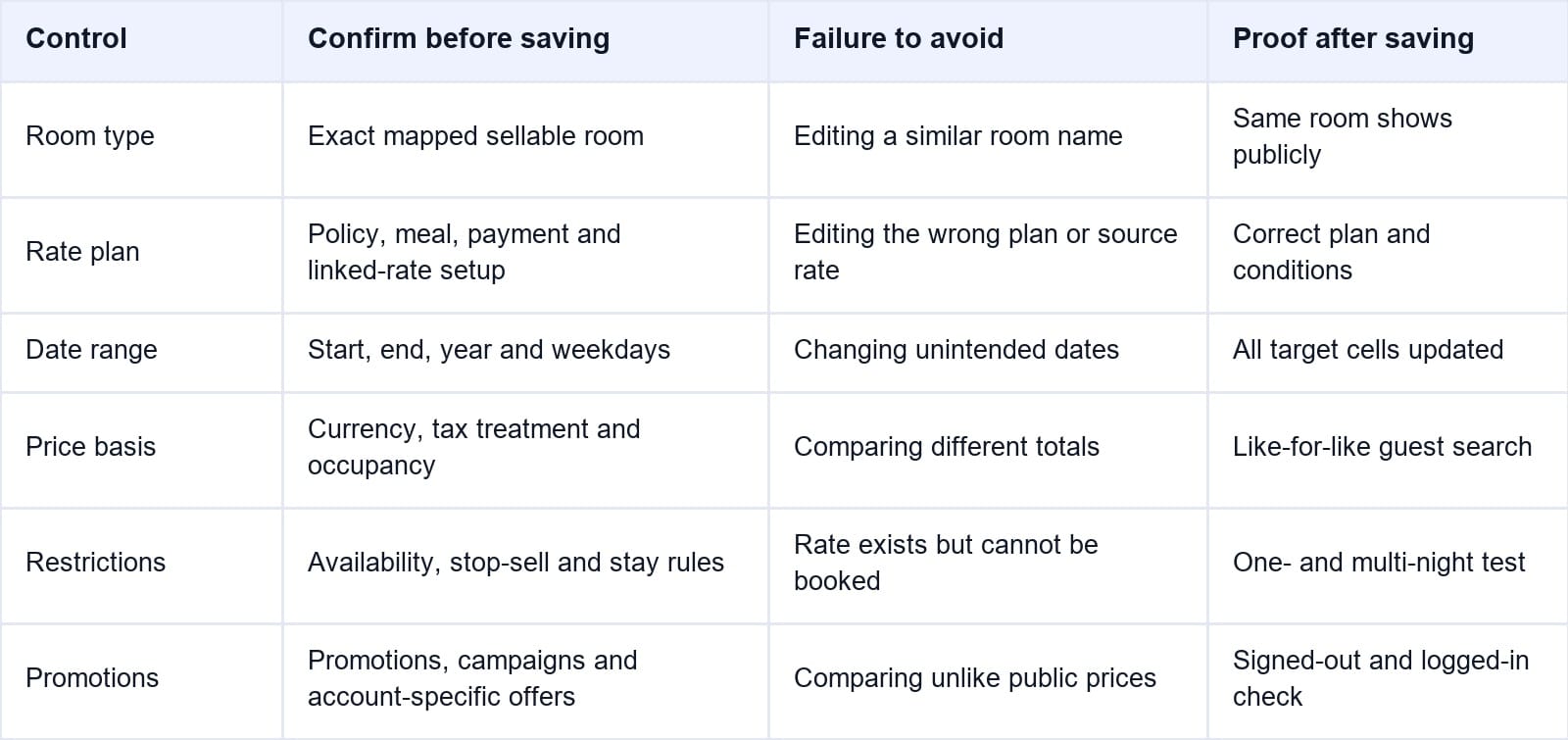
Confirm the room, plan, date range, price basis, restrictions, and promotions as separate items. If a plan uses another rate as its price source, edit the authorized source and confirm the dependent result rather than assuming a displayed child price can be changed independently.
Check the Stored Rate and Public Offer
Reopen the edited dates in eBooking first. Confirm the property, room type, rate plan, date range, currency, and stored value. This proves what the extranet currently holds, but it does not yet prove what a guest can book.
Next, use a private browser window or signed-out Trip.com session to search the same property and stay. Match all of the following:
- Check-in and checkout dates
- Number of rooms, adults, and children
- Room type and occupancy
- Meal inclusion and cancellation terms
- Payment timing, market, currency, and login state
Compare the final payable total as well as the nightly display. Promotions, campaigns, taxes, fees, currency conversion, occupancy pricing, or another eligible rate plan can make the guest-facing result differ from the amount stored in the editor.
Test at least one one-night stay and one multi-night stay inside the changed range. A multi-night search can expose a missed date, mixed price, unavailable night, or stay restriction that a one-night test does not reveal.
Save evidence of the update time, user, source system, room, plan, dates, stored value, public offer, and any visible promotion. This record helps the hotel separate an input error from a connection, configuration, or display problem.
Keep Trip.com Rate Plans Mapped and Traceable
Update approved rates once, synchronize the intended OTA products, and retain a clearer record of what changed.
Troubleshooting and Frequently Asked Questions
What should I do when the rate does not save?
Confirm the selected property, room, plan, dates, permissions, currency format, and any validation message. Check whether the product is active and whether the account requires a different price basis or minimum permitted value. Do not repeatedly submit an unfamiliar field; capture the message and use Hotel Support chat when the cause is unclear.
Why did the Trip.com rate revert after I changed it?
A connected channel manager or central system may have sent another rate after the manual edit. Review the connection log and correct the value in the authoritative source before making another eBooking change.
Why is the public Trip.com price different from the stored rate?
Compare identical dates, occupancy, room, plan, meals, cancellation terms, payment timing, currency, market, taxes, promotions, and login state. The first price shown in search may belong to another eligible offer, so also compare the final checkout total.
Does changing BAR update every Trip.com rate plan?
Not necessarily. Only products configured to use that rate as their price source should be expected to move with it. Independent plans, promotions, occupancy prices, and account-specific overrides require separate verification.
How long should I wait before checking the result?
Confirm the stored eBooking value as soon as the save completes, then refresh a matching Trip.com guest search. Do not rely on a universal delay because the path differs between manual eBooking updates and connected-system delivery. If the stored value is correct but the offer remains inconsistent, document both screens and contact Hotel Support.
Where should a connected hotel change Trip.com rates?
Use the PMS, CRS, or channel manager designated as the authoritative source. Trip.com's connectivity documentation confirms support for rate, inventory, and restriction updates. Use eBooking to verify the received result and manage account-specific settings that the connection does not control.
Manual OTA edits are safest as controlled exceptions. A connected hotel PMS and channel manager provide a clearer audit path when they are the hotel's authorized source. Assign an owner, record the reason and rollback date, and prove the stored and guest-facing results. That turns a small price change into an auditable procedure instead of a source of broken discounts, missed dates, or unexplained parity gaps.
