
1. Confirm the normal room rate, eligible products, demand dates, and minimum acceptable hotel revenue before creating a promotion.
2. In TERA, Campaign Promotions and Basic Promotions follow different stacking rules.
3. Enable promotion stacking only after reviewing See Stacking Simulation and every active rate channel discount.
4. Verify an eligible and ineligible search on Traveloka using matching dates, occupancy, device, login state, currency, and booking conditions.
Learning how to set promotion in Traveloka TERA requires more than entering a discount. A Basic Promotion can combine with another Basic Promotion, one Campaign Promotion, and eligible rate channel discounts, producing a deeper final price.
The safe workflow starts with a rate floor and a specific demand problem. The hotel then creates a narrow promotion, controls stacking, and tests the final selling rate. This guide uses Traveloka's current promotion logic while noting where TERA menu labels differ between the newer interface and older accounts.
Choose a Promotion for a Specific Demand Problem
TERA describes two main promotion groups. A Campaign Promotion is led by Traveloka for a particular campaign, holiday, or booking period. A Basic Promotion is created or customized by the hotel for its own use case.
Basic options can include Customized Deal, Early Bird, Last Minute, or minimum-stay offers. Names vary by market. Select the condition matching the demand gap rather than the largest discount.
Early Bird targets advance bookings; Last Minute targets reservations close to arrival. Customized Deal can focus on weak dates. A minimum-stay offer should reward nights the hotel needs.
Write the commercial rule before opening TERA: target stay dates, booking window, eligible arrival days, rooms, plans, occupancy, discount, blackout dates, and acceptable net revenue. If staff cannot explain why the offer exists, its scope is probably too broad.
Calculate the Maximum Combined Discount First
Traveloka's current TERA Promotions Guide says Campaign Promotions can stack with Basic Promotions but not with another Campaign Promotion. Basic Promotions can stack with other Basic Promotions and with one Campaign Promotion. Stacking applies only when the guest meets every condition and the hotel has enabled the relevant stacking option.
The important number is the maximum combined discount after promotions and rate channel discounts.
For example, a $120 room with a 10% Basic Promotion becomes $108 if that is the only discount. If an eligible 15% Campaign Promotion is applied sequentially, the result becomes $91.80 before taxes, fees, currency presentation, or other adjustments. The combined reduction is 23.5%, not 25%, because the second percentage applies to the already discounted amount.
Use the audit below before activation.
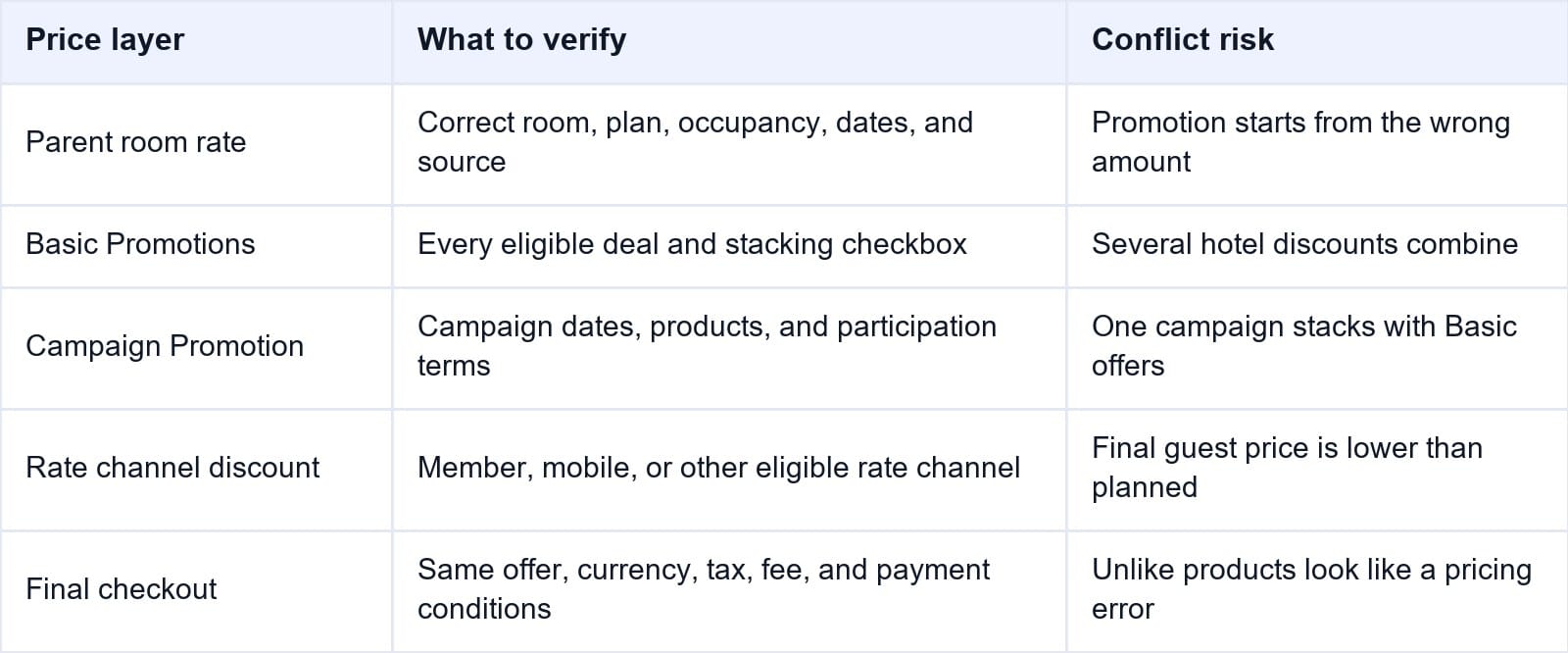
Set a floor after hotel-funded discounts, Traveloka commercial terms, payment cost, and variable stay costs. If the result is too low, narrow dates, products, or stacking.
Smart Order's hotel reporting software shows Traveloka booking revenue, ADR, occupancy, and channel contribution together. Managers can check whether a promotion filled weak dates or replaced bookings that would have arrived at the normal price.
Measure Traveloka Promotion Results
Compare Traveloka room nights, ADR, occupancy, and revenue so the next discount is based on incremental demand rather than booking volume alone.
How to Set a Promotion in Traveloka TERA
TERA introduced a new home page and left-side navigation in 2025. Current accounts may expose promotions through the navigation, a home-page promotion recommendation, or Growth Accelerator Programs. Older layouts may show Room Management > Promotion. Use the equivalent promotion-management page available to the property.
Follow this controlled sequence:
- Sign in to Traveloka TERA, select the property, and confirm its ID.
- Open the promotion-management area from the left navigation or a promotion shortcut. In an older layout, use Room Management > Promotion.
- Review active and scheduled promotions, overlapping dates, and eligible products.
- Select Add Promotion, Create Promotion, or the equivalent action shown in the account.
- Choose the type. Select a Basic Promotion for a hotel-controlled offer, or review the participation terms of a Traveloka campaign.
- Choose Simple Mode or Advanced Mode when the account offers that choice. Use Advanced Mode only when the team understands the additional conditions.
- Enter the booking and stay periods. Confirm whether weekday eligibility refers to booking, arrival, or occupied dates.
- Set the discount or benefit. Complete lead time, minimum stay, maximum eligible nights, or other conditions required by that promotion type.
- Select eligible rooms and plans where available. Exclude products that should retain normal price.
- Review Promotion Stacking. Leave Stack with Other Basic Promotions unchecked unless the combined result has been approved.
- Open See Stacking Simulation and record the maximum discount shown. Review promotions and rate channel discounts that contribute to the simulation.
- Check the final summary, including dates, days, products, restrictions, benefit, and stacking. Select Create Promo, Activate, or the equivalent confirmation.
- Reopen the promotion. Record its owner, activation time, dates, discount, products, exclusions, and stacking choice.
Menu labels vary by country, contract, permission, and interface release. If a required option is missing, use TERA help or contact the Traveloka Market Manager.
Prevent Conflicts With Rates and Other Offers
Audit every price layer that can affect the same room and search. Check the TERA base or retail rate, single-occupancy and extra-bed values, active Basic Promotions, Campaign Promotions, member or mobile rate channels, direct rate-plan adjustments, and any provider-controlled price.
Do not lower the source rate in a PMS or channel manager to imitate a TERA promotion. If TERA then applies the real promotion, the guest receives a double reduction. Other OTAs may also receive the lower source price.
Clarify ownership with the connectivity provider. A standard rate-and-availability connection does not prove that it creates or edits TERA promotions. Maintain the ordinary room rate in the designated source and manage the Traveloka-specific promotion in the supported workflow. Never build the same discount in both systems.
Date conflicts deserve the same attention. Compare booking period, stay period, check-in days, minimum lead time, minimum stay, maximum eligible nights, and blackouts. Test the first and last eligible dates plus dates immediately outside the window.
If the Rate Management screen offers a No Promo, blackout, or exclusion control, document what it overrides before using it. Do not assume it cancels every campaign, rate channel, or coupon visible to all guest segments.
Verify the Final Traveloka Selling Rate
Activation is only the first confirmation. Reopen the promotion in TERA and verify its active status, dates, discount, products, restrictions, and stacking setting. Then confirm that the parent room rate and availability remain correct.
Run a controlled Traveloka search with the same property, stay dates, room count, adults, children, currency, market, device, and login state. Match room type, rate plan, meal, cancellation terms, and payment method. Check the final amount before payment, not only the first search-card price.
Perform an eligible and negative test. Use an excluded date, weekday, booking window, stay length, device, or login state for the negative case.
If the displayed reduction exceeds the approved discount, return to See Stacking Simulation. Identify every qualifying Basic Promotion, Campaign Promotion, and rate channel discount. Also check taxes, fees, occupancy pricing, currency conversion, and whether the guest selected another plan.
For a higher-risk launch, create one authorized cancellable test booking on a low-demand date. Confirm the Traveloka reservation arrives with the intended room, plan, dates, price, promotion information, payment model, and property amount. Cancel it within policy and confirm inventory returns once.
For hotels distributing the parent rate through Smart Order's hotel channel manager, mapped rates and availability remain controlled in one source while TERA applies the approved Traveloka promotion. Staff can compare the promotional guest result with a stable parent rate.
Keep the Traveloka Parent Rate Stable
Send mapped rates and availability from one workflow, then verify TERA promotions without creating a second discounted source rate.
Fix a Promotion That Is Too Deep or Not Showing
If the price is too low, capture the exact search conditions and final checkout total. Pause or deactivate the new promotion when possible, then review the stacking simulation and active price layers. Protect high-demand dates while the cause is investigated.
If the promotion is not showing, confirm status, booking and stay windows, arrival weekday, lead time, length of stay, room, plan, inventory, and guest eligibility. A mobile, member, geographic, or campaign condition may not apply to the hotel's normal office search.
When TERA stores the expected setup but the result cannot be explained, send support the property ID, promotion name, setup screenshots, dates, room and plan, base rate, expected discount, simulation result, device, login state, market, currency, and observed checkout total.
After correction, repeat both eligible and ineligible tests. Do not close the incident merely because the promotion shows Active.
Frequently Asked Questions
Where are Traveloka promotions created in TERA?
Use the promotion area in TERA's current left navigation, home-page recommendations, or Growth Accelerator Programs. Older accounts may use Room Management > Promotion.
What is the difference between a Campaign and Basic Promotion?
A Campaign Promotion is led by Traveloka for a campaign period. A Basic Promotion is customized by the hotel, such as an Early Bird, Last Minute, or Customized Deal.
Can two Traveloka promotions stack?
Eligible Basic Promotions can stack with other Basic Promotions and one Campaign Promotion when stacking is enabled. Two Campaign Promotions do not stack with each other.
What does See Stacking Simulation include?
Traveloka's current guide says the simulation estimates the maximum stacking discount using all promotion types and rate channel discounts. Check the final guest price as well.
Should I reduce my channel-manager rate for a TERA promotion?
No. Keep the parent rate in its designated source and configure the Traveloka-specific promotion once. Lowering both can create an unintended double discount.
Why is my Traveloka promotion not visible?
The search may not meet its dates, weekday, lead time, stay length, product, device, login, geography, or inventory conditions. Reproduce an eligible search and verify the final checkout price.
A Traveloka promotion is ready only when its commercial purpose, maximum stacked discount, final guest price, and expected property amount can all be explained. Create narrowly, simulate stacking, and test both sides of every eligibility rule.
