1. Specify which properties an employee may access and which actions they may perform there.
2. Give staff the access needed for their work, not the full permissions of the person they replace.
3. Test allowed and prohibited actions across desktop, mobile, reports, and any other relevant access route.
A receptionist covering Hotel B for a weekend should not automatically gain permanent access to the whole group. A finance employee may need records from three properties without needing permission to change room prices or create administrators.
Property management system user access works best when the owner separates the employee's job from the hotels where that job applies. Start with responsibilities, then configure the available controls and test the resulting access.
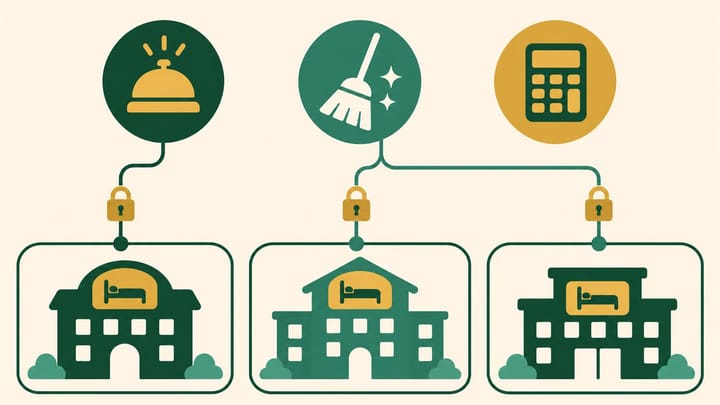
Separate Property Scope From Permission to Act
Property scope means which hotels or units the employee can access. Action permissions mean what they may view, change, approve, export, or administer within that scope.
A property selector is not proof of isolation. Hiding Hotel C from the main calendar is insufficient if the same account can still see its guest records in search or export its revenue. Review the actual access available through every relevant feature.
Likewise, viewing a payment record is different from taking a payment, issuing a refund, or changing settlement details. Viewing rates is different from editing rates. Build the design around these business decisions instead of a broad label such as “manager.”
Use a short assignment statement: “Leah may manage arrivals and room assignments at Hotel A; she may not refund payments, export the group guest list, or administer users.” Add any approved temporary property coverage and its end date separately.
The names and granularity of controls vary by PMS, or Property Management System. Map the approved responsibilities to the settings actually available. If a sensitive action cannot be separated technically, do not pretend an approval note removes that access; use a narrower account or controlled manager-assisted workflow and document the limitation.
Shared logins make this design difficult to enforce or review. If everyone uses the owner's account, a role description cannot show who changed a booking. In Smart Order, use hotel management software with individual staff roles aligned to their responsibilities. Review the available permission settings before rollout so daily work is not dependent on sharing an administrator login.
Make Staff Access Match the Hotel Job
Configure available user roles around actual responsibilities, then verify that employees can complete their work without unnecessary access to unrelated functions.
Define Roles Around Decisions Staff Actually Make
Use these as starting briefs, not a universal set of built-in role names. Record property scope and exceptions for each assignment.
Front Desk
Allow the reservation, arrival, room-assignment, and guest communication work required at the assigned property. Decide separately whether staff may cancel bookings, change agreed rates, apply discounts, take payments, or export guest information.
For a group receptionist, specify the properties covered. Do not use access to every hotel as a substitute for arranging temporary cover properly.
Housekeeping and Maintenance
Provide the room, task, readiness, and limited guest-service information needed for the assigned work. Avoid access to unrelated financial totals or bulk guest exports. Determine whether staff may mark work complete, pass inspection, or remove a maintenance hold; those decisions need not belong to the same person.
Revenue and Reservations
Define the approved property portfolio and permission to manage rates, availability, restrictions, and booking changes. Decide which high-impact changes need manager review. Access to rates across the group should not automatically include user administration or payment credentials.
Finance
Provide the booking, charge, payment, refund, and reporting access required for the assigned entities. Separate reviewing a refund from executing it where the system supports that distinction. Define export rights and the handling of downloaded records; losing PMS access does not recall files already exported.
Property Manager and System Administrator
A property manager may need operational oversight at one hotel, while a system administrator maintains users or configuration. Keep those responsibilities distinguishable even if one person performs both in a small business.
Protect administrator access with the available account-security controls and a documented recovery route. Keep a separately authorized way to recover access, but do not create an anonymous shared login that every shift uses.
Test the Effective Access, Not Just the Role Name
An employee can receive several roles or additional permissions. Review the final combination: removing one role may not remove a capability still granted elsewhere. Do not assume a restrictive role always overrides a broader one.
Use an approved test account and fictitious records. Avoid real refunds, live rate changes, or changes to another property's guest stay merely to test permissions.
- Write one allowed task and one prohibited task for each important boundary, including a property the account should not access.
- Configure the proposed role and property scope through the authorized administration process. Keep a record of the settings and approver.
- Sign in through the normal employee route after the change takes effect. Test a complete allowed task rather than only opening the menu.
- Test prohibited views and actions through search, reports, export, mobile, and other relevant supported routes. Stop if unintended real data becomes visible; retain only the minimum redacted evidence needed to correct access.
- Check the account's full role combination and action history. Correct any excess or missing authority, then repeat the affected tests.
For example, a two-day cover assignment may permit Leah to manage arrivals at Hotel B but not Hotel C. Test both conditions, then test that Hotel B access is removed after the agreed cover period. An expiry written in a roster is not the same as an enforced access expiry.
Check mobile access as well as desktop. Smart Order's mobile hotel app applies permissions from the main PMS, so include the phone workflow when validating a role. A successful desktop test alone should not stand in for the routes staff actually use.
Review Access When People Join, Move, or Leave
For a new employee, confirm the named account, job, properties, approver, start date, and training needed. Grant only the required access. Copying a long-serving employee's account can copy years of temporary exceptions too.
For a transfer or temporary assignment, review old access as well as new access. Record who will remove an exception if automatic expiry is unavailable. After a role change, verify the resulting access rather than assuming the saved settings applied immediately everywhere.
When someone leaves, disable their account through the approved process, address active sessions and related systems where supported, and reassign owned work. Removing PMS access does not necessarily revoke separate OTA, payment-provider, email, or device access. Handle each applicable account through its own authorized process.
Review the roster regularly and after significant staffing or property changes. Focus on dormant accounts, broad administrator roles, expired cover arrangements, overlapping permissions, and unexplained exports or sensitive changes.
The finished design should let the owner explain each employee's access in one sentence: the properties, the allowed work, and the important limits. Keep the approved exceptions visible and testable instead of allowing yesterday's emergency access to become tomorrow's default.