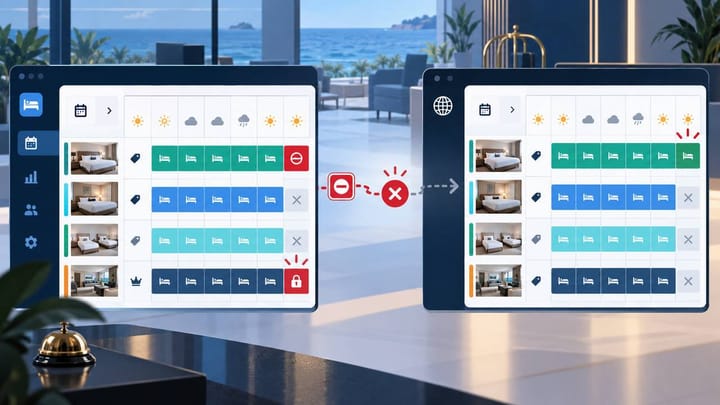
1. Search the OTA as a guest to confirm the room is still bookable.
2. Protect the affected dates before investigating the cause.
3. Check the property, room type, rate plan, and dates in the PMS.
4. Resend the stop-sell once, then confirm the OTA is closed.
When a stop-sell does not sync to an OTA, the immediate risk is simple: the hotel may receive a booking it cannot honor. You do not need to understand the technical connection before acting. First stop further sales, then check where the instruction went wrong.
This checklist is written for hotel managers and front-desk teams. It focuses on the information visible in the PMS, channel manager, and OTA extranet.
Protect the Hotel Before Troubleshooting
Start with a guest search on the affected OTA. Use the exact stay dates and number of guests. Continue until you can see the room and rate plan, because a property can appear in search even when the affected offer is closed.
If the room is still bookable, use the quickest approved way to protect the hotel. For a near-term or sold-out date, this may mean closing the room in the OTA extranet while the connection is checked. Record who made the temporary change and when.
Do not close unrelated rooms or the whole property unless the risk affects them. A broad closure can protect against overbooking, but it can also remove valid sales.
Tell the front desk and reservations team which dates and room types are affected. They should avoid manual bookings that use the same remaining rooms until the issue is resolved.
Smart Order's hotel channel manager helps teams manage mapped room inventory and channel updates from one place, making urgent closures easier to trace.
Keep Channel Availability Easier to Control
Manage hotel inventory and connected channels in one operational workflow with Smart Order.
Follow This PMS Checklist
Work through the checks in order. Stop when you find a clear error, correct it, and test again.
- Confirm the correct property. Multi-property accounts can open on the last hotel used. Check the hotel name before changing anything.
- Confirm the dates. Check the year as well as the month, especially for future seasons. Make sure the final night is included.
- Confirm the room type. Similar names such as Standard Double and Standard Double Balcony may be separate products.
- Confirm the rate plan. Closing a flexible rate may not close a non-refundable, breakfast, mobile, or member rate.
- Check what the PMS actually changed. An out-of-order room or front-desk block may reduce local availability without sending a stop-sell to OTAs.
- Check the channel status. Look for a success, pending, warning, or failed result beside the update. A pending instruction has not yet been confirmed.
- Check the room connection. Make sure the PMS room is still linked to the intended OTA room. This link is often called a mapping.
- Correct the problem before retrying. Fix the wrong date, room, rate plan, disabled connection, or rejected value first.
- Resend once. Repeated clicks make it harder to tell which update the OTA accepted.
- Recheck the OTA. Open the same dates in the OTA extranet and repeat the guest search.
The hotel is protected only when the correct offer is no longer bookable, not when the PMS merely shows a closed status.
Understand the Most Common Causes
The wrong rate plan remained open
The room may have several ways to book it. A stop-sell applied to the standard flexible rate does not always close a non-refundable or promotional rate.
Check: Compare the name of the bookable offer with the rate plan closed in the PMS.
Action: Close the correct rate plan, or close the whole room type if every offer should stop selling.
The PMS room is linked to the wrong OTA room
This often happens after a room is renamed, replaced, or newly created. The PMS can show a successful update even though it was sent to another OTA product.
Check: Compare the PMS room name and code with the connected room shown for that OTA.
Action: Correct the room connection, then send the intended availability again.
A local room block was mistaken for an OTA closure
Marking a room dirty, out of order, or unavailable to the front desk does not always change online inventory.
Check: Look for the hotel's sellable room count and channel availability, not only the housekeeping or room-status screen.
Action: Reduce online availability or apply the stop-sell through the system that controls OTA sales.
The channel connection is paused or needs attention
An expired login, disabled property connection, or account problem can stop new values from reaching the OTA.
Check: Look for a connection warning and the time of the last successful update.
Action: Restore the connection, then resend only the affected room and dates.
The OTA accepted the update but still shows an offer
The visible offer may belong to another room, occupancy, package, or sales partner. It may also be affected by a short display delay.
Check: Compare the exact room, rate plan, dates, occupancy, and cancellation terms.
Action: Refresh the extranet and guest search. If the same offer remains after the normal update period, collect evidence for support.
How to Confirm the Stop-Sell Worked
Use three simple checks.
First, reopen the dates in the PMS or channel manager. Confirm the correct room and rate plan show zero availability or closed status.
Second, open the same dates in the OTA extranet. Confirm the stored availability is closed. Do not rely on the value still visible in an unsaved editing box.
Third, search as a guest using the same dates and occupancy. The affected offer should not be bookable. If other rooms remain on sale, make sure they are genuinely different products.
Save a short record with the affected channel, dates, room, time closed, person responsible, and final confirmation. This helps the next shift understand that the risk has been contained.
When to Contact Support
Escalate when the correct update shows as accepted but the same OTA offer remains bookable, when a mapping cannot be corrected, or when the connection repeatedly fails.
Provide the property name, OTA, room type, rate plan, dates, expected result, current result, and timestamps. Add screenshots from the PMS, OTA extranet, and guest search. If the system displays an update reference, include it, but hotel staff do not need to interpret it.
Do not include card details or unnecessary guest information.
Prevent the Same Problem
Keep room and rate-plan names clear enough for staff to distinguish them. Review channel connections whenever a room or rate plan is added, renamed, or removed. Include an OTA guest search in the checklist for sold-out dates and major events.
Assign one system to control normal channel availability. If staff make an emergency change directly in an OTA extranet, require them to record it and reconcile the PMS afterward. Otherwise, a later automatic update may reopen the room.
Smart Order's front desk software helps teams keep temporary inventory controls and follow-up work visible across shifts.
Give Every Shift a Clearer Inventory Workflow
Use Smart Order to keep room availability, channel work, and front-desk follow-up together.
Frequently Asked Questions
Should we close the OTA manually during an emergency?
Yes, if the room is still bookable and the hotel's procedure allows an emergency override. Record the change and reconcile it with the PMS before normal syncing resumes.
Does zero PMS availability always close every OTA rate?
Not always. Confirm how the room and rate plans are connected. Independently managed promotions or occupancy options may need separate checks.
Should we keep pressing sync until it works?
No. Find and correct the cause, then retry once. Multiple updates can create confusion and may overwrite a correct value.
Is the issue resolved when the PMS says success?
Not yet. Confirm the value in the OTA extranet and run a guest search for the affected offer.
