1. Confirm the reservation in the correct Trip.com eBooking property before changing the PMS or inventory.
2. Search the same booking reference through eBooking, the connectivity provider, and every PMS status.
3. Check property, room, rate-plan, occupancy, and message mapping before retrying delivery.
4. Protect the guest with one documented inventory control, then recover one connected PMS reservation.
A Trip.com booking not received by PMS remains a hotel obligation if Trip.com has confirmed it. The booking may have stopped at the connectivity provider, failed product mapping, entered a PMS exception queue, or imported successfully but remained hidden from the arrivals view.
Do not begin with a blind resend or a second reservation. Confirm the Trip.com order, locate the last successful handoff, and protect the guest and room while the technical cause is corrected.
Confirm the Booking in Trip.com eBooking
Sign in to the correct property in Trip.com eBooking and open the order or reservation management area shown in the account. Search by Trip.com booking or order number, guest name, booking date, and stay dates. Expand status and date filters so modified, cancelled, and future orders are not hidden.
Open the booking and record the property, Trip.com reference, confirmation status, creation and modification times, stay dates, room, rate plan, occupancy, guest details, payment instructions, price, and special requests.
Open the correct property's Trip.com eBooking account and go to its booking or order-management area. eBooking is the accommodation-partner extranet used to manage upcoming reservations. Menu wording can vary by market and account, so follow the order-management function visible to the property.
If eBooking does not contain the order, recheck the property and reference before trusting a guest screenshot or forwarded email. If eBooking shows a confirmed booking, protect the stay even when the PMS record is missing.
Trace the Trip.com Reservation Path
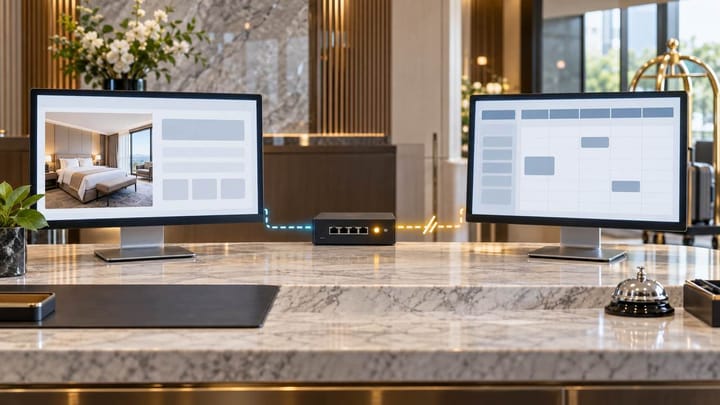
A connected reservation normally moves from Trip.com to the channel manager, CRS, or PMS connector, through property and product mapping, into the PMS import service, and finally into the front-desk view.
- Search the provider by Trip.com booking number and creation time.
- Check whether the reservation was received, synchronized, queued, delivered, rejected, or retried.
- Capture the provider message ID, destination property, response, and error text.
- Search the full PMS by Trip.com reference, provider reference, guest name, booking date, and stay date.
- Inspect pending, rejected, duplicate, quarantined, archived, cancelled, modified, and unassigned records.
- Normalize timestamps to one time zone before deciding where the delay occurred.
If eBooking has the order but the provider does not, investigate the Trip.com-to-provider connection. If the provider delivered it and the PMS rejected it, work from the import error. If the PMS contains the booking outside Arrivals, correct the filter or operational status instead of importing again.
The Trip.com Connectivity workflow can cover booking confirmation, cancellation, modification, reservation-status inquiry, and reservation-information synchronization. Ask the provider which of these message flows its connection actually supports and where each status is logged.
Smart Order's hotel channel manager keeps incoming Trip.com references tied to mapped rooms, rate plans, availability, and the PMS reservation path.
Trace Trip.com Bookings Before Retrying
Connect reservation delivery, mapped inventory, and the PMS booking so staff can isolate one failed handoff without creating a duplicate.
Check the Connection and Product Mapping
Confirm that the correct Trip.com property is connected and that inbound reservation synchronization is active. A successful outbound rate or availability update does not prove that inbound bookings are reaching the PMS; the directions may use different services.
Compare the Trip.com property, room-type, rate-plan, and product identifiers with the provider mapping and active PMS products. Review recent changes: a cloned plan, replaced room, renamed product, new occupancy option, deactivation, or reconnection can leave one booking without a valid destination.
Check occupancy, child settings, meals, cancellation terms, payment model, currency, and inventory pool. Similar display names do not prove that the IDs or commercial rules match.
Do not remap a live room merely to force one order through. Preserve the current mapping, prove the correct physical room and plan, obtain approval, correct only the affected product, and run a low-risk test.
Read the PMS Import Error
Common import failures include an inactive property, missing room or rate mapping, unsupported occupancy, invalid dates, missing required guest fields, unsupported characters, duplicate external ID, closed accounting date, or a modification arriving before the original booking.
Search the PMS exception or quarantine queue. If the Trip.com reference already exists on a partial record, preserve that record and repair the connected import. Creating another booking can reduce inventory twice and break future modifications or cancellations.
If import shows success, check property scope, arrival range, reservation status, room assignment, source filter, timezone, business date, and user permissions. A modified stay may have moved outside today's arrivals list, while a cancelled order may remain only in history.
Protect the Guest and Shared Inventory
Once eBooking confirms the reservation, operations should contain the risk without interfering with the technical recovery.
- Search every system one final time using all Trip.com and provider references.
- Place one temporary hold on the correct physical inventory if arrival risk requires it.
- Create a manual PMS record only under an approved exception procedure.
- Label it pending Trip.com sync reconciliation and include the source booking number.
- Match dates, room, plan, occupancy, price, payment instructions, inclusions, and cancellation conditions.
- Keep protected payment details out of general notes and support screenshots.
- Disable duplicate confirmation, payment, access-code, and review-request automations.
- Assign an owner and deadline for reconciling the placeholder after recovery.
Do not cancel the Trip.com order or ask the guest to rebook because the hotel's integration failed. Do not subtract inventory independently in eBooking, the channel manager, and the PMS. One recorded temporary control is easier to reverse when the connected reservation arrives.
Check the shared inventory pool immediately for a same-day arrival or last-room sale. Trip.com may have accepted the booking against inventory already stored on its side while the PMS still shows the room as available to other channels.
Retry From the Failed Handoff Only
Ask the connectivity provider whether it receives a notification, retrieves reservations, performs scheduled synchronization, or uses another certified method. The correct recovery action depends on that connection.
Correct the mapping, credential, validation, or service error first. Then retrieve or replay the original booking once with the same source reference. Before retrying, check whether a delayed delivery, modification, or cancellation is already queued.
Do not let Trip.com support, the channel manager, PMS support, and front desk all resend or recreate the order independently. Name one technical owner and record every recovery attempt with its timestamp and result.
After recovery, confirm that:
- one PMS reservation contains the Trip.com and provider references;
- room, plan, dates, occupancy, price, payment instructions, and status match eBooking;
- shared availability decreased exactly once;
- temporary inventory and manual records were reconciled without losing notes or tasks; and
- a later modification or cancellation can update the same connected reservation.
Escalate With a Reproducible Incident Package
Contact the system after the last successful handoff. If the provider never received the booking, involve the provider and Trip.com. If the provider delivered it but the PMS rejected it, begin with the PMS integration team.
Include the property ID, Trip.com booking number, room and rate-plan IDs, provider reference, booking and modification times with time zone, message ID, delivery response, PMS error, mapping screenshots, search filters, inventory before and after, and every action already taken.
State the expected and actual outcome: "Confirmed Trip.com booking X should create one PMS reservation for product Y; the provider shows status Z, but no matching PMS record is visible as of time T."
Escalate immediately when arrival is the same day, the booking consumed the last room, payment instructions are unclear, several bookings are missing, or the queue continues to grow.
Keep Recovered Trip.com Arrivals Visible
Bring connected bookings and room availability into one front-desk workflow so delayed reservations do not remain on a separate manual list.
Frequently Asked Questions
Where should staff first check a missing Trip.com booking?
Check the correct property in eBooking and confirm the Trip.com booking number, status, dates, product, and payment instructions before changing the PMS.
Can rates sync while Trip.com reservations fail?
Yes. Outbound rates and availability can use different services and validations from inbound reservation synchronization. Test both directions separately.
Should the front desk create a manual reservation?
Only when an approved exception process requires immediate guest protection. Mark it for reconciliation and prevent duplicate automation.
Why is the reservation missing only from Arrivals?
It may exist under another property, date, status, room assignment, source filter, timezone, or permission scope. Search the whole PMS by external reference.
What proves the Trip.com sync has recovered?
One connected PMS booking matches eBooking, inventory changed once, temporary controls are resolved, and future reservation events remain linked to the same record.
A missing Trip.com reservation is resolved only when the guest is protected and the booking is traceable from eBooking to one clean PMS record. Confirm first, repair the failed handoff, and verify the next lifecycle event before closing the incident.
