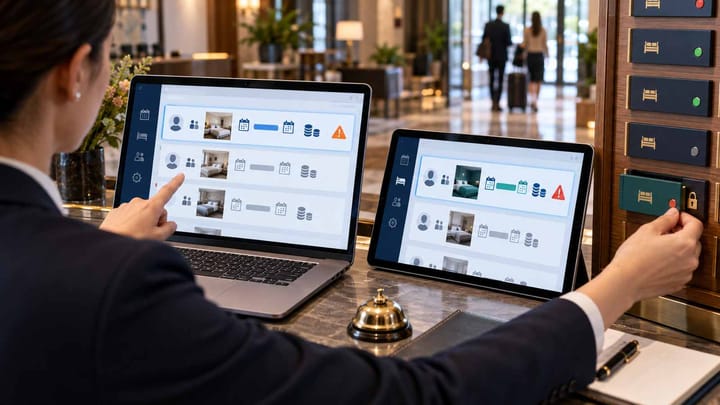
1. Open the reservation in Trip.com eBooking and confirm whether the change is final or still waiting for hotel action.
2. Compare the latest dates, room, guest count, price, payment instructions, and status with the original PMS booking.
3. Protect affected rooms before releasing old inventory or promising an extended stay.
4. Correct the original PMS reservation once and watch for a delayed update so it does not create a duplicate or reverse the fix.
A Trip.com reservation modification not syncing can leave the front desk working from an old arrival date, room type, guest count, price, or cancellation status. Because the original booking is already in the PMS, the problem is easy to miss until the guest arrives or the hotel sells the room again.
Start with the booking, not the connection. Confirm what Trip.com currently shows, compare it with the existing PMS reservation, and protect the room and payment position before investigating why the automatic update did not appear.
Trip.com eBooking menu labels and approval steps can vary by market, property, and type of change. Use the latest status and action shown on the reservation rather than relying only on an email notification.
Confirm Whether the Change Is Final
Sign in to the correct property in Trip.com eBooking and open the booking or order-management area. Search using the Trip.com reservation number and guest name, then open the full reservation.
Look for the latest status and modification time. A guest request awaiting hotel acceptance is not the same as a confirmed reservation change. If the screen asks the hotel to accept, reject, or respond, make that decision according to availability, rate rules, and the property's approval policy.
Do not update the PMS from a guest message or forwarded email alone. The guest may have requested a change that was not approved, or a later update may already have replaced the message you received.
Trip.com identifies eBooking as the accommodation-partner system for managing upcoming reservations, rates, availability, and property operations. Its property partner FAQ also directs hotels to eBooking support when account-specific help is needed.
Compare the Latest Booking With the PMS
Open the original PMS reservation using the Trip.com booking number. Compare both records side by side before editing anything.
- Check arrival and departure dates, including whether the stay was extended or shortened.
- Check the number of rooms, room type, occupancy, guest name, and child details.
- Check the current booking status and whether the whole reservation or only one room changed.
- Check the final price, currency, meal basis, cancellation terms, taxes, and special requests.
- Check who collects payment and whether the amount already paid or still due has changed.
- Record the difference and the time staff first noticed it.
Do not compare only the item mentioned in the notification. A date change can also affect price, cancellation terms, meal inclusion, or payment timing.
Protect the Hotel Before Making a Manual Correction
If the stay was extended, confirm that the additional nights are available before promising them to the guest. If the booking moved to a different room category, protect the new room before releasing the old one.
For a shortened stay or cancellation, do not immediately return rooms to sale until the Trip.com status is confirmed. A partial cancellation in a multi-room booking should not cancel every room in the PMS.
Tell the front desk which version is current. Add a short internal note with the Trip.com booking number, confirmed change, time checked, and employee responsible. Keep sensitive payment details out of ordinary notes.
When reservation changes are split between email, OTA screens, and the PMS, shift teams can easily restore the old dates or collect the wrong amount. Smart Order's front desk software keeps the active reservation, room assignment, payment task, and staff follow-up together so the next shift can see the controlled version.
Keep Reservation Changes Visible to Every Shift
Connect the current booking, room assignment, and follow-up task so staff act on one confirmed version while a channel update is being resolved.
Check Why the PMS Still Shows the Old Version
Use a simple symptom, check, and action approach.
The Trip.com change is still pending
Check: Open the reservation in eBooking and look for an approval or response action.
Action: Accept or reject it according to hotel policy. Do not alter the PMS as though the change were final while it remains pending.
The change is confirmed in eBooking but absent from the channel manager
Check: Search the same reservation number and review the latest update status.
Action: Contact the channel-manager provider with the booking number, modification time, and screenshots. Ask it to recover the confirmed change once.
The channel manager shows the change, but the PMS does not
Check: Search the whole PMS, including modified, cancelled, pending, and unassigned reservations.
Action: Contact PMS support if the original reservation did not update. Keep the current booking protected while the hotel waits.
The PMS changed, but the arrivals list did not
Check: Clear arrival-date and status filters, then search by booking number and guest surname.
Action: Correct the room assignment or operational status instead of creating a new reservation.
A staff member already corrected the PMS manually
Check: Confirm whether an automatic update is still pending.
Action: Mark the reservation for review so a later change does not overwrite the correction or release inventory twice.
Avoid repeated resend requests. One delayed update plus several manual attempts can produce duplicate reservations or repeated inventory changes.
Correct the Original Reservation Safely
Update the original PMS reservation rather than creating a second booking. Keep the Trip.com confirmation number attached so later changes and cancellations can still be matched to the same stay.
Follow the property's approval rules for price changes, waived fees, room upgrades, or payment corrections. If the guest owes more, confirm how the additional amount should be collected before the front desk requests payment. If the price decreased, confirm who handles any refund.
After saving, check that room inventory changed once. For a date extension, the added nights should decrease availability. For a shortened stay or cancellation, only the released nights or rooms should return to sale.
If the automatic modification later arrives, compare it with the manually corrected reservation before accepting another change. Do not allow the PMS to create a new booking solely because the original record has already been edited.
Verify the Fix Before Closing the Case
Reopen the Trip.com reservation and the PMS record. Confirm that the current status, dates, room count, room type, guest details, price, and payment instructions agree.
Check the affected dates in the PMS calendar and the inventory your hotel sends to Trip.com. The number of sellable rooms should reflect the changed reservation exactly once.
For an arrival within the next 48 hours, brief the next front-desk shift. For a cancellation or payment change, brief finance as well. Keep the case open until any delayed update has been checked and the guest has received the correct confirmation.
Escalate quickly when the guest arrives the same day, the change affects the last room, payment instructions are unclear, several reservations are affected, or staff cannot tell which version is current. Provide the booking number, screenshots of both records, modification time, affected dates, and actions already taken. That is usually enough for the responsible support team to begin without asking hotel staff to interpret technical logs.
Frequently Asked Questions
Should front desk create a new PMS booking for the changed stay?
Usually no. Correct the original reservation so the Trip.com reference, payment history, and later cancellation remain attached to one PMS record.
What if the guest says the dates changed but eBooking does not?
Do not treat the request as confirmed. Recheck the correct property and booking number, then ask Trip.com support to confirm the current reservation before changing inventory or price.
Can a modification cause an overbooking?
Yes. An extension, room-type change, or additional room can consume inventory that the PMS still shows as available. Protect the required rooms as soon as the confirmed change is identified.
How long should the hotel wait for the update?
Do not use a fixed waiting time for an urgent arrival. Protect the guest immediately, then contact the responsible provider if the confirmed change is not visible. For non-urgent stays, follow the normal connection-status guidance shown by your hotel system.
