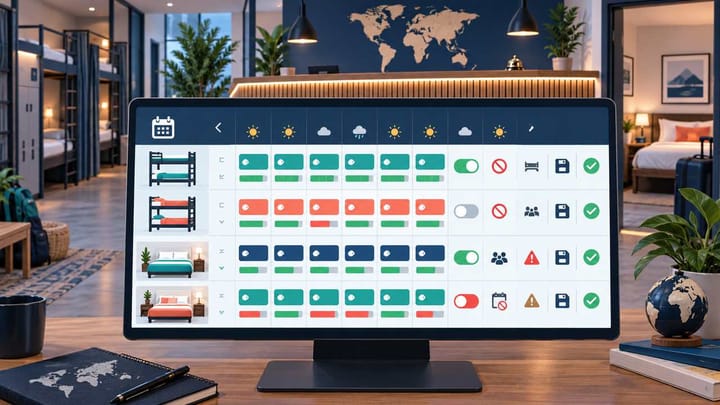
1. Use Hostelworld Property Manager if the listing is managed manually.
2. Use the PMS or channel manager if it controls the Hostelworld connection.
3. Check whether the product is sold per bed or per room before changing the price.
4. Reopen the calendar and run a guest search after saving.
The safest way to learn how to update rates in the Hostelworld extranet is to begin with one question: where does your hotel or hostel normally control online prices and availability?
If staff manage Hostelworld directly, make the change in Hostelworld Property Manager. If a PMS or channel manager controls the listing, update that connected system instead. Editing both places can cause one value to overwrite the other.
Screen names can vary by account, but the operating steps remain the same: choose the property, dates, room or bed type, rate plan, price, and sellable quantity, then verify the final guest offer.
Before You Change Anything
Write down the current and intended price, dates, room or dorm product, and sellable quantity. Confirm the account currency and read whether the selected product is priced per bed or per room.
This distinction matters. A six-bed dorm sold by bed may have six sellable spaces. A private six-bed room sold as one room normally has one sellable unit. Entering six units for the private room could expose more rooms than the property owns.
Also check whether the rate plan is flexible, non-refundable, or promotional. Changing one rate plan does not always change the others.
If a PMS or channel manager is connected, check that the Hostelworld connection is active. Unless the property is handling an approved emergency, stop here and make the update in the connected system.
Update a Manually Managed Hostelworld Listing
Use these steps when Hostelworld is managed directly or when the property has approved a temporary manual override.
- Sign in to Hostelworld Property Manager and confirm the correct property.
- Open the rates and availability calendar. The exact menu label may vary by account.
- Move to the correct month and select the required dates. Check the year for future bookings.
- Select the exact dorm, bed, or private-room product.
- Select the intended rate plan, such as flexible or non-refundable.
- Confirm whether the price field is per bed or per room and check the currency.
- Enter the new rate.
- Enter the number of beds or rooms available, or choose open or closed status.
- Review any minimum stay, arrival restriction, or advance-booking rule shown for those dates.
- Save once and wait for confirmation.
- Leave the editing view, reopen the same dates, and confirm the stored values.
If rates and availability are saved separately in your account, complete and verify one change before making the other. This makes any error easier to find.
Keep Rates and Inventory Easier to Manage
Use Smart Order to bring hotel pricing, availability, reservations, and daily operations into one workspace.
Update Hostelworld Through a PMS or Channel Manager
For a connected listing, use the system that normally sends rates and availability to Hostelworld.
Open the PMS or channel manager, choose the correct property, room type, rate plan, and dates, then enter the new price or availability. Save once and check the Hostelworld channel status.
A success result means the connection accepted the update. A pending result still needs time. A warning or failed result needs attention before staff resend anything.
After a successful result, open Hostelworld Property Manager and check the same room and dates. Use the extranet as confirmation rather than making another edit there.
If an urgent manual closure is required because a sold-out bed remains bookable, record the override. Correct the PMS value and confirm both systems agree before automated updates resume.
Handle Dorm Beds and Private Rooms Correctly
The most important control is the unit being sold.
For a dorm, availability usually represents individual beds. If two beds remain, the sellable quantity should normally be two.
For a private room, availability usually represents complete rooms. One private room is normally one sellable unit, regardless of how many beds it contains.
Some properties sell the same physical space in more than one way. A six-bed room might be offered as six dorm beds or as one private room. If these offers share the same physical inventory, a booking on one must reduce or close the other. Confirm that the PMS or operating procedure handles this relationship before opening both offers.
When in doubt, use a lower quantity and test one reservation. It is safer to miss a small amount of availability than to sell the same bed twice.
Check a Multi-Date Update
For a long date range, verify the first date, last date, and at least one date in the middle. Add a weekend or event night if it has different pricing.
Avoid using one amount across an entire season without checking existing special dates. A broad update can replace intentional weekend rates, event prices, stop-sells, or minimum-stay rules.
Keep a short change record for important periods. Note who made the update, the affected product, date range, old value, new value, and reason. This gives the next shift a clear reference if a guest reports a different price.
Verify What Guests Can Actually Book
Reopening the calendar confirms that the account saved the change. A guest search confirms how the offer is being sold.
Search for the exact check-in date, number of nights, and number of guests. Select the relevant room or bed and rate plan. Confirm that the product is available only when the property has inventory, and that the final stay total matches the intended pricing basis.
Check cancellation terms and any taxes or charges displayed with the offer. A guest may see a different total because the search uses another currency, includes several beds, or applies a promotion. Compare the full booking conditions before changing the base rate again.
If a product with positive availability does not appear, check the rate plan, minimum stay, arrival rules, booking window, and occupancy. Availability alone does not guarantee that an offer can be booked.
Solve the Most Common Problems
The old price or availability is still showing
Check the property, year, dates, product, and rate plan. For a connected listing, confirm the update was accepted for Hostelworld. Correct any visible warning, then resend the affected dates once.
A manual value changes back later
The connected PMS or another user may have sent a newer value. Identify where the latest change came from and correct the normal control point instead of repeatedly editing the extranet.
The guest price is higher or lower than expected
Confirm whether the price is per bed or per room. Then check the number of guests, stay length, currency, taxes, and active promotions. Compare the final total, not only the first price shown.
One rate plan changes, but another does not
Flexible, non-refundable, and promotional rates may be managed separately. Check whether the second plan has its own price or is calculated from a main rate.
The calendar has rooms, but the offer is not bookable
Look for a closed rate plan, minimum stay, arrival restriction, or booking-window rule. Change only the rule that is preventing the intended sale.
When to Ask for Help
Escalate when the correct connected update shows as accepted but the Hostelworld value remains wrong, when a room is linked to the wrong product, or when staff cannot access the required calendar controls.
Provide the property, room or bed type, rate plan, dates, current value, intended value, and the time of the last attempt. Include screenshots from the controlling system, Hostelworld calendar, and guest search. Use the support option in the property account or the Hostelworld property partner contact.
Do not include guest card details in screenshots or support messages.
Simplify Daily Rate and Availability Work
Bring pricing, inventory, reservations, and front-desk follow-up together with Smart Order.
Frequently Asked Questions
Should I update Hostelworld in the extranet or PMS?
Use the system that normally controls the connection. Connected properties should usually update the PMS or channel manager. Standalone listings can use Hostelworld Property Manager.
Is a dorm rate always per bed?
Do not assume. Read the pricing label for the selected product and confirm the final guest total.
Why was my manual change overwritten?
A connected system or another user probably sent a newer value. Check the time of the later change and correct the normal control point.
How do I know the update is live?
Reopen the dates in Hostelworld Property Manager, then run a guest search for the same stay, occupancy, room or bed, and rate plan.
