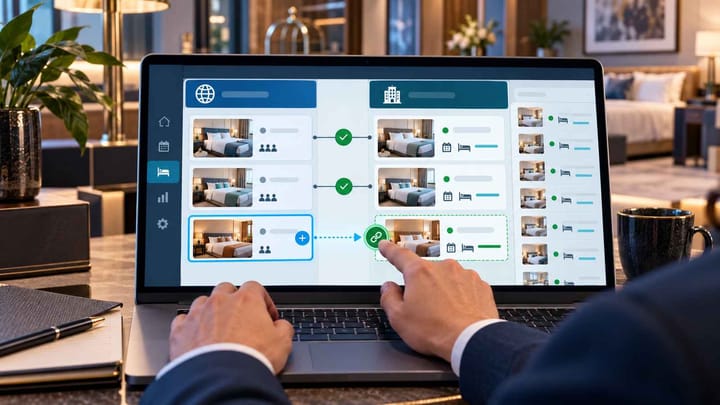
1. Create and check the room type in Agoda Partner Portal before making it bookable through your channel manager.
2. Match the physical room, occupancy, bed setup, meal basis, cancellation terms, and pricing model—not just the room name.
3. Start with limited availability, confirm the guest-facing result, and place a test reservation before releasing normal inventory.
Agoda channel manager room mapping is the point where a room in your hotel system is connected to the room Agoda sells. A wrong match can send a booking into the wrong room category, publish the wrong occupancy, or leave inventory open after the hotel is sold out.
Adding a new room type safely is therefore more than creating a room name. The hotel must prepare the product, connect the correct Agoda room and rate plans, release inventory carefully, and confirm that a real booking reaches the right place.
Menu labels can vary by property type and account configuration. The operating order below remains the same even when your account uses slightly different wording.
Prepare the Room Before Opening Agoda Sales
Decide exactly what the new room represents. Confirm the number of physical rooms, maximum occupancy, bed arrangement, smoking status, view, included amenities, and whether children or extra beds are allowed.
Then create the corresponding room category in the PMS or channel manager your hotel normally uses. Use a clear internal name that staff can distinguish during busy shifts. “Deluxe King - Balcony” is safer than a second room simply called “Deluxe.”
Do not reuse an old room category just because it is currently inactive. Old mappings, rate plans, reports, or future reservations may still refer to it. A genuinely new product should have its own clean room record unless your system provider confirms that reusing the old one is safe.
Before continuing, assign an owner for the setup. One person should control the new room until the Agoda listing, channel connection, and PMS inventory all agree.
Create the New Room Type in Agoda Partner Portal
For a hotel-type property or multi-unit home, Agoda's current room setup flow is available under Property > Room setup. The exact choices depend on the property account, but the safe operating sequence is:
- Sign in to Agoda Partner Portal and select the correct property from Listings.
- Open Property > Room setup, select Create, and choose the closest accurate room name.
- Enter the number of rooms of this type, permitted occupancy, bed details, rate limits, room content, and photos.
- Review every field against the physical room and the PMS room category.
- Save the room, then record the Agoda room type ID shown in Room setup.
- Keep availability closed or at zero until the channel-manager connection has been checked.
Agoda also provides an optional External code ID field for a code supplied by the channel manager. Use it only when your provider instructs you to do so. Do not invent a code or copy an ID from another room.
The current room-creation fields and navigation are documented in Agoda's room setup guidance. Use the room name available in the account rather than forcing a marketing name that does not accurately describe the accommodation.
Connect the Room and Its Rate Plans
A room connection answers one practical question: when Agoda sells this room, which PMS or channel-manager room should lose one unit of availability?
Open the Agoda connection inside your channel manager and select the new Agoda room type. Match it to the new hotel room category you prepared. Next, connect each Agoda rate plan to the correct hotel rate plan. Room Only should not be connected to Breakfast Included, and a refundable plan should not be connected to a non-refundable plan.
Check the commercial details before saving: occupancy, meal inclusion, cancellation policy, payment arrangement, pricing model, currency, and inventory pool. Similar names are not proof that two products are equivalent.
Agoda identifies the property ID beside the property name, room type IDs under Property > Room setup, and rate plan IDs under Rates and availability > Rate plans. These are the identifiers your channel manager may request to complete the connection. Agoda's channel manager connection guide shows where they appear.
Do not connect the new room to an existing Agoda room merely to make the setup finish faster. That shortcut can combine two physical room pools and create overbookings later.
When a hotel adds a room in one system but forgets the matching Agoda product, rates and availability can stop at the wrong room. Smart Order's hotel channel manager keeps the room connection, availability changes, and incoming reservation reference in one operating workflow so managers can check the result before releasing full inventory.
Add New OTA Rooms With a Controlled Workflow
Connect room types, rate plans, and availability in one place, then confirm the result before the new Agoda product receives normal inventory.
Do Not Confuse Two Different Mapping Tasks
Agoda Partner Portal may also show Property > Room mapping. That page is used to match rooms supplied by Agoda partners with rooms already listed on your property page. It helps resolve duplicate or unmapped partner-supplied rooms.
It is not the same as connecting your PMS or channel-manager room to Agoda. For a new channel-managed room, complete the connection inside your channel manager using the Agoda property, room type, and rate plan records.
If you also see an unmapped partner room on the public Agoda listing, review it separately. Confirm the bed type, occupancy, room size, view, and amenities before using Partner Portal's room-mapping action. Never assume it is the new room simply because the names look similar.
Release Inventory in a Small, Controlled Test
After the room and rate plans are connected, send a small amount of availability for low-risk future dates. One room on a quiet date is safer than opening the full season immediately.
Confirm the result in three places. The channel manager should show that the update completed. Agoda Partner Portal should show the intended room, rate plan, price, and availability. A guest search should display the correct occupancy, meal basis, cancellation terms, taxes, and final selling price.
If the room is missing, do not repeatedly recreate it. Check whether the room is active, whether a rate plan is attached, whether the chosen dates have inventory, and whether the rate falls within the room's allowed range.
If Agoda shows the wrong room or plan, close the new product again. Correct the connection before sending more availability. Preserve screenshots of the Agoda room, the hotel-system room, and the rate-plan pairing so the responsible provider can see the mismatch.
Place a Test Reservation Before Full Launch
A successful availability update proves that Agoda can display the product. It does not prove that an incoming reservation will enter the correct PMS room.
Place one cancellable test reservation for the controlled date. Confirm that the booking appears under the intended Agoda room and rate plan, reaches the PMS once, reduces the correct inventory pool once, and carries the right guest price and payment instructions.
Cancel the test through the normal guest or partner process and confirm that the cancellation reaches the original PMS reservation and restores inventory once. Do not delete the PMS record manually before checking the cancellation flow.
If your hotel cannot place a test booking, monitor the first live booking with the same checks and keep the initial inventory limited until it completes successfully.
Keep the Mapping Safe After Launch
Record the Agoda room type ID, connected hotel room, connected rate plans, launch date, test result, and employee who approved the setup. Keep this record with the hotel's channel setup notes.
When a room name changes in Partner Portal, existing bookings do not automatically change, and the channel-manager connection may also need attention. Review the connection after renaming, replacing, deactivating, or cloning any room or rate plan.
The safest rule is simple: create the product first, connect it once, test with limited inventory, and only then release normal availability. That order keeps a small setup mistake from becoming a stream of wrong-room bookings or an avoidable overbooking.
Frequently Asked Questions
What is Agoda channel manager room mapping?
It is the connection between an Agoda room type and the corresponding room category in the hotel system. It tells the connected systems which inventory should change when Agoda receives an update or a reservation.
Should the room name be identical in both systems?
The names can differ, but the physical room, occupancy, beds, amenities, and commercial terms must represent the same product. Clear internal names reduce mistakes.
Can the hotel open inventory before rate plans are connected?
Do not open normal inventory until at least one correct, sellable rate plan is attached and verified. A room without the intended rate plan may remain unavailable or sell under the wrong conditions.
What should the hotel do if the new room shows the wrong price?
Close or limit the product, check the connected rate plan and occupancy pricing, then resend one controlled update. Recheck the final guest price before reopening normal inventory.
