1. A Booking.com mobile rate is a device-targeted discount, not a replacement for your public base rate.
2. Choose whether the offer applies to the Booking.com app only or to both the app and mobile browsers.
3. Check the parent rate, eligible rooms, excluded dates, and other promotions before activation.
4. Verify desktop, mobile web, and app prices separately because eligibility and discount stacking can change the final amount.
A Booking.com mobile rate promotion gives eligible travelers a lower price when they book on a mobile device. It can target the Booking.com app only or include mobile browsers, depending on the option selected. The hotel funds the discount through a percentage reduction from an eligible parent rate.
The rate is fenced by device, so a lower mobile price is not automatically a rate-parity failure. Problems begin when the hotel lowers its base rate, discounts high-demand dates, or overlooks another eligible offer.
What a Booking.com Mobile Rate Promotion Changes
Mobile rates belong to Booking.com's targeted-rate tools. Unlike a public rate plan, the discounted offer appears only when the traveler meets the device condition. An app-only setting excludes guests browsing the Booking.com website on a phone. An app-and-mobile-browser setting reaches both groups and may also include tablet browsers.
Booking.com's current connectivity specification accepts mobile-rate discounts from 10% to 80%. Your Extranet may show a narrower range based on eligibility and account configuration.
The promotion normally discounts one or more active parent rates. It does not repair a closed rate, add missing availability, or create an unmapped room-rate product. A room still needs an active rate plan, sellable inventory, and restrictions that allow the requested stay.
Mobile eligibility comes from the device; Genius eligibility comes from authenticated membership. A traveler can meet both, and multiple discounts can affect the final price when stacking is enabled.
Set a Net Rate Floor Before Activating the Discount
Start with the lowest net amount the hotel is willing to accept. Rate parity is easier to control when the team knows the public base rate, mobile discount, OTA commission, and any additional promotion cost before activation.
Assume the public rate is $200 and the mobile discount is 10%. The eligible mobile price becomes $180 before other discounts. At a 15% OTA commission, the hotel retains $153 before payment and operating costs. If an additional eligible discount contributes to the final price, net revenue falls further.
Calculate low-demand weekdays and peak dates separately. A discount may fill empty inventory but only reduce margin on a weekend already likely to sell.
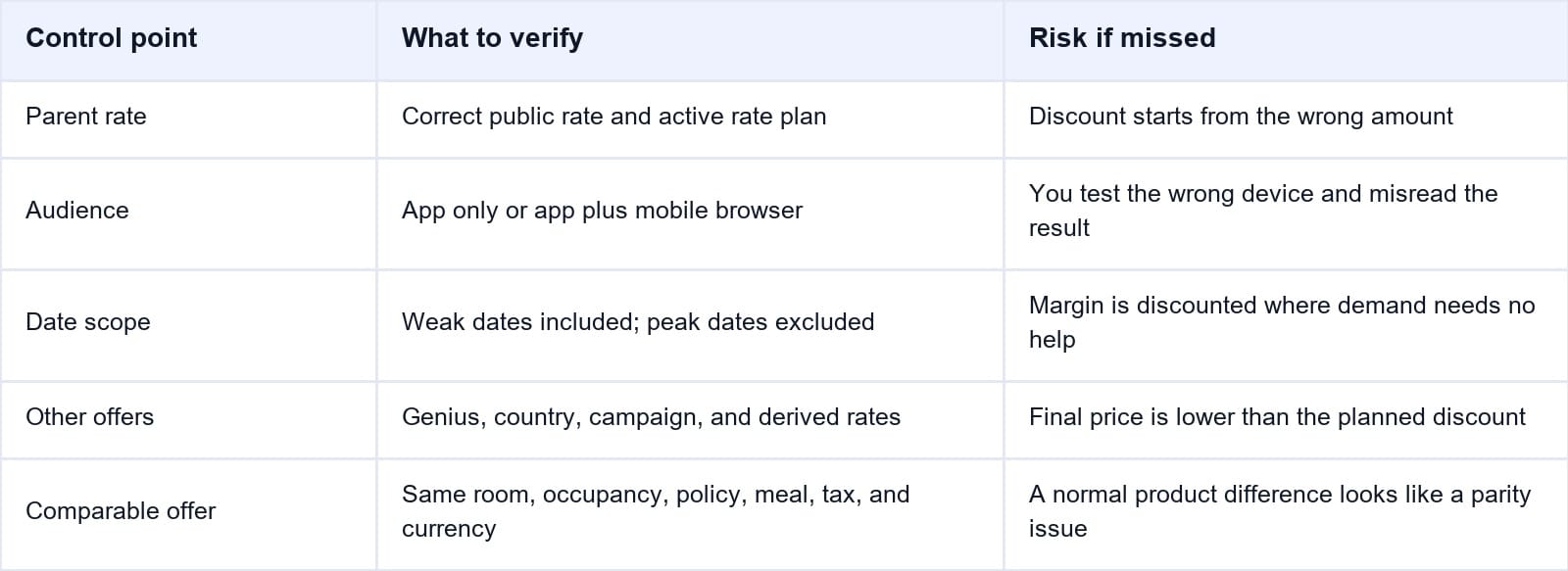
The control points below help prevent the most common pricing mistakes.
When the hotel needs to compare discounted Booking.com revenue with other channels, Smart Order's hotel reporting software brings channel revenue, occupancy, ADR, and booking source into one view. Managers can see whether mobile bookings filled weak dates or replaced higher-rate demand.
Measure the Net Result of Mobile Discounts
Compare Booking.com revenue, occupancy, and channel performance so the next mobile-rate decision is based on margin and demand, not booking volume alone.
How to Set Up a Mobile Rate in Booking.com Extranet
Menu labels vary by property type, region, eligibility, and configuration. The usual path is Promotions, although some accounts show Mobile Rates under Rates & Availability or Calendar & Pricing.
- Sign in to the Booking.com Extranet and select the correct property.
- Open Promotions and choose the option to add or create a new promotion.
- Find Mobile Rate and select Add, Set up, or the equivalent action shown.
- Choose the audience: App only or App and mobile browsers. Read the on-screen definition before continuing.
- Enter the discount percentage within the range permitted by your account.
- Review the parent rate plans and room types included. If scope controls are available, select only the products that support the campaign goal.
- Add excluded stay dates or other eligibility settings offered in the form. Protect event dates, holidays, and near-sellout periods that do not need a discount.
- Review the summary, confirm the percentage and scope, then activate the promotion.
- Reopen the active promotion and record its status, applicable products, audience, and exclusions.
Do not confuse booking and stay dates. Confirm whether each exclusion applies to arrival dates, stay dates, or another eligibility window shown.
If the Mobile Rate option is absent, the property may be ineligible, the user may lack permission, or the promotion may be managed through a certified connectivity provider. Check the account's promotion area and contact Booking.com Partner Support or the connected provider with the property ID.
Set It Up Through a Channel Manager Only When Supported
A standard rate-and-availability connection does not automatically include promotion management. The provider must support Booking.com's Promotions API or another approved workflow.
If supported, create it in the provider's promotion module. Select Mobile Rate, target channel, percentage, parent rates, rooms, and exclusions. Submit it and confirm that it appears in Booking.com.
If the provider does not support promotion management, configure the Mobile Rate in the Extranet. Continue sending the normal parent price and availability from the channel manager. Do not simulate a mobile promotion by lowering the source base rate: that lower amount may be distributed to desktop users and other OTAs.
The source-of-truth rule remains simple. Maintain the base rate in the PMS, revenue system, or channel manager that controls it. Maintain the promotion in the system that Booking.com recognizes for promotion management. Avoid creating the same mobile offer in both places.
Prevent Promotion Stacking and Parity Mistakes
Do not assume that only one offer affects the guest price. Booking.com's current demand documentation says eligible discounts may combine sequentially when rate stacking is enabled; when combination is not allowed, the applicable pricing rules decide which discount applies.
Before activation, audit:
- Genius and other authenticated-user discounts
- Country rates and device-targeted offers
- Seasonal, campaign, last-minute, and early-booker deals
- Derived or non-refundable rate adjustments
- Channel-manager markups and direct-booking discounts
- Taxes, fees, meal supplements, and occupancy pricing
Compare parity at the offer level: same stay dates, room, occupancy, policy, meal plan, currency, and taxes. A mobile-only price and unrestricted desktop rate are not identical products, but a reduced public base rate can create a real mismatch.
Do not raise the Booking.com base rate solely to offset the mobile discount without checking contracts, local rules, and the prices distributed elsewhere. A better approach is to set an acceptable net-rate floor, narrow the eligible dates, and review the promotion's incremental performance.
Verify the Mobile Rate Before Leaving It Active
First confirm the promotion status in the Extranet or connected promotion module. Check the audience, percentage, included parent rates, room types, and excluded dates. Then confirm that the underlying rate remains open and has inventory.
Test three views under matching search conditions: desktop, mobile browser, and the Booking.com app. For an app-only promotion, a mobile-browser search should not be treated as proof that the rate failed. Use the same dates, occupancy, currency, room, cancellation terms, and login state.
Record the original and final booking prices. If the reduction exceeds the mobile percentage, review Genius status, active deals, taxes, fees, and stacking configuration. The displayed summary may not explain every component.
For properties that update base rates through a channel manager, Smart Order's OTA channel manager keeps the parent rate, availability, and delivery status connected. The hotel can protect the source price while Booking.com applies the device-specific promotion to eligible searches.
Keep the Parent Rate Consistent Across Channels
Update mapped base rates and availability from one workflow while Booking.com applies the mobile promotion to the audience and dates you selected.
When to Pause or Narrow the Promotion
Pause or restrict the promotion when mobile bookings are arriving on dates that already sell at full rate, the net ADR falls below the hotel's floor, or the final discount is deeper than planned. Also investigate if desktop users see the promotional price or if an excluded date remains discounted.
Compare room nights, net ADR, cancellations, booking window, occupancy contribution, and whether Booking.com filled unsold inventory or displaced higher-margin channels.
A practical review rhythm is weekly for upcoming exclusions and monthly for results. Recheck the setup after changing rate plans, mappings, promotion permissions, or connectivity providers.
Frequently Asked Questions
What is a Booking.com mobile rate?
It is a percentage discount available to eligible travelers booking through specified mobile channels. The property chooses whether the promotion targets the app only or a broader mobile audience when those options are available.
What is the minimum Booking.com mobile discount?
Booking.com's current Promotions API specification accepts 10% to 80% for a mobile rate. The Extranet displays the valid range and options available to the individual property.
Can a Booking.com mobile rate combine with Genius?
It can when the account and offers allow rate stacking. Test as an eligible, authenticated mobile user and review the final booking price instead of adding percentages manually.
Does a mobile rate break rate parity?
Not automatically. It is a device-fenced offer rather than a universal public base rate. Hotels should still check their agreements, local rules, comparable booking conditions, and prices on other channels.
Can a channel manager create Booking.com mobile rates?
Only if it supports an approved Booking.com promotion-management connection. A normal ARI connection for rates, availability, and restrictions does not prove that promotion creation is supported.
Why is the mobile rate not showing?
Check whether the test device matches the selected audience, the parent rate is active, inventory is available, the stay dates are eligible, and the room-rate combination is included. Also confirm the promotion is active and the tester's login state.
A controlled mobile promotion starts with a stable parent rate and a defined net floor. Limit the audience and dates, inspect other discounts, and verify the exact mobile booking path before using the offer across the full calendar.
