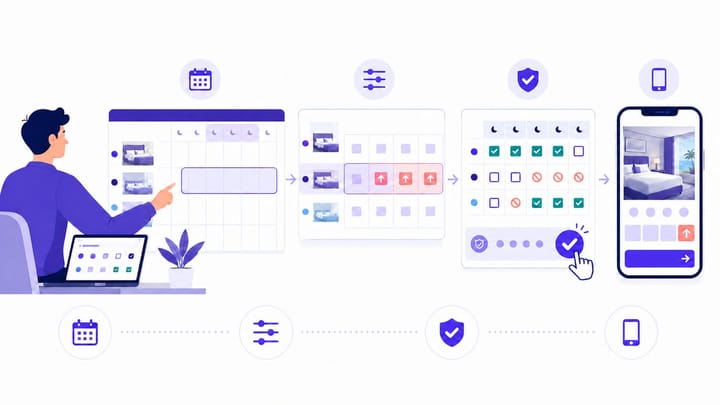
1. Agoda's current accommodation extranet is Agoda Partner Portal; it was previously called YCS.
2. Hotel-type properties and multi-unit homes can update selling rates through Rates and availability → Calendar or Availability Center.
3. Confirm the room, rate plan, dates, occupancy setup, availability, and stay restrictions before saving.
4. If a channel manager controls Agoda, update the rate there and use Partner Portal to verify the result.
Changing a hotel rate in Agoda Partner Portal is a small task with a wide operational impact. The wrong room, rate plan, date range, occupancy rule, or source system can create an incorrect public price or leave a valid rate unbookable.
The safest workflow is simple: identify the system that controls Agoda, update the exact product, protect connected pricing and restrictions, then prove the guest-facing result. Agoda Partner Portal was previously called YCS, so hotel teams may still encounter the older name in internal procedures or search results.
How to Change Rates in Agoda Partner Portal
Before You Start: Confirm the Property Type and Rate Source
Hotel-type properties and multi-unit homes normally use Rates and availability → Calendar or Availability Center. Single-unit homes may see Rates and availability → Pricing for an all-date nightly price, or Calendar → Calendar for specific dates. Agoda's current Calendar workflow documents this property-type distinction.
Next, confirm the source of truth. If a channel manager controls Agoda, make the change there. A manual Partner Portal edit may be overwritten by the next rate-and-inventory message. Before editing, record the property, room, rate plan, dates, weekdays, currency, occupancy, current rate, and intended rate.
Update Rates Using Calendar
For a hotel-type property or multi-unit home:
- Sign in to Agoda Partner Portal and select the correct property from Listings.
- Go to Rates and availability → Calendar.
- Select only the room types and rate plans you intend to update.
- Select one date or multiple dates using the control in the top-right corner.
- Review Availability per day. Change it only if inventory is part of the same decision.
- Enter the new selling rate for the exact rate plan.
- Review the room, plan, dates, availability, and price, then click Save. Wait for confirmation and reopen the dates to verify the stored value.
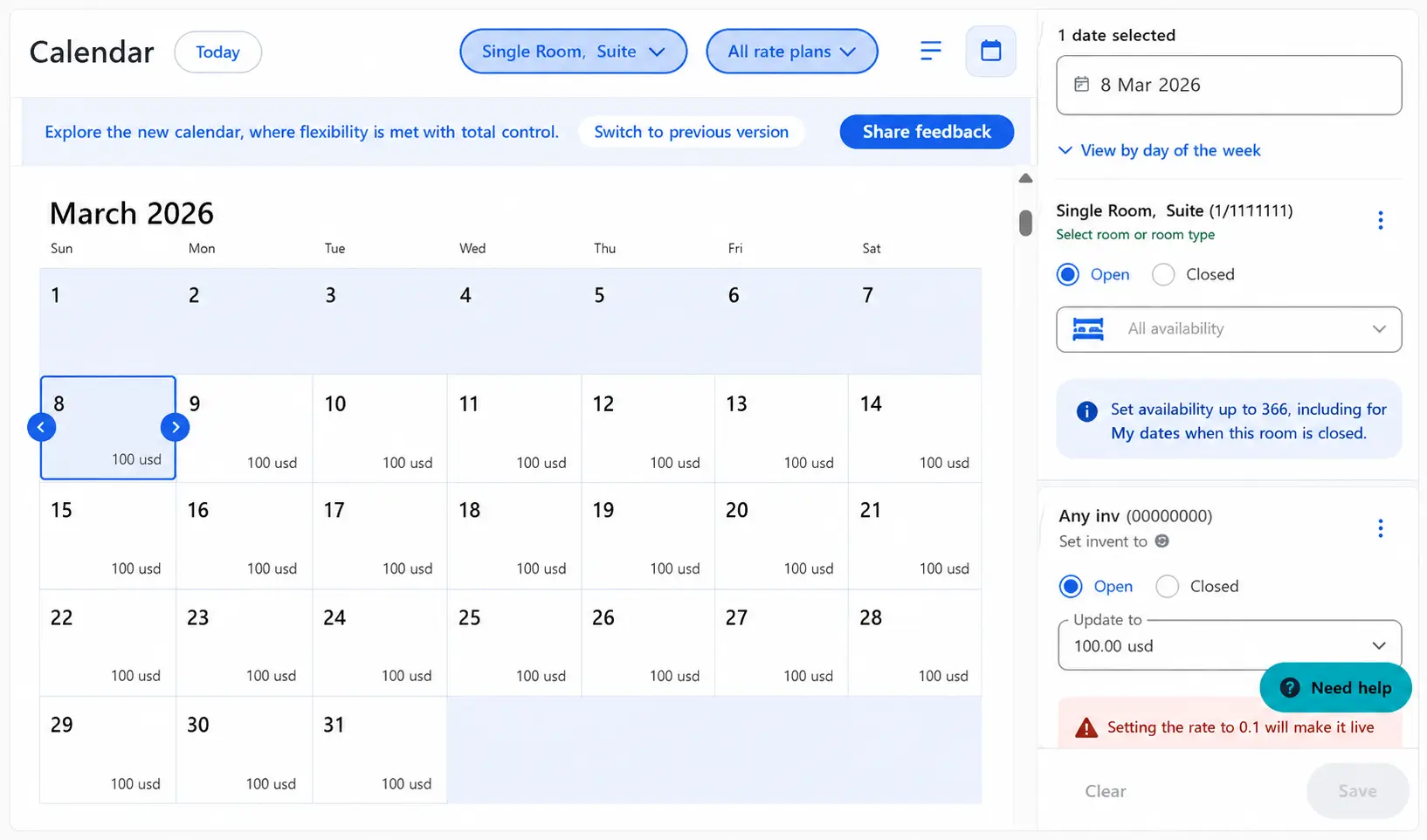
Menu labels may vary by property type and account configuration.
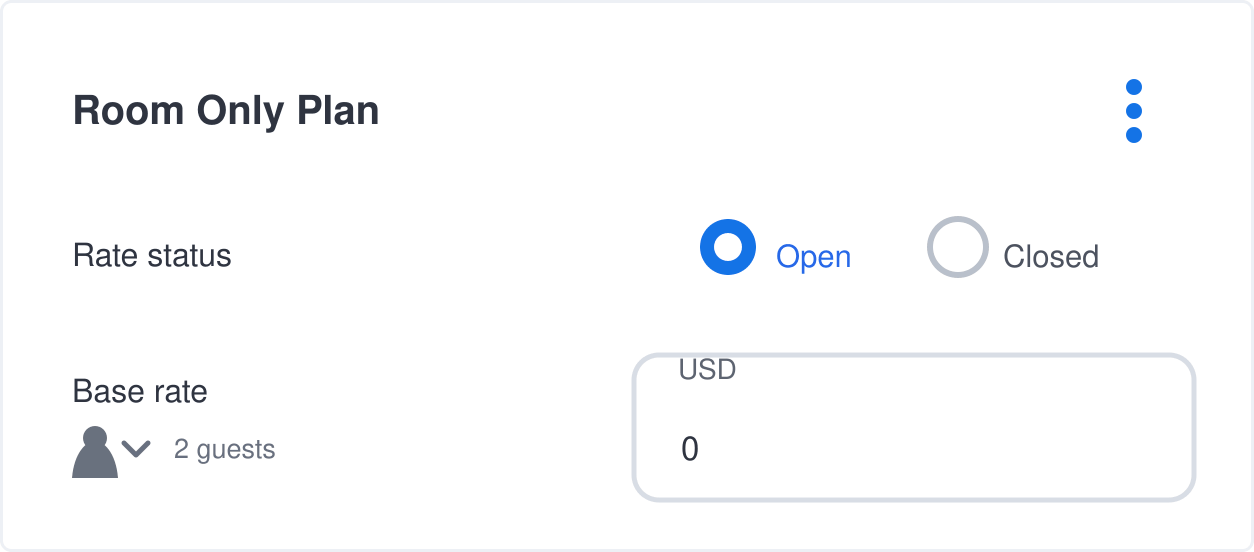
If a selected field shows Multiple, the dates contain different values. Do not replace the range with one amount until you confirm that the variation is not intentional.
Update Rates Using Availability Center
Availability Center is a list view for hotel-type properties and multi-unit homes.
- Select the correct property and go to Rates and availability → Availability Center.
- Set the date range and use the Rooms dropdown to show only the relevant rooms.
- In the intended room and rate-plan row, select one date or drag the blue slider across multiple dates.
- Edit the rate in the pop-up and click Update. Reopen the same cells to confirm the value.
Inventory is managed separately in the Remaining availability row. A valid price does not make a sold-out or closed room bookable. Connected properties should update their channel manager and use this screen to confirm the reflected data.
Control Agoda Rates From One Source
Keep mapped rooms, rate plans, inventory, and supported restrictions aligned without repeating updates in multiple systems.
Avoid Rate Plan and Restriction Mistakes
Loaded Rate, Base Rate, Occupancy Rate, and Rack Rate
The rate shown in Calendar is the amount loaded for the selected date and rate plan under the property's configured pricing model. Do not automatically treat that number as either the final guest-facing price or the hotel's payout.
In Agoda's booking and settlement terminology, the Base rate is the amount the property receives after Agoda's compensation is deducted from the reference sell rate. Promotions, taxes, fees, occupancy pricing, and currency conversion may create additional differences between the loaded Calendar rate, the price shown to the guest, and the final payout. Confirm the rate-loading model in your agreement and review the booking breakdown before comparing these amounts. Agoda's Base rate calculation guide explains this distinction.
An occupancy rate changes the price for Single, Double, or Full Occupancy. Open the three-dot menu on the relevant rate plan and use the Occupancy rate tab within Occupancy rates and stay rules. If only one occupancy looks wrong, inspect this setup before changing the Base rate.
A rack rate or cross-out rate is maintained under Property → Rooms → Basic Information. It is a reference price for a cross-out display where applicable; it does not replace the date-specific selling rate. Agoda's rate settings reference confirms these separate paths.
Rate Update Checks
The price field is only one part of a bookable Agoda offer. Confirm the controls below before considering the update complete.
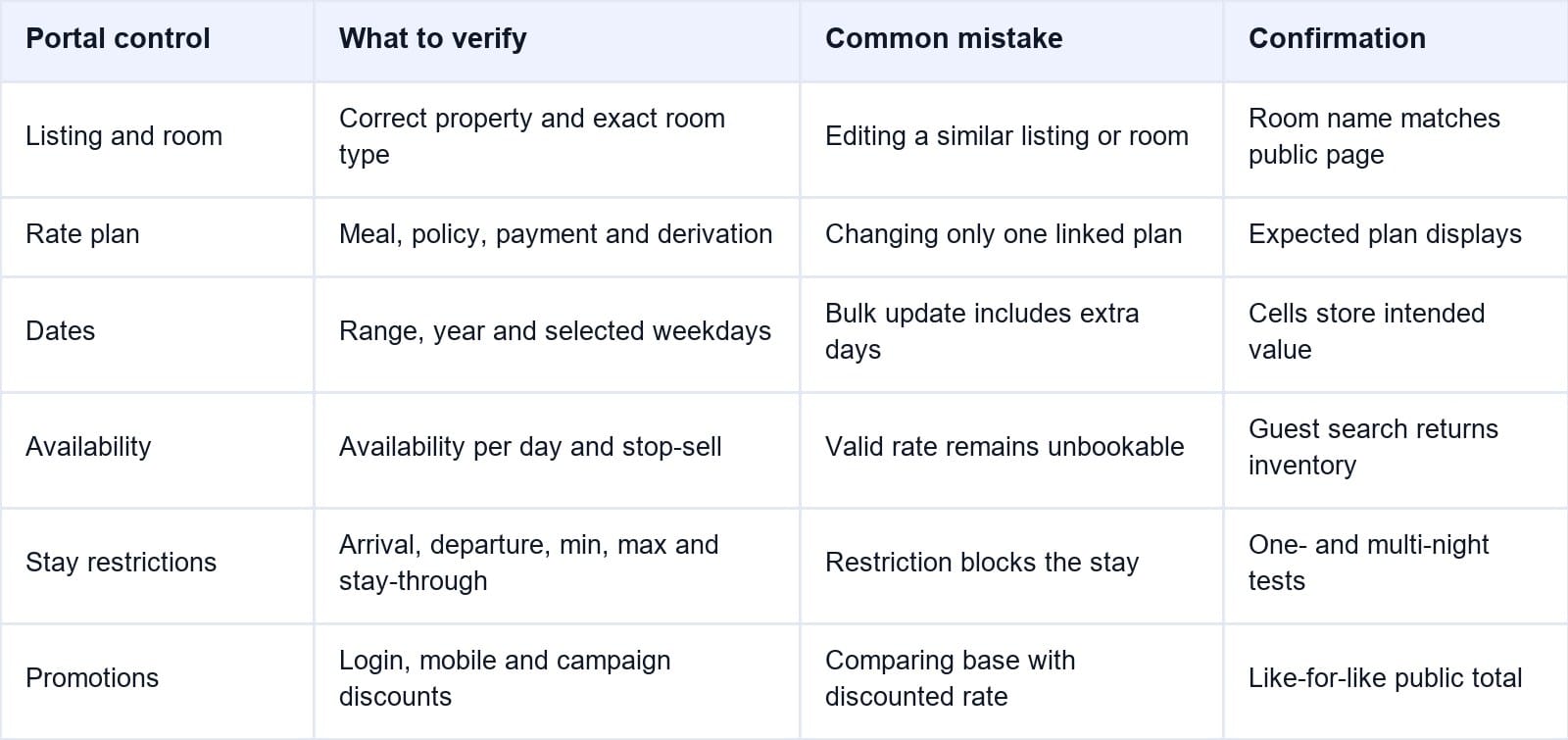
A property that edits Agoda in two systems can show the expected price only briefly. Smart Order's hotel channel manager sends approved rates, availability, and supported restrictions to mapped Agoda products, while Partner Portal remains the confirmation point.
Stay Restrictions to Review Before Saving
Open the three-dot menu on the relevant rate plan and select Stay restrictions. Review Minimum stay, Maximum stay, Minimum night for stay-through, and any arrival or departure controls.
A minimum stay applies to guests arriving on the restricted date. A stay-through minimum applies when the restricted date falls within the stay, subject to the checkout-date rule. A correct rate can remain invisible when the requested stay conflicts with one of these controls.
When only the price should change, record the current restrictions and leave them untouched. If the commercial decision also changes a restriction, test arrival dates before, on, and after the restricted date.
Confirm and Troubleshoot the Rate Update
Verify the Stored Rate
Reopen the same dates in Partner Portal and confirm the correct room and rate plan stored the new amount. Test at least one single date and one date range. Record the update time, user, source system, room, plan, dates, and stored rate.
Check the Guest-Facing Price
Use a private browser window to search Agoda with the same property, dates, room count, adults, children, market, and currency. Match the meal, cancellation policy, payment timing, occupancy, and taxes.
Promotions, logged-in prices, mobile prices, occupancy pricing, currency conversion, and tax presentation can make the public total differ from the Base rate. Test both a one-night and multi-night stay because the longer search can expose a missed date, mixed price, or stay restriction.
Fix a Rate That Did Not Update
If Partner Portal rejects the change, review the property, room, plan, dates, permissions, currency format, and validation message. If the saved rate later reverts, inspect the channel manager log because another ARI message may have replaced it.
If the stored rate is correct but Agoda displays another amount, compare occupancy, login state, device, currency, tax treatment, promotion, cancellation terms, and payment model. Also confirm that the expected plan has availability.
Use Need Help when the stored configuration and public result still cannot be reconciled. Include the property ID, room and plan names, dates, screenshots, update time, and source system.
Manual edits are best treated as controlled exceptions. A connected hotel PMS and channel manager create a clearer audit path: the hotel approves the source rate, the mapped plan receives it, and staff verify the final offer.
Keep Agoda Updates Mapped and Verifiable
Send approved rates and inventory to the intended Agoda products, then confirm the result without maintaining competing rate sources.
Frequently Asked Questions
Where do hotels change room rates in Agoda Partner Portal?
Hotel-type properties and multi-unit homes can use Rates and availability → Calendar or Availability Center. Single-unit homes may use Pricing for all dates or Calendar for specific dates.
Why does Agoda show a different price from the Base rate?
The public result may include occupancy pricing, promotions, login or mobile discounts, taxes, currency conversion, or another rate plan. Compare identical booking conditions and the final payable total.
Should I update Partner Portal if I use a channel manager?
Update price and availability in the connected channel manager. Use Partner Portal to verify the reflected result and manage Agoda-specific settings not controlled by the connection.
Is Rack Rate the Same as the Selling Rate?
No. Rack Rate is maintained under the room's Basic Information and may support a cross-out price. The date-specific selling rate is updated in Calendar or Availability Center.
A rate change is complete only when the correct room and plan store the new amount and a matching guest search can book it. Treat save, reopen, and public verification as one procedure so a small pricing edit does not become a booking or revenue problem.
