
1. Before changing a price, confirm whether Booking.com Extranet or your channel manager controls that rate plan.
2. For manual rates, open the Extranet calendar, select the correct room, rate plan, and stay dates, then enter and save the new price.
3. For connected rates, update the controlling PMS, revenue system, or channel manager and check the delivery status.
4. Verify the stored rate, restrictions, promotions, and final guest-facing price before considering the change complete.
If you are learning how to change rates in Booking.com Extranet, do not begin by editing the first price cell you see. First confirm which system controls the rate. A hotel using Booking.com manually will normally update prices in the Extranet calendar. A connected hotel may need to make the change in its property management system (PMS), revenue management system, or channel manager instead.
Editing the wrong system can produce a temporary price that the next sync overwrites. It can also leave a related occupancy price, child rate, or restriction wrong.
Decide Where the Booking.com Rate Is Controlled
Open the Booking.com Extranet and check whether a connectivity provider is active for rates and availability. Depending on the account, this may appear under Account and Connectivity provider or Channel manager. Menu labels can vary by property type, permissions, region, and interface version.
The calendar provides another clue. If price fields are editable and remain unchanged after saving, the Extranet may be the source. If fields are locked, marked as provider-managed, or revert after a synchronization, the connected system probably controls them.
Rate ownership can differ within one property. A standard rate may come from the channel manager while a Booking.com promotion remains controlled in the Extranet. A child rate may follow its parent automatically.
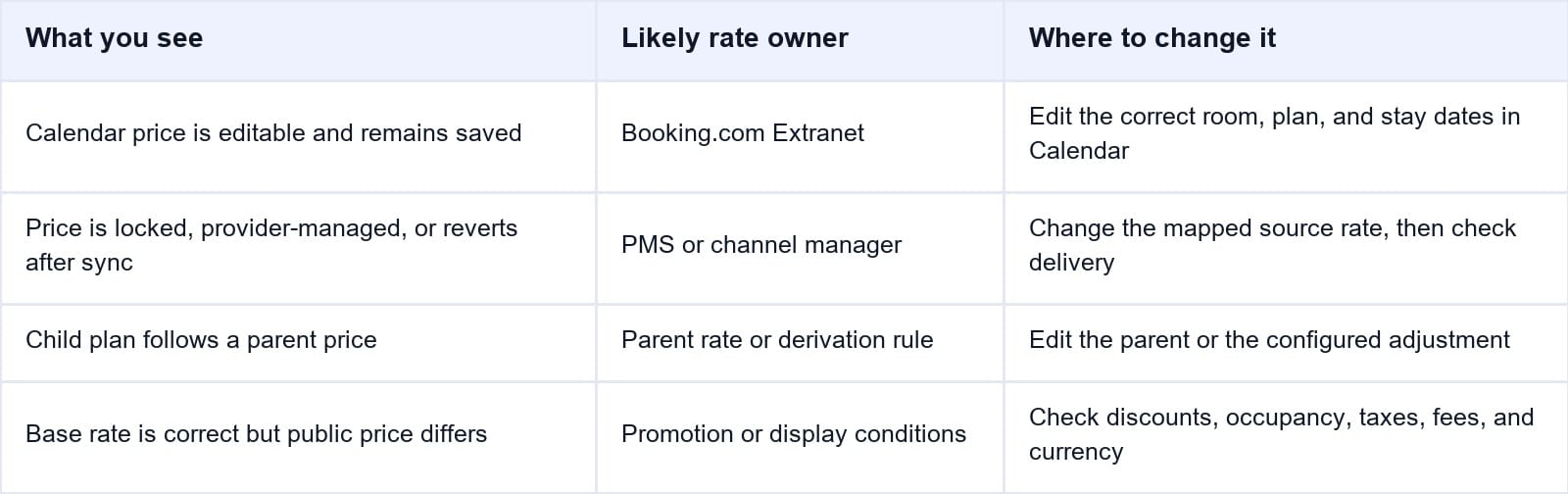
Record the room type, rate plan, stay dates, occupancy, currency, and current price before editing. This prevents a change intended for one product from reaching another.
When a connected property needs one reliable source for routine pricing, Smart Order's hotel channel manager sends the selected rate and date changes from the hotel system to mapped OTA products. The manager can then check whether Booking.com accepted the update instead of maintaining two calendars independently.
Control Booking.com Rates From One Workflow
Update mapped room rates and availability in Smart Order, send the changes to connected channels, and keep the delivery result visible to your team.
How to Change Rates in Booking.com Extranet
Use this method when Booking.com directly controls the rate and the price is editable in your account. Complete the task on a desktop when possible because calendar controls and bulk editing are easier to review on a larger screen.
- Sign in to the Booking.com Extranet and select the correct property if your account manages more than one.
- Open Rates & Availability or Calendar & Pricing, then choose Calendar.
- Select list view or monthly view if the account offers both. Find the correct room or unit type.
- Expand the rate plans below that room and identify the plan you intend to change, such as Standard Rate or a non-refundable plan.
- For one date, select the price cell, enter the new nightly amount, and use the displayed save or confirmation control. Some list-view accounts save a cell after you press Enter.
- For several dates, drag across the required dates or choose Bulk edit. Set the start date, end date, applicable weekdays, rate plan, and price, then save the changes.
- Reopen the dates and confirm that the stored amount matches your intended price.
Do not edit Rooms to sell when you only intend to change price. Inventory controls quantity; price applies to a specific room-rate-date combination.
Also confirm the price basis. The visible calendar value may represent the base or maximum-occupancy price, depending on the property's pricing model. Single-occupancy and other guest prices may be fixed amounts or adjustments from that base.
Not every property sees the same calendar controls. If a named button is absent, use the equivalent date-range or bulk-edit control shown in your account.
How to Change Booking.com Rates Through a Channel Manager
Use the connected system when it is the source of truth. Menu names vary by vendor, but the required checks are consistent.
Open the PMS, revenue system, or channel manager and select the correct property. Choose the mapped room type and rate plan, then select the stay dates—not the date when you are making the change. Enter the new base or occupancy price and save it.
Check the outbound Booking.com delivery status. Sent, pending, accepted, rejected, or failed describes the message stage. “Saved in the PMS” does not prove acceptance.
Confirm these four items before resending anything:
- The PMS room and rate plan are mapped to the intended Booking.com product.
- The edited rate is independent, or its parent and derivation rule are correct.
- The currency, occupancy, and dates match the Booking.com configuration.
- No later update has already replaced the price you are reviewing.
If the update is rejected, read the error before retrying. Common causes include an inactive rate plan, incorrect mapping, invalid occupancy, a currency mismatch, or an attempt to edit a child rate that follows its parent. Correct the cause, then resend only the affected rate and dates.
 Smart Order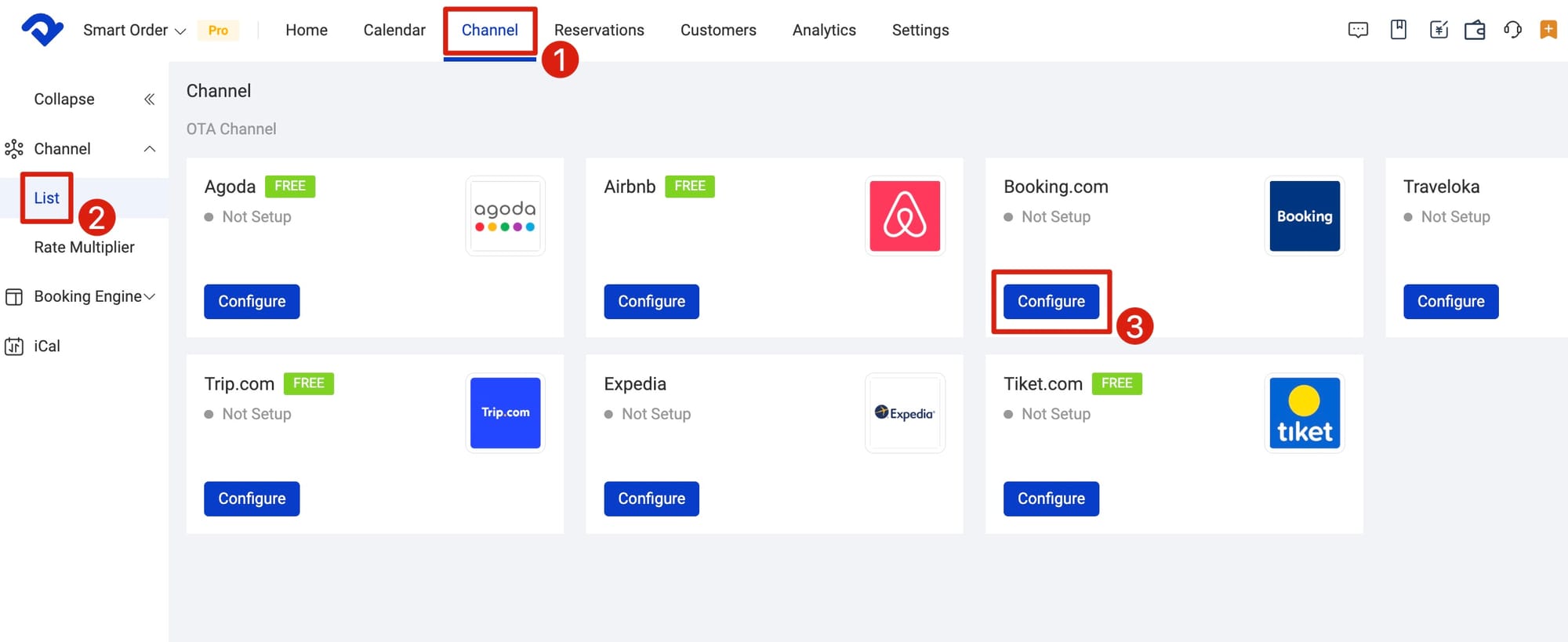
Check Derived Rates, Restrictions, and Promotions
Changing one calendar price does not guarantee that every Booking.com offer will move by the same amount. Hotels often sell a parent standard rate alongside child rates that apply a fixed or percentage adjustment.
For example, a non-refundable plan may be 10% below the standard rate. If the standard rate changes from $200 to $240, the child price should become $216 when the relationship is working. Typing $216 directly into a child plan that follows price may be blocked, ignored, or replaced by the parent calculation.
Review restrictions separately. A correct price is not sellable when the rate is closed, inventory is zero, or minimum-stay, arrival, departure, and booking-window rules exclude the guest's search. Do not remove a restriction merely because the room does not appear publicly; confirm which control is preventing sale.
Promotions can explain a different public price. Genius, mobile, country, campaign, and last-minute discounts may be applied after the base rate is loaded. Taxes, fees, occupancy, meal inclusion, and the guest's currency can also change the amount displayed during a public search.
Verify the New Rate on Booking.com
Return to the Extranet calendar and confirm the intended room, plan, and dates. For a connected update, compare the source value, timestamp, acknowledgement, and Booking.com value.
Run a guest-facing search using the same check-in and checkout dates, occupancy, room, and currency. A private window reduces the effect of a logged-in loyalty profile. Review the rate conditions, taxes, meal plan, cancellation policy, and promotions without completing a reservation.
Allow for processing, then refresh once. Do not push a full date range while the first message remains pending. If the public price differs, check promotions, taxes, fees, occupancy, and the base rate.
For recurring pricing work, a connected audit trail is safer than switching between systems. Smart Order links each mapped Booking.com rate update with channel availability and delivery status, so the hotel can isolate one rejected product without overwriting rates that already succeeded.
Verify Rate Changes Before They Affect Bookings
Keep the source rate, mapped Booking.com product, and update status connected so your team can confirm changes and investigate exceptions quickly.
Fix a Booking.com Rate That Did Not Change
If the Extranet price is not editable, first check whether a connectivity provider controls rates and availability. If the connection should have been removed, confirm its status with the provider before making manual changes.
If a manual edit saves but later reverts, look for an active PMS, channel manager, automated revenue rule, bulk edit, or parent-child rate relationship. The later process may be restoring its own value correctly.
If the Extranet shows the new base rate but guests see another amount, compare the same dates, occupancy, currency, room, and cancellation conditions. Then review active Booking.com promotions and the property's tax and fee presentation.
If only one rate plan fails through the channel manager, compare its mapping and pricing model with a rate that succeeded. Do not send a full-property refresh until you know whether the problem is limited to one room-rate combination.
Escalate with the property ID, room and rate IDs, stay dates, timestamp and time zone, expected value, displayed value, and full error message. Hide credentials and payment information in screenshots.
Frequently Asked Questions
Should I change Booking.com rates in the Extranet or channel manager?
Use the system that controls rates and availability for that product. If a channel manager is the source, make routine changes there. Use the Extranet for products or promotions intentionally controlled by Booking.com.
Why can I not edit a price in the Booking.com calendar?
The rate may be managed by a connectivity provider, inherited from a parent plan, inactive, or restricted by your account permissions. Check the active provider and rate-plan configuration before contacting support.
Why did my Booking.com rate change back?
A connected system, scheduled rule, bulk edit, or parent rate may have overwritten the manual value. Compare timestamps and confirm which system is designated as the source of truth.
Does changing the standard rate update non-refundable rates?
Only when those plans are configured to follow the standard rate. Independent plans require their own price change; derived plans use their stored fixed or percentage adjustment.
Why is the guest-facing price lower than the Extranet rate?
An active Genius, mobile, country, campaign, or other promotion may reduce the base price. Compare the same occupancy, currency, taxes, fees, meal plan, and cancellation terms.
How long should a channel manager rate update take?
Processing time varies by provider and message volume. Check for an acknowledgement or error, allow the documented processing window, and verify Booking.com before resending the same update.
The safest Booking.com rate change starts with ownership. Edit the correct source, preserve parent-child pricing logic, and verify the final offer under the same conditions a guest will use.
