
1. Create hotel promotions in Agoda Partner Portal under Rates and availability > Promotions.
2. Choose the promotion type before entering a discount because Seasonal, Essential, and Targeted promotions follow different stacking rules.
3. Protect high-demand dates, confirm the parent rate and restrictions, and calculate an acceptable net rate before activation.
4. Verify the final selling rate with matching dates, occupancy, market, device, login state, currency, taxes, and booking conditions.
Learning how to set promotion on Agoda is not only a matter of entering a discount. The offer can interact with another campaign, occupancy pricing, taxes, or a connected rate plan. A 10% offer can therefore produce an unexpected guest price or hotel payout.
The safe workflow has four controls: choose the right promotion, define its scope, review stacking, and verify the final selling rate as an eligible guest would see it. Agoda's current accommodation extranet is called Agoda Partner Portal; some hotel procedures may still use its former name, YCS.
Choose the Agoda Promotion That Matches the Demand Gap
Agoda Partner Portal groups promotions into three broad types. Selecting the type first prevents a hotel from using a broad discount to solve a narrow demand problem.
Seasonal promotions support specific campaign or travel periods. Two eligible Seasonal promotions do not stack with each other; Agoda applies the one producing the more competitive rate. A Seasonal offer may still combine with an eligible Essential or Targeted offer.
Essential promotions include Customized promotion, Early Bird, Last Minute, and Long Stay. Use these when booking window, stay length, or weak dates define the need. Eligible Essential promotions can combine when the relevant stacking controls allow it.
Targeted promotions restrict an offer by customer segment. Agoda currently organizes these around categories such as Product, Loyalty, Geography, Platform, and Maximum Gain. Multiple Targeted promotions can combine when they belong to different eligible categories. The Stacking detail view shows the Targeted category and maximum Targeted discount, but its calculation does not include active Seasonal or Essential promotions.
Ask which nights or booking behavior need an incentive. A Sunday-to-Thursday gap may justify a limited Customized promotion. A near-sold-out event period probably does not.
Calculate the Final Rate Before You Activate the Offer
Agoda Partner Portal uses a Reference Sell Rate as the price loaded before property-funded promotions. Do not confuse that figure with the final price a guest pays or the amount the hotel receives after Agoda's contractual compensation and other applicable adjustments.
For a simplified example, assume the Reference Sell Rate is $150. A 10% property-funded promotion reduces it to $135. If another eligible 10% promotion is applied sequentially, the result would be $121.50 before taxes, fees, currency presentation, or other adjustments. The exact calculation depends on the offers and conditions active for that search.
The control table below separates the figures a manager should record before launch.
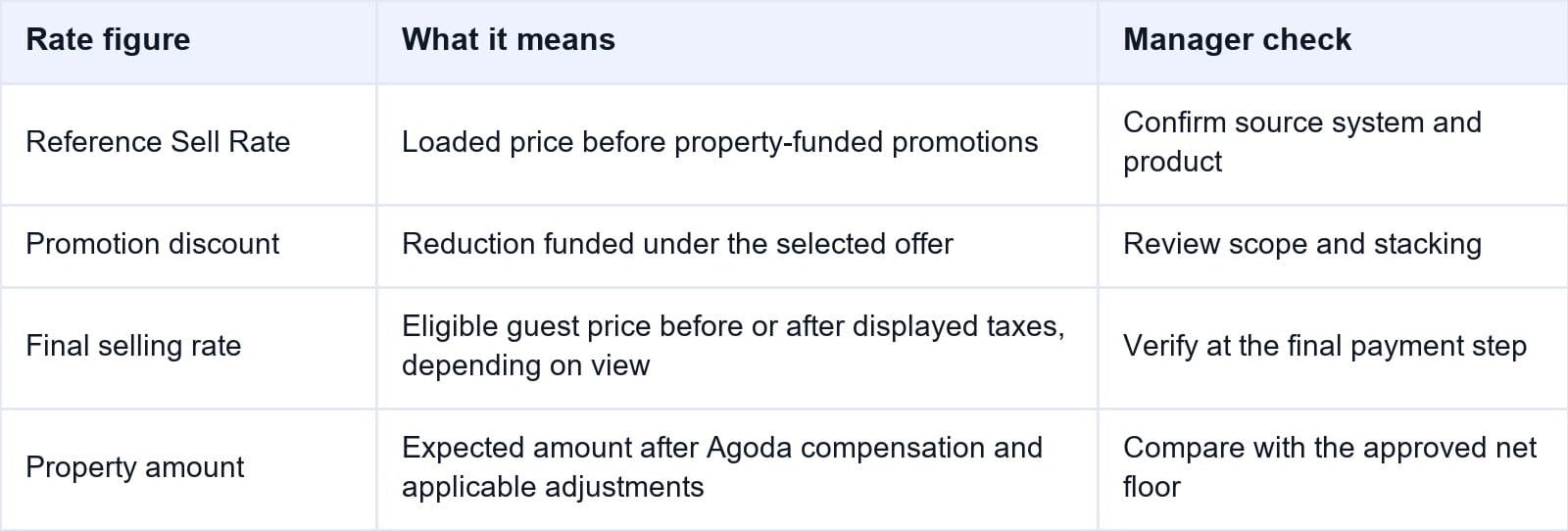
Set a net-rate floor for each demand period. Include the loaded rate, hotel-funded discounts, expected Agoda compensation, payment cost, and variable operating cost. If the expected property amount falls below that floor, narrow the dates, products, or audience.
When Agoda bookings flow into Smart Order, the hotel reporting software lets managers compare channel revenue, ADR, occupancy, and booking source. This shows whether a promotion filled otherwise empty nights or merely replaced demand that would have booked at the normal rate.
Measure the Revenue Behind Agoda Discounts
Compare Agoda room nights, ADR, occupancy, and channel revenue so promotion decisions reflect demand and margin instead of booking volume alone.
How to Set a Promotion on Agoda Partner Portal
Menu labels and available offers vary by property type, market, eligibility, and permission. Use this controlled sequence:
- Sign in to Agoda Partner Portal. If the account manages multiple properties, select the correct property from Listings.
- Open Rates and availability, select Promotions, and review Active and Inactive offers to prevent a duplicate.
- Click Choose new promotion and select the promotion that matches the demand goal.
- For a hotel-defined offer, open Essential promotions and select Customized promotion.
- Enter an internal name that identifies purpose and scope, such as “September Sun-Thu.” Guests do not see it.
- Set the booking dates and stay dates separately. The booking window controls when a guest may reserve; the stay window controls which occupied nights qualify.
- Enter the discount. Compare the preview or summary with the hotel's approved rate floor.
- Review the stacking control. Enable it only when the combined price with other eligible Essential promotions has been calculated and approved.
- Open Additional settings and Add a restriction. Apply available room, rate-plan, day, stay, or cancellation controls.
- Review the final summary, especially property, dates, discount, products, restrictions, and stacking. Click Activate.
- Reopen the active promotion and record its owner, dates, discount, products, exclusions, and stacking choice.
Other promotion types show controls relevant to that offer. Do not copy another property's percentage without checking your demand and rate structure.
If the Promotions menu or a specific offer is missing, check the selected property, user permission, eligibility, and contract. Use the Need Help option in Partner Portal or contact the property's Agoda representative when the configuration cannot be confirmed.
Prevent Stacking, Date, and Rate-Plan Errors
The greatest risk is approving one promotion without auditing everything else that may qualify for the same search. Before activation, check:
- Every active Seasonal, Essential, and Targeted promotion, including mobile, geography, loyalty, Early Bird, Last Minute, and Long Stay offers.
- Booking dates versus stay dates, plus excluded event nights, holidays, weekends, and near-sellout periods.
- Included room types, rate plans, occupancy rules, meal plans, cancellation terms, and minimum- or maximum-stay restrictions.
- Whether the Reference Sell Rate comes from Partner Portal or a channel manager, and whether a manual rate could be overwritten.
- Tax and fee presentation, currency conversion, payment timing, and the property's expected settlement amount.
- Promotion invitations that may require the hotel to join or reject participation rather than remaining neutral.
Agoda allows cancellation policies on Seasonal and Essential promotions. If several eligible offers include one, the strictest may control, subject to EasyCancel and the current policy hierarchy. Verify the guest-facing terms.
Do not create a promotion by reducing the source Reference Sell Rate in the PMS or channel manager. That change can reach non-promotional Agoda searches or other connected channels. Keep the normal rate in the system that owns rates and create the Agoda-specific promotion in the recognized promotion workflow.
Verify the Final Agoda Selling Rate
Activation is not completion. First, reopen the promotion in Partner Portal and confirm it is Active. Check its booking dates, stay dates, percentage, products, restrictions, and stacking setting. Then confirm the parent room and rate plan have availability and are open for sale.
Run a controlled public search. Match dates, rooms, guests, market, currency, device, and login state. Compare the same room, occupancy, meal, cancellation policy, payment timing, and tax treatment. A targeted price is not comparable with an unrestricted logged-out desktop price.
Record the strikethrough or reference price, displayed nightly price, taxes and fees, and final amount at the last step before payment. Repeat the search for a date that should not qualify. This negative test proves that exclusions and booking windows work, not just that one discounted date appears.
If the promotion targets a specific platform, geography, or loyalty group, test both an eligible and ineligible search. Targeting conditions may make a correct promotion invisible in the hotel's normal office browser.
For a higher-risk launch, make one authorized, cancellable test reservation under the hotel's testing procedure. Confirm its room, plan, dates, guest total, promotion, and settlement details, then cancel within policy. Do not test when cancellation creates fees or distorts limited inventory.
If Smart Order controls the parent Agoda rate, its hotel channel manager keeps mapped rates and availability moving from one source. Staff can verify the Agoda-specific discount without manually lowering the base rate in several systems.
Keep Agoda's Parent Rate Under Control
Send mapped rates and availability from one workflow, then verify Agoda-specific promotions against a stable source price.
Diagnose a Selling Rate That Is Lower Than Expected
Save the search or screenshots that produced the discrepancy. Record the time, market, device, login state, currency, dates, occupancy, product, and final total.
Next, work backward. Confirm the parent Reference Sell Rate, then list each eligible promotion by type. Inspect Stacking detail for Targeted offers, but separately review Seasonal and Essential promotions because they may not appear in that Targeted calculation. Check occupancy adjustments, taxes, fees, currency conversion, and cancellation terms.
If Partner Portal stores the wrong setup, edit or deactivate the promotion. A Targeted promotion may also offer a temporary pause with a resume date. If the configuration is correct but the public result cannot be reconciled, send Agoda Partner Support the property ID, promotion name, room and rate plan, dates, screenshot, expected calculation, and observed total.
Frequently Asked Questions
Where are Agoda promotions created?
In Agoda Partner Portal, select the property, then go to Rates and availability > Promotions > Choose new promotion. Available promotion cards depend on the property's eligibility and configuration.
What is a Customized promotion on Agoda?
It is an Essential promotion that lets the property define an internal name, booking and stay dates, discount, stacking choice, and available restrictions.
Can Agoda promotions stack together?
Yes, when their types, categories, settings, and customer eligibility allow it. Seasonal, Essential, and Targeted promotions follow different combination rules, so audit all three groups.
Why is the final Agoda rate lower than my discount calculation?
Another eligible promotion may be contributing. Also check targeted rates, occupancy pricing, taxes, fees, currency, payment conditions, and the exact room-rate product shown.
Should I change the Agoda base price to offset a promotion?
Do not raise or lower the parent rate automatically. First calculate the approved net floor and review rates on connected channels. Narrowing promotion scope is usually easier to control than manipulating the source price.
How do I deactivate an Agoda promotion?
Open Rates and availability > Promotions, select the active offer, choose Edit, and use Deactivate where available. Agoda may ask for a reason. Confirm afterward that the promotion appears as inactive and retest the public rate.
A promotion is ready only when the hotel can explain both the guest-facing total and the expected property amount. Treat activation, public verification, and one ineligible-date test as a single operating procedure.
