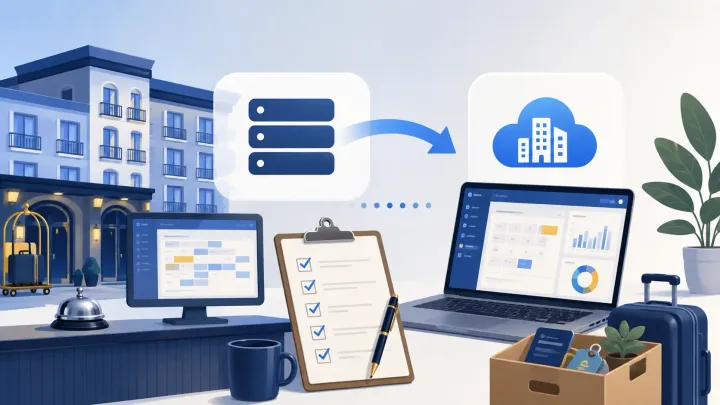
1. Most PMS switches fail in the final week — not from data loss, but from skipped steps like OTA remapping and staff testing under real conditions
2. This checklist covers every stage: data export, live reservations, OTA reconnection, staff training, and cutover day execution
3. Work through each section in order — later steps depend on earlier ones being complete
4. Smart Order's onboarding team handles data import and OTA reconnection as part of setup, which removes two of the highest-risk items from your list
Switching your hotel Property Management System (PMS) is less about the technology and more about sequencing. Miss a step early and it creates problems you won't discover until check-in day — a reservation that didn't transfer, an OTA channel that's still pointing at your old system, a staff member who's never processed a payment in the new interface.
This checklist covers every stage in the order it needs to happen. Work through it linearly. Don't start OTA remapping before your data import is verified. Don't schedule your cutover date before your staff has completed a real check-in cycle in the new system.
Stage 1: Data Audit (Before You Export Anything)
Do this before you touch the export function. Auditing first means you have a verified reference to check against after import.
Guest records
- Pull a full guest list from your current PMS (name, email, phone, stay count)
- Note the total record count — you'll compare this after import
- Flag any duplicate profiles to clean up before export, not after
Future reservations
- Export all reservations with check-in dates after your planned cutover
- Verify each record includes: guest name, room type, check-in/check-out date, rate, and deposit status
- Mark reservations with prepayments separately — these need special handling during import
Rate plans and room configuration
- Document every room type, including naming convention (this matters for column mapping)
- Export your rate plan list with seasonal rules and restrictions
- Note any connected revenue management tools that pull rate data from your current system
Historical records
- Export the last 12 months of reservations as a static archive (CSV or Excel)
- Export revenue reports by channel for the same period
- Store these externally — they don't need to import into the new PMS, but you'll reference them if a billing dispute comes up later
Stage 2: Data Export and Import
Export
- Export guest records in the format your new provider accepts (usually CSV)
- Export future reservations in the same format
- Confirm column headers match exactly — "First Name" and "Guest First Name" are not interchangeable in most import tools
- Run a row count before closing the export file
Import
- Send export files to your new provider's onboarding team, or upload via their import tool
- Run a test import on a subset first if your provider allows it
- After full import, check guest count against your audit number
- Open 10 future reservations at random and verify dates, room types, and rates are correct
- Confirm all prepaid reservations transferred with correct deposit amounts
If you find a count mismatch, resolve it before moving to Stage 3. A missing reservation discovered after cutover means a guest arrives without a record in your system.
Stage 3: Live Reservations Management
Live reservations — bookings that arrive during your transition period — need to be handled deliberately. You'll be running your old and new systems in parallel for one to two weeks, and every new booking needs to exist in both.
- Set a parallel run start date (this is when you begin entering new bookings in both systems)
- Assign one staff member to cross-check new reservations between systems daily
- For properties with high volume: process the new booking in your old system first, then replicate it immediately in the new system before end of shift
- For group bookings that span the cutover date: manually verify each room in both systems before your hard cutover
One scenario to watch for: a guest modifies a reservation via OTA between your export date and cutover date. That modification exists in the OTA and your old system, but not in your new one unless someone catches it. During parallel run, check your OTA modification log daily and update the new system manually.
Onboarding That Handles the Import
Smart Order's setup team handles data import, room configuration, and OTA reconnection as part of onboarding — so you arrive at cutover day with a system that's already been verified, not one you're still configuring.
Stage 4: OTA Remapping
OTA connections don't transfer between PMS systems — they reconnect. This step trips up more hotels than any other because it looks simple until it isn't.
Before you disconnect the old system
- List every OTA channel currently connected to your old PMS (Booking.com, Agoda, Expedia, Airbnb, Trip.com — whatever applies)
- Log your property ID on each platform (you'll need this to reconnect)
- Check which OTAs require manual approval for new channel manager connections — Booking.com's fast-track onboarding typically takes 24–48 hours, plan accordingly
Reconnecting in the new system
- Connect each OTA channel through your new PMS or channel manager one at a time
- After each connection, make a test availability change in your new PMS and verify it reflects on the OTA within 5 minutes
- Check that room type names in your new PMS match the room types mapped on each OTA — a mismatch will cause sync errors that aren't always obvious immediately
- Confirm rate parity across all connected channels before going live
- For Booking.com: verify the connection status shows "active" in both the Booking.com Extranet and your new PMS dashboard
Do not close your old system's OTA connections until the new ones are confirmed active. Running both simultaneously for 24 hours is safer than a clean handoff that fails mid-day.
Stage 5: Staff Training
Staff training is the one stage that can't be compressed. Every hour you cut from training shows up as a front desk error after cutover.
Check-in and check-out
- Every front desk staff member completes a check-in on a real (or realistic test) reservation in the new system — not a demo walkthrough, an actual process
- Every front desk staff member completes a check-out and processes a payment
- Practice scenarios: early check-in request, room upgrade, late checkout fee
Reservations
- Staff can locate any reservation by guest name, booking reference, and check-in date
- Staff can manually add a reservation (walk-in or phone booking)
- Staff can modify a reservation: change dates, change room type, add a note
OTA updates
- At least one staff member knows how to block rooms manually in the channel manager if needed
- Staff understand that OTA modifications don't auto-update in the PMS — they need to check their OTA modification log and update manually
Payments
- Staff can process a deposit via payment link
- Staff can issue a refund
- Staff know where to check payment status for a reservation
A useful benchmark: if any staff member hesitates during a simulated check-in, schedule another session before cutover. Hesitation in training is a front desk error in production.
Stage 6: Cutover Day Execution
Cutover day is when you stop using the old system as your primary and switch fully to the new one. This should not be a surprise — you've verified everything in stages 1–5. The cutover is a confirmation, not a test.
The day before
- All future reservations are in the new system and verified
- All OTA channels are connected and syncing in the new system
- Staff training is complete — everyone who works front desk has processed at least one real transaction
- A support contact at your new provider is confirmed and reachable
Cutover morning
- Check that no new reservations arrived overnight that weren't captured in the new system
- Verify current-day check-ins are showing correctly with accurate room assignments
- Confirm OTA availability is live and accurate (spot-check Booking.com and one other channel)
- Brief all staff: the old system is now archive-only, all new actions happen in the new system
The first 48 hours
- Monitor OTA sync every few hours — most sync issues surface in the first day
- Check that any reservation modified post-cutover reflects correctly in both the PMS and the OTA
- Keep the old system accessible (read-only) for 30 days for reference — don't cancel the account until you've cleared the first billing cycle in the new system
Stage 7: Post-Cutover Verification
- After 7 days: run a revenue report in the new system and compare against manual records from the same period in the old system
- After 14 days: verify that all OTA channels are syncing correctly with no inventory errors flagged in any extranet
- After 30 days: confirm staff are not maintaining any manual shadow records (spreadsheets, notebooks) that indicate gaps in the new system
- Cancel your old PMS subscription after the 30-day verification period — not before
If your new system has a built-in channel manager and PMS in one product, the sync between your front desk and OTA channels is automated. Smart Order updates room availability across all connected OTAs the moment a reservation is processed — no manual sync step, no end-of-day reconciliation required. That eliminates one full row from your daily operations checklist.
One System for Front Desk, Channel Manager, and Booking Engine
Smart Order connects reservations, OTA sync, and direct bookings in one place — so your post-cutover operation is simpler than what you left behind, not just newer.
Switching Hotel PMS Checklist FAQs
How long before the switch should I start the data audit?
Start at least three weeks before your planned cutover date. The audit itself takes a few hours, but the time between export and import validation — and any corrections needed — can take several days. Starting three weeks out gives you a buffer if you find a data quality problem that needs to be cleaned up before import.
Can I switch hotel PMS systems during peak season?
Yes, but extend your parallel run period to two full weeks instead of one, and avoid scheduling cutover day on a date with a large group check-in or an event block. The parallel run is your safety net — the more reservations that pass through both systems before cutover, the more confident you can be that nothing was missed. Don't compress it to hit a date.
What happens to OTA bookings that arrive during the switch?
Any OTA booking that arrives while you're running in parallel needs to be added to your new PMS manually if OTA reconnection isn't complete yet. Assign one person to check the OTA modification log daily during this period. Once OTA channels are reconnected to the new system, new bookings sync automatically — but verify this is working with a test availability change before you rely on it.
What if my data import is missing reservations?
Compare the import against your pre-export audit numbers immediately. If counts don't match, check whether the discrepancy is in guest records or reservations. Missing guest records can usually be re-imported. Missing future reservations need to be identified by cross-referencing your exported CSV against what's visible in the new system — add them manually before cutover.
Do I need to notify guests when I switch PMS systems?
No guest communication is required for a PMS switch — guests only interact with the booking experience, not the backend system. The only scenario where guest communication makes sense is if your booking confirmation email template changes and you want to set expectations. If you're changing your direct booking link or payment process at the same time as the PMS switch, notify guests who have active reservations before the change goes live.
How do I check that OTA sync is working correctly after switching?
Log into each OTA extranet directly and compare your available inventory against what your new PMS shows. Then make a small test change in your PMS — block one room for one night — and verify the block appears on the OTA within five minutes. If it doesn't sync within that window, check the channel manager connection status in your new PMS before assuming the issue is on the OTA side.
