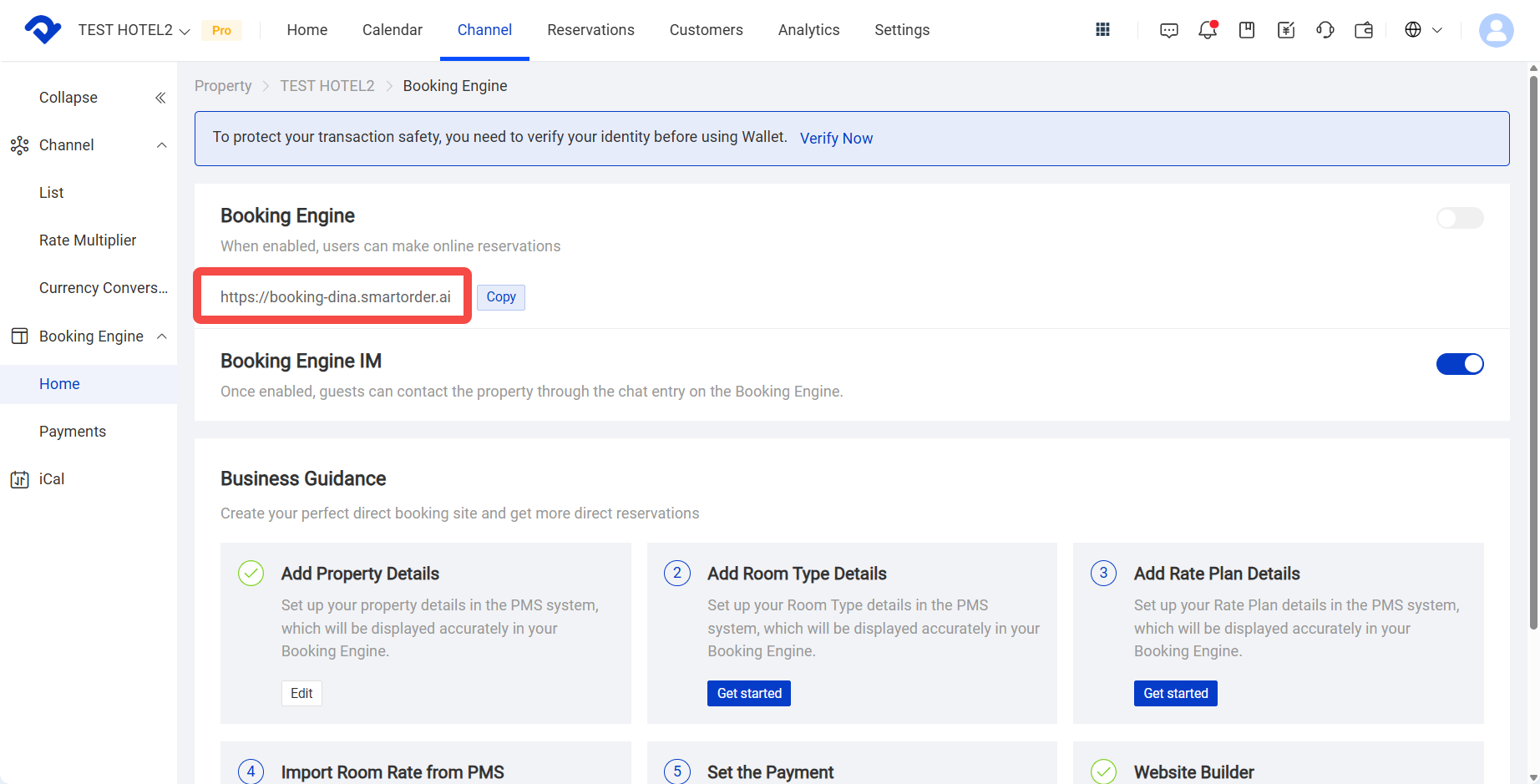
Booking Engine / Chinese Site is the independent booking website generated by Smart Order PMS, where guests can book rooms online and complete payment.
After the Xiaohongshu mini program is enabled, you can list properties on the Xiaohongshu platform through Smart Order PMS and attract guests there.
Setup Flow Overview
- Identity verification
- Check and set property details
- Set a dedicated website domain for the Booking Engine / Chinese Site
- Set the payment gateway for the marketing site
- Add room type details
- Set rate plans, details, and rates
- Publish room types and rate plans to the website / mini program
Main Setup Steps
Ⅰ. Identity Verification
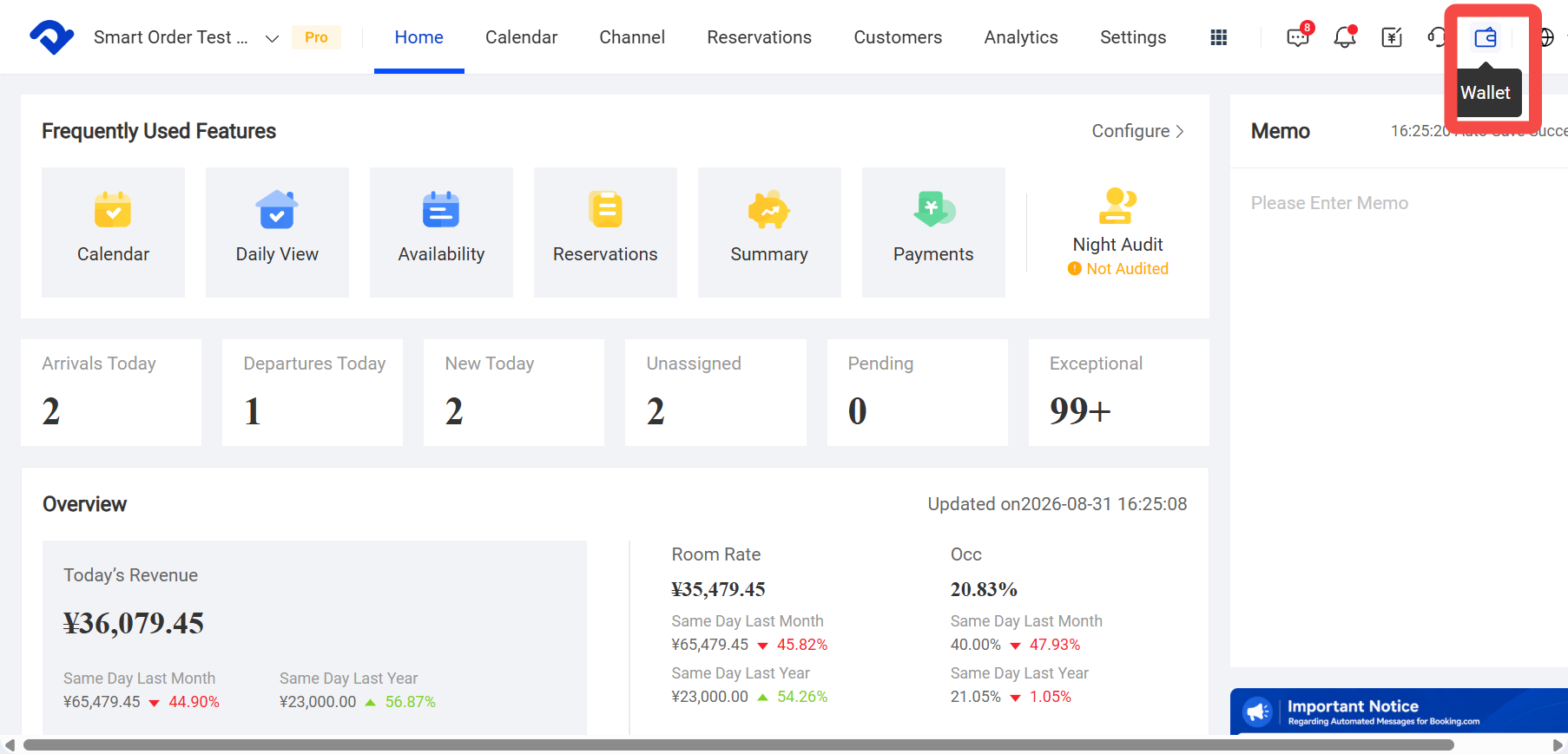
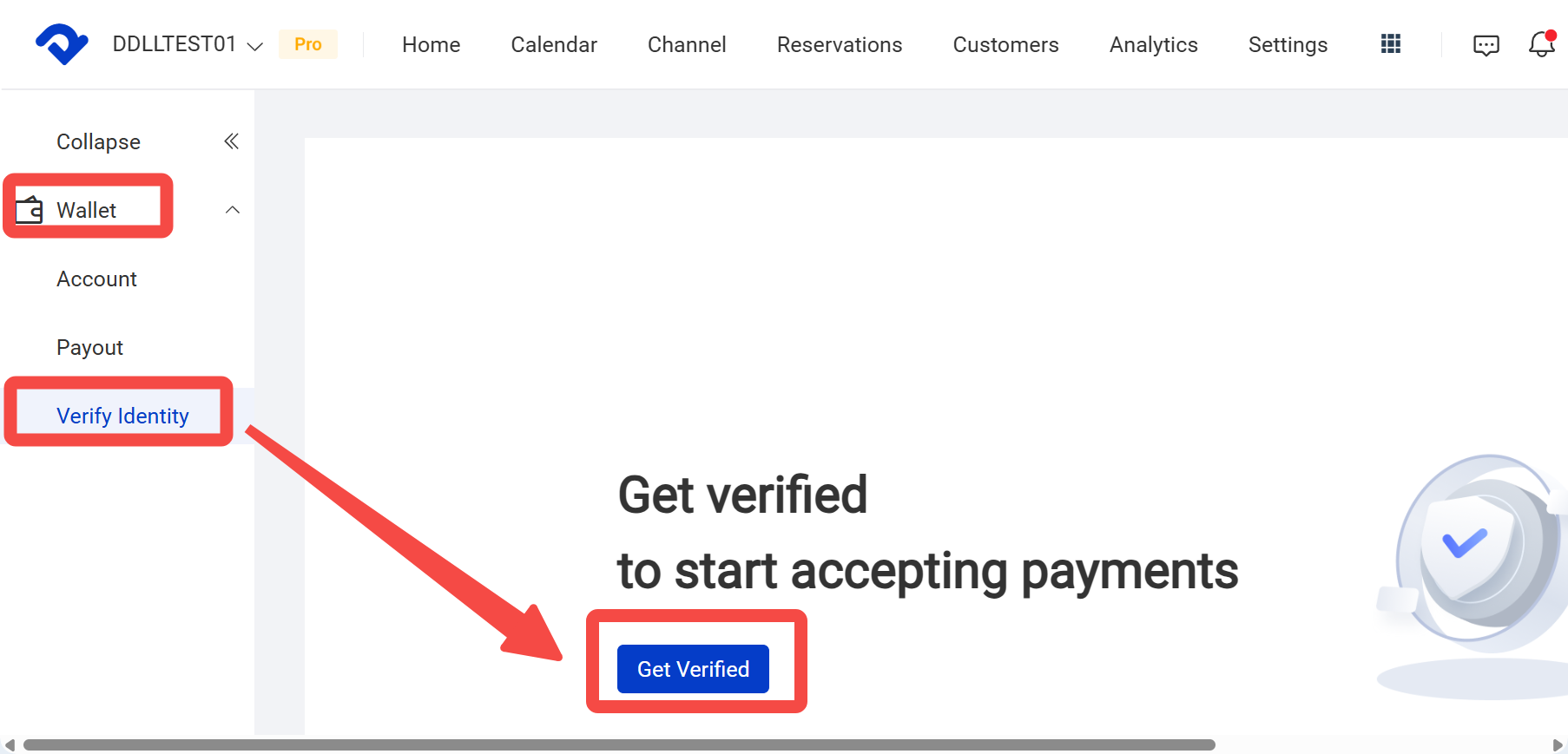
- Click the Wallet icon in the top-right corner, then click Identity Verification.
- Enter the company contact person, company name, company phone number, and company address, then submit for review.
After submitting, you can also contact Smart Order support in your dedicated customer group to help speed up the review process.
Ⅱ. Check and Set Property Details
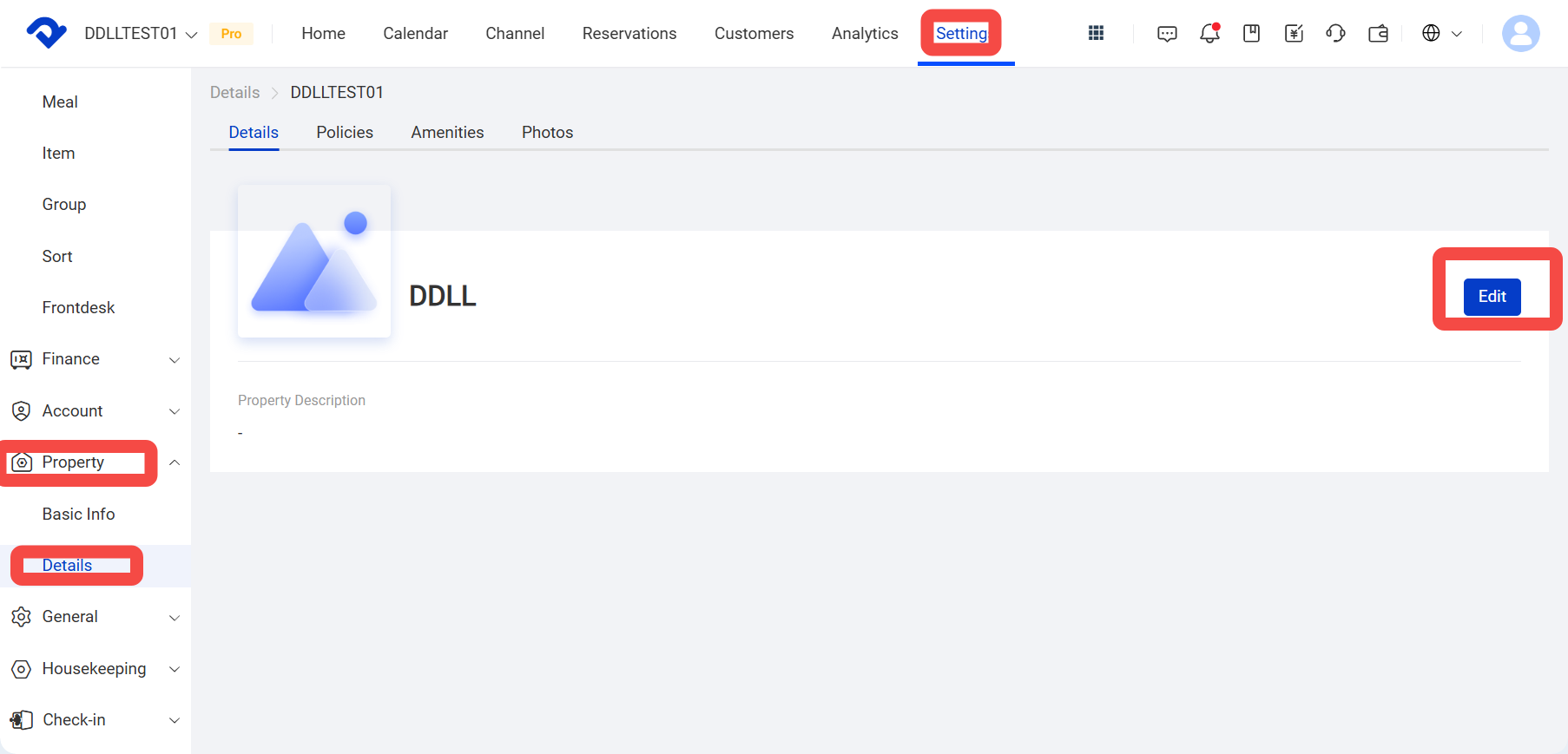
- Click Settings > Property Settings > Property Details to check and set property details.
(1) Single-group mode: Click Edit.
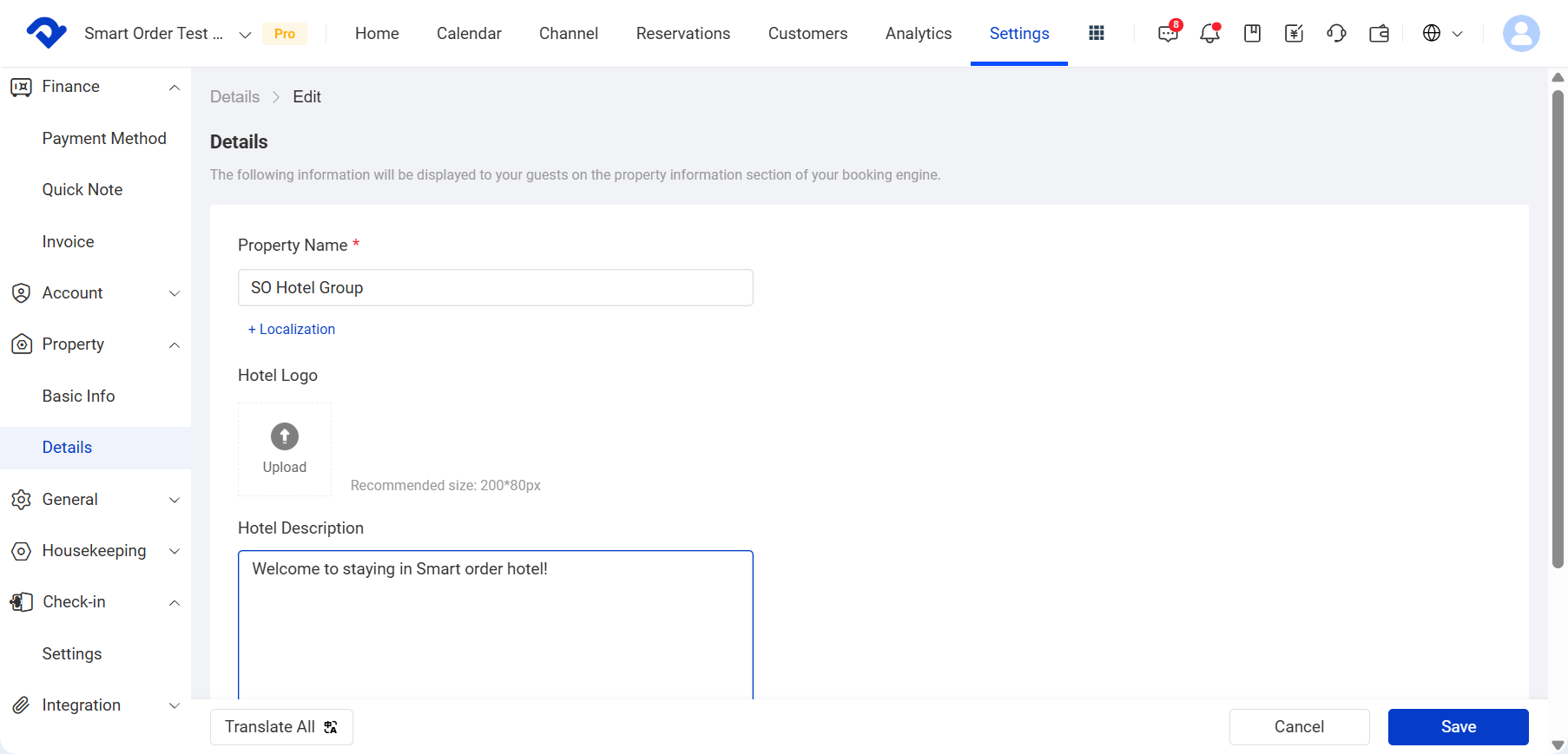
3-1. Details Settings
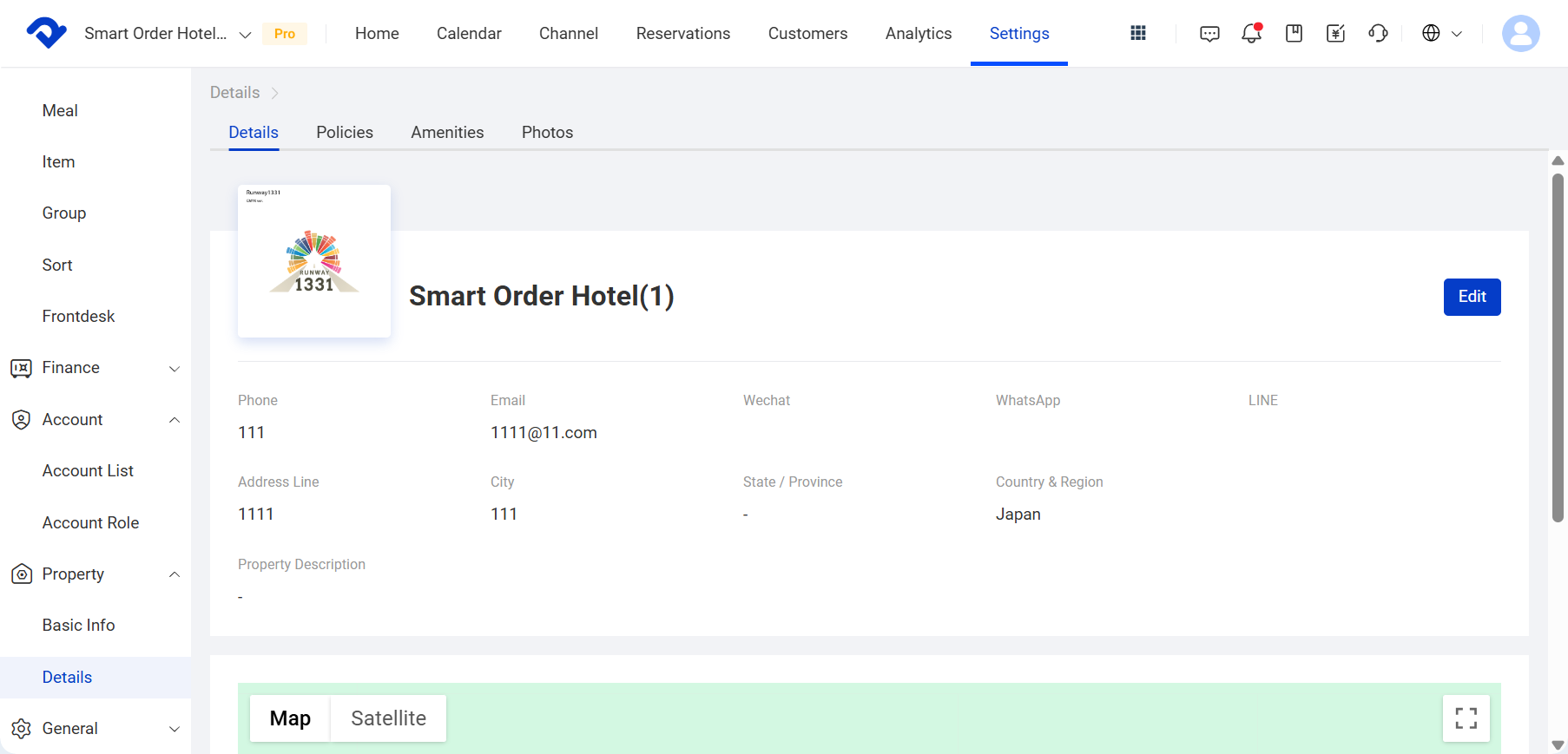
a. Property name: Set the name displayed at the top of the marketing website.
b. Property logo: Upload the property logo image. It will appear in the top-left corner and at the bottom of the marketing website.
c. Property description: For example, the property introduction. It will be shown on the homepage of the marketing website. Maximum 5,000 characters.
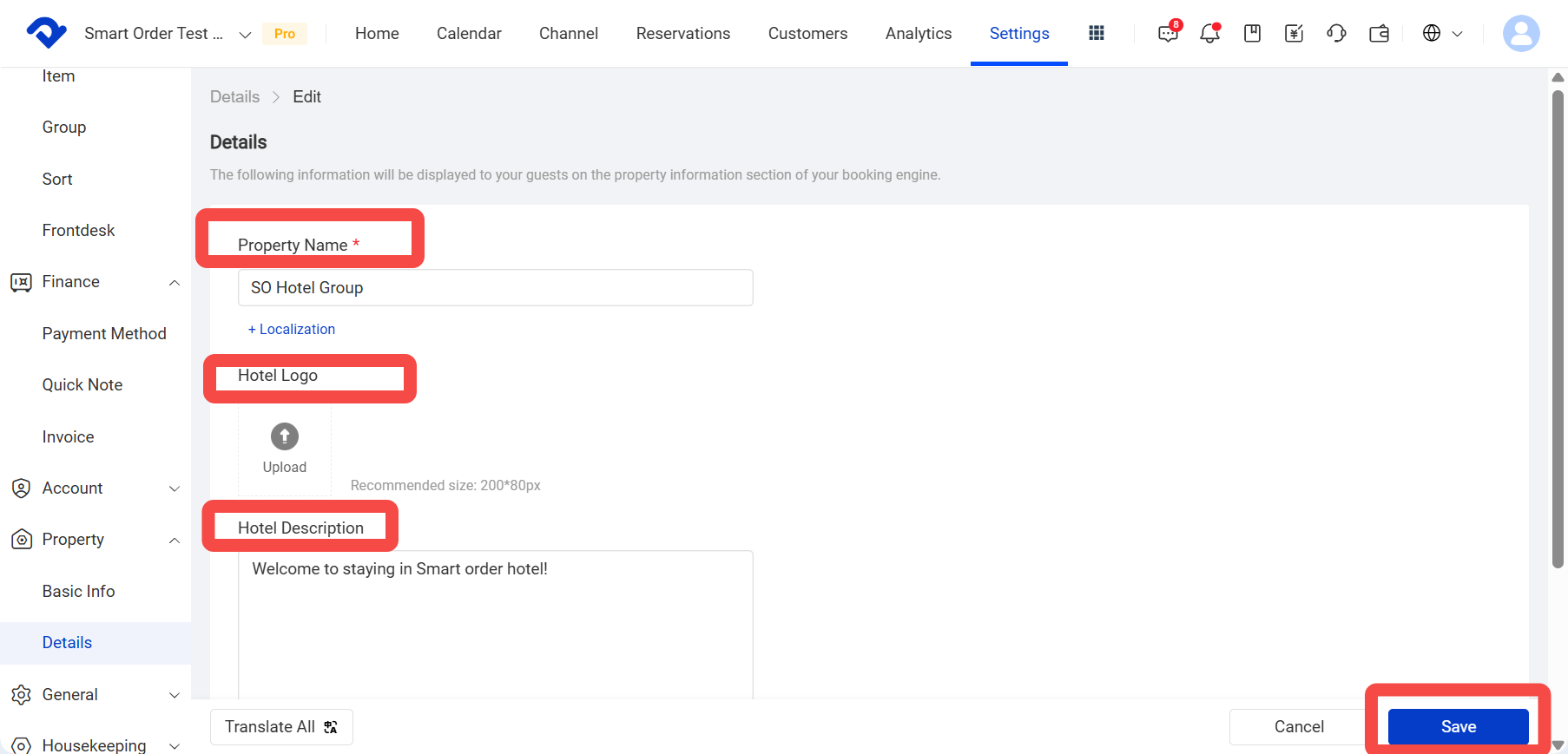
d. Enter the contact phone number, email address, and property address. Other items are optional.
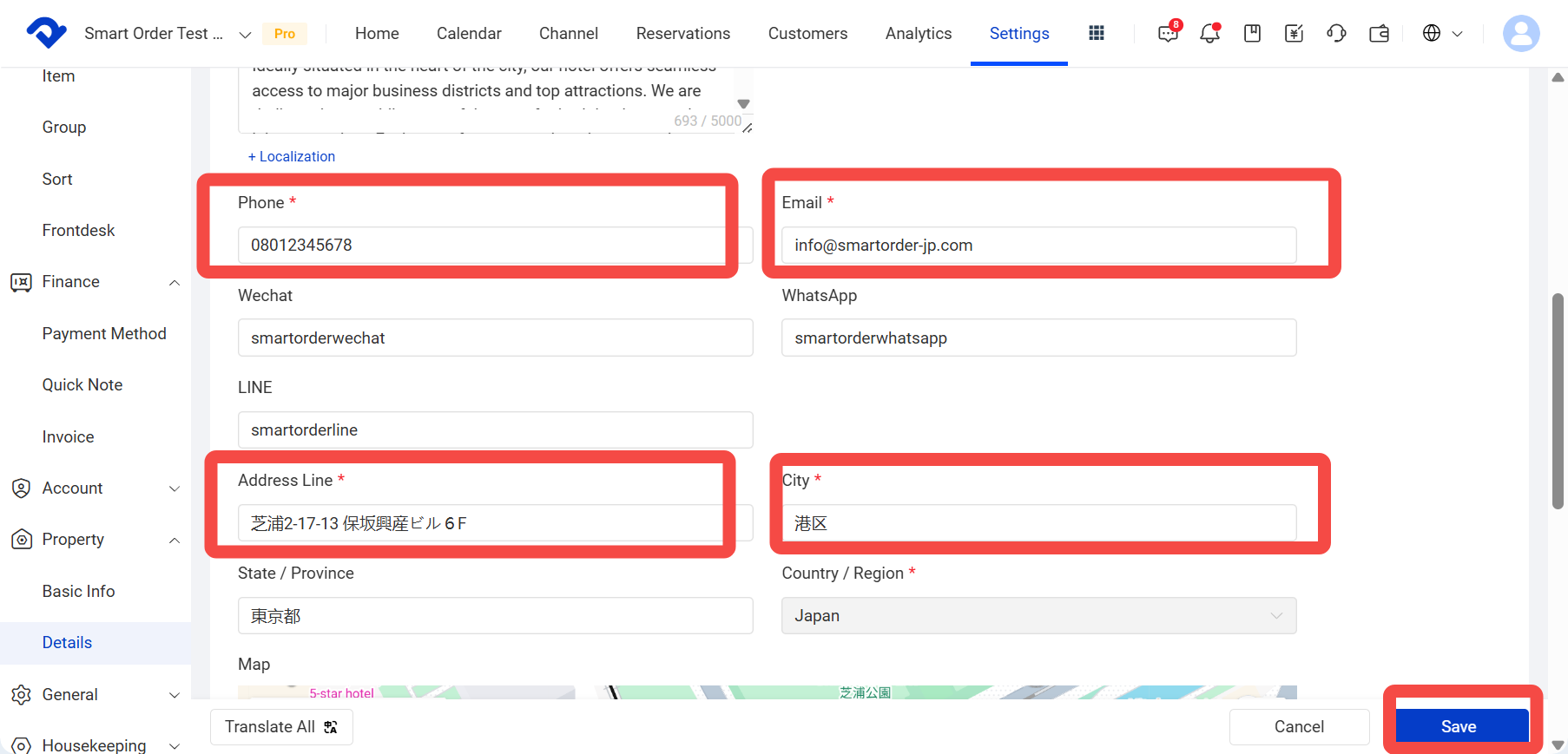
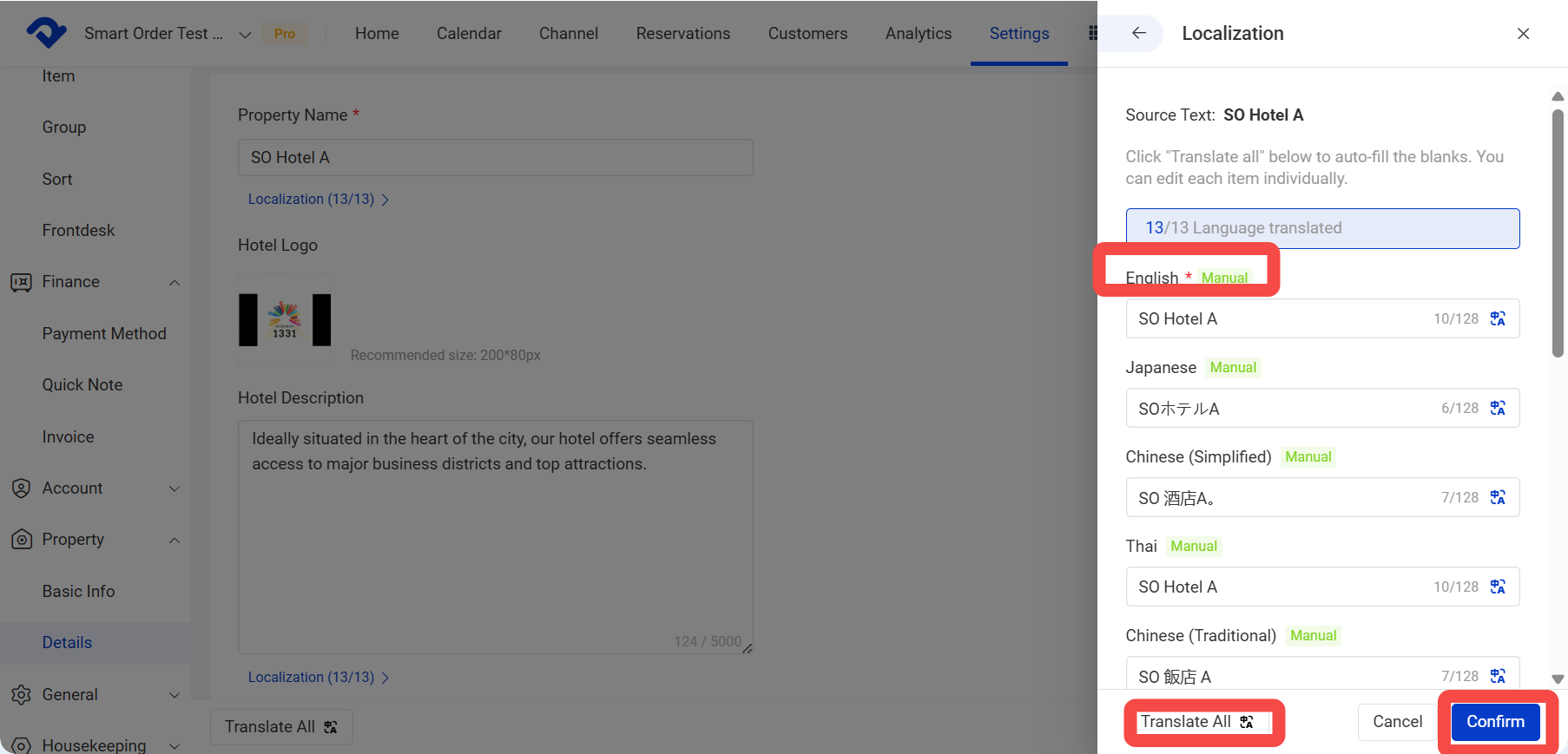
e. Translation
- Click + Localization next to the field you want to translate. The Localization panel will open and show the source text at the top.
- Click Translate All to auto-fill the empty language fields. Check and edit the translations if needed.
- Enter the text in the languages you want to display on the Booking Engine, Chinese Site, or Xiaohongshu store.
- Click Confirm when you are finished.
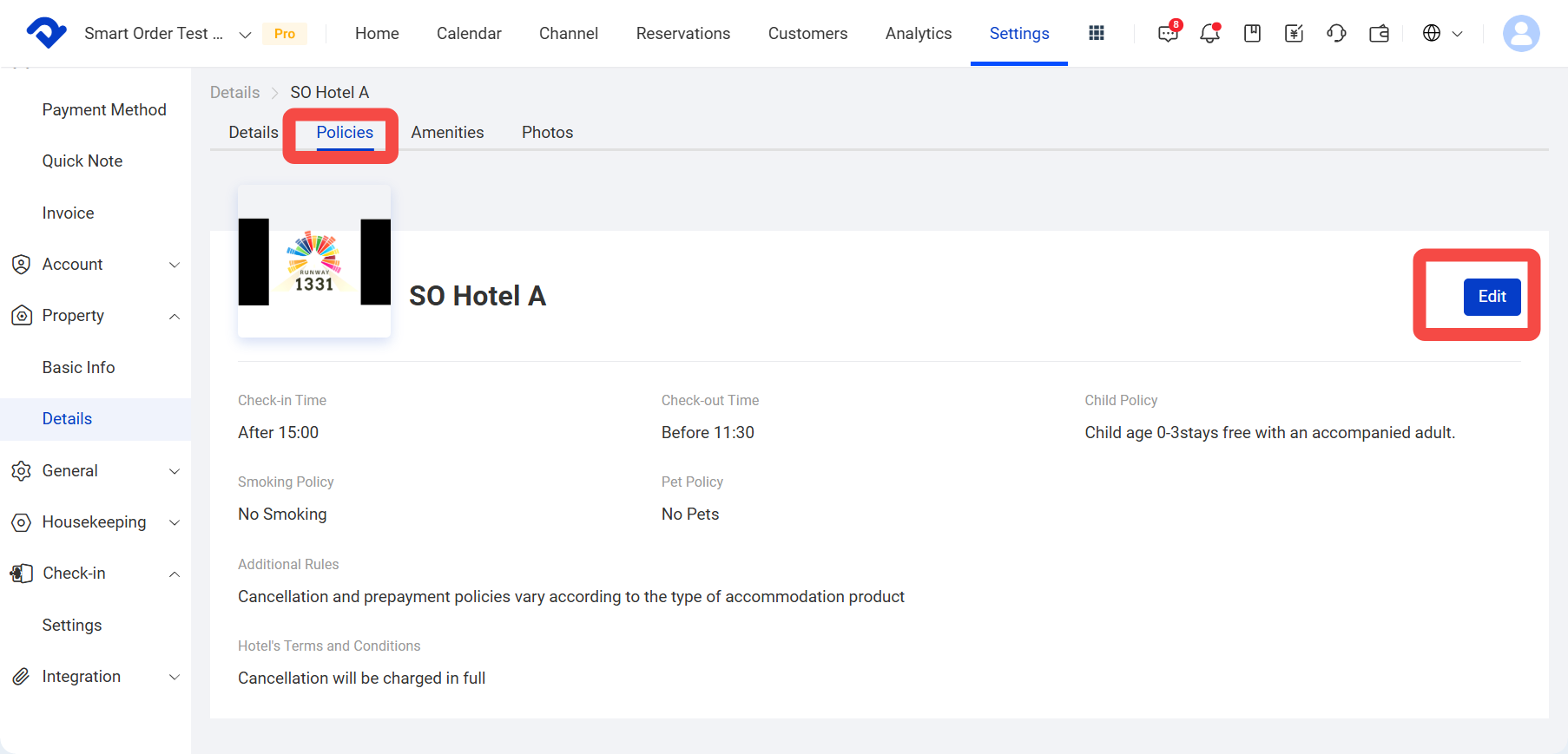
3-2. Policy Settings
a. Check-in / check-out time: The time zone follows the property’s local time and will be shown on the website homepage.
b. Child policy, smoking policy, pet policy, additional notes, and property terms
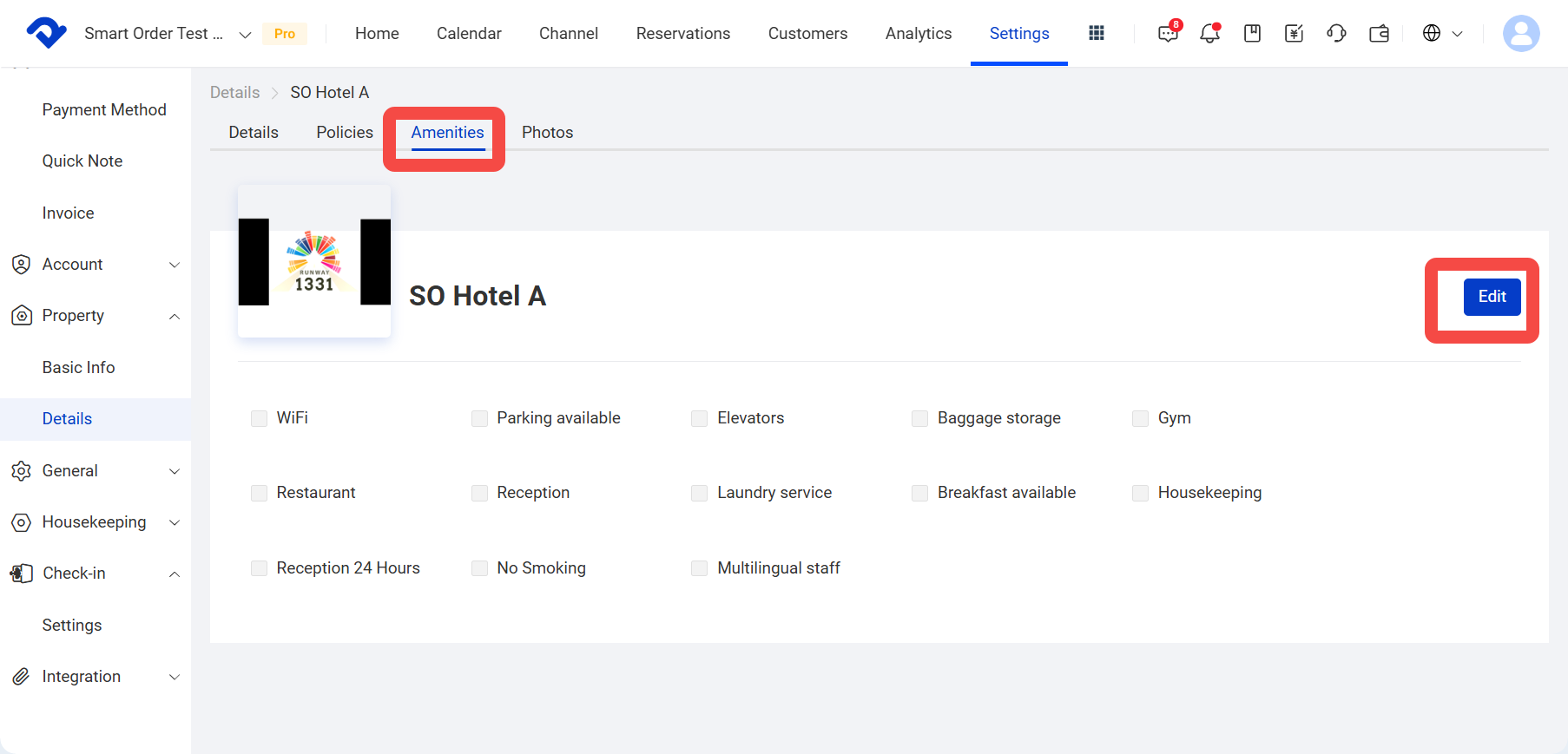
3-3. Select the facilities and services provided by the property
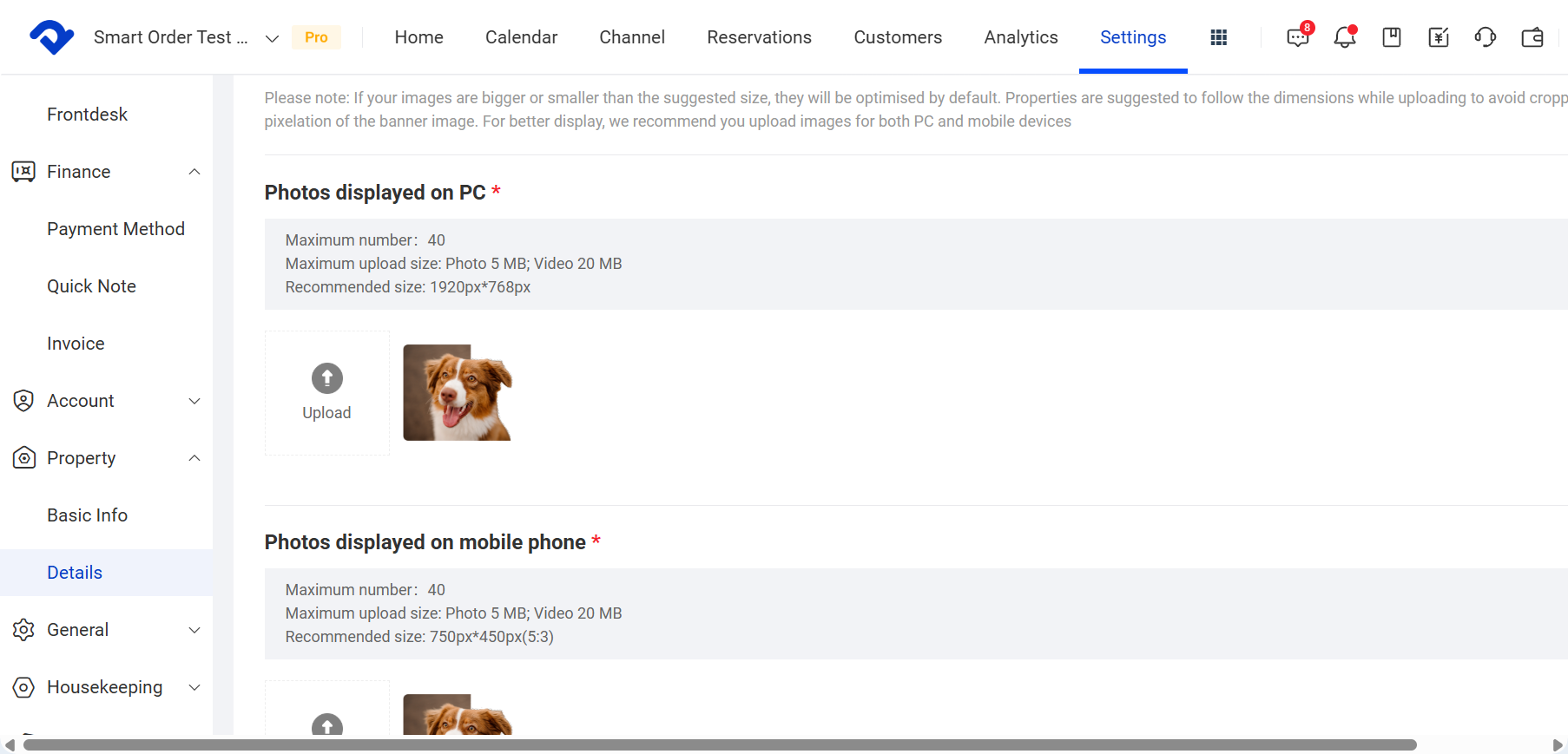
3-4. Upload property photos, which will be shown on the property website homepage
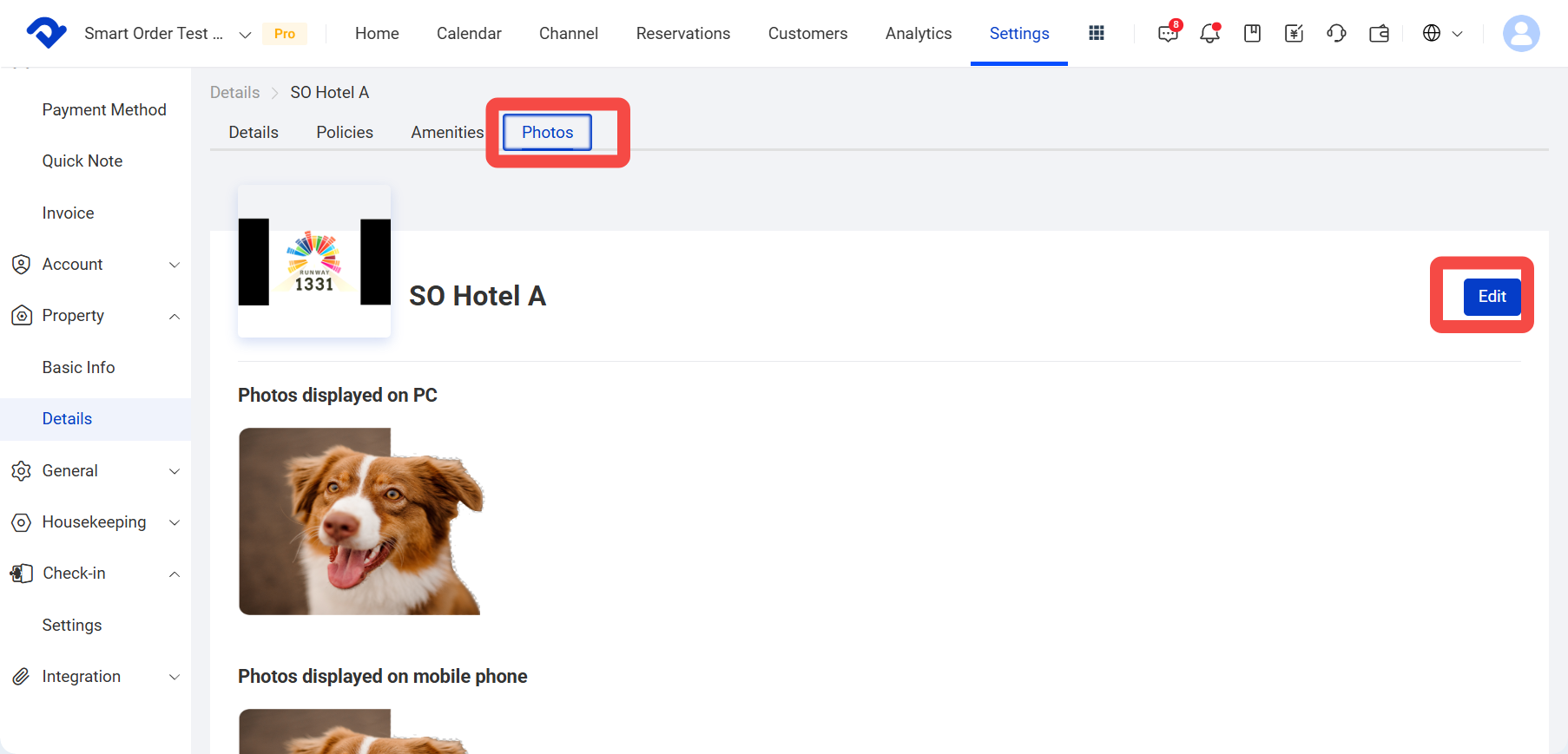
a. Desktop photo format:
- Maximum number: 40
- Maximum upload size: Images 5 MB, videos 20 MB
- Recommended size: 1920 px * 768 px
b. Mobile photo format:
- Maximum number: 40
- Maximum upload size: Images 5 MB, videos 20 MB
- Recommended size: 750 px * 450 px (5:3)
(2) Multi-group mode
a. In multi-group mode, there are multiple property groups. The room types included in each property group can be checked under Settings >Room >Group
Different groups can have different check-in / check-out times, addresses, contact details, names, and other basic information. In general, rooms under the same property address are recommended to be placed in one group.
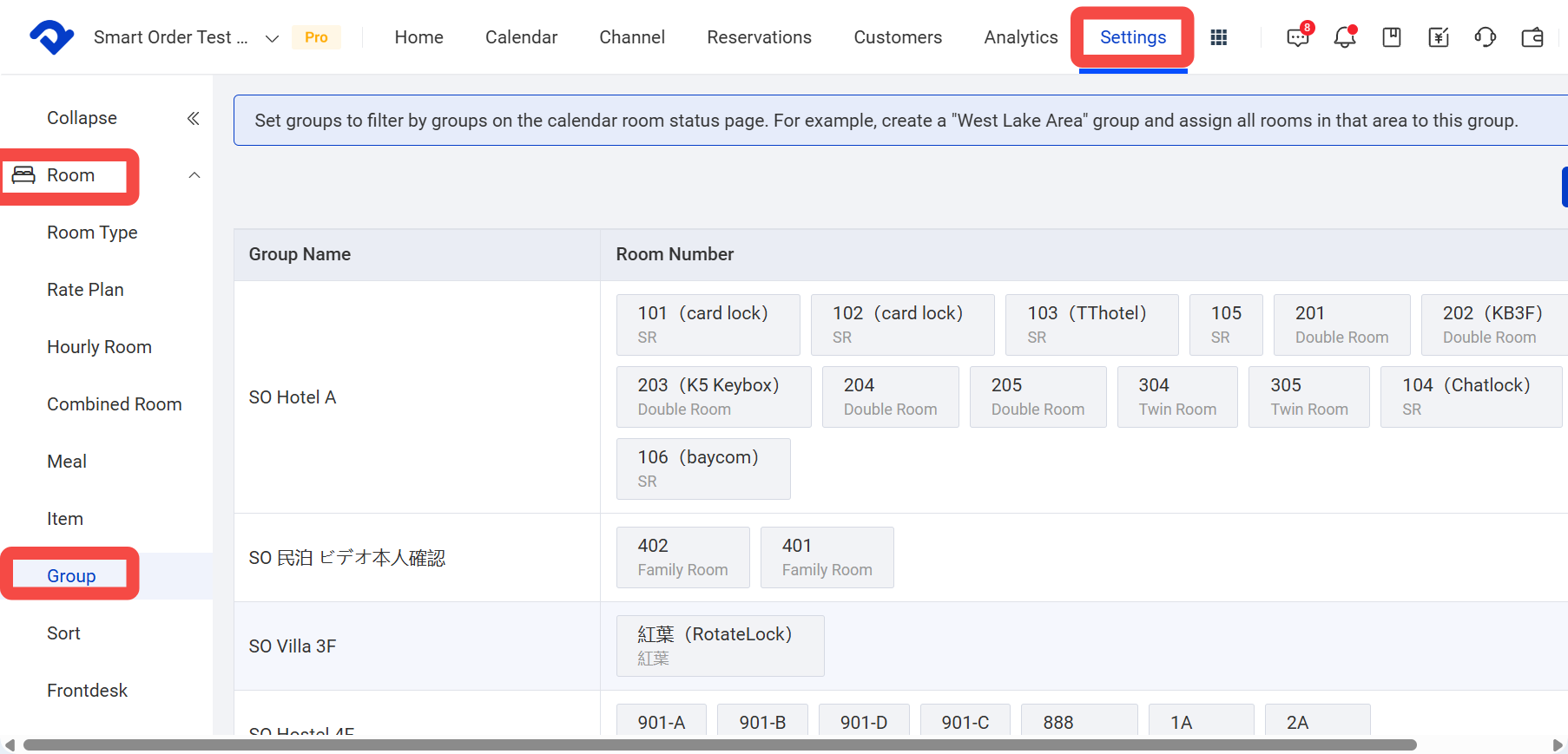
b. Each property group can generate a separate website link. If you want to enable an individual link for a property, please complete the property details for the corresponding group.
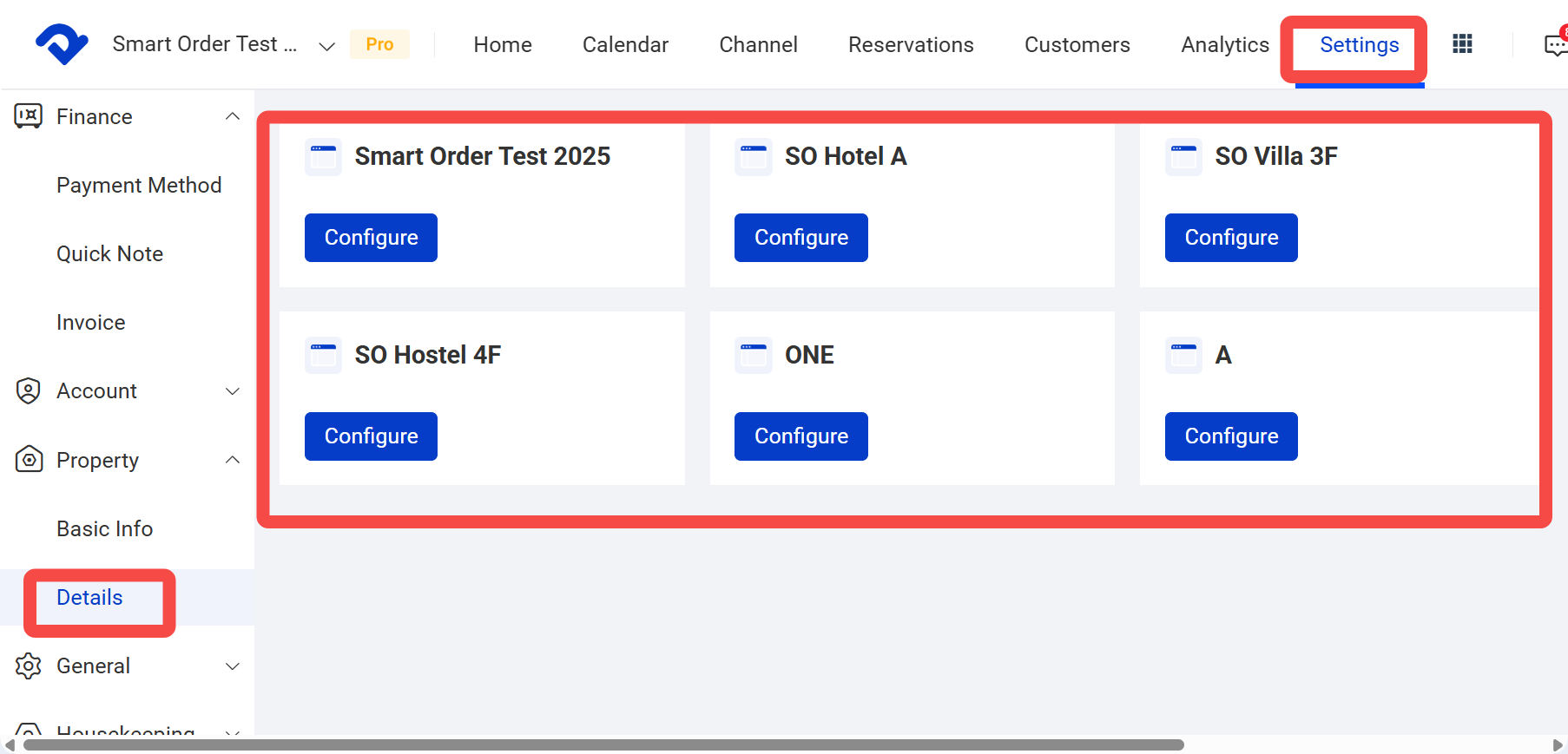
c. The first group is the main property group. The main property website link includes all room types published under the property and can be booked. Therefore, it is not recommended to fill in the main property information with the details of a single property. You can use your company’s homestay brand name, company logo, and business introduction instead.
Ⅲ. Set a Dedicated Website Domain for the Booking Engine / Chinese Site
Booking Engine: Designed for the web version. It uses the Smart Order payment gateway by default and supports credit card payments. It mainly serves overseas guests.
Chinese Site: Designed for mobile. It uses the Smart Order payment gateway by default and supports Alipay payments. It mainly serves guests from mainland China.
(1) Single-group mode:
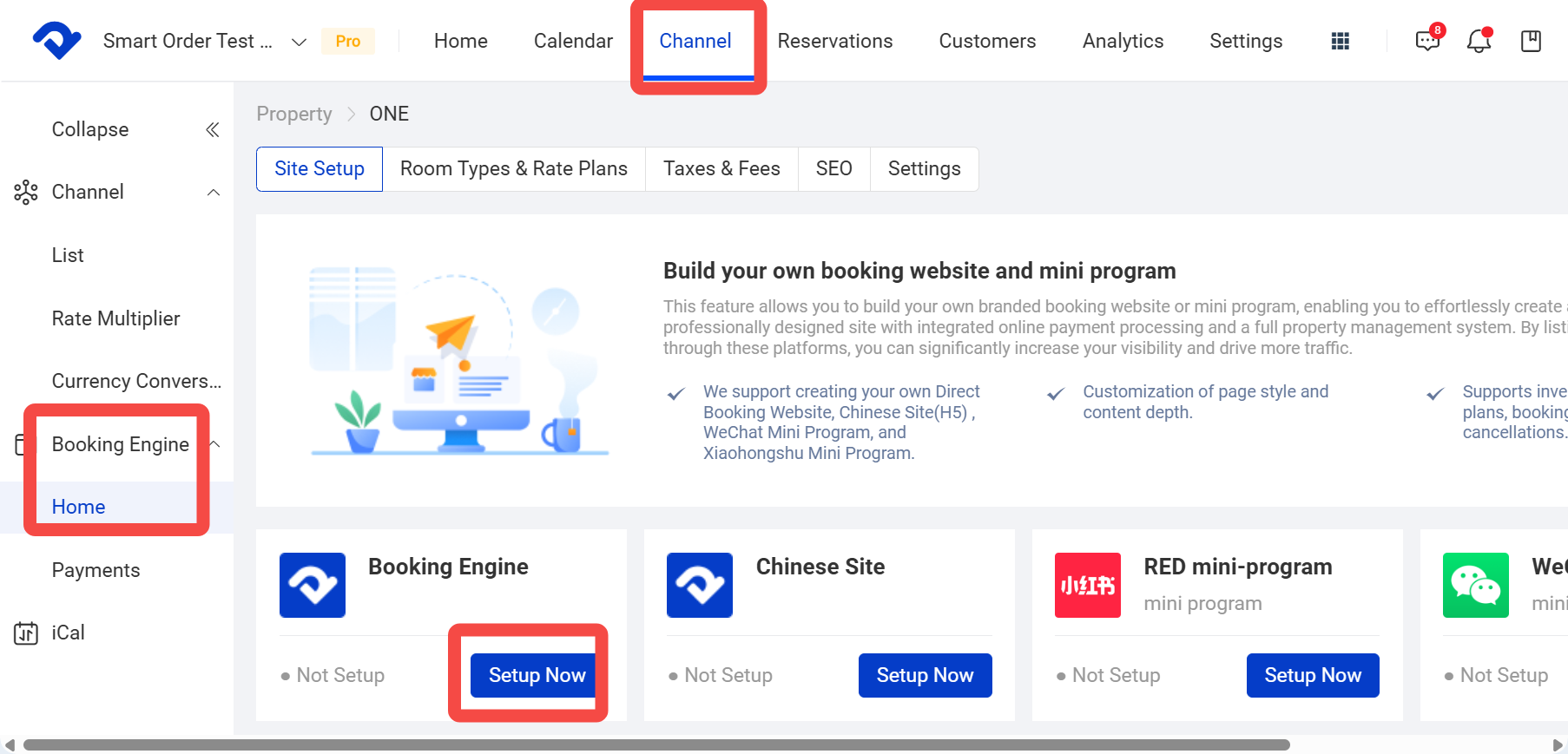
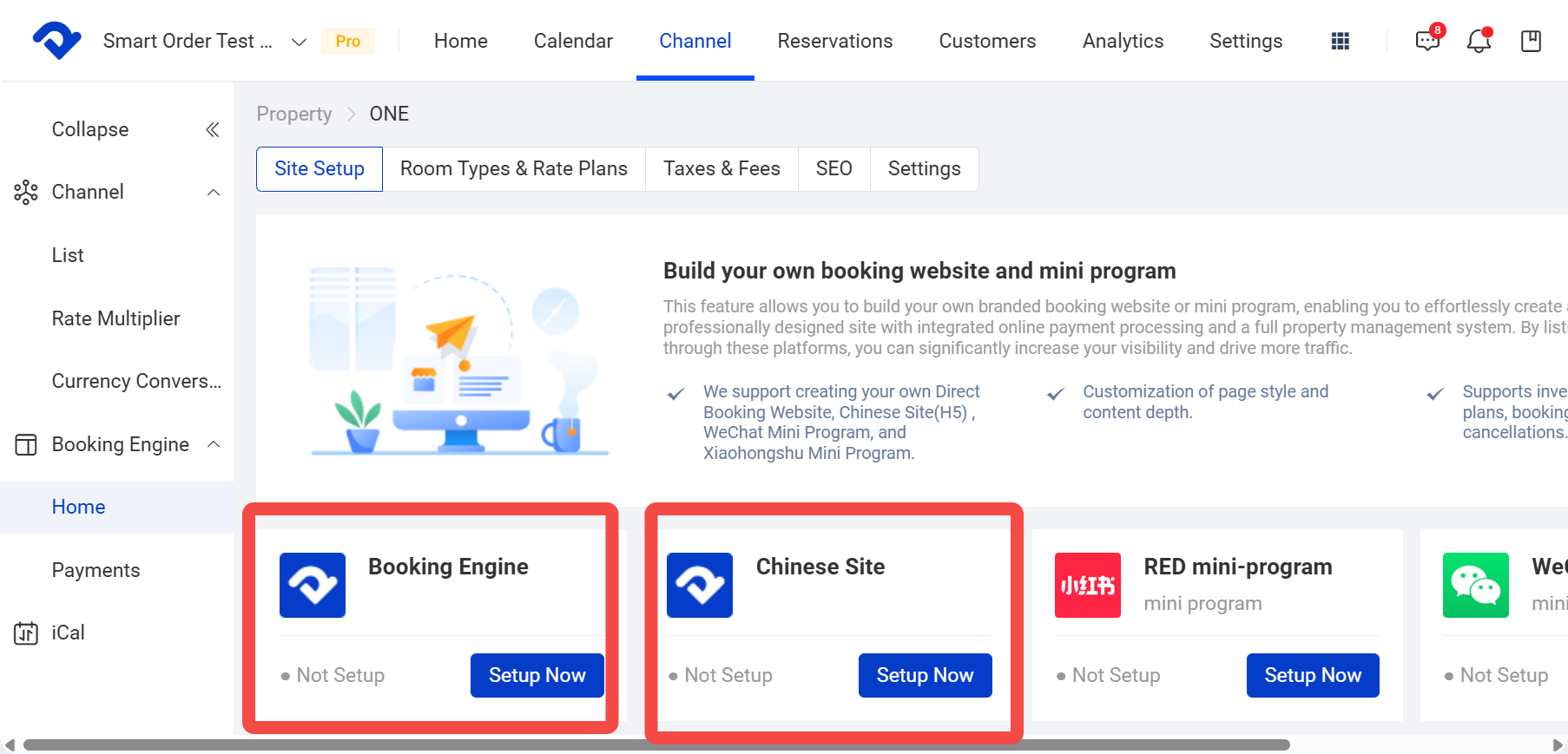
4. Click Channel > Marketing homepage > Set Now for the Booking Engine or Chinese Site.
(2) Multi-group mode
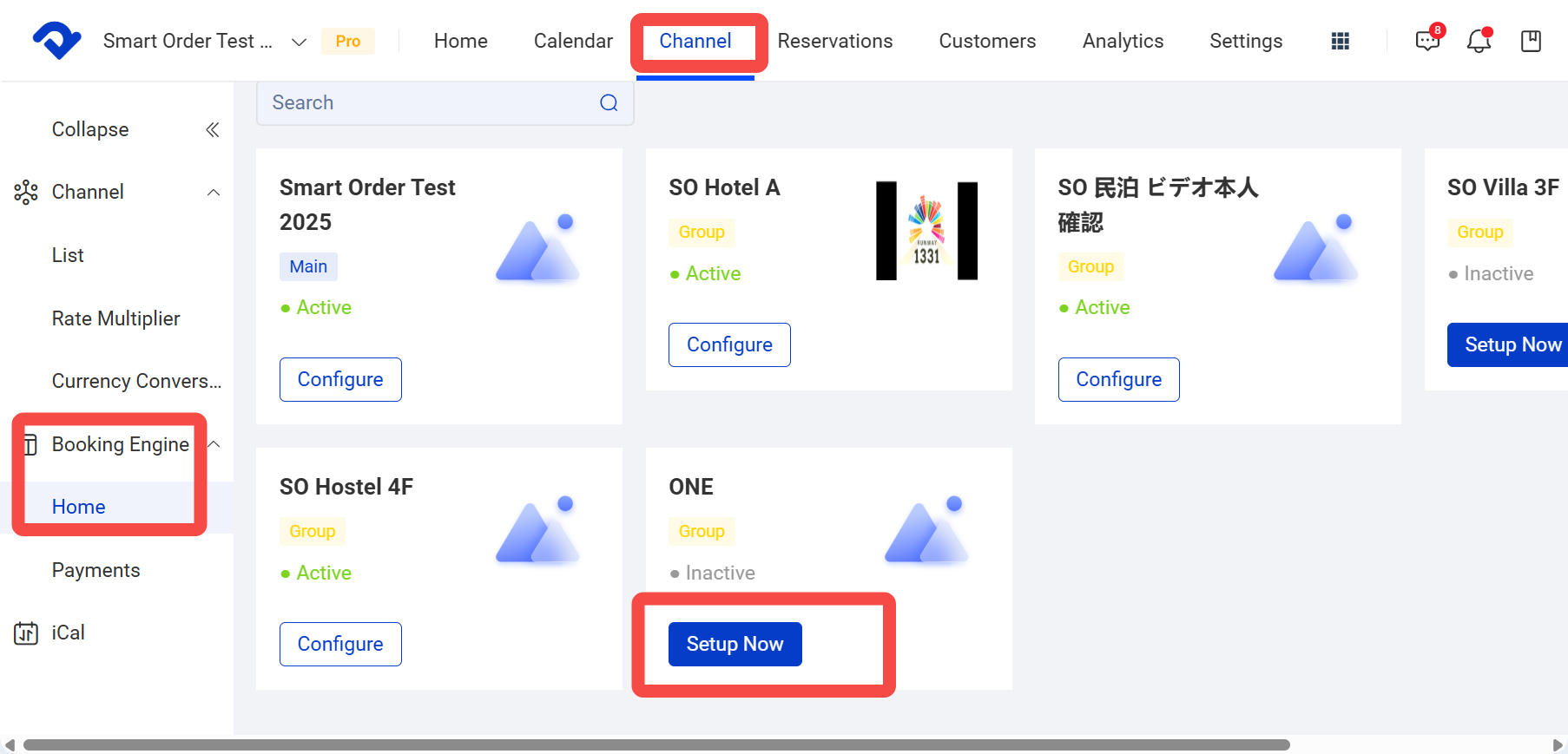
a. In multi-group mode, there are multiple property groups. The first “main menu” is the main group, and the generated link includes all room types published under the property. If you want to enable the main group link, please set the domain for the main group first.
b. Each property group can generate a separate website link. If you want to enable an individual link for a property, please set the domain for that property group.
- Setup steps: Click Channel > Marketing homepage > Set Now for the corresponding group > Set Now for the Booking Engine or Chinese Site.
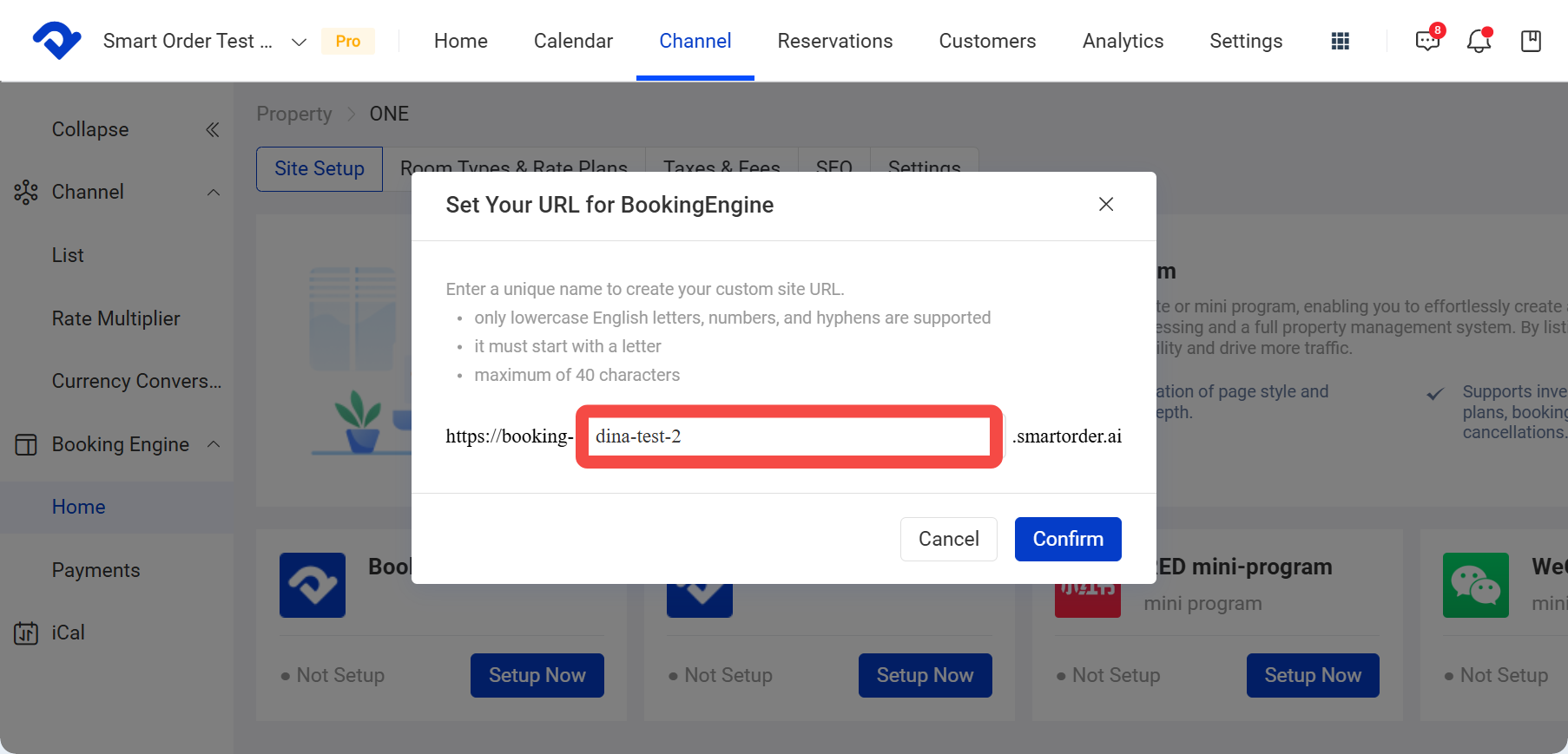
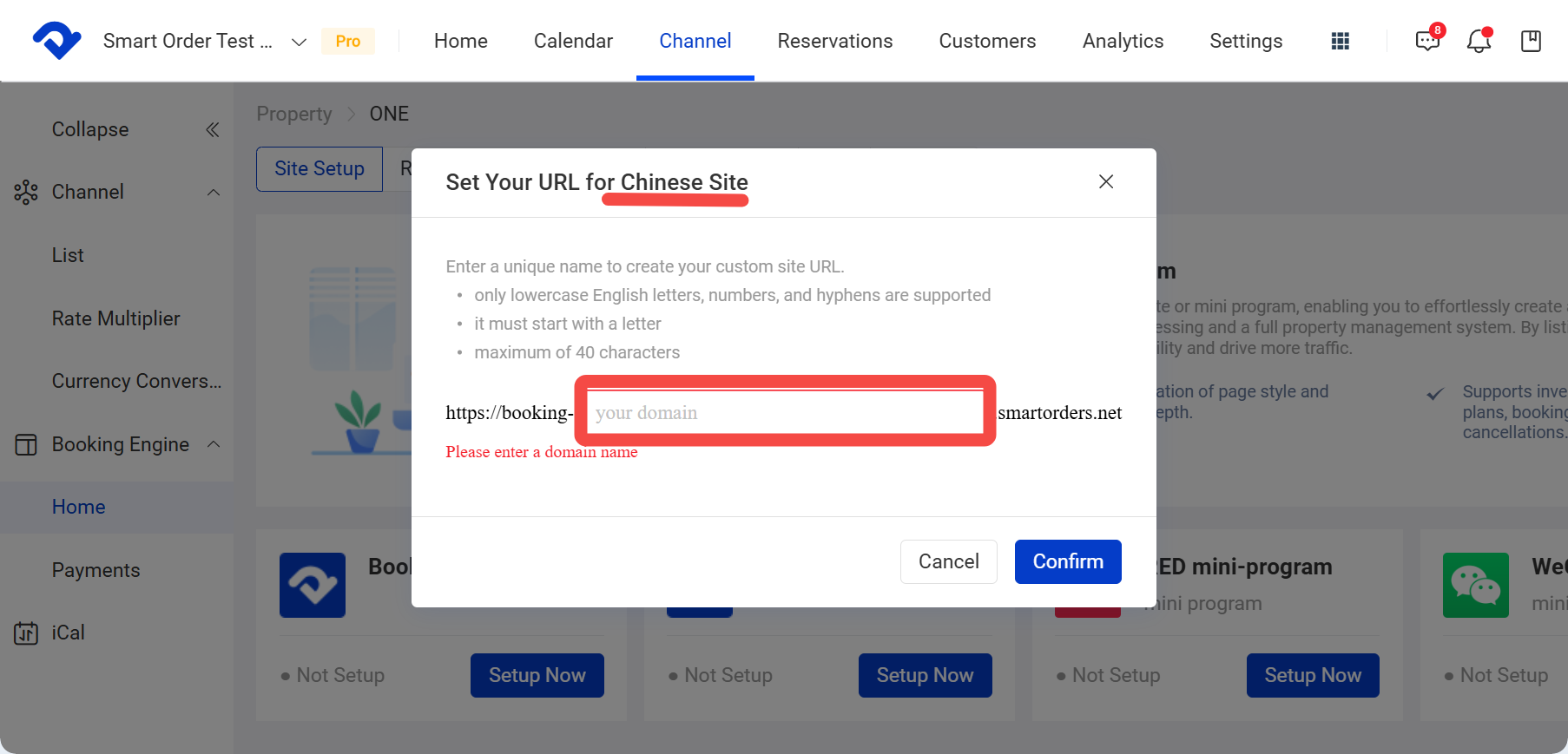
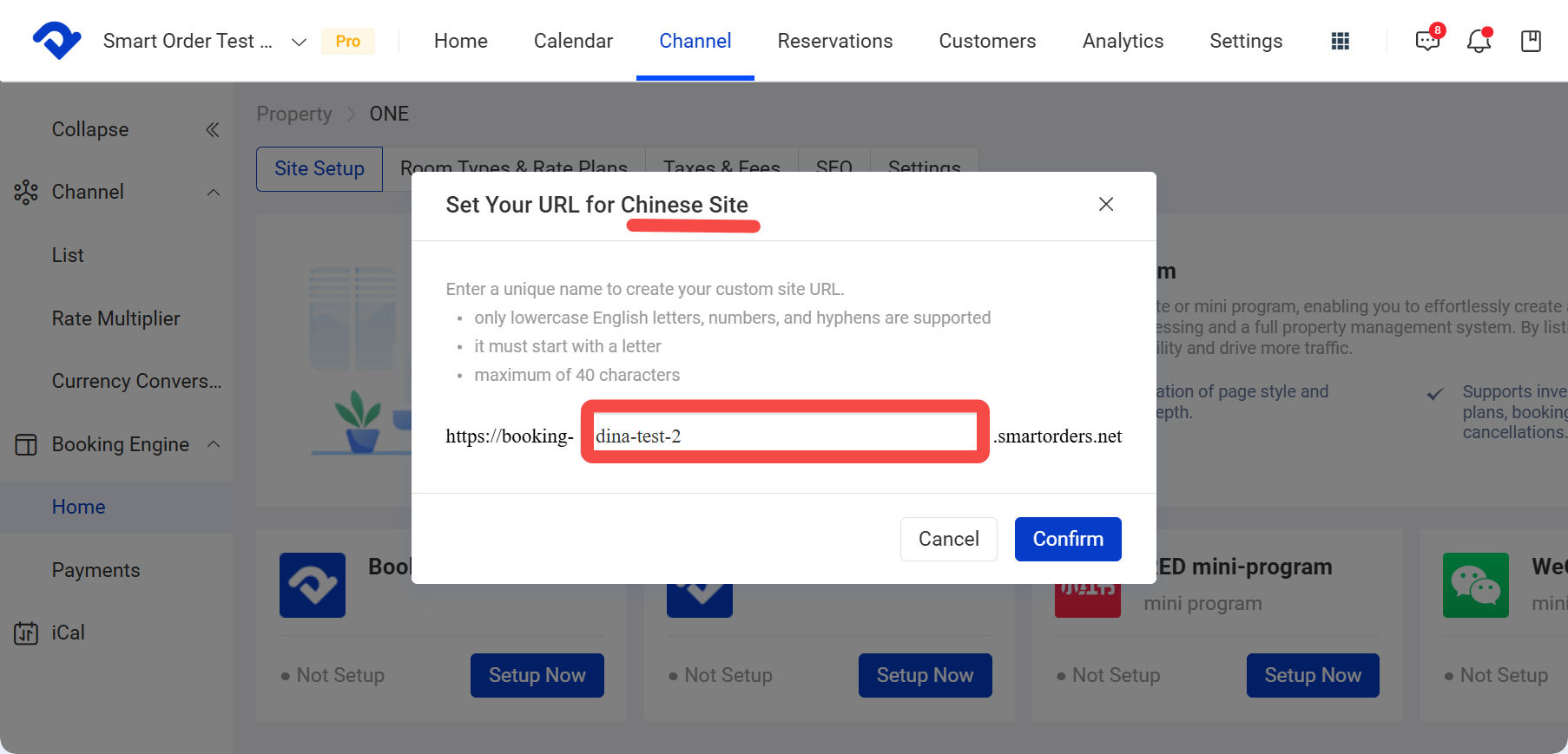
Set Up the Booking Engine Domain
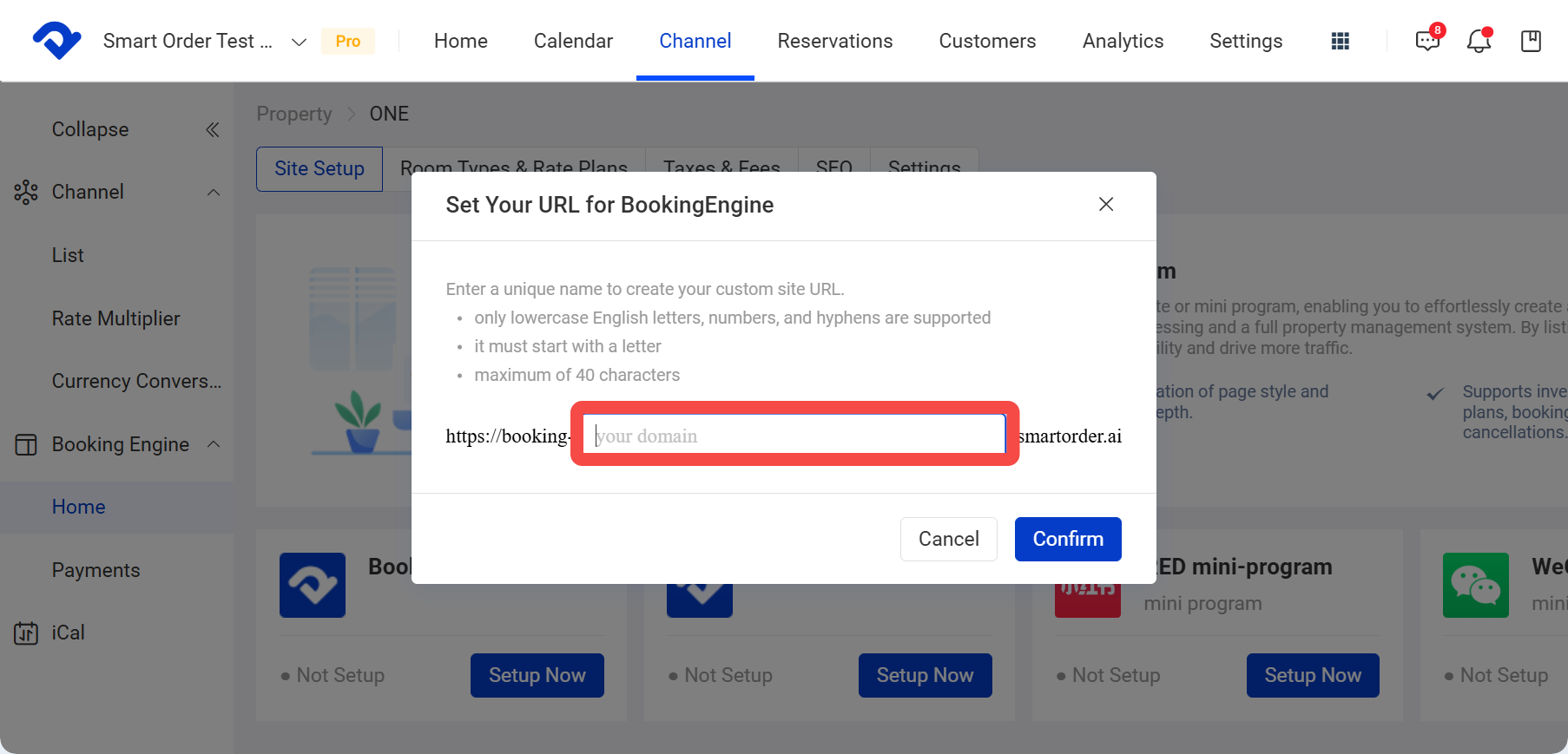
- Domains are set by property group. Different groups must use different domains.
- Domains must be unique and cannot be duplicated.
- Overseas site domain format:
booking-{custom-name}.smartorder.ai - Domestic site domain format:
booking-{custom-name}.smartorders.net
- Only lowercase letters, numbers, and hyphens are supported.
- The domain must start with a letter.
- Maximum length is 40 characters.
- After confirming this setting, it cannot be canceled, withdrawn, or modified. Please double-check the domain before clicking Confirm.
The Xiaohongshu mini program must be authorized before further setup can continue. If you need to open a Xiaohongshu store, please contact Smart Order support for assistance.
Ⅳ. Set the Payment Gateway for the Marketing Site
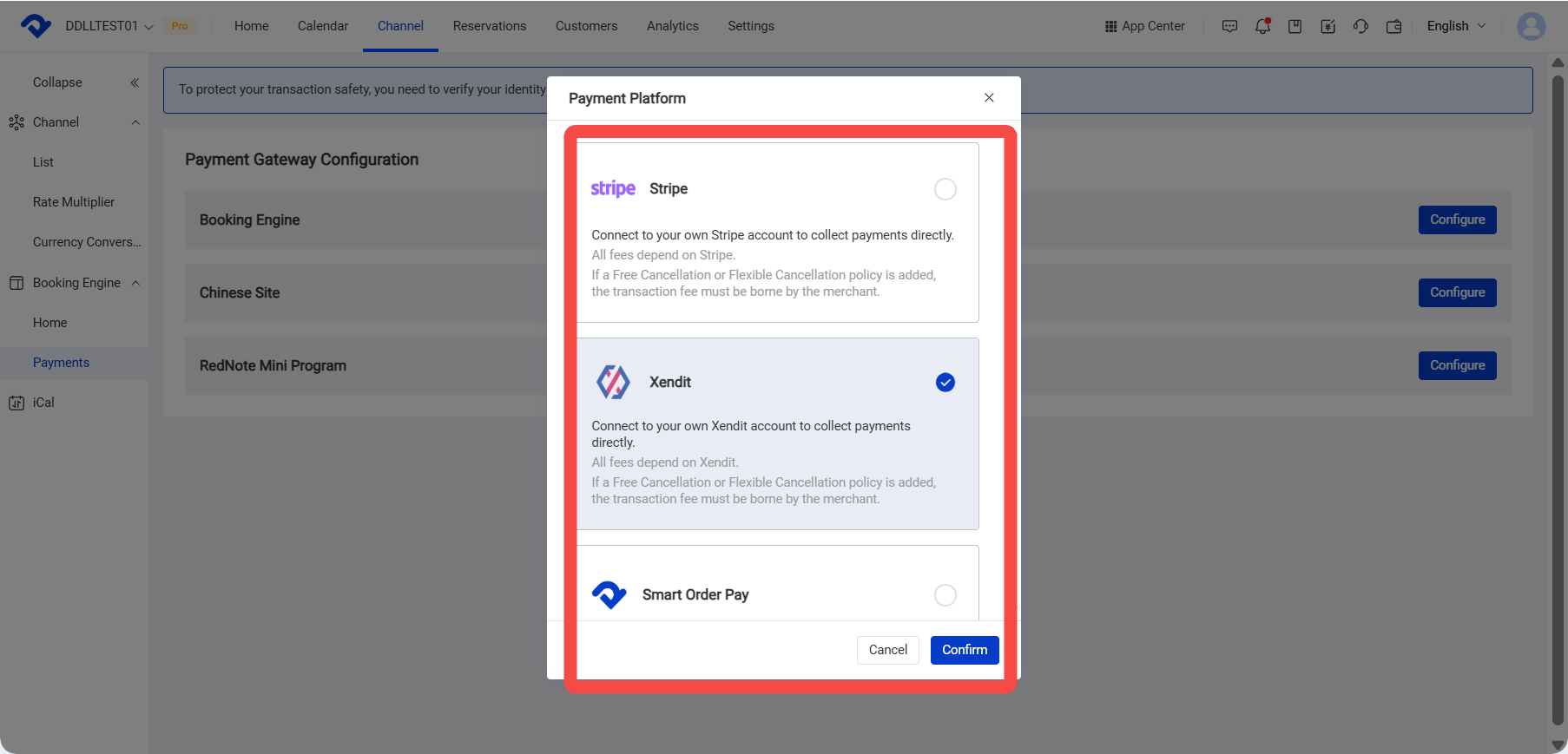
- Click Channel > Marketing > Payment to set the payment gateway for each marketing site.
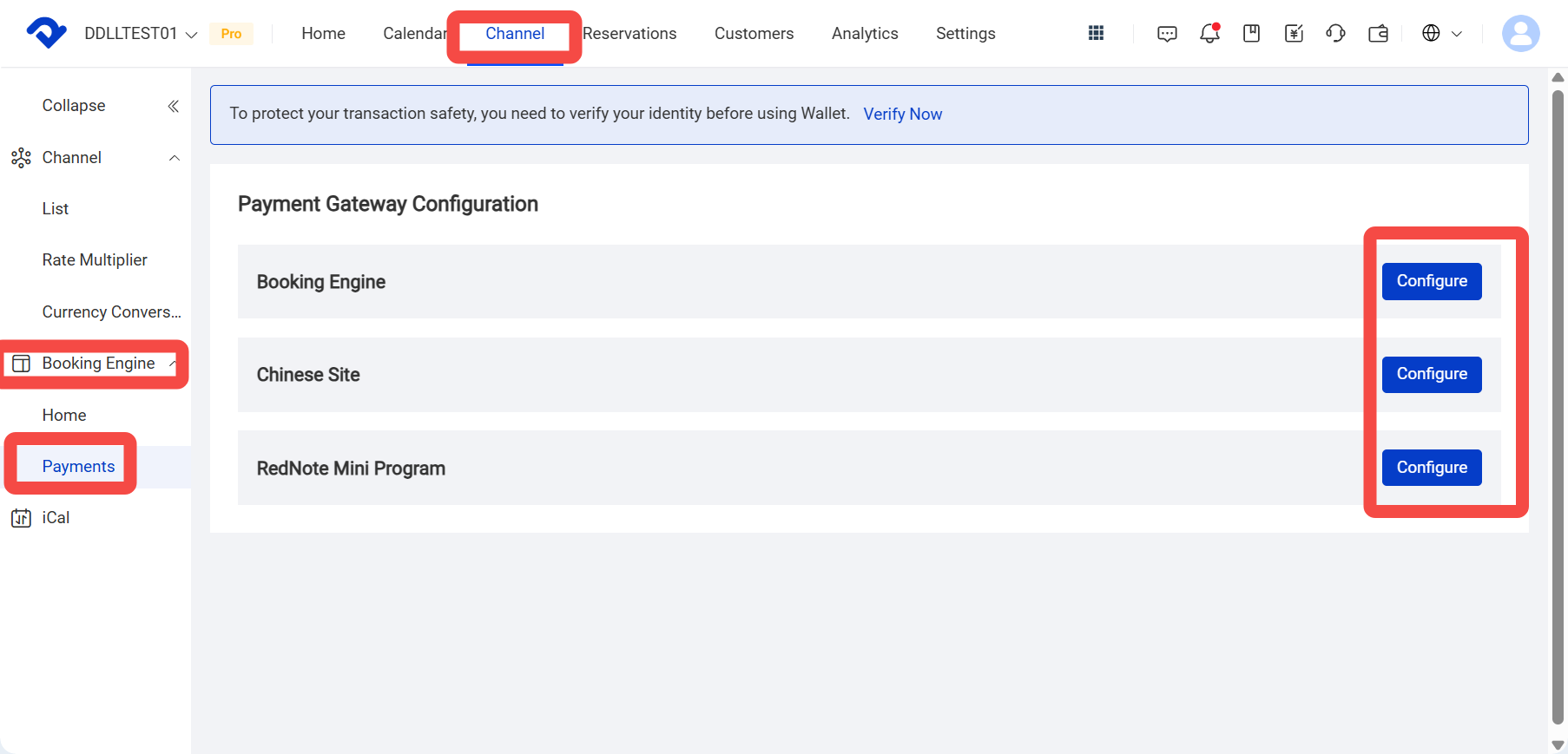
(1) Booking Engine
You can set a third-party payment gateway, Stripe, Xendit or the system payment gateway, Smart Order Pay.
To use Stripe, you must first connect your Stripe account to PMS to enable direct collection. Fees are subject to Stripe’s rules. If you add a Free cancellation or Flexible cancellation policy, the transaction fee is paid by the merchant.
Ⅴ. Add Room Type Details
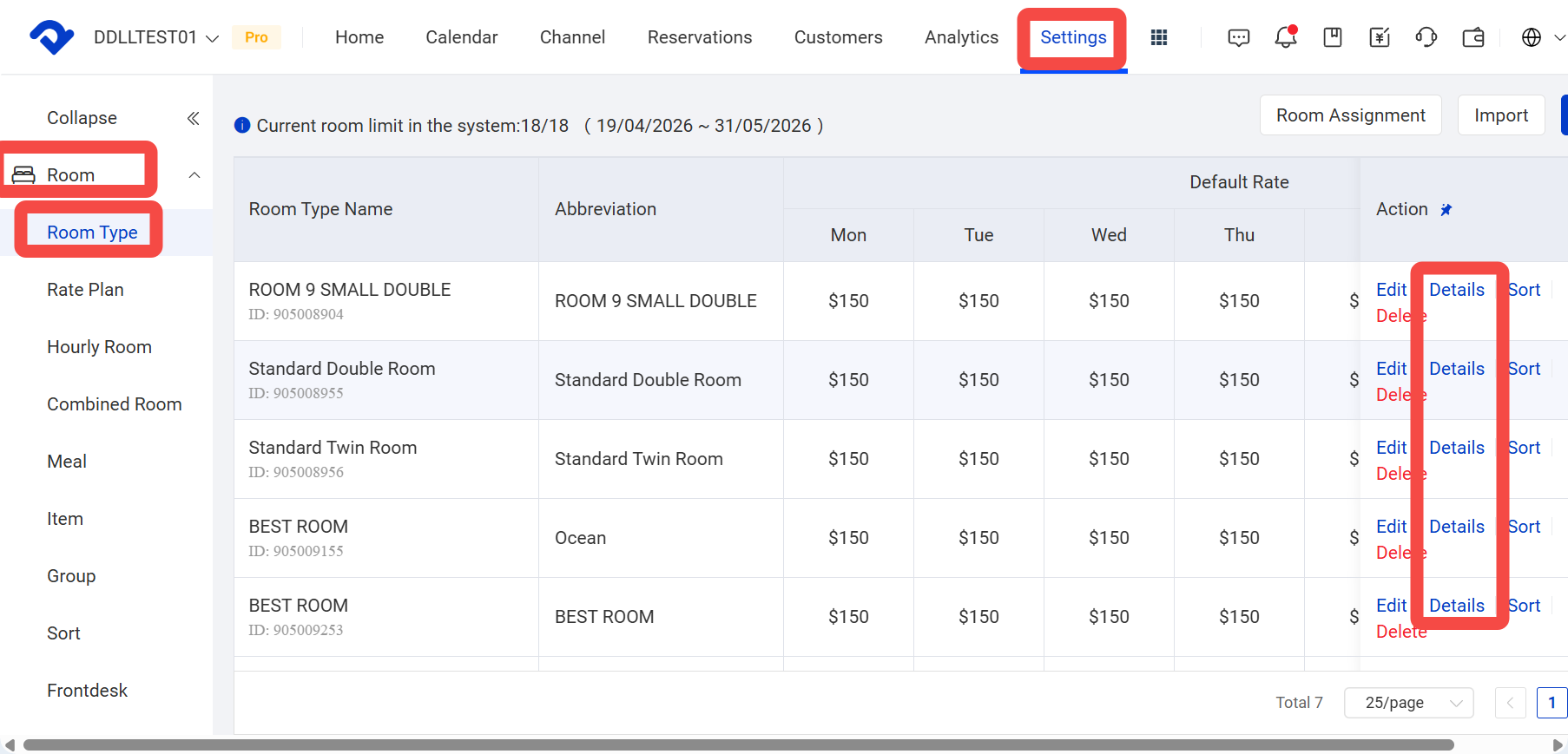
- Click Settings > Property Settings > Room Settings.
- Click Details to complete all room type details that need to be published on the marketing website. Otherwise, the site may display incomplete information or the room type may not be bookable if its details are not filled in.
※If the page is blank, first click Add in the upper-right corner to add room information.
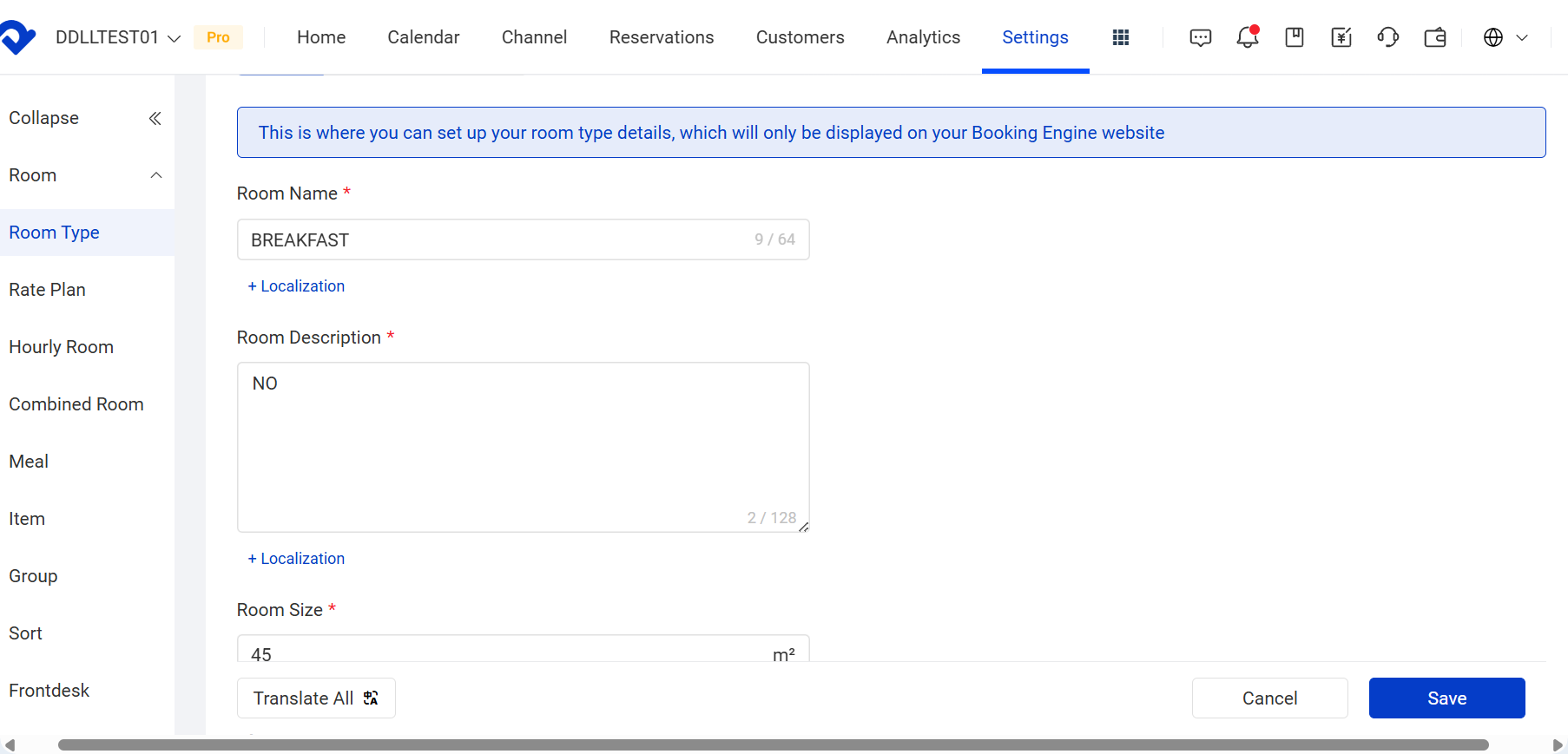
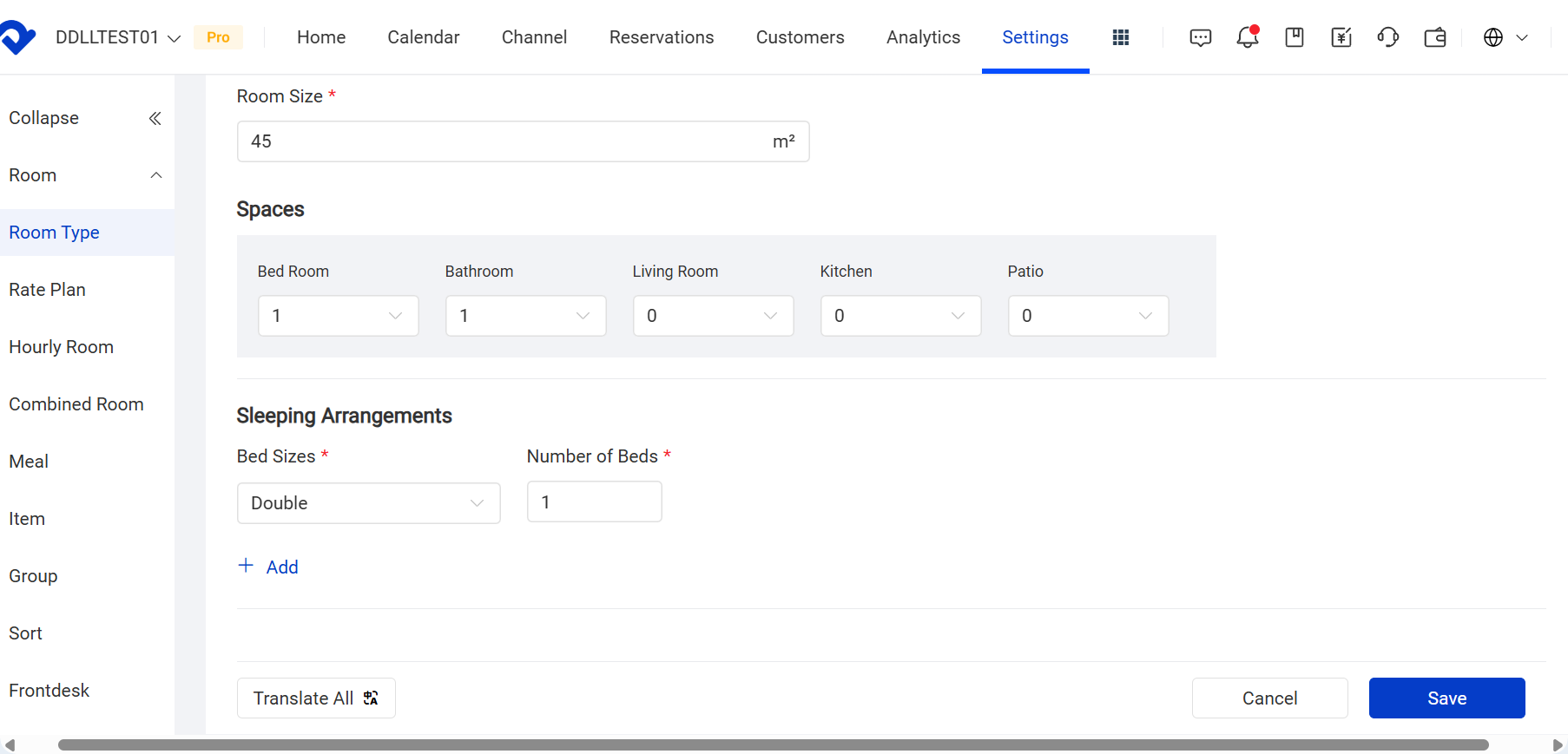
6.1 Set basic information: room name and room description (localization can be added), space, sleeping arrangement, and maximum occupancy.
- English: You can enter any language. This is the default language for the PC website (overseas version), such as English or Japanese.
- Localization: You can enter the room name and room description in another language. This is the default language for the mobile version (China version) and the Xiaohongshu mini program. It is recommended to fill in Chinese.
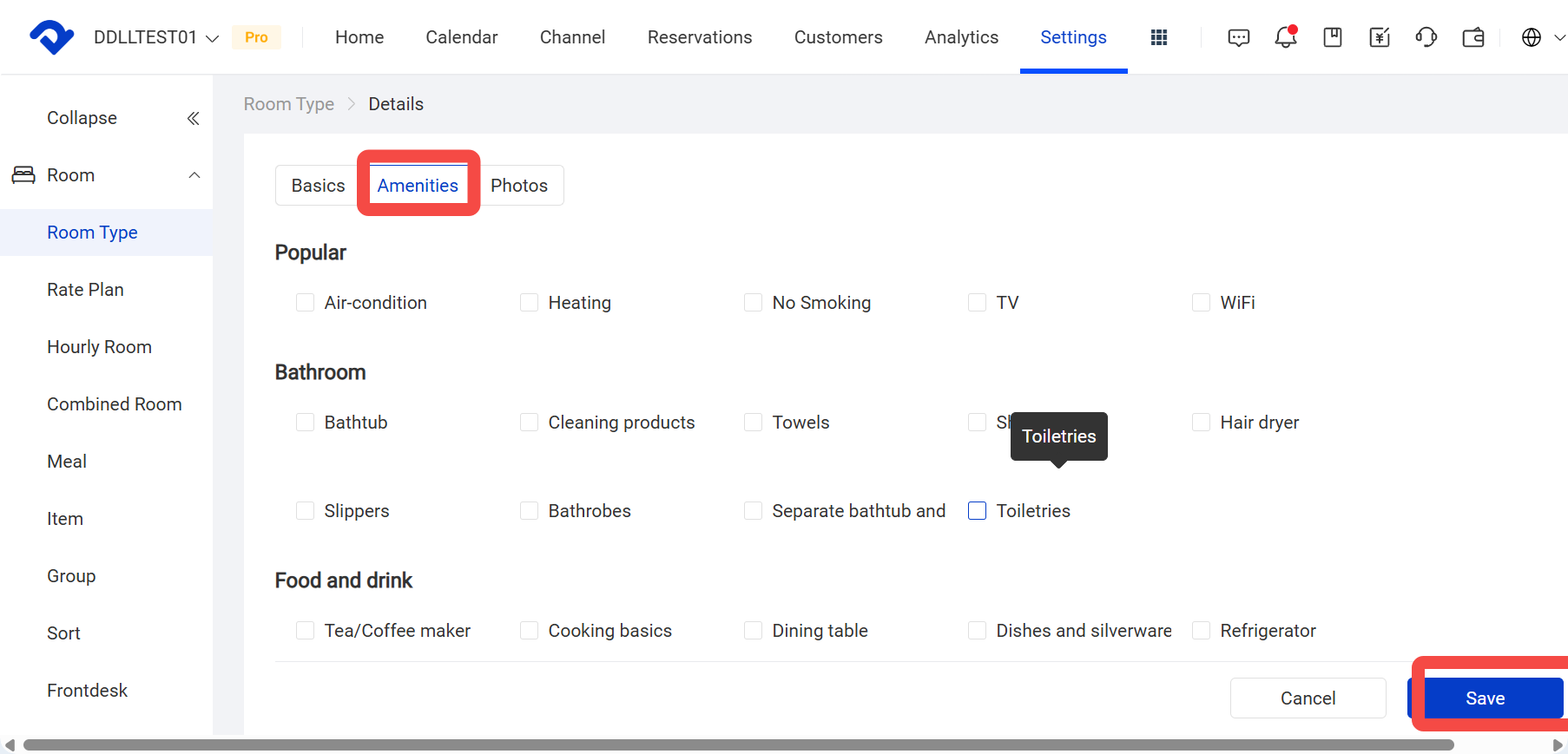
6.2 Click Amenities, select the amenities provided in the room, and save.
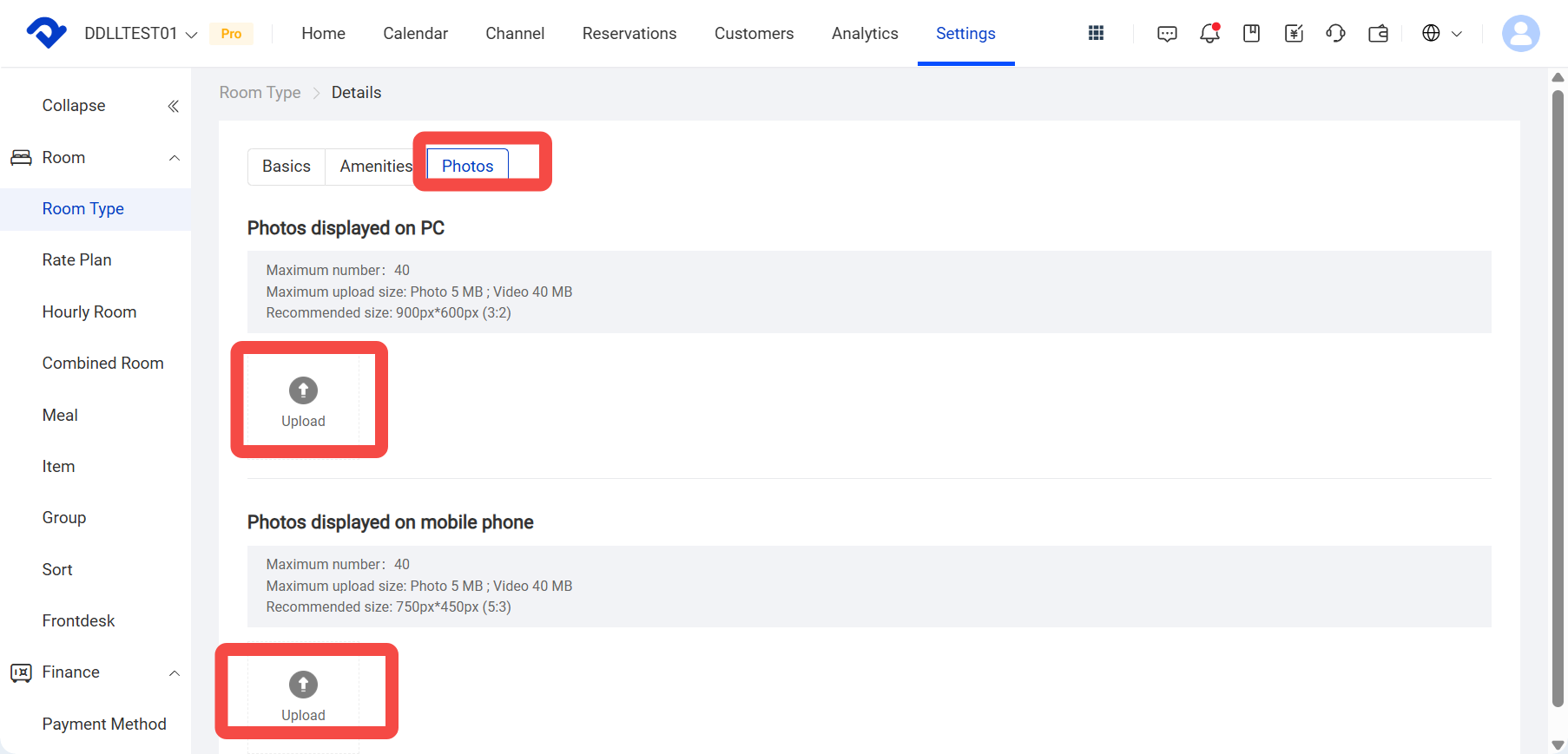
6.3 Click Photos to upload room photos shown to guests.
a. Desktop photo format:
- Maximum number: 40
- Maximum size: Images 5 MB, videos 40 MB
- Recommended size: 900 px * 600 px (3:2)
b. Mobile photo format:
- Maximum number: 40
- Maximum upload size: Images 5 MB, videos 40 MB
- Recommended size: 750 px * 450 px (5:3)
Ⅵ. Set Rate Plans, Details, and Rates
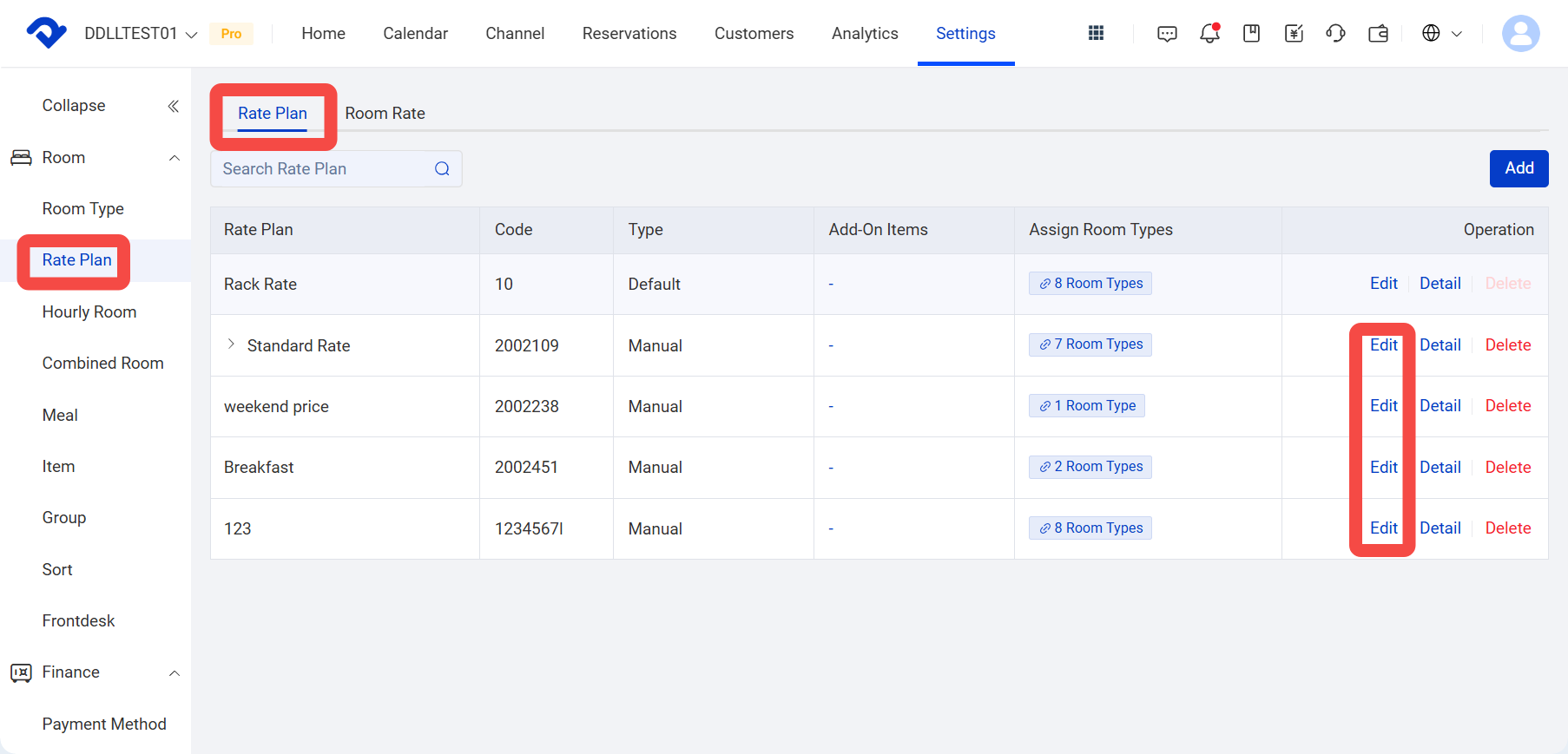
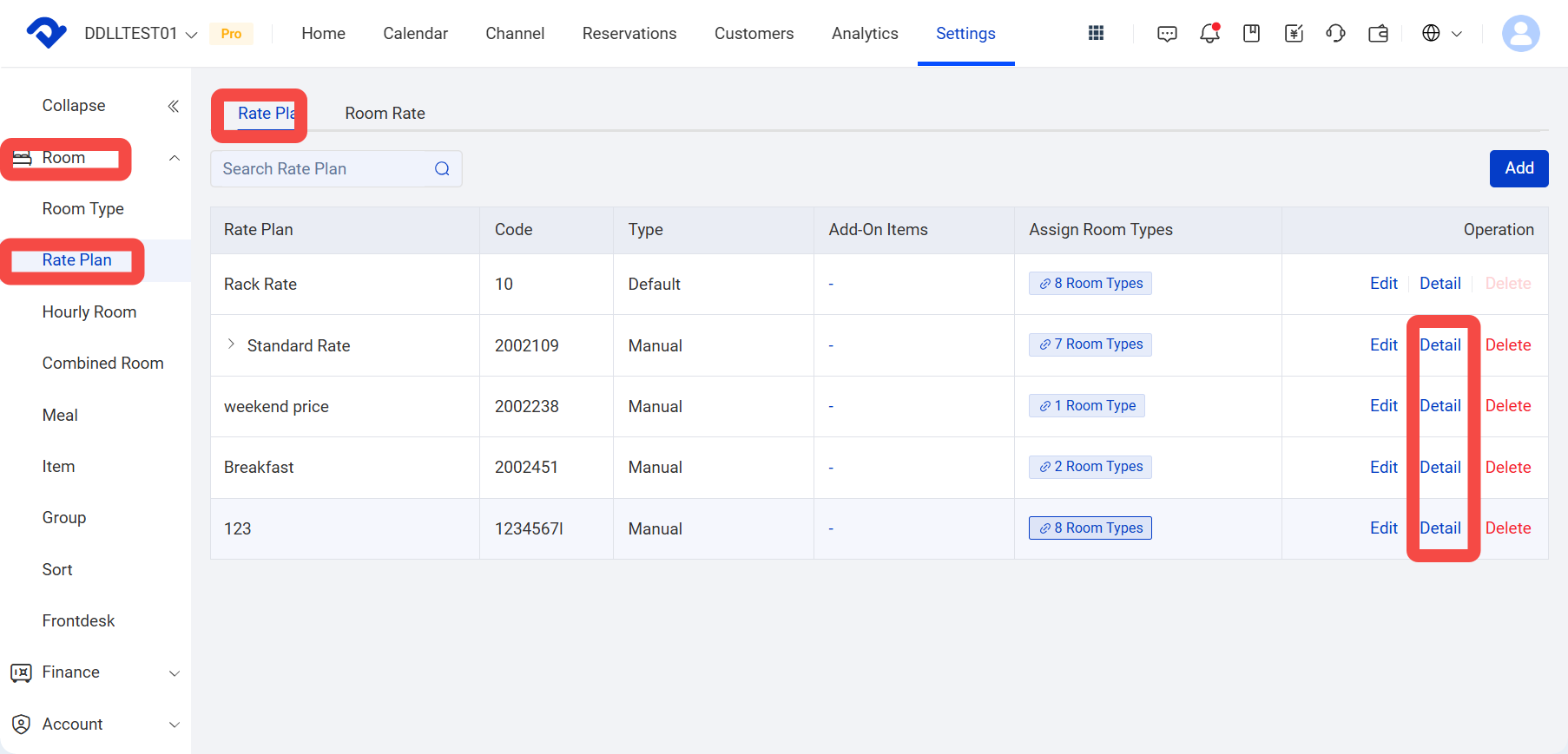
- Click Settings > Property Settings > Rate Plans.
※ The system creates a Rack Rate by default. it is only used to manage offline channel rates and cannot be used for OTA channels or the marketing website. So you can just set for other rate. - Click Edit in the rate plan you want to use on the marketing website to set its refund policy.
Or click Add New Rate Plan in the upper-right corner to create a separate rate plan for the Xiaohongshu store / Booking Engine.
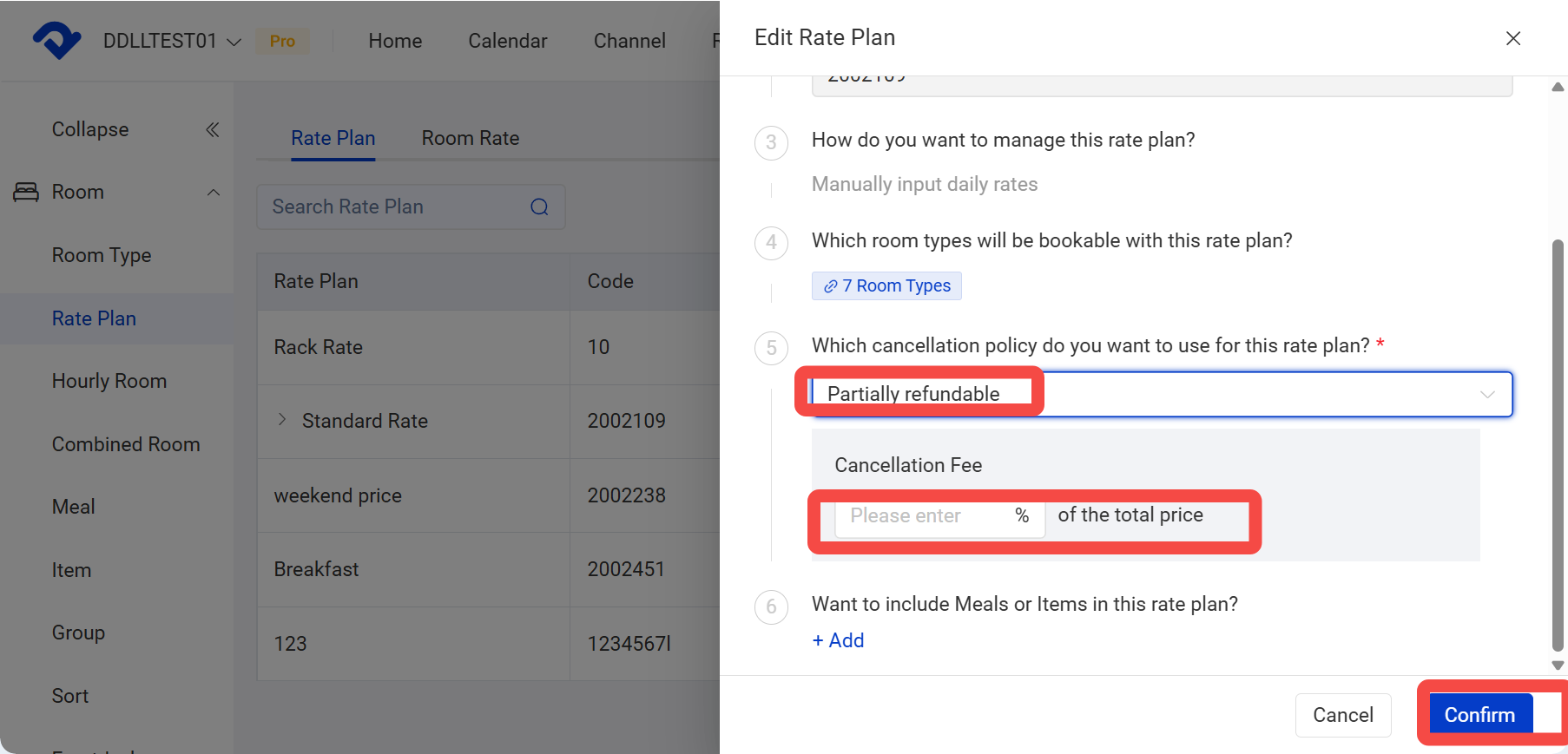
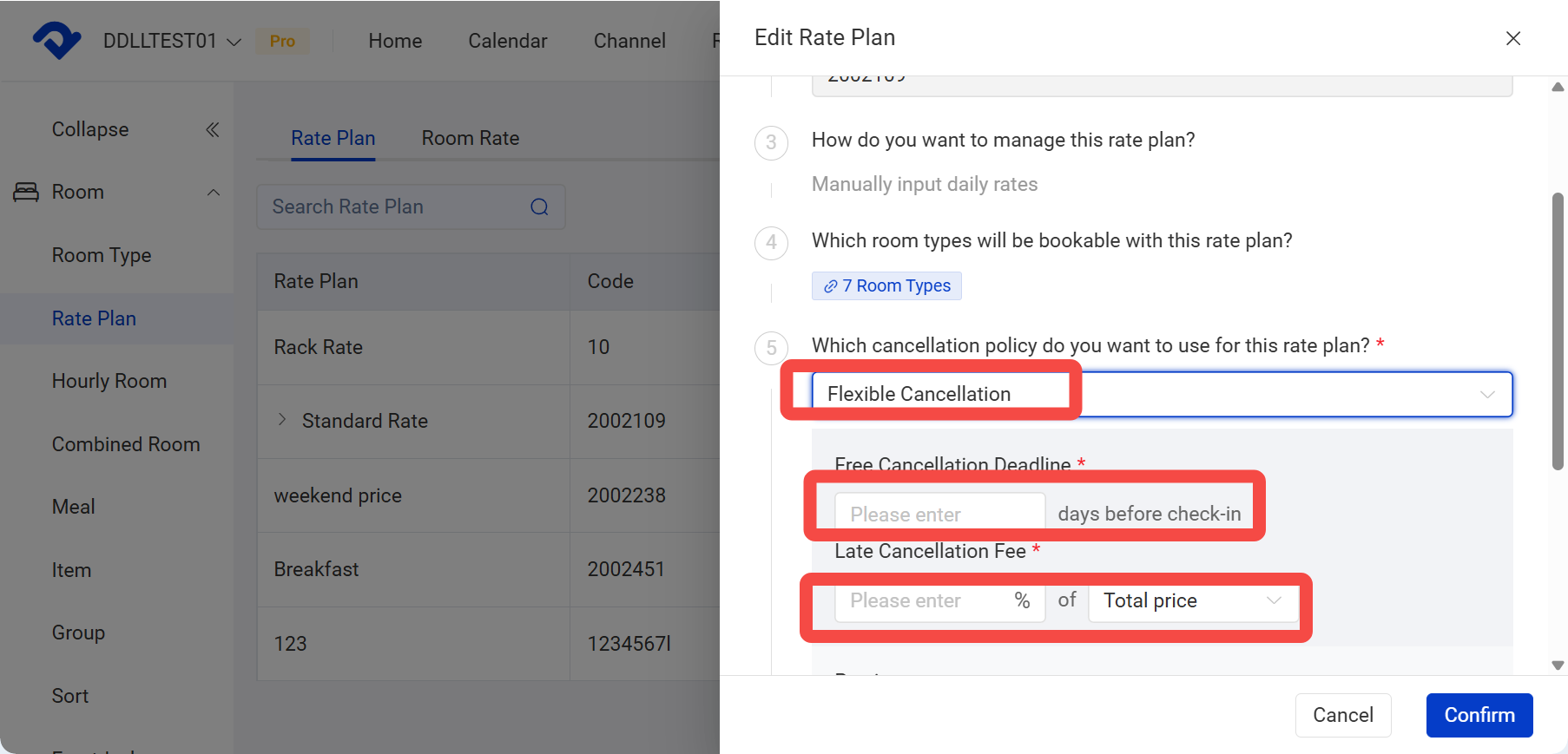
The system supports the following four cancellation policies, and the default system cancellation policy is Non-refundable.
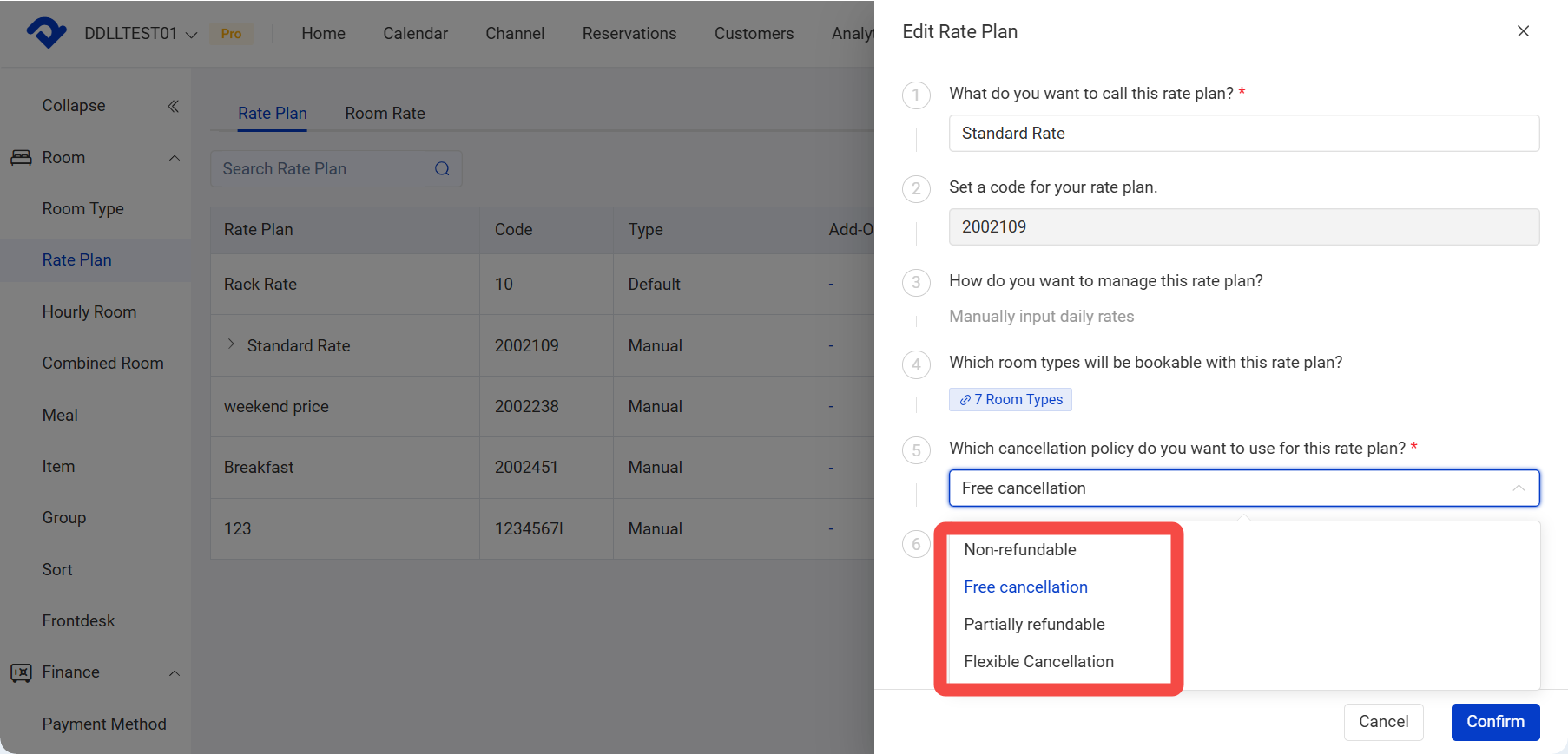
a. Non-refundable: Guests cannot cancel the order on their own after booking. In special cases, the merchant can agree with the guest and then cancel and refund the order in PMS.
b. Free cancellation: Guests can cancel for free after booking and receive a full refund. The payment processing fee is paid by the merchant.
c. Partially refundable: Cancellation fees can be charged as a percentage of the total order amount, with a minimum of 1%.
d. Flexible Cancellation: You can set how many days before check-in guests can cancel for free. Once this free cancellation period ends, a cancellation fee will be charged as a percentage of the total order amount or the first night’s room rate.
If the payment gateway is Smart Order Pay, please also make sure the wallet balance is sufficient if free cancellation is allowed, otherwise guest cancellations may fail.
- Click Details to fill in the details for all rate plans that need to be applied to the marketing website.
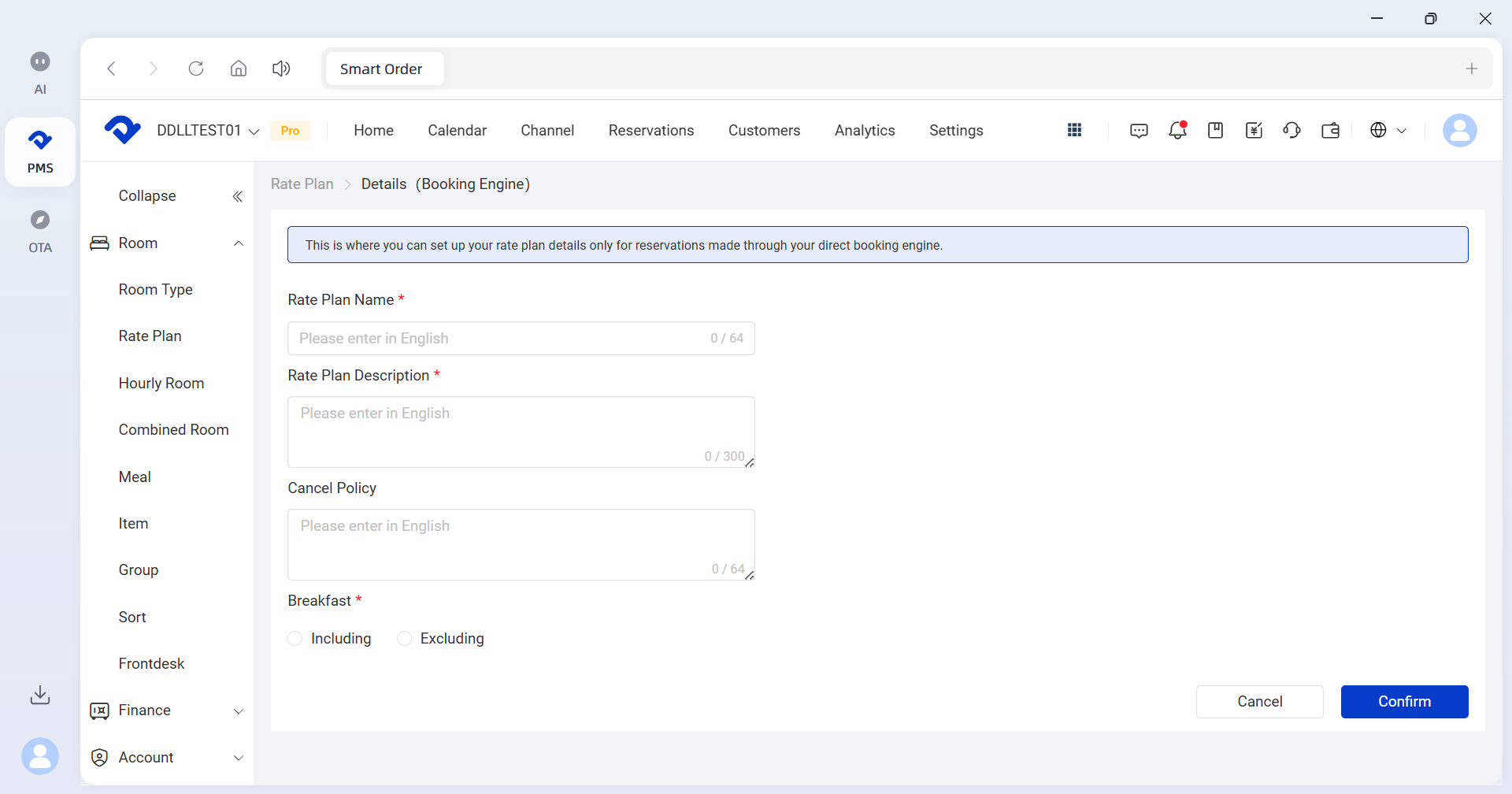
9.1 Enter the rate plan name, rate plan description and cancellation policy (text description, localization can be added), and whether meals are included. After setting everything, click Confirm.
- If the website needs to charge extra fees based on occupancy, please refer to the article below to set up occupancy-based pricing.
 Dina
Dina
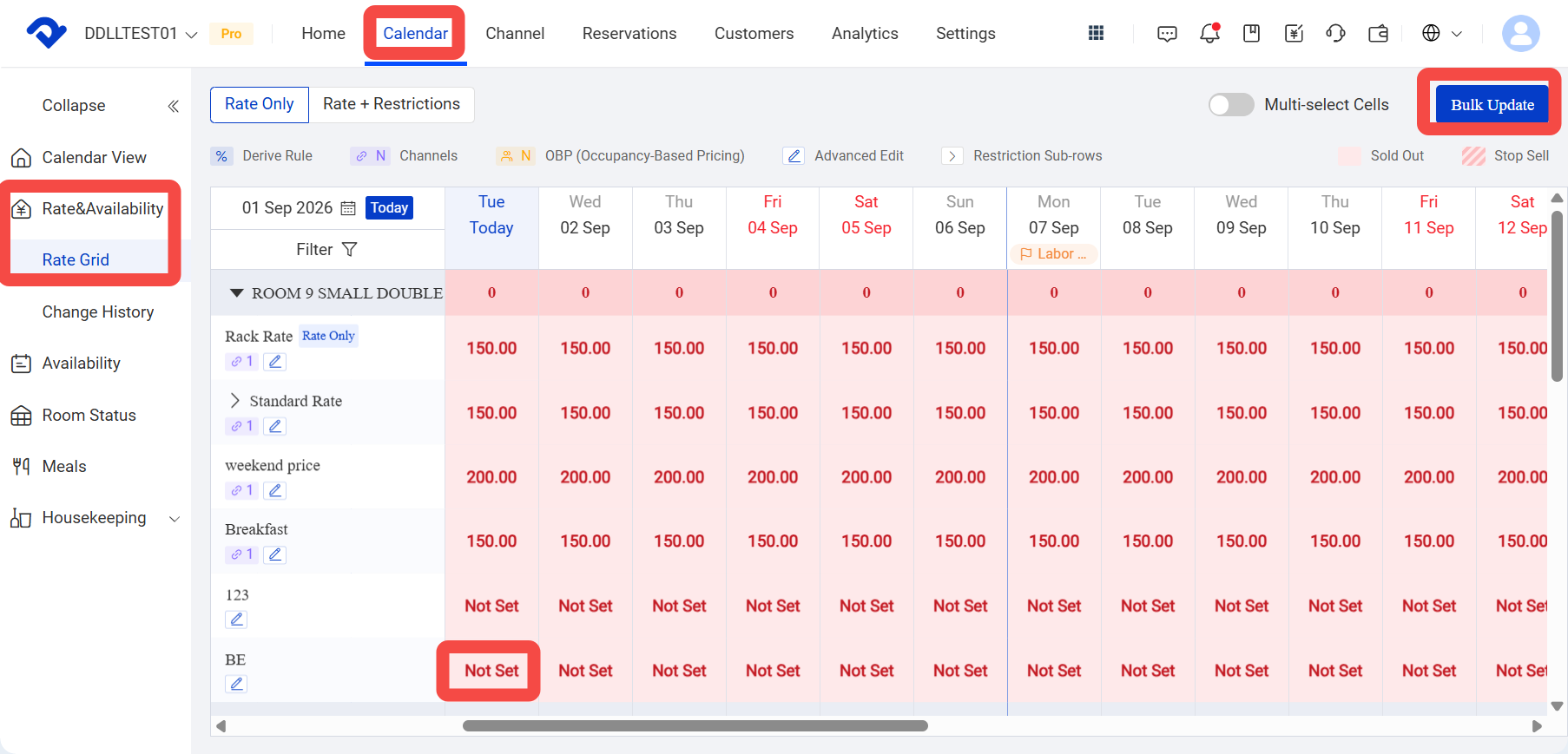
- Click Calendar> Rates & Availability > Rate Grid to set and confirm the base rate used for the marketing website.
- Click a blocks or use batch update to change the rate or set a minimum stay requirement.
7. Publish Room Types and Rate Plans to the Website / Mini Program
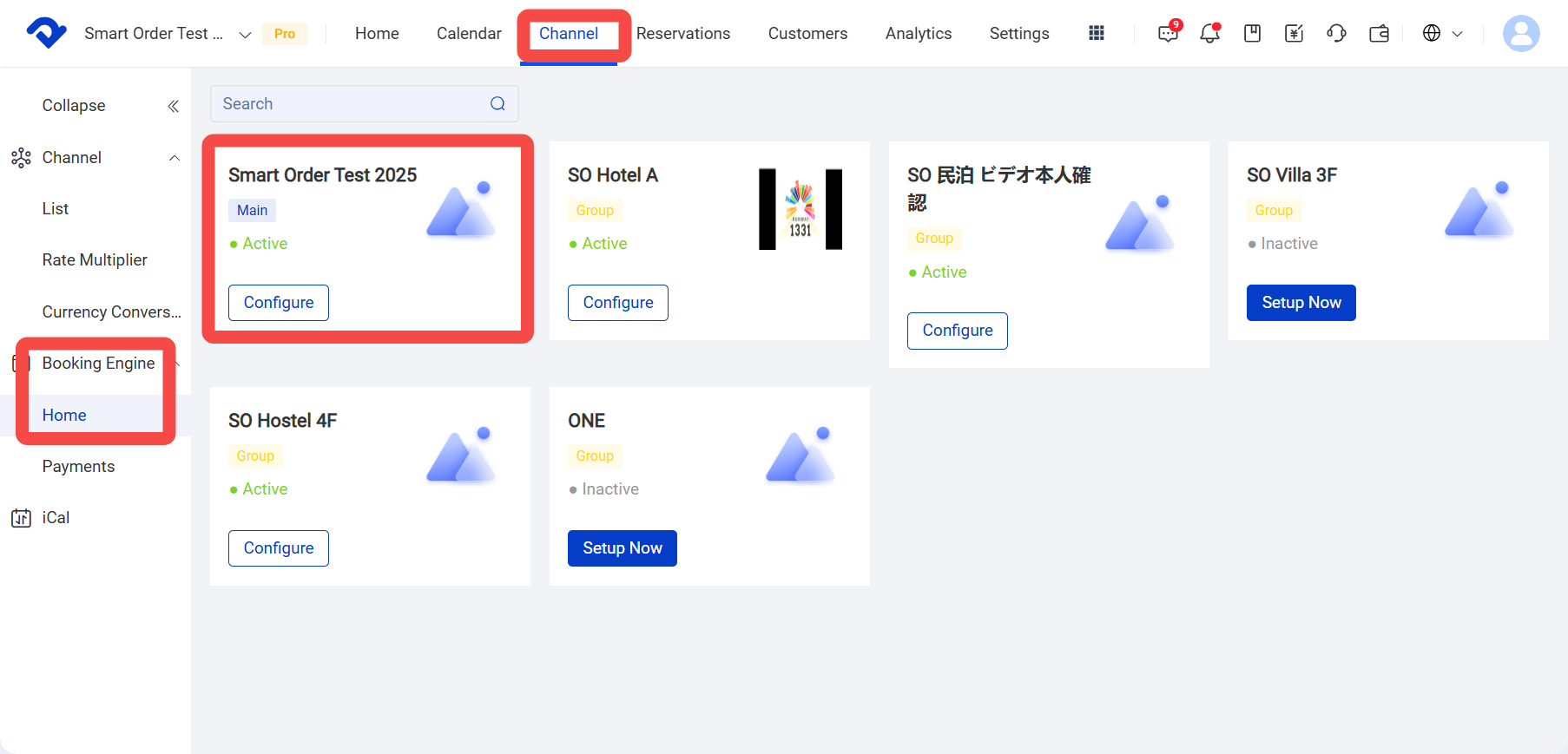
- Click Channel > Booking Engine > Home >Set up now for the corresponding group.
※In multi-group mode, please click into the first “Main Menu” group to complete the Xiaohongshu mini program settings.
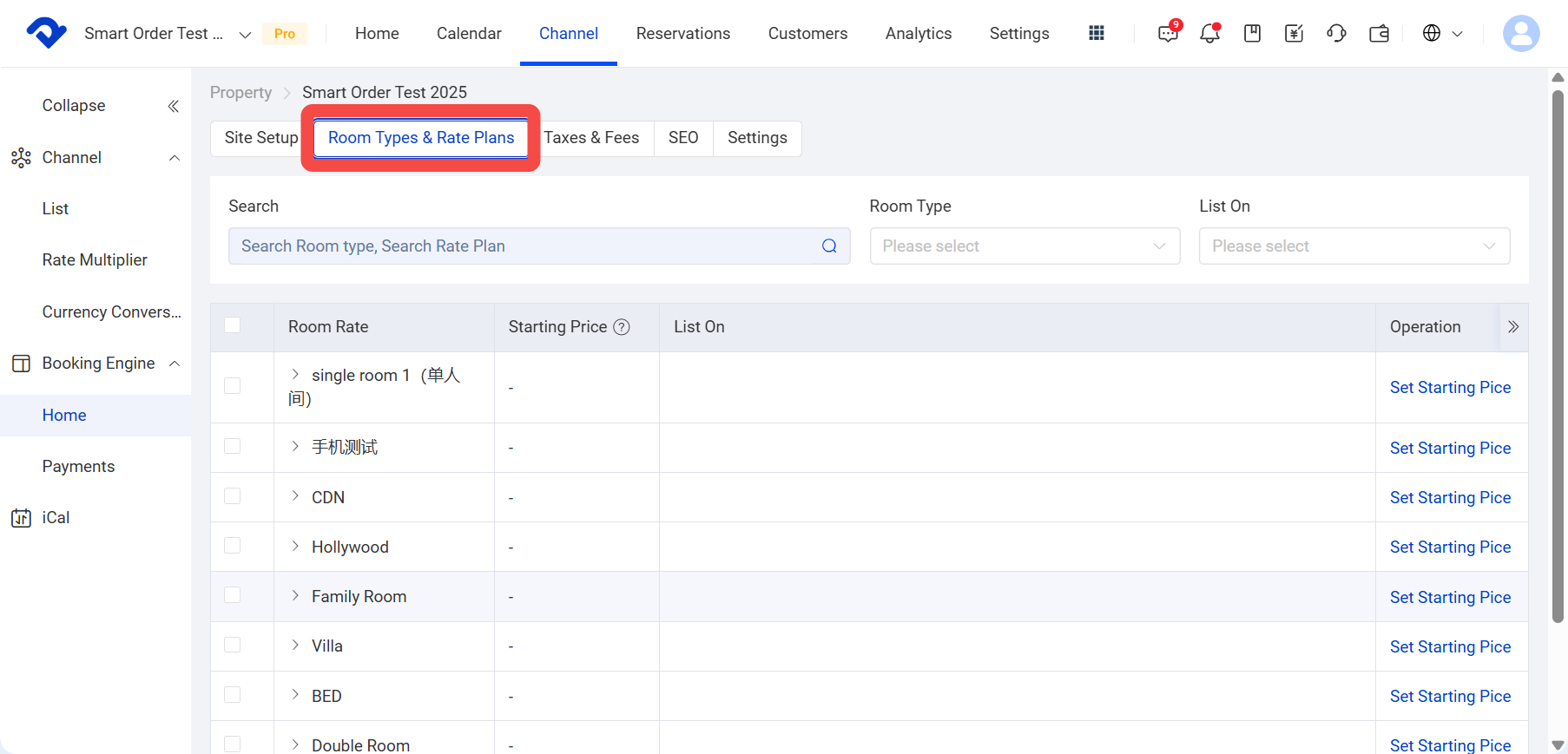
- Click Room Types & Rate Plans.
Publishing method 1: Suitable for publishing a single rate plan
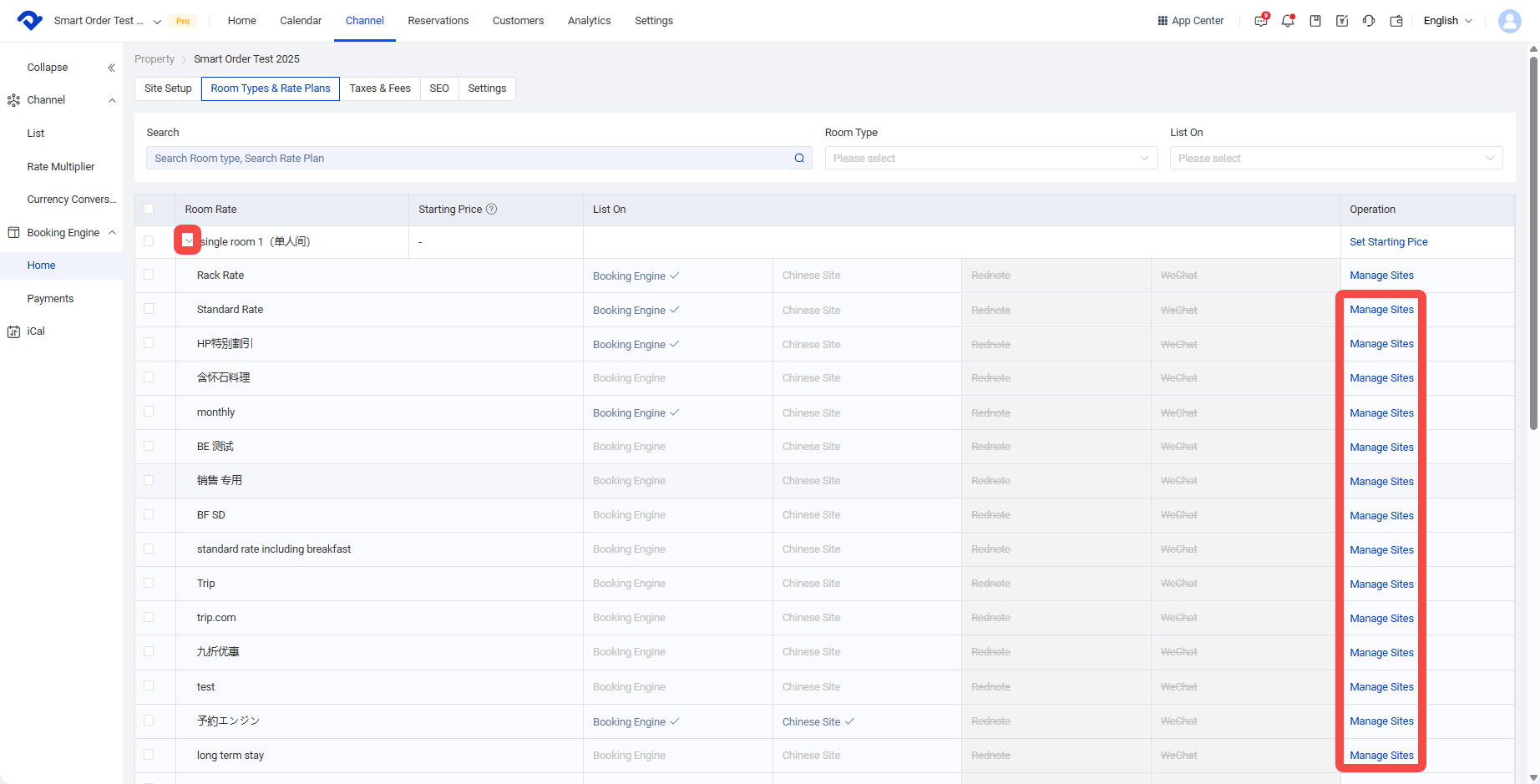
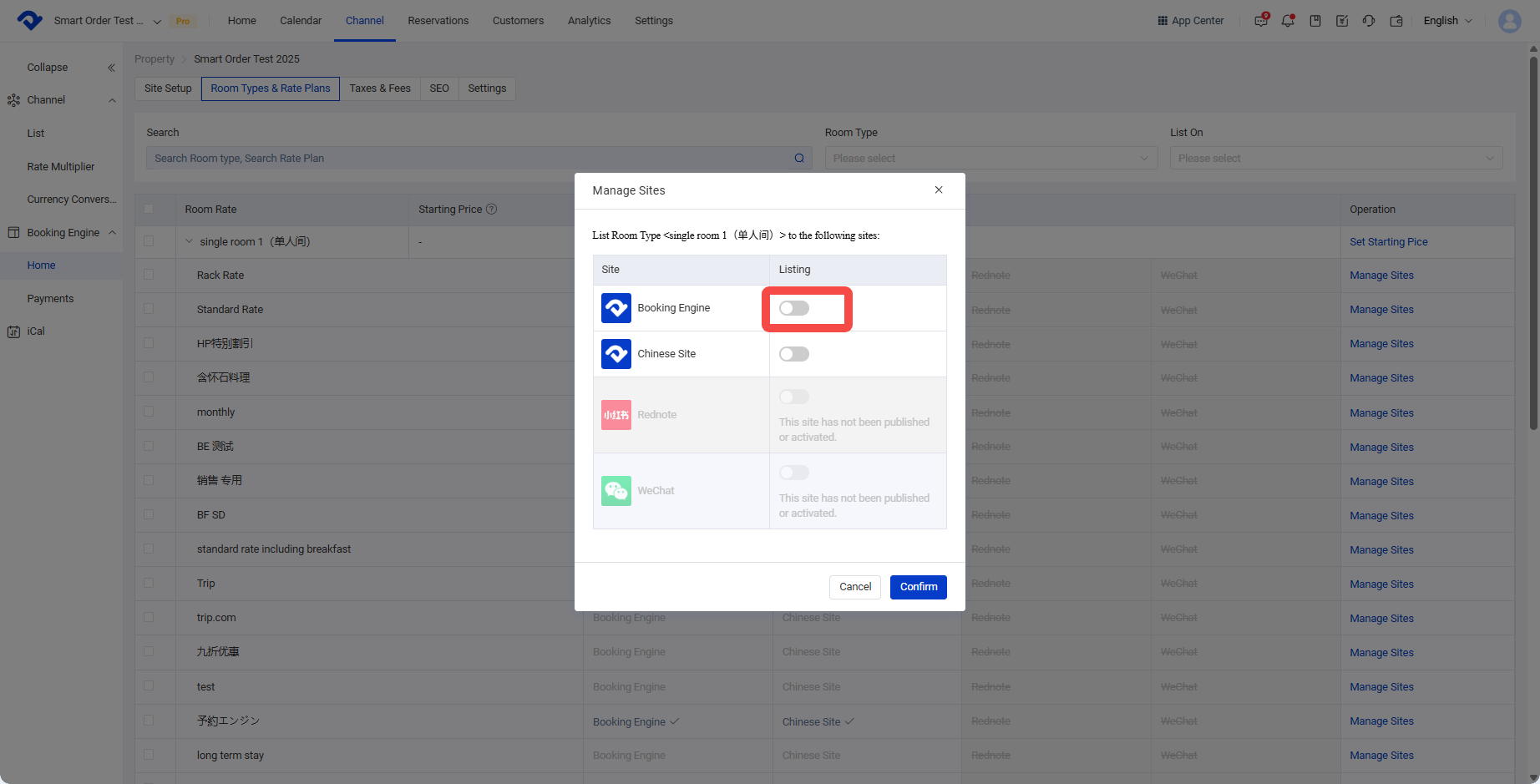
Click the downward arrow next to the rate plan to expand it.then click Manage Site on the right side of the rate plan you want to publish to the marketing website, turn on the listing switch that needs to be published, and click Confirm.
Publishing method 2: Suitable for publishing multiple rate plans
Expand and select the rate plans under the room type you want to publish to the marketing website, choose Batch Channel Publishing, turn on the listing switches that need to be batch published, and click Confirm.
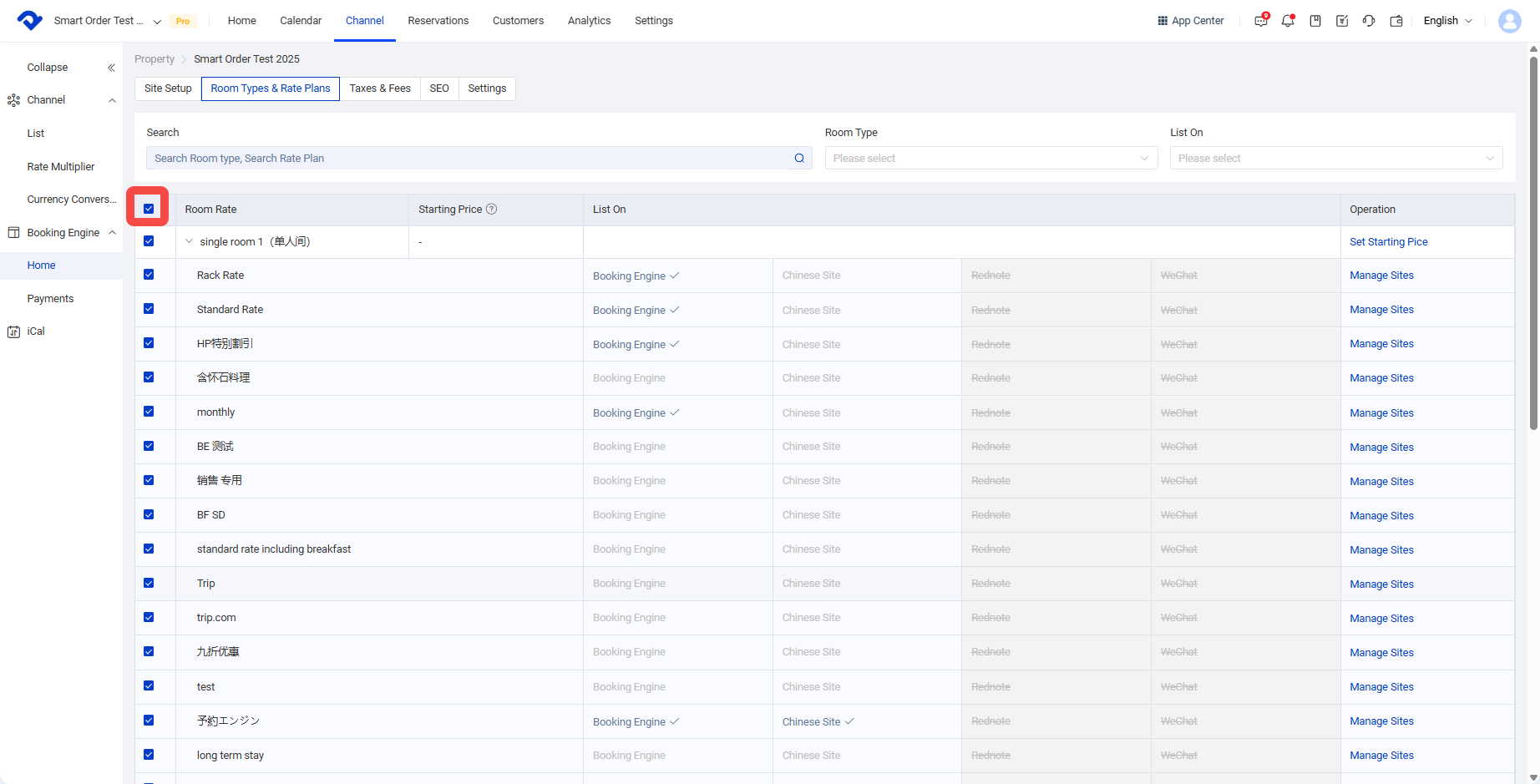
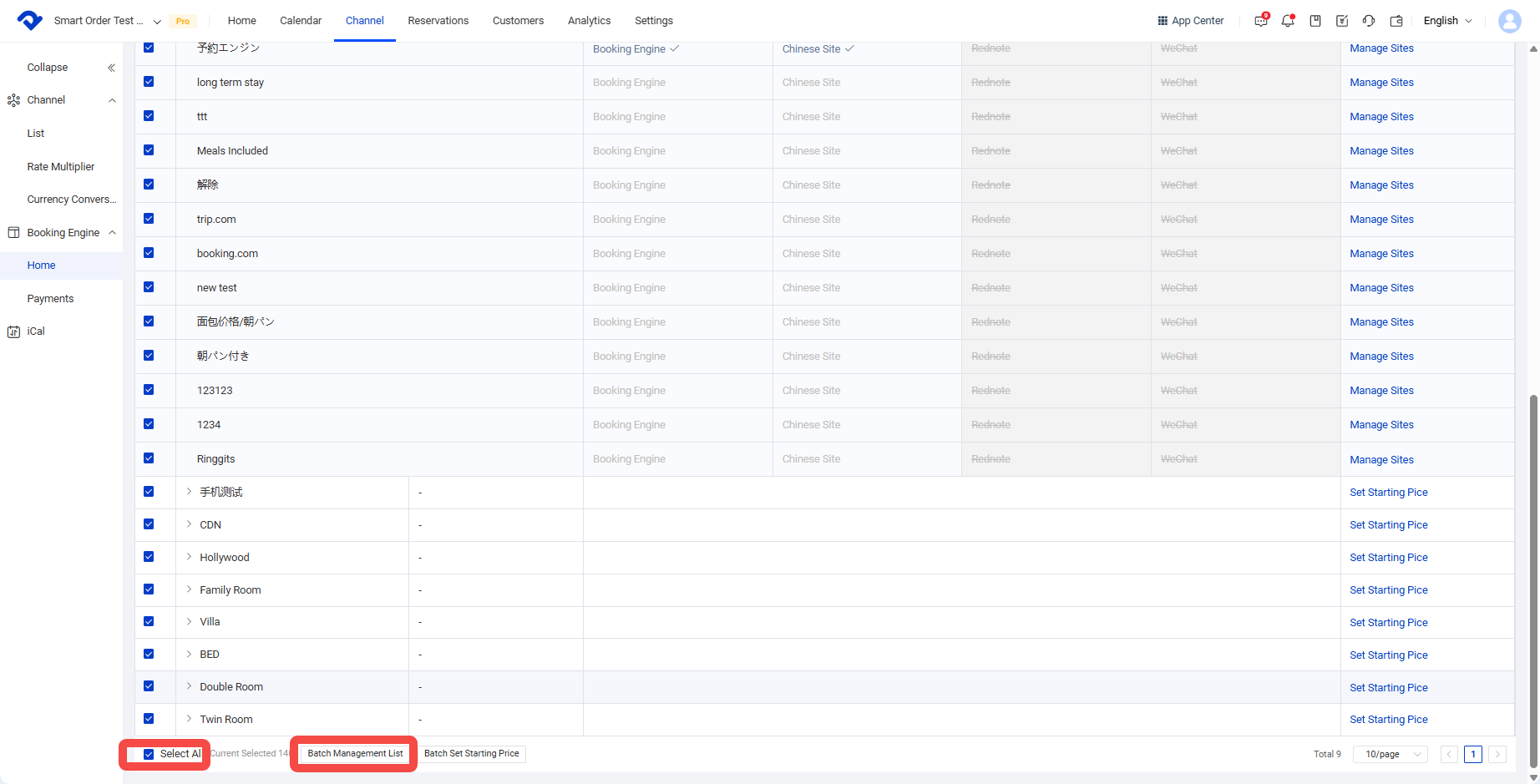
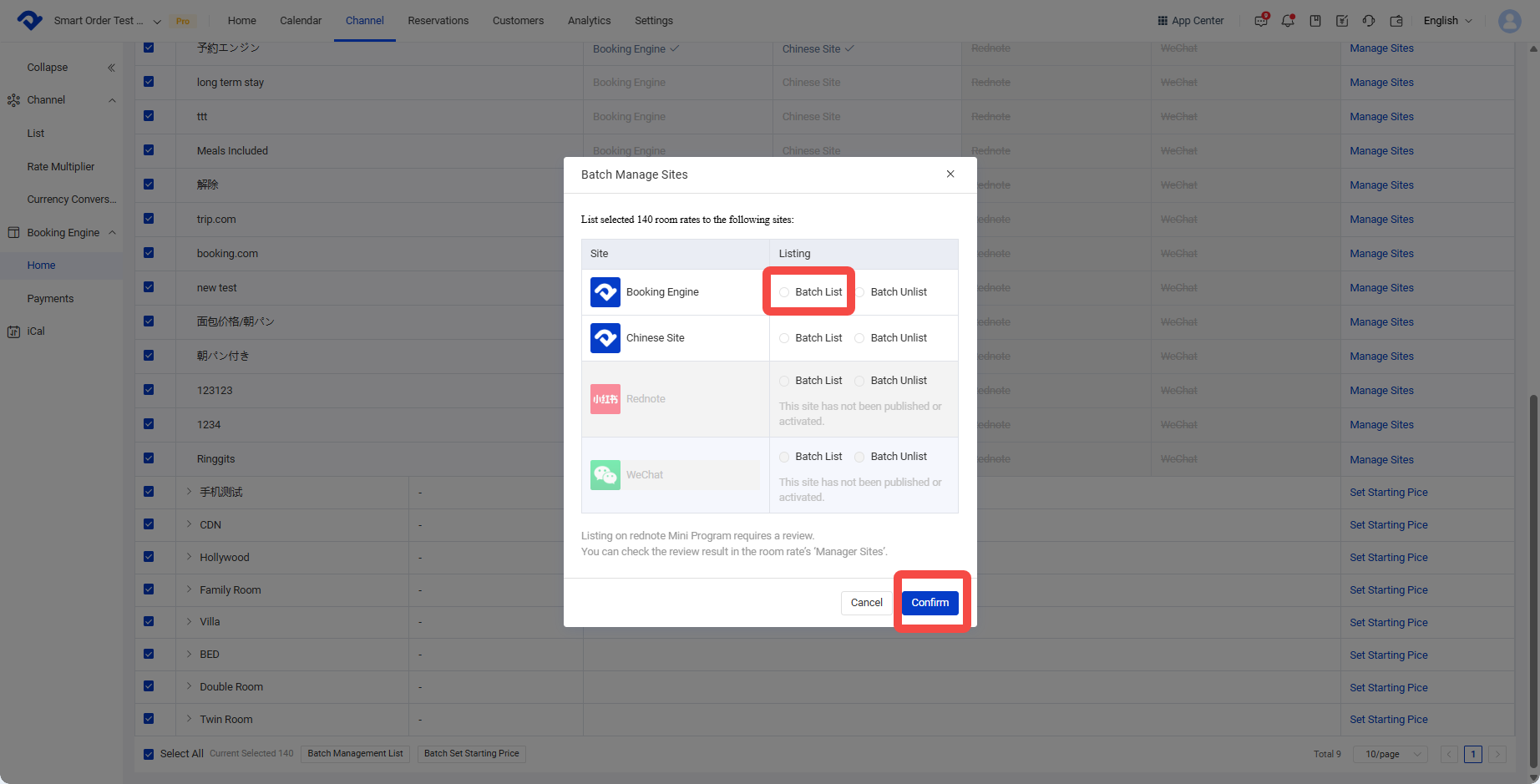
You can also use the search function in the interface to find the room types and rate plans you want to publish to the marketing website, then click Select All and batch publish them.
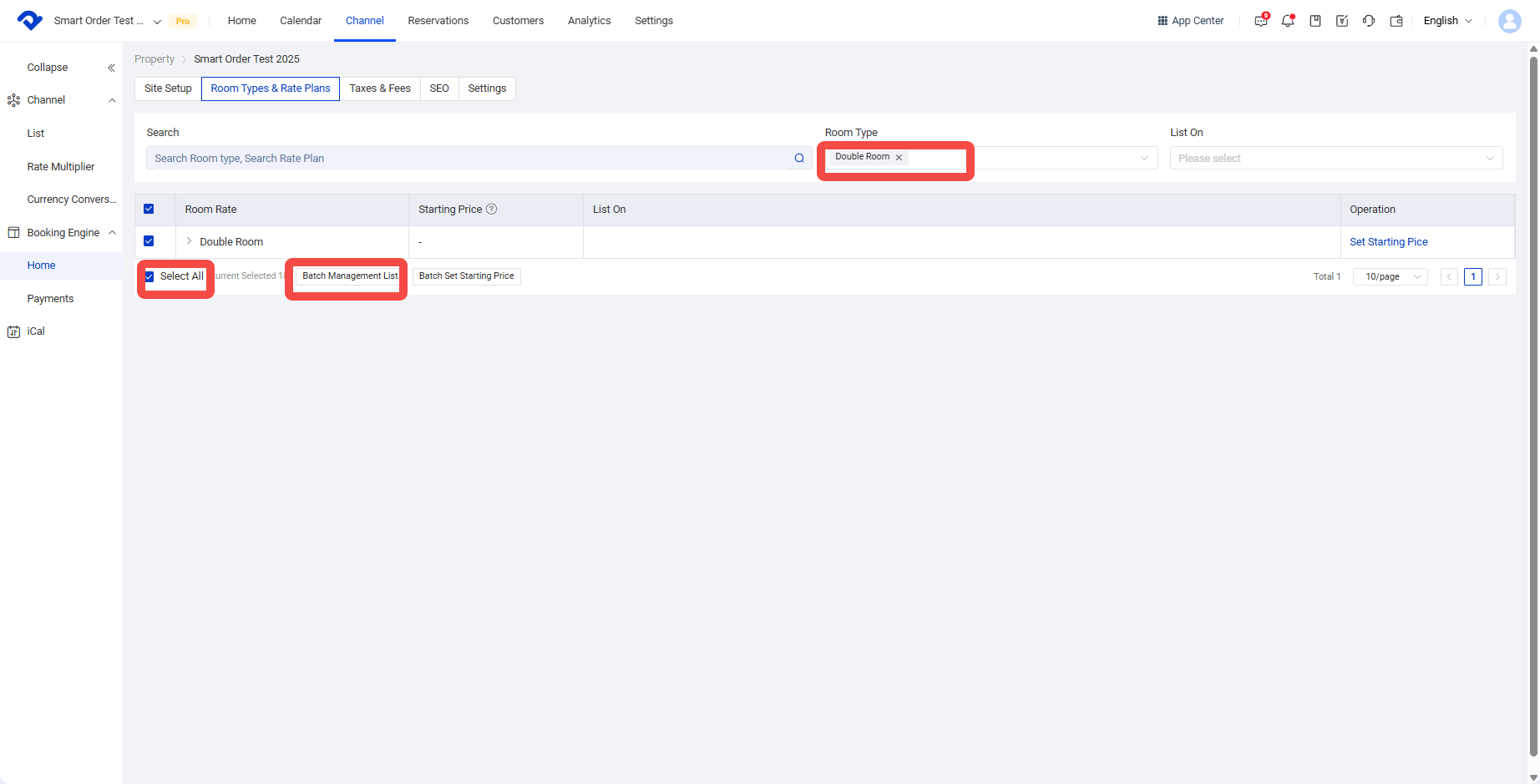
- You can set the starting price shown on the Booking Engine.
The starting price is for marketing display only and does not represent the actual selling price.
The Chinese Site and Xiaohongshu currently do not support starting price settings.
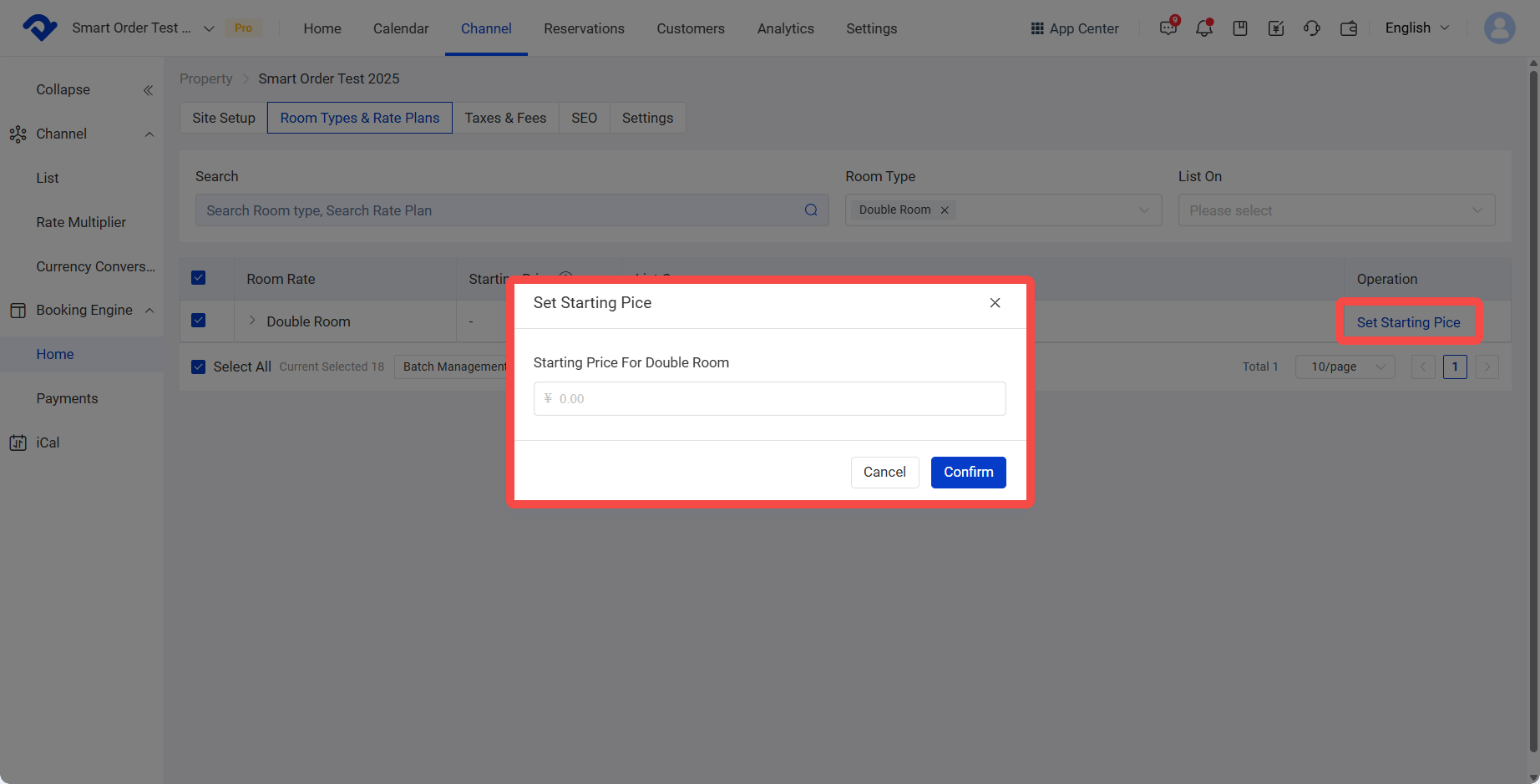
- You can set other extra fees charged by the website, such as cleaning fees and taxes.
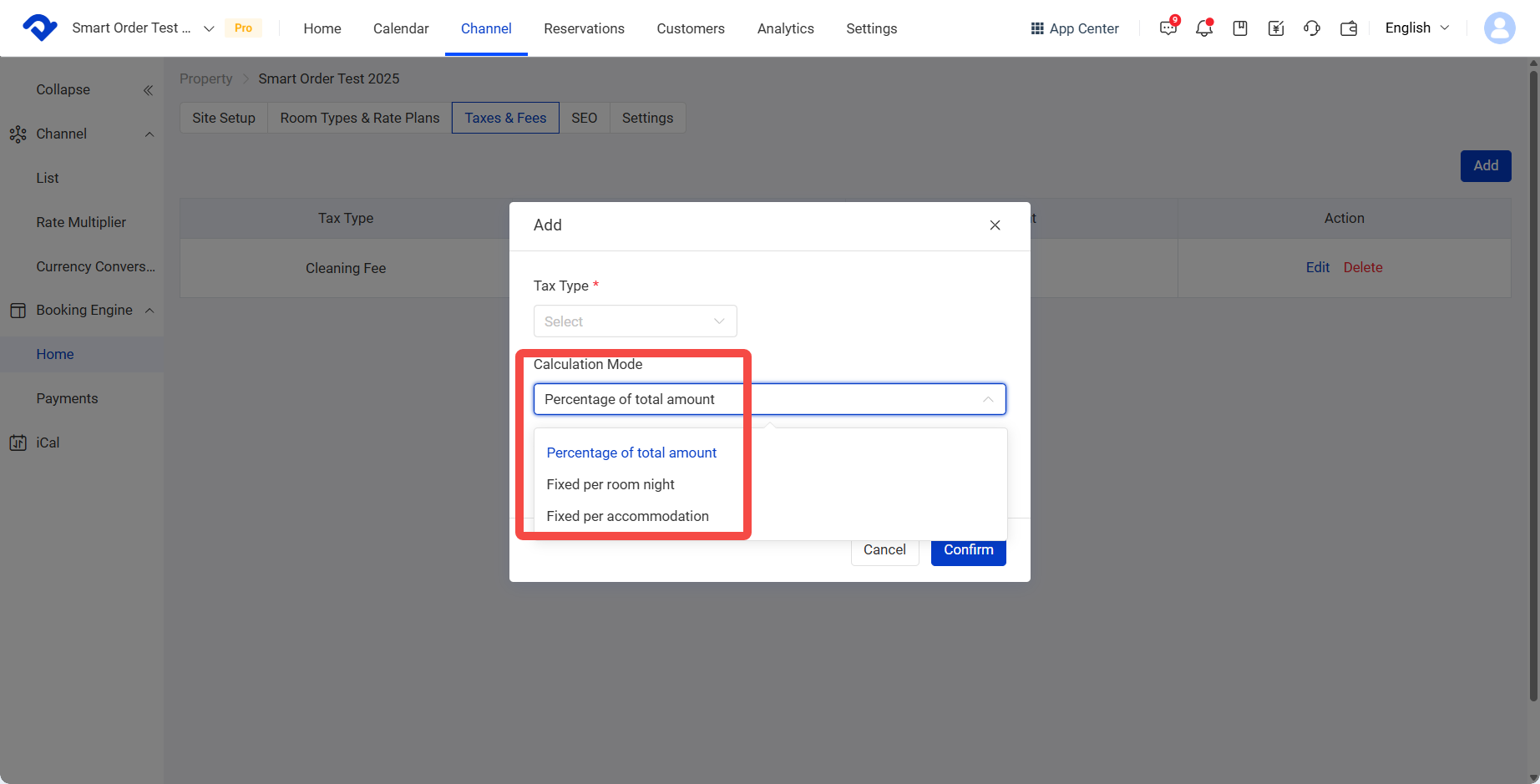
Click Tax > Add, then select the tax type.
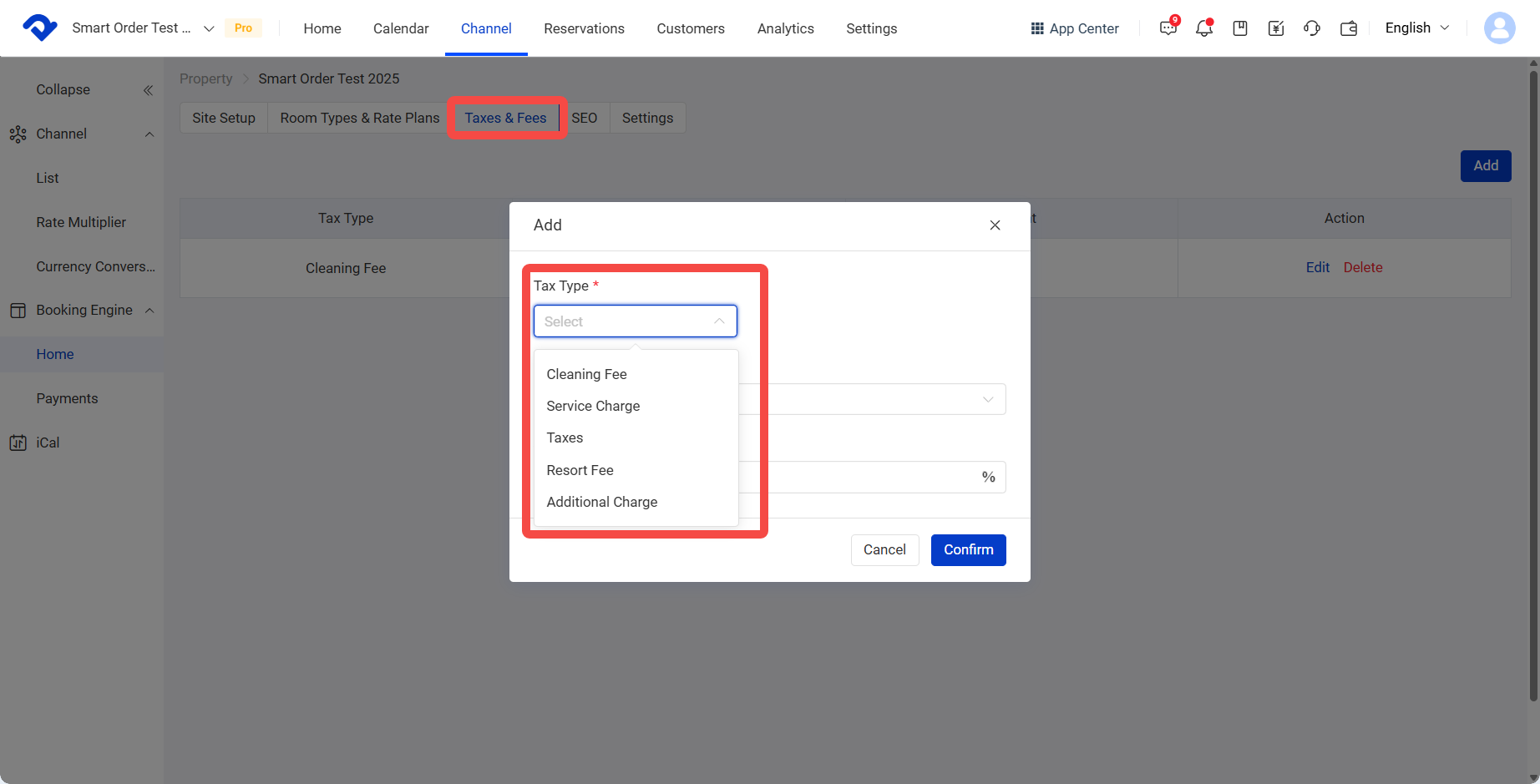
15.1 After selecting the charging calculation method and amount / percentage, click Confirm.
Three calculation methods are supported: percentage of the total amount, fixed value per night, and fixed value per stay.
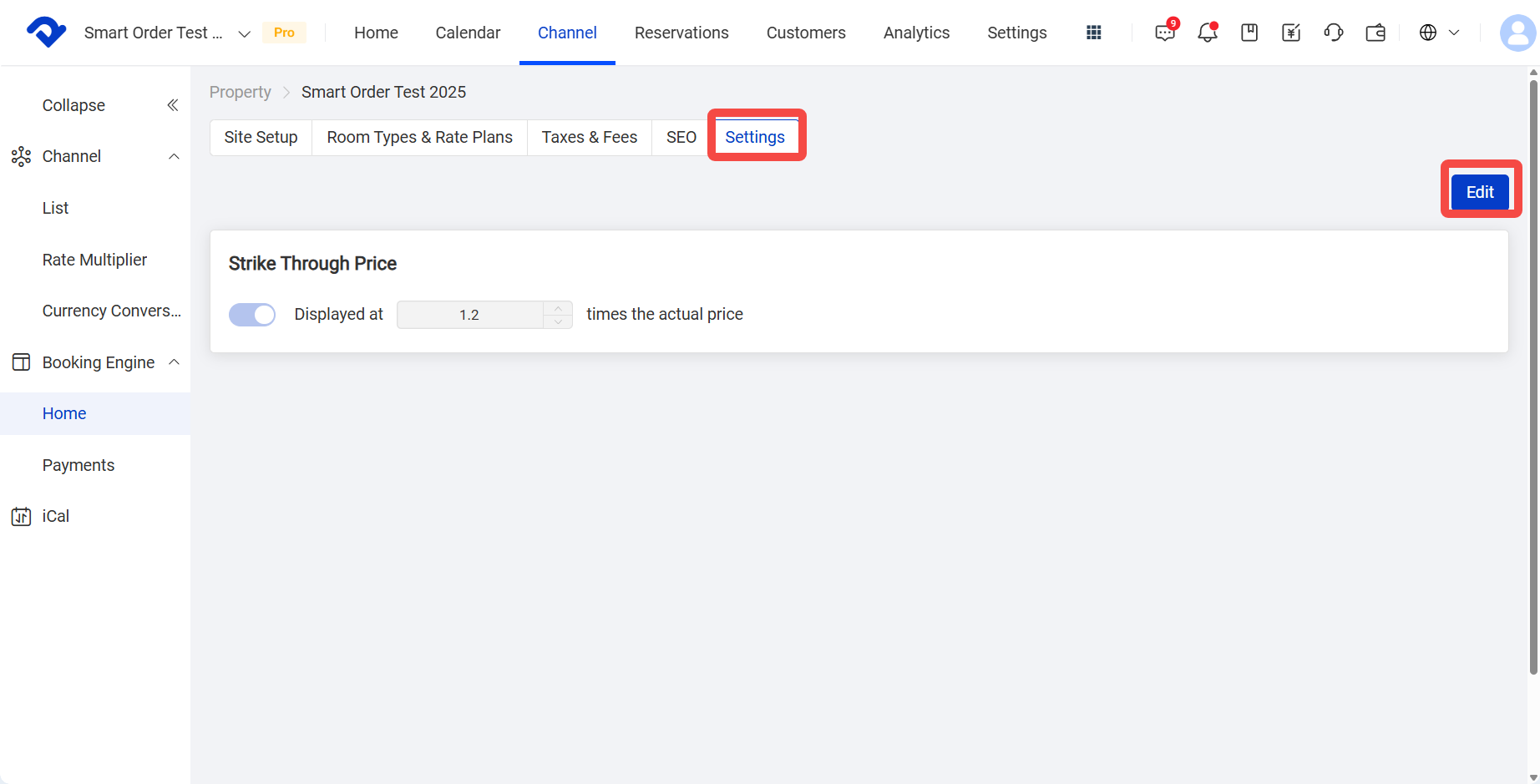
- You can set the Strike Through Price display shown on the marketing site.
Click Settings > Edit to set the display multiplier for Strike Through Price.
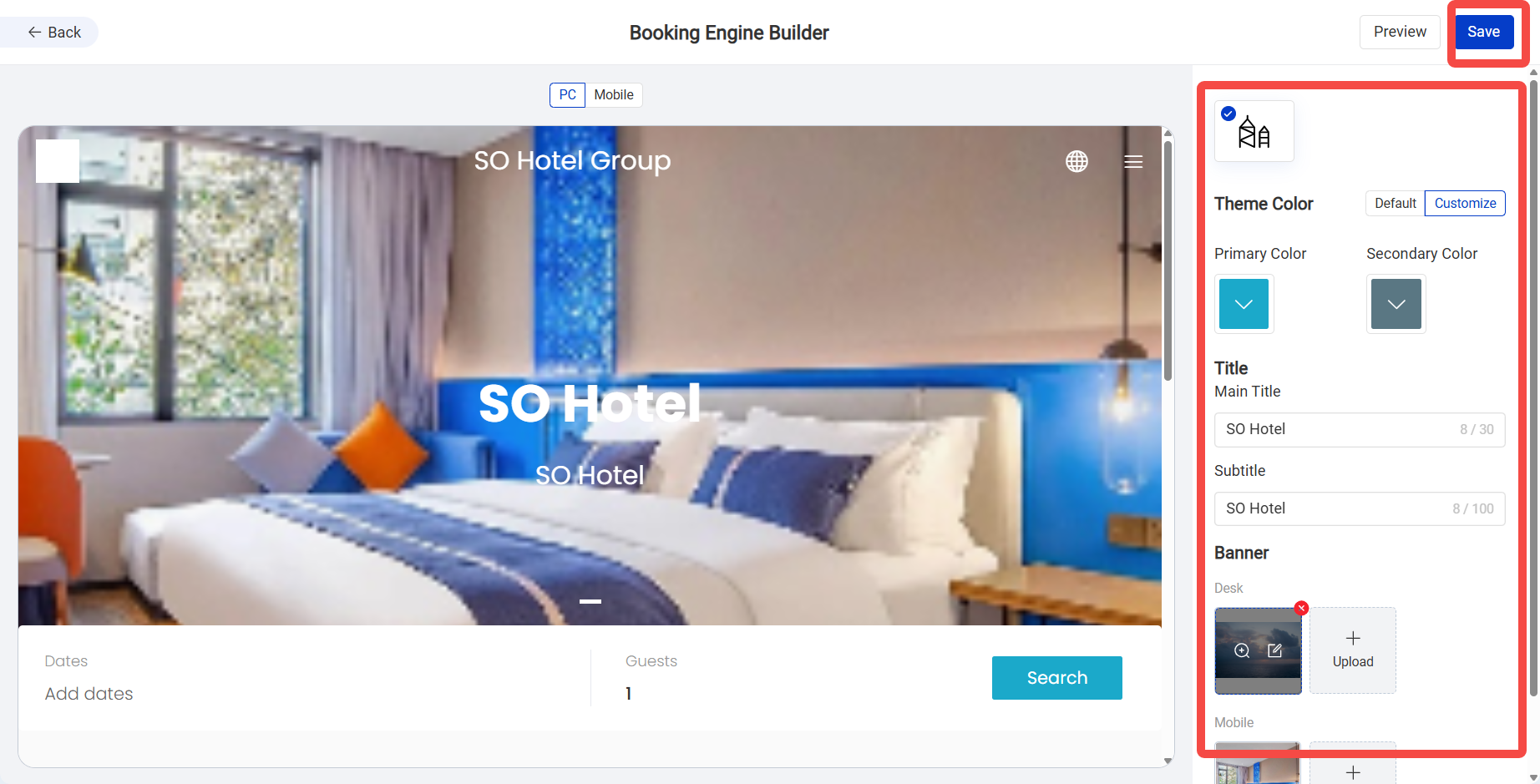
18.Preview the website and make simple design adjustments.
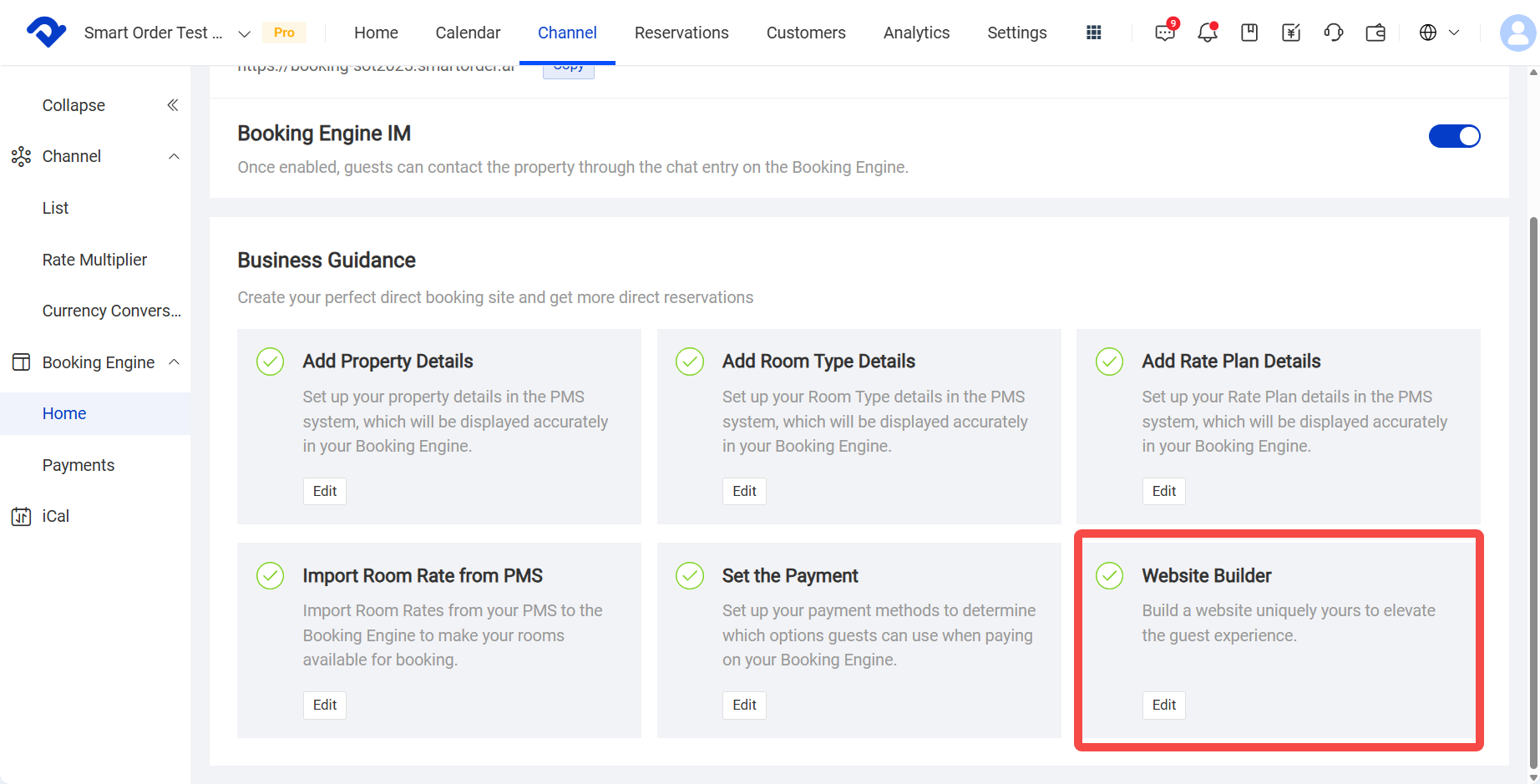
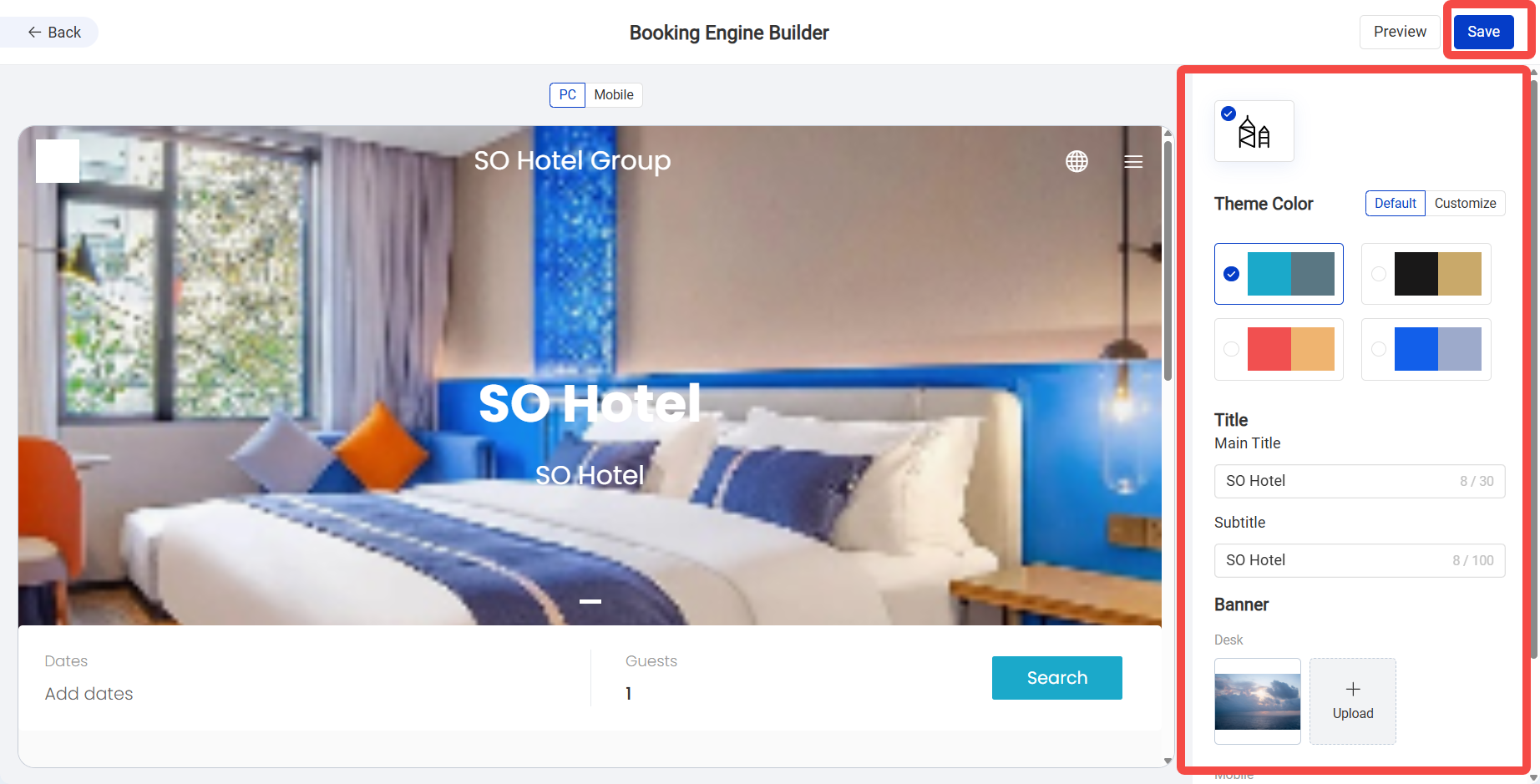
Click step 6 of the Business Guide, Website Builder, to make simple changes to the marketing website.
- For example, you can set the Booking Engine theme color, banner image, title, and subtitle.
- If you do not need to configure anything, you can skip this step. The system will use the default theme template, colors, and banner content.
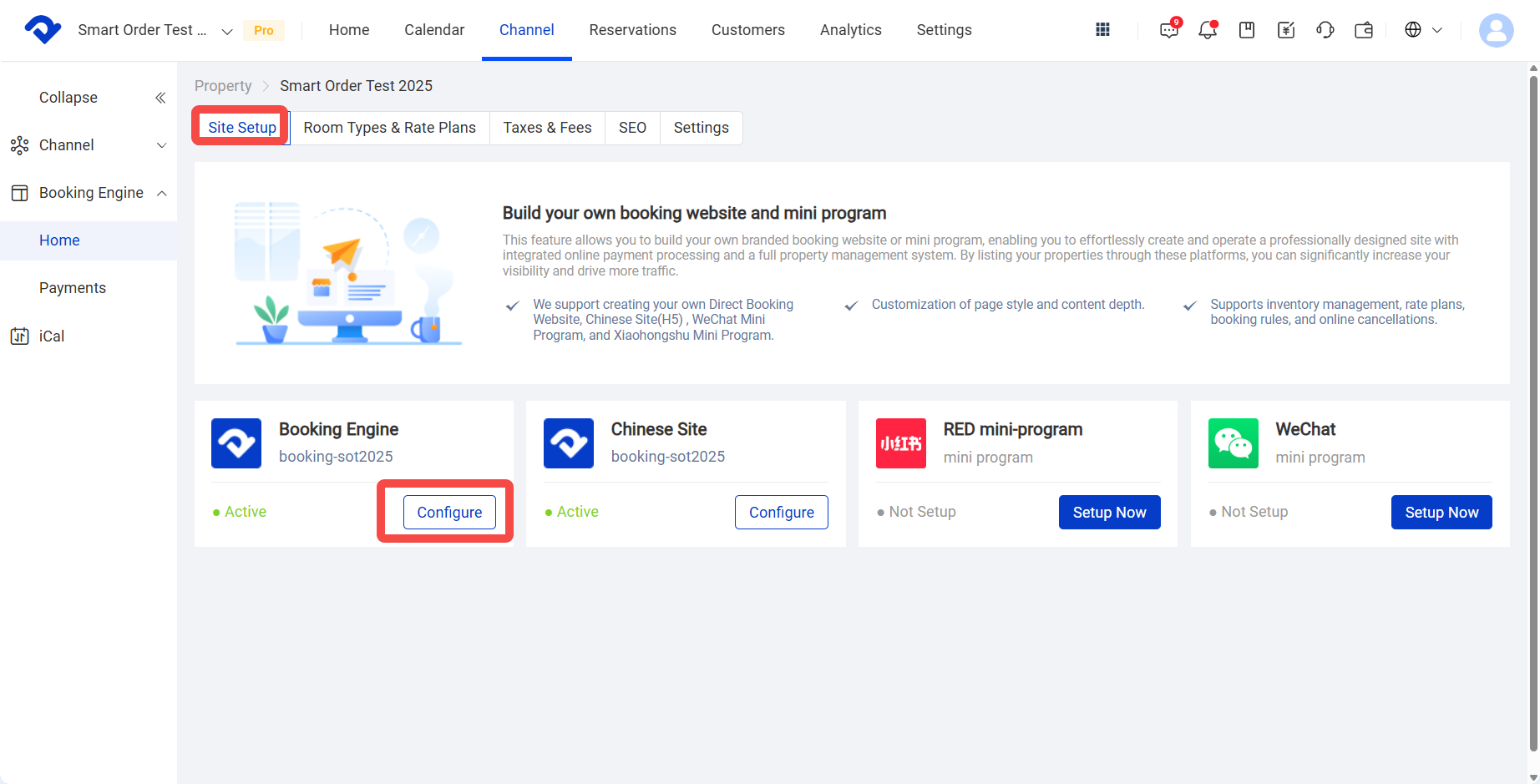
Go back to Site SetUP and click Configure for the marketing site to check whether any setup steps are missing, then turn on the site.
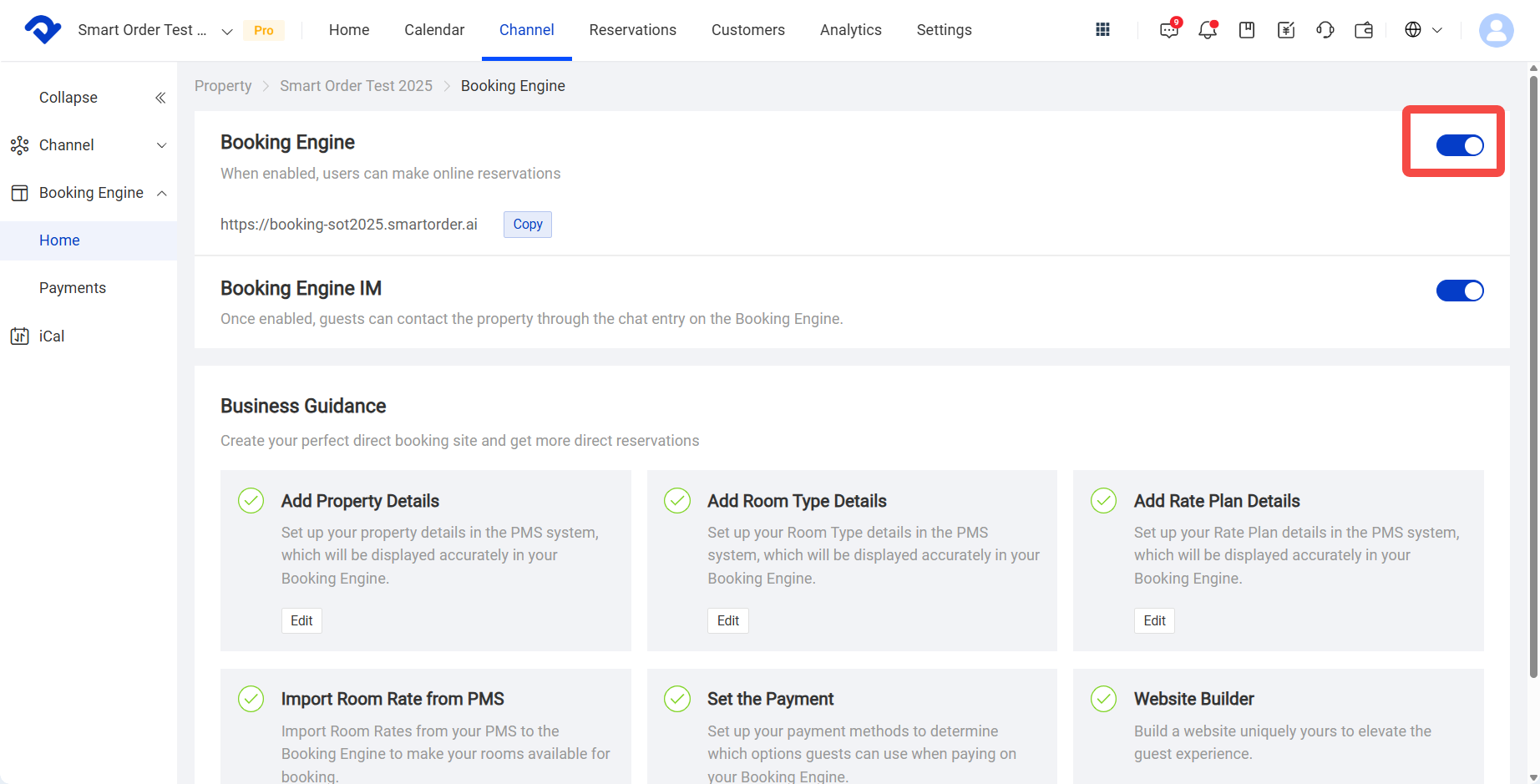
If you want guests can contact the property through the chat entry on the Booking Engine.You can also turn on the Booking Engine IM
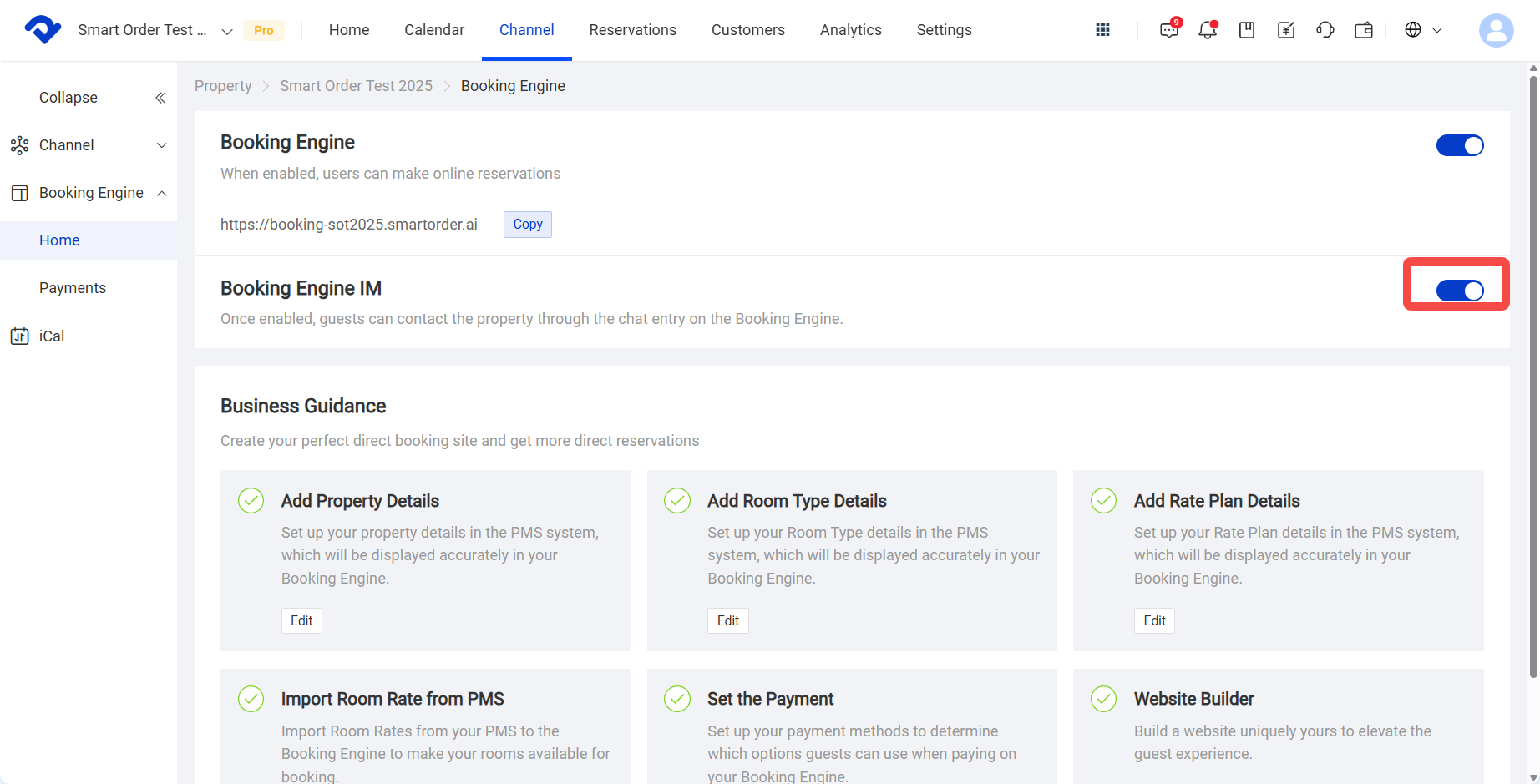
In the Business Guide, you can check again for any missing setup steps. If a step has not been completed, the corresponding item will show a Start button. Click Start to jump to the related setup page.
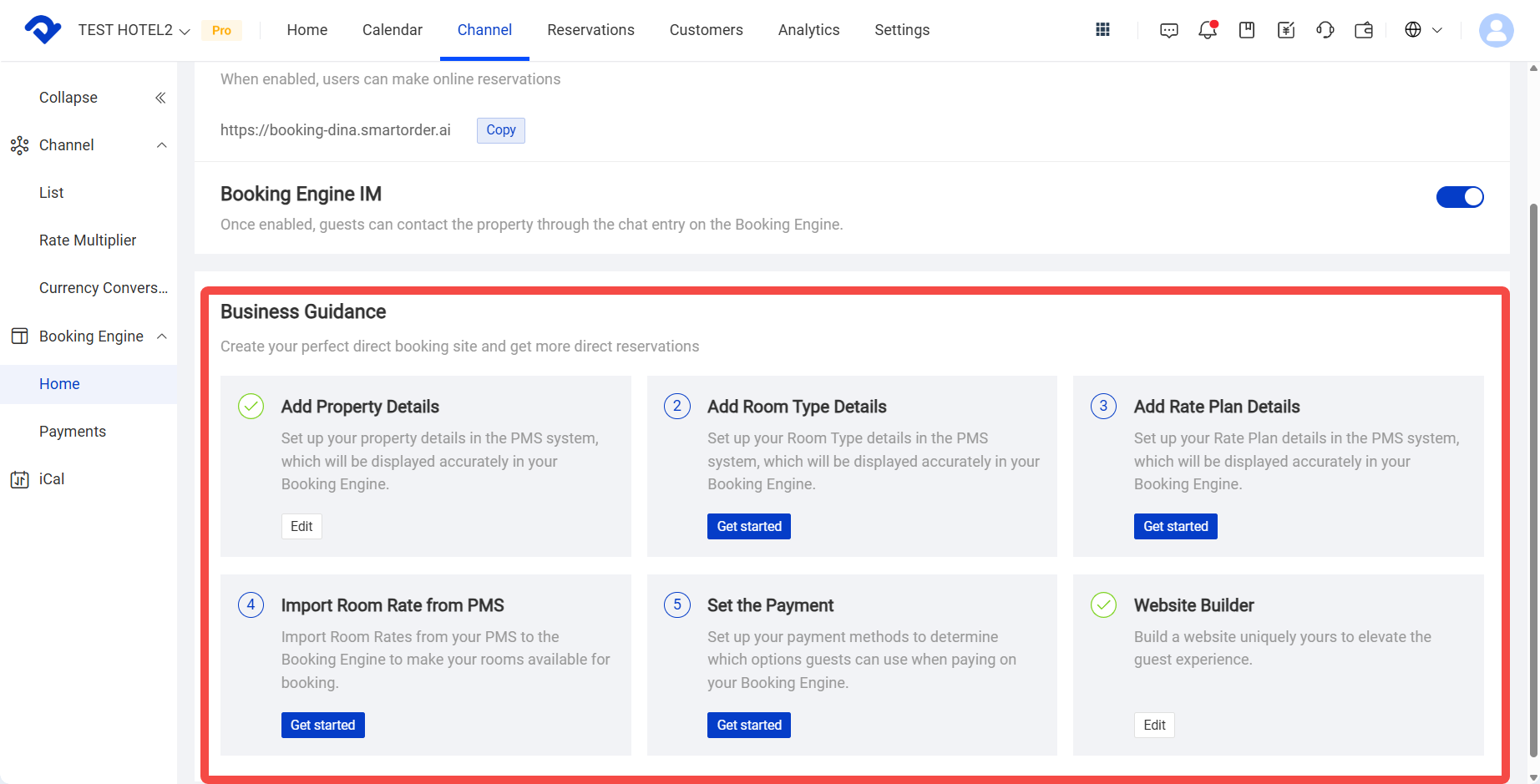
After turning on the website switch, you can copy the link to visit the website and check the setup result and content.