Set up rate multiplier for a channel

Part 1 - Definition

Rate Multiplier is a percentage-based tool that dynamically adjusts base room rates, simplifying pricing management by scaling fixed rates.

The Rate Multiplier in the Smart Order PMS is channel-specific. For instance, you can offer a 5% discount from your base rate exclusively for Booking.com without applying it to other OTAs. To achieve this, you would set a -5% adjustment for each room type in the Rate Multiplier section of the Booking.com channel.

Part 2 - Set rate multiplier in the PMS

Follow the steps below.

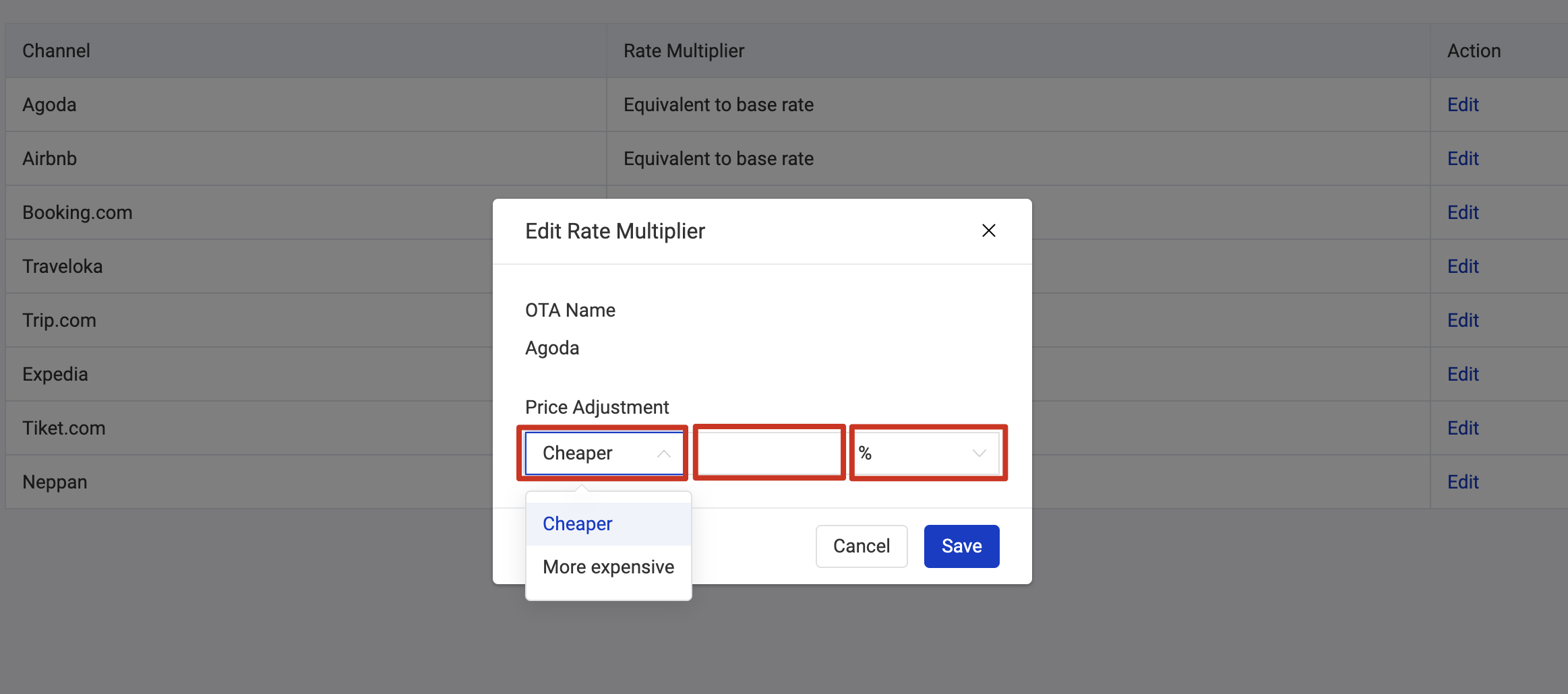
Go to Channel > Rate Multiplier > Click on the channel you want to Edit > Select the 3 options in Price Adjustment
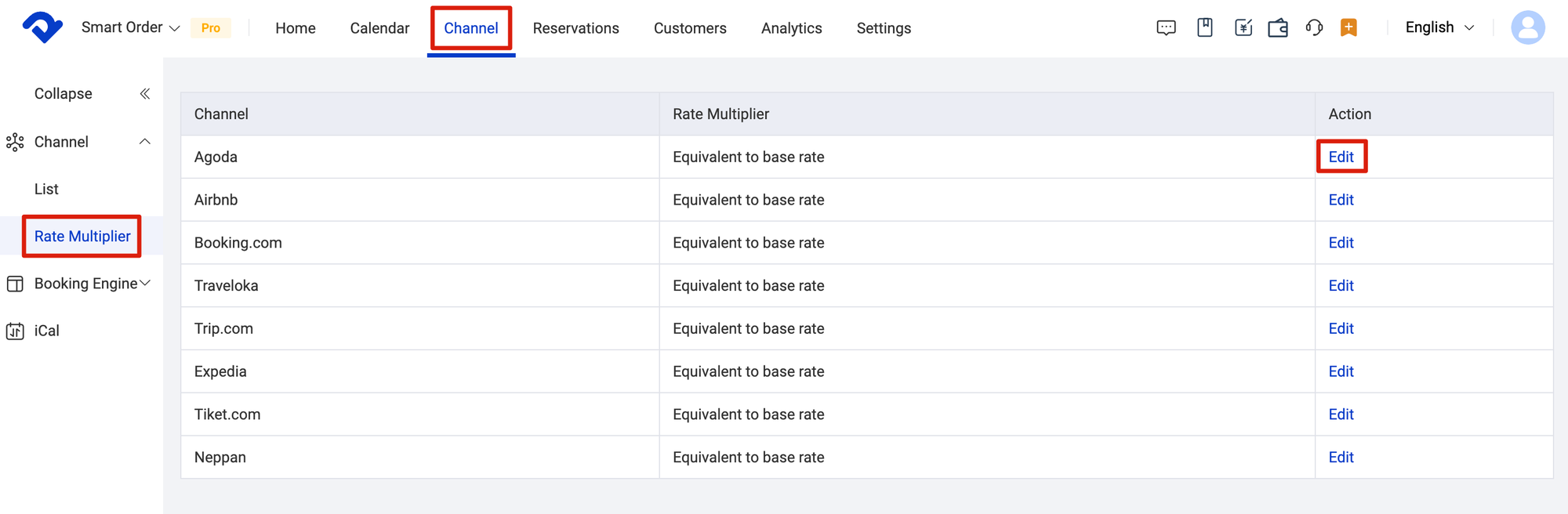
Channel > Rate Multiplier > Click on the channel you want to Edit
Select the 3 options in Price Adjustment
Related Articles

Frequent Questions

Derived rate plan Derived rates plans inherit their pricing and restrictions from their parent rate plan on OTA extranet, which means our platform does not send any inventory updates to OTA for these rates; the channel blocks the values being sent. You need to change the price as set up

Channel multi-mapping

What is multi-mapping? The channel manager’s room mapping functionality allows multiple channel rates to be mapped to, and managed by, a single channel manager room rate. This is known as multi-mapping and it provides flexible mapping options to help you simplify your setup. When to use multi-mapping? Multi-mapping is

Perform a bulk update

You can use Bulk Update to quickly and easily perform extensive updates to rates and restrictions across your room type and channels for one or more date ranges and specific days of the week. Navigation overview The inventory grid is where you manage the day-to-day pricing, and restrictions for your

How to set up the extra person rate

Follow the steps below to set up extra person rate. Operating Steps 1. Go to Settings: Next to the menu at the top, click "Settings." 2. Choose Rate Plan: Tap "Rate Plan" in the "Settings" section. 3. Select Occupancy Rate: Click on "Occupancy

Add and edit rate plan

Step 1 - Create a rate plan Create the rate plan first. Click on Settings > Rate Plan > Click Add New Rate Plan > Type in the Rate Plan Name > Set Default Minimum Stay > Set Default Maximum Stay > Choose Manual/Derived > Select Room Types >

Add multiple properties to channels

Please follow the steps in this guide if you want to add more properties to the Smart Order PMS. Step 1 - Add hotel in the PMS Follow the steps below to add more properties from OTA channels. In this guide, we will be using Booking.com as an example.
