
Key Takeaways
- The Booking.com Extranet is the main dashboard where hotel owners and property managers control their listings, reservations, prices, and guest communication.
- You can access the Booking.com extranet login page using the credentials created during property registration.
- Once inside the Booking.com Extranet, hosts can update availability, adjust pricing, manage policies, and monitor booking performance.
- The Booking.com Extranet includes tools for reservations, rate management, guest messaging, and performance reports.
- Many hosts eventually use property management systems to synchronize availability and pricing across multiple OTAs instead of updating everything manually in the extranet.
Introduction
If you've just listed your property on Booking.com, you've probably heard the word "extranet" thrown around — and maybe wondered what exactly it means and why it matters so much.
Put simply: the Booking.com Extranet is where all the real work happens. It's the backend dashboard that every registered host and hotelier uses to manage their listing, set prices, respond to guests, and track performance. Without understanding how to use it well, even a great property can underperform.
This guide walks you through everything — from your very first Booking.com Extranet login to navigating the dashboard like a pro. Whether you manage one room or twenty properties, you'll find actionable steps here that make a real difference.
What is extranet in Booking.com
The Booking.com Extranet is a private, web-based management portal designed exclusively for property owners and accommodation managers listed on Booking.com. Think of it as the "back office" that guests never see but that directly shapes what they do see — your listing photos, pricing, availability, and reviews.
Once Booking.com approves your property registration, you receive login credentials that unlock access to this dashboard. From there, you can control nearly every aspect of your Booking.com presence:
- Update property details, room types, photos, and descriptions
- Set and adjust nightly rates and minimum stay requirements
- Open or close availability on specific dates
- View and manage incoming reservations
- Communicate with guests through the built-in Inbox
- Respond to guest reviews
- Track revenue and monitor booking performance through analytics reports
- Access Booking.com's recommendations for improving your property's ranking
One thing that surprises many new users: the Extranet is not just a listing tool. It's a fairly comprehensive property management interface that, for smaller independent properties, can handle a lot of day-to-day operations on its own. That said, it works best when you understand each section and how they connect — which is exactly what we'll cover next.
Booking.com Extranet Login: Step-by-Step Guide
Where to Access the Booking.com Extranet Login Page
You can access the Booking.com Extranet login page by clicking the button below:
Bookmark this page. There are phishing sites that mimic the Extranet login page, so always verify you're on the correct domain before entering your credentials. The Extranet is also accessible via the Booking.com Pulse app on iOS and Android, which is particularly useful for managing urgent tasks on the go — though the full desktop Extranet offers more functionality.
How to Log in to Booking.com Extranet
Logging in for the first time involves a few more steps than a standard sign-in, so here's exactly what to expect:
Step 1 — Go to Booking.com Extranet sign-in page. Open your browser and navigate to the Extranet login page. You'll see fields for your login name (usually your email address) and password.
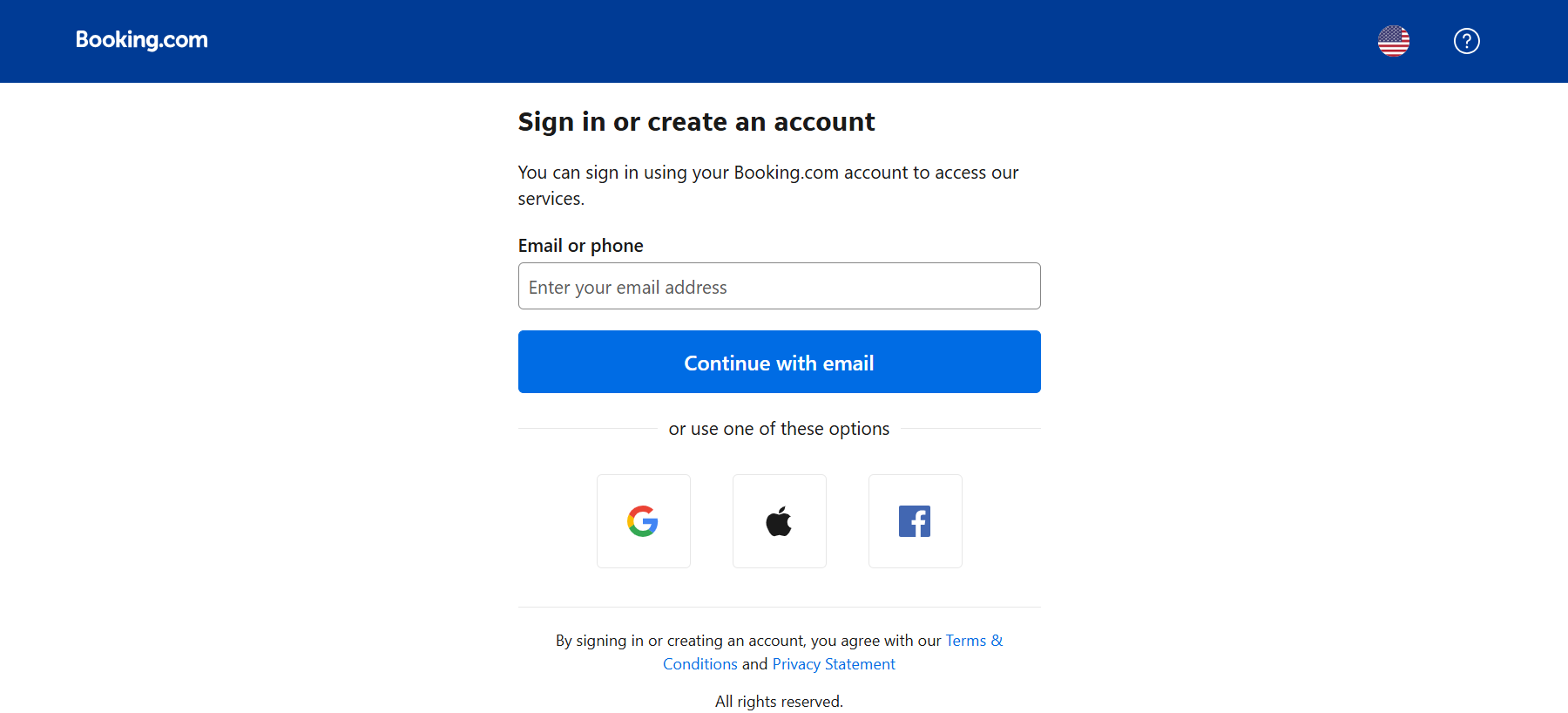
Step 2 — Enter your credentials Type in the username you created during property registration, click "Next," then enter your password and click "Log in."
Step 3 — Complete two-factor authentication (2FA) The Extranet requires 2FA for every login. After entering your password, you'll be prompted to enter a 6-digit PIN. You can receive this PIN via:
- The Booking.com Pulse app (navigate to "More" inside the app to find your code)
- An SMS text message to your registered phone number
- A phone call
You have a limited window — typically around 10 minutes — to enter the PIN before it expires. If you're having trouble receiving the code, make sure your phone number in the Extranet account settings is correct and up to date.
Step 4 — Select your property (if managing multiple) If your account is connected to more than one property, you'll land on the Group Extranet view. Select the specific property you want to manage to enter that property's individual dashboard.
Booking.com Extranet Login Issues and Fixes
Getting locked out is more common than you'd think, especially for new users. Here's how to handle the most frequent problems:
- Forgot your password? On the login page, click "Having trouble signing in?" and select "Forgot your password?" Enter your registered email address, and Booking.com will send a reset link. Check your spam folder if it doesn't arrive within a few minutes.
- Forgot your username? Same flow — click "Having trouble signing in?" then "Forgot your username?" Booking.com will help you recover it via your registered contact details.
- Locked out after too many failed attempts? After five incorrect login attempts, the system temporarily locks access. Wait a few minutes, then try again. When you log in, a pop-up will ask you to verify your email address. Clicking "Yes, create my password" triggers a password reset email.
- Can't complete 2FA? Click "Unable to verify?" when the PIN prompt appears. Select your reason, and you'll be guided to contact Booking.com support. Have your Property ID ready — you'll need it to verify your identity. Your Property ID can be found in the Extranet under the property symbol at the top of the page.
How to Use the Booking.com Extranet to Manage Your Property
Once you're logged in, the real work begins. The Extranet is packed with features, and it pays to take a structured approach rather than clicking around hoping things make sense.
Setting up your property profile
Head to the "Property" tab, then "Property Details." This is where you control everything guests see before they book: photos, room descriptions, amenities, house rules, and check-in/check-out policies. High-quality photos matter enormously — listings with professional images consistently outperform those with blurry or poorly lit shots. Upload at least 20 photos covering every room type, common areas, and key amenities.
Managing rates and availability
Go to "Rates & Availability" to set your base prices, apply rate plans (non-refundable, flexible, etc.), and create promotional offers. Booking.com's pricing tools let you build seasonal rates, last-minute deals, and long-stay discounts. Make a habit of reviewing your rates weekly — static pricing leaves money on the table, especially during local events or peak travel seasons.
Handling reservations
The "Reservations" section shows all upcoming, active, and past bookings. You can view full guest details, modify reservation dates when guests request changes, and mark no-shows when necessary. Pay attention to the cancellation type attached to each booking — it determines whether you're entitled to charge a cancellation fee.
Communicating with guests
The built-in Inbox in the Extranet handles all guest messages. Respond promptly — Booking.com tracks your response rate and uses it as one of several factors in your listing's ranking. Aim to reply within one hour during business hours.
Responding to reviews
Guest reviews live under the "Guest Reviews" tab. Replying to reviews — both positive and negative — signals to future guests that you're an attentive, engaged host. Keep responses short and professional. For negative reviews, acknowledge the guest's experience without being defensive, and briefly mention any improvements you've made.
Key Sections Inside the Booking.com Extranet Dashboard
The Booking.com Extranet interface is organized into several sections that focus on different operational tasks.
Reservations
This area lists all upcoming bookings, cancellations, and modifications. It also shows guest details, stay dates, and booking channels.
Rates and Availability
Property managers adjust pricing and room availability here. Many hotels review this section daily to react to demand changes.
Inbox
Guest communication happens through the inbox. Hosts can answer questions before arrival or send important information such as parking details and check-in instructions.
Property settings
Listing information such as photos, facilities, and policies can be updated in this section.
Performance reports
Analytics tools help hosts track occupancy rates, conversion data, and booking trends.
Understanding these sections helps partners navigate the Booking com hotel access extranet more efficiently.
Tips for Using the Booking.com Extranet More Efficiently
Managing a property through the Booking.com Extranet works well for single listings or small operations. As a property grows or starts using multiple booking platforms, manual updates can become time-consuming.
Rate adjustments, availability updates, and reservation checks must often be repeated across different OTAs. This increases the risk of errors or double bookings.
Many professional hosts reduce this workload by using a property management system.
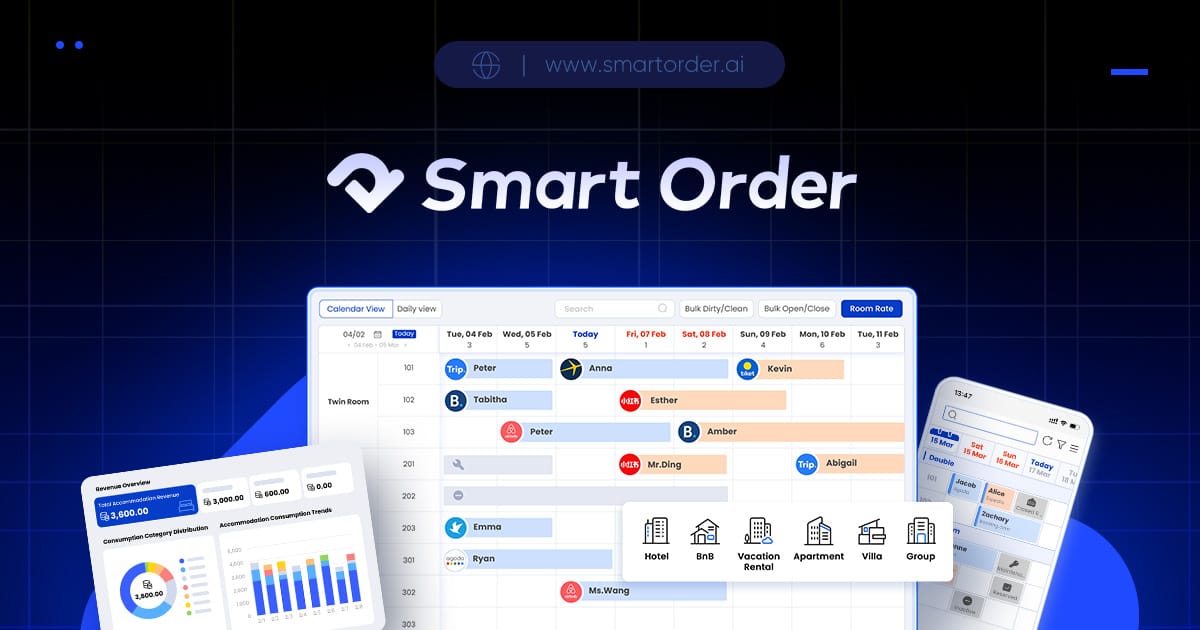
Smart Order PMS
Smart Order PMS is a free all-in-one property management system trusted by over 200,000 properties globally. Smart Order connects directly with Booking.com, Agoda, Airbnb, Expedia, and other major OTAs through a unified channel manager — meaning any rate or availability change you make is pushed to all connected platforms simultaneously, in real time. That eliminates the overbooking risk that comes with manual Extranet updates. Beyond channel management, Smart Order also includes a front desk system, direct booking engine, unified guest inbox, and payment processing — everything in one dashboard rather than scattered across multiple extranets. For independent hoteliers and vacation rental managers who want to grow their presence across OTAs without doubling their admin time, it's a practical alternative to managing each platform individually.
Booking.com Extranet FAQ
How does a booking extranet work?
A booking extranet works as a partner management system. Property owners log in to update listing information, manage reservations, adjust pricing, and communicate with guests. All bookings made on **Booking.com appear inside the extranet dashboard.
Why can't I access my Booking.com extranet login?
Login problems often occur because of incorrect passwords, expired verification codes, or browser compatibility issues. Resetting the password or requesting a new verification code usually restores access.
Can multiple users access the Booking.com Extranet?
Yes. Property administrators can create additional user accounts for staff members. Each user can be assigned different permissions depending on their responsibilities.
Is the Booking.com Extranet free for hosts?
Yes. The Booking.com Extranet is provided to accommodation partners at no additional cost once their property is listed on the platform.
How do I update prices in the Booking.com Extranet?
Prices can be updated through the rates and availability section. Hosts select the date range, adjust the nightly rate, and save the change. The updated price will then appear on the property listing.
What should I do if my property status is "Snoozed" on the extranet?
A property marked as "Snoozed" is temporarily unavailable for booking. Hosts can reactivate the listing by adjusting availability settings or removing the snooze status in the extranet dashboard. Checking calendar settings and open dates usually resolves the issue.
