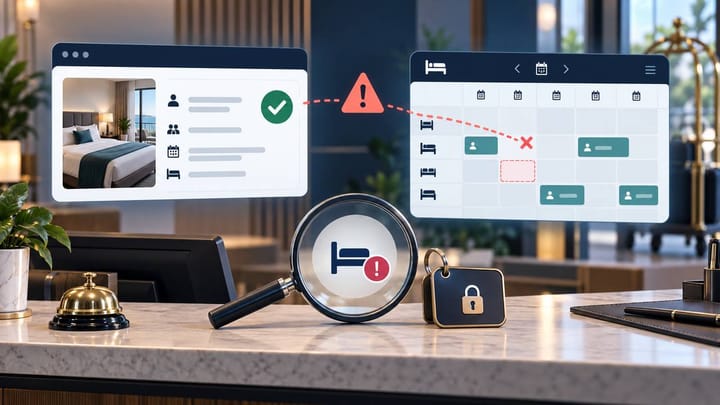
1. Confirm the reservation is active in the Booking.com Extranet.
2. Block the booked room in the PMS so it cannot be sold again.
3. Search the PMS by confirmation number, guest name, and stay dates.
4. Check the correct property, room connection, and recent channel warnings.
5. Recover the booking once and verify that availability is correct.
A Booking.com reservation not received by your PMS is first an operational risk, not a technical puzzle. The guest has a valid confirmation, but the front desk may not see the arrival and the room may still appear available on other channels.
The hotel manager's priorities are straightforward: confirm the booking, protect the room, prevent duplicate entry, and give the right information to the PMS provider if help is needed. This checklist is designed to be completed in about ten minutes.
Minute 0-2: Confirm the Reservation Is Real and Active
Open the Booking.com Extranet and search the reservation number. Confirm the property, guest name, arrival and departure dates, room type, number of rooms, guest count, booking status, payment instructions, and total price.
Do not work from the guest's screenshot alone. A reservation may have been changed or cancelled after the original confirmation was sent. The current record in the Extranet is the one the hotel should use for today's decision.
Check the property's reservation email as well. Booking.com can send a fallback email when a connected system does not collect a new reservation, modification, or cancellation within the expected period. The email is useful evidence, but staff should still confirm the current booking in the Extranet before acting.
If the reservation cannot be found in the Extranet, ask the guest to confirm the property name and Booking.com confirmation number. Do not create a PMS booking until the hotel has confirmed that the reservation belongs to this property.
Minute 2-4: Protect the Room From Being Sold Again
Check whether the booked room type still has availability in the PMS. If it does, reduce the sellable quantity or place a temporary block for the affected stay dates.
The purpose is to reserve the guest's room while the missing booking is investigated. Avoid closing the entire property when only one room type is affected.
If the hotel has only one remaining room, check the Booking.com Extranet and other major channels immediately. A missing reservation can leave the same last room available in several places.
Tell the front desk and reservations team that the booking is being handled manually. Add the confirmation number and stay dates to the shift handover so another employee does not create a second copy.
Smart Order's channel manager helps hotels manage connected inventory and reservation activity in one operational view.
Keep OTA Bookings and Availability Easier to Control
Use Smart Order to manage connected channels, reservations, and daily hotel work from one place.
Minute 4-8: Follow the 10-Point Checklist
Work through these checks in order. Stop when the booking is found or a clear cause is identified.
- Search the entire PMS. Use the Booking.com confirmation number first, then the guest name, email, phone number, and stay dates. Do not search only the arrivals screen.
- Check other reservation statuses. The booking may be under unassigned, pending, imported, cancelled, archived, or another property view.
- Confirm the correct property. Multi-property accounts can place the reservation under a different hotel if the connection was configured incorrectly.
- Check the booking time. Compare the Booking.com creation time with the last reservation shown in the PMS. This reveals whether one booking is missing or all recent bookings stopped arriving.
- Check recent channel warnings. Look for a paused connection, expired access, failed import, or general Booking.com warning in the PMS or channel manager.
- Check the room connection. Confirm that the Booking.com room type is linked to the intended PMS room type. This link may be called room mapping.
- Check the rate-plan connection. A newly created or renamed Booking.com rate plan may not yet be linked to the PMS.
- Check whether the PMS rejected the booking. Common reasons include an unknown room, missing rate plan, unsupported occupancy, or a required field the PMS could not accept.
- Check for a fallback email. Search the property inbox and spam folder using the confirmation number. It can confirm that automatic delivery did not complete.
- Ask for one controlled recovery. Use the PMS or channel manager's supported recovery option, or ask its support team to retrieve the booking once. Do not press import repeatedly.
Hotel managers do not need to interpret technical codes. A useful channel status should answer: which booking failed, when it failed, why it was not accepted, and what action is safe next.
Minute 8-10: Recover the Booking Without Creating a Duplicate
Before creating anything manually, search the PMS again. Some bookings arrive late while staff are investigating. A second booking with the same confirmation number will distort occupancy and may reduce availability twice.
If the connection can recover the original reservation, use that route. It preserves the Booking.com confirmation number and makes later changes or cancellations easier to match.
If the PMS provider confirms that recovery is not possible and the guest is arriving soon, create one temporary manual reservation according to the hotel's procedure. Copy the current details from the Extranet and label the record clearly with the Booking.com confirmation number and the reason for manual entry.
Do not copy payment-card information into notes, spreadsheets, or screenshots. Follow the payment instructions shown for the reservation and use the hotel's approved secure process.
After the booking appears, remove any temporary inventory block only if the recovered or manual reservation has already reduced availability. Check the PMS room count, Booking.com calendar, and at least one other connected OTA.
How to Know the Problem Is Fully Resolved
The incident is not closed merely because a reservation now appears in the PMS. Confirm that the room type, dates, number of rooms, guest count, booking status, rate plan, price, and payment instructions match Booking.com.
Then confirm the PMS reduced availability once, not twice. Check that the room is visible on the correct arrival date and that the front desk can identify any amount still due from the guest.
Watch the next Booking.com reservation. If it arrives normally, the problem may have affected only one booking. If it also fails, treat the connection as an active incident and keep manual checks in place until the provider confirms recovery.
Booking.com's official connectivity information explains that missed new reservations, modifications, and cancellations can trigger a fallback message to the property. For hotel teams, this means the property inbox should be part of the emergency checklist, not the normal booking workflow.
What to Send to Support
Give the PMS or channel-manager support team the property name and Booking.com property ID, confirmation number, booking time, stay dates, room and rate-plan names, and the time the hotel first noticed the problem.
Add screenshots showing the active Booking.com reservation, the PMS search result, the channel warning, and the protected inventory. State whether other recent Booking.com bookings arrived successfully.
Ask one direct question: can the original reservation be recovered safely, or should the hotel keep the temporary manual booking? This prevents two teams from importing and entering the same reservation at the same time.
Prevent the Next Missing Booking
Include missing-reservation checks in every shift handover. Compare recent Booking.com confirmations with PMS arrivals, especially before sold-out dates and weekends.
Review room and rate-plan connections whenever a product is created, renamed, or removed. Keep the Booking.com notification email current and accessible to more than one responsible manager.
Set a simple escalation rule. For example, if a confirmed booking has not appeared within the hotel's normal operating window, staff protect the room, check the Extranet, and notify the manager. They should not retry imports or create manual bookings without checking for duplicates.
Smart Order's front desk software helps teams keep reservation exceptions and shift follow-up visible without relying on verbal handover.
Give Every Shift a Clearer Reservation Workflow
Keep bookings, room availability, and front-desk follow-up together with Smart Order.
Frequently Asked Questions
Should front desk enter the booking manually immediately?
No. Confirm the reservation, protect inventory, and search the full PMS first. Use manual entry only when recovery is not possible or the guest is arriving soon, and label it clearly.
Can rates update normally while reservations stop arriving?
Yes. Rate and reservation activity can fail separately. A successful price update does not prove that new bookings are reaching the PMS.
Why is the booking missing only from the arrivals list?
It may be unassigned, pending, imported under another room, attached to another property, or hidden by a date or status filter. Search by confirmation number across the entire PMS.
What is the biggest mistake during recovery?
Creating or importing the reservation several times. Every retry should begin with another search for the Booking.com confirmation number.
What proves the issue is fixed?
The correct booking appears once, availability is reduced once, the details match Booking.com, and the next normal Booking.com reservation arrives successfully.
