
Managing a hotel or vacation rental in Southeast Asia's competitive market requires more than just listing your rooms; it requires mastery over the platforms that drive your revenue. For partners of one of Indonesia’s largest Online Travel Agencies (OTAs), the Tiket.com extranet is the central nervous system of your daily operations. This guide provides a deep dive into accessing your Tiket partner account, navigating the login process, and leveraging the mobile power of Lignum by Tiket.com.
What Is Tiket.com Extranet?
Think of the Tiket.com Extranet as a private dashboard built exclusively for property partners. It gives hotels, villas, guesthouses, and other accommodation providers a dedicated space to control how their property appears on tiket.com — and how it performs.
Unlike the customer-facing tiket.com app, the Extranet is entirely partner-side. Guests never see it. It's where you set your own rules, manage your own data, and make decisions that directly affect your revenue.
Key Features of Tiket.com Extranet Dashboard
The Extranet homepage surfaces the most important metrics and tools right away:
• Opportunity Center: Flags incomplete tasks — like missing room photos or unset policies — that could be limiting your bookings.
• Property Performance: Shows a 30-day snapshot of bookings, revenue, and room nights.
• Rates & Availability: Set room prices, open or close date ranges, and apply promotional rates.
• Promo & Campaign: Join tiket.com's active promotions with a single click.
• Bookings Menu: View reservation details, check-in dates, and guest information all in one place.
• Analytics: Daily average rates, net revenue trends, and booking volume data.
• Chat: Communicate directly with guests before and after booking.
Stop Managing Channels One by One
Every feature you see in Tiket.com Extranet — rates, availability, bookings, promotions — Smart Order PMS handles them all, plus every other channel you're on. One login. One dashboard. No more tab-switching.
Who Can Use the Tiket.com Extranet?
Access is limited to registered tiket.com property partners. If your property is not yet listed on tiket.com, you'll need to complete the partner registration process first. Once registered, the system supports multiple user accounts under one property — with different roles assigned to different team members.
Roles include Administrator, who holds full control including user management, and more restricted roles for front desk staff or revenue managers who only need access to specific menus. This makes the Extranet suitable for both small guesthouses and large hotel chains with dedicated operations teams.
Extranet vs. Lignum by Tiket.com: What's the Difference?
This confuses a lot of new partners. The short answer: they are the same platform, different format. The Tiket.com Extranet is the browser-based version accessed via desktop or laptop. Lignum by Tiket.com is the mobile app version of the same partner dashboard, available on both iOS and Android.
You log in with the same tiket partner account credentials on both. The data syncs in real time. Most property managers use the desktop Extranet for detailed tasks like setting up room configurations, and then check the Lignum app on their phone to monitor bookings or respond to guest messages throughout the day.
How to Log In to Tiket.com Extranet
The Tiket.com Extranet login process is straightforward, but there are a few details worth knowing — especially around two-factor verification and session behavior — that can catch you off guard the first time.
Step-by-Step Tiket.com Extranet Login Guide
1. Open your browser and visit Tiket.com extranet login page. Bookmarking this URL saves time.
2. Enter your registered email address and password.
3. If your account has PIN code security enabled, you'll be asked to enter your PIN after the password step.
- Click the "Log in" button
5. You'll land on the Extranet homepage with your property dashboard loaded.
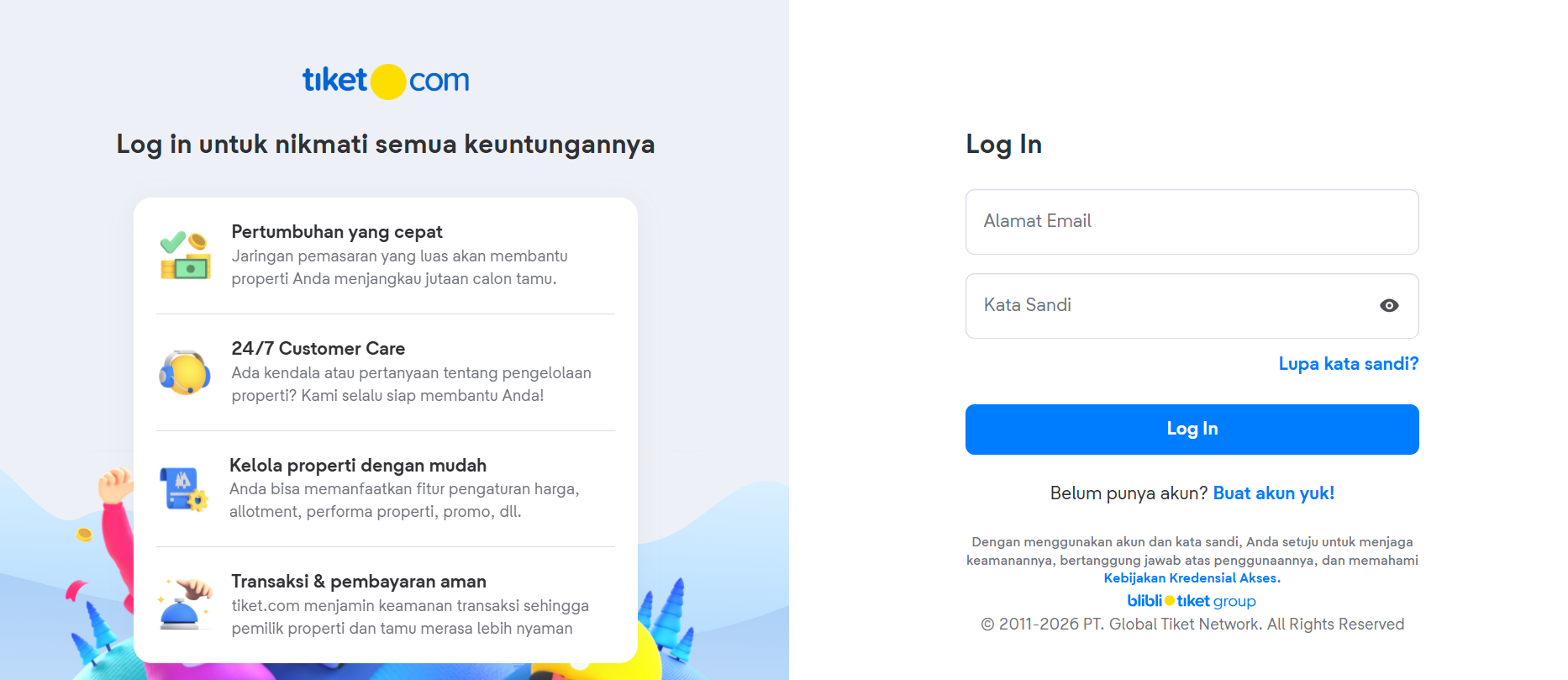
One important note: if your account is linked to multiple properties, you'll see a property selector screen after login. Choose the property you want to manage before proceeding.
Forgot Your Extranet Password? Here's How to Reset
Password resets are handled entirely via email. On the Tiket.com Extranet login page, click the "Forgot Password" link below the login form. Enter the email address tied to your tiket partner account, and a reset link will be sent within a few minutes.
Tiket.com Extranet Login Troubleshooting Tips
Login issues are frustrating, but most of them have simple fixes:
• Wrong credentials: Passwords are case-sensitive. Double-check for caps lock.
• Account locked: Too many failed attempts will lock the account temporarily. Wait 15–30 minutes or contact support.
• Browser issues: Clear browser cache and cookies, or try an incognito window. Chrome and Firefox work best with the Extranet.
• PIN not working: If you've forgotten your PIN, you'll need to disable and re-enable it through Account Settings after logging in via an alternative method.
• Page not loading: Check if tiket.com login page is accessible in your region. Some corporate networks or VPNs block external partner portals.
How to Register a Tiket.com Extranet Account
New users don't self-register on the Tiket.com Extranet. The system works differently: once your property is onboarded as a tiket.com partner, an Administrator account is created. That administrator then creates all additional user accounts from within the Extranet itself.
Requirements Before Creating an Extranet Account
Before adding a new user, make sure the following are ready:
• Your property must already be registered and live on tiket.com.
• You must be logged in as an Administrator — only Admins can access the Manage Users menu.
• You need the new user's email address, full name, and a valid phone number.
• The email address must be unique — it cannot already be registered to another Extranet account.
How Admins Add New Users in Extranet
6. Log in to the Tiket.com Extranet with your Administrator account.
7. Go to Manage Users from the main navigation.
8. Click Add New User in the top-right corner.
9. Enter the new user's email, full name, and phone number.
10. Select the appropriate user role and configure notification preferences if needed.
11. Click Add New User to save.
12. The new user receives a setup email to create their password and complete account verification.
Once verified, the new user can log in and start managing the property based on the role assigned to them.
Setting Up Account Roles and Permissions
The Tiket.com Extranet uses a role-based access model. Getting this right matters — giving the wrong person admin access is a common mistake that can lead to accidental rate changes or user deletions.
Common roles include:
• Administrator: Full access to all menus, including user management, property settings, and financial reports.
• Rate & Availability Manager: Can update pricing and open/close dates but cannot manage users or access analytics.
• Reservation Staff: Access to bookings and guest communication only.
Assign roles based on what each team member genuinely needs. Fewer permissions means fewer opportunities for costly mistakes.
What Is Lignum by Tiket.com?
Lignum by Tiket.com is the official mobile app for tiket.com property partners. It brings the core functions of the Tiket.com Extranet to your smartphone. The name "Lignum" comes from the Latin word for wood — a nod to the natural, grounded nature of hospitality. Whether or not you appreciate the wordplay, the app itself is genuinely useful for day-to-day property management.
Lignum by Tiket.com App: Features Overview
The Lignum app covers the most time-sensitive tasks that property managers need on the go:
• Booking Notifications: Get real-time alerts when a new reservation comes in.
• Rate & Availability Updates: Quickly adjust pricing or open/close rooms without needing a laptop.
• Guest Chat: Reply to incoming messages from guests directly in the app.
• Booking Management: View reservation details, confirm arrivals, and handle cancellations.
• Performance Snapshot: A quick view of your recent bookings and revenue.
The app does not replicate every Extranet feature — deep configuration tasks like adding new room types or editing property descriptions are better handled on the desktop version. But for monitoring and responding, Lignum is hard to beat.
How to Download and Log In to Lignum App
13. Search for "Lignum by Tiket.com" in the App Store (iOS) or Google Play (Android).
14. Download and install the app.
15. Open Lignum and tap Log In.
16. Enter the same email and password you use for the Tiket.com Extranet login.
17. Complete PIN verification if it's enabled on your account.
18. Select your property if prompted, and you're in.
There's no separate registration for Lignum. Your existing tiket partner account credentials work across both platforms seamlessly.
Managing Your Property on Lignum by Tiket.com
Once you're logged in, the Lignum app shows your booking calendar and today's arrivals right on the home screen. Tap any booking to see the full reservation details — guest name, room type, check-in/check-out dates, and special requests.
To update room availability or pricing, navigate to the Rates tab and tap the date you want to edit. Changes made in Lignum sync immediately to the desktop Extranet and to tiket.com's live listings — so guests see your latest rates without delay.
Enable push notifications in your phone settings to make sure you never miss a new booking or guest message. This small step makes a meaningful difference in response time and guest satisfaction scores.
How to Protect Your Tiket.com Extranet Account
Account security is not something most property managers think about until something goes wrong. Unauthorized access to your Tiket.com Extranet account can mean rate manipulation, fraudulent bookings, or loss of control over your property listing. Taking a few precautionary steps upfront is well worth the few minutes it takes.
Enable PIN Code for Extra Extranet Security
The Tiket.com Extranet supports an optional PIN code as a secondary authentication layer. Once enabled, every login session will require both your password and your PIN before granting access. This is especially valuable if you access the Extranet from shared computers or public networks.
To set up a PIN:
19. Log in to your account and go to Account Settings.
20. Select PIN Code and follow the setup steps.
21. Choose a PIN you'll remember but avoid obvious combinations like 0000 or 1234.
22. Save the PIN securely — recovery requires going through support if you forget it.
Account Verification Steps on Tiket.com Extranet
When a new user is added to the Extranet, they must verify their account before gaining access. The verification email contains a link to set a password and confirm the email address. This step ensures that only legitimate users — with access to the registered inbox — can activate the account.
If the verification email wasn't received, the Administrator can resend it from the Manage Users menu. Verification links have a time limit, so if a team member is slow to activate their account, they may need a fresh invite link.
Best Practices to Keep Your Extranet Account Safe
• Use a unique, strong password: Don't reuse passwords from other platforms. A password manager makes this easy.
• Audit users regularly: Remove former employees from the Manage Users list as soon as they leave the property.
• Limit Administrator accounts: Only give Admin access to people who genuinely need it.
• Avoid public Wi-Fi logins: If you must log in on an unsecured network, use a VPN.
• Log out on shared devices: Don't leave your Extranet session open on computers used by multiple people.
FAQs About Tiket.com Extranet Login & Lignum
Can I Use One Account on Both Extranet and Lignum?
Yes, absolutely. Your tiket partner account credentials — email and password — work on both the desktop Tiket.com Extranet and the Lignum by Tiket.com mobile app. There's no need to create separate accounts. All changes made on one platform reflect immediately on the other, and your booking data stays consistent across both.
What to Do If Extranet Login Is Not Working?
Start with the basics: check your internet connection, confirm you're using the right email, and verify that caps lock isn't on. Clear your browser's cache or try a different browser entirely. If the issue persists after a password reset, it's likely an account-level problem — reach out to Tiket.com's partner support team with your registered email and property name so they can investigate.
One less obvious cause: if your property account was recently deactivated or your partnership contract lapsed, access to the Tiket.com Extranet will be suspended until the account is reinstated. The login page itself won't always explain this clearly, so if nothing else works, support is the fastest path to an answer.
How to Contact Tiket.com Extranet Support?
Tiket.com offers multiple contact channels for property partners:
• Email: cc.hotelpartner@tiket.com — best for non-urgent issues that require documentation.
• WhatsApp: 0858 1150 0888 — faster for time-sensitive login problems.
• Call Center: 021 3970 8218 — available during business hours.
• Help Center: searchable articles covering the most common Extranet issues.
