💠Traveloka TERA (Traveloka Extranet Reservation System) is the official partner portal where hotels, villas, and other accommodations manage their listings, rates, and bookings on Traveloka.
💠To log in, visit tera.traveloka.com, enter your registered email and password, and complete the 2FA security step.
💠New partners must register through the Traveloka TERA portal and submit property details, photos, and ID documents for approval.
💠TERA supports hotels, villas, apartments, homestays, guesthouses, hostels, resorts, and B&Bs.
💠Connecting a Property Management System (PMS) like Smart Order PMS to Traveloka TERA helps automate booking sync, rate updates, and reporting across all your OTA channels.
If you run a hotel or any type of accommodation in Southeast Asia, getting listed on Traveloka is no longer optional — it is essential. Traveloka is the region's most-used travel booking platform, with millions of travelers searching for accommodation across Indonesia, Thailand, Vietnam, Malaysia, and beyond.
Traveloka TERA — short for Traveloka Extranet Reservation System — is the backend portal that makes all of this possible. Through TERA, hotel partners can create and manage their listings, update rates and availability, respond to bookings, run promotions, and track performance data.
This guide walks you through the exact steps to complete your Traveloka TERA login, register your property, and start receiving bookings. Whether you're a first-time partner or troubleshooting access issues, you'll find clear and practical answers here.
What Is Traveloka TERA Extranet?
Traveloka TERA is the official extranet system for Traveloka's accommodation partners. Think of it as the control room for your Traveloka listing. Just like Booking.com has its Extranet and Expedia has Partner Central, Traveloka built TERA specifically for property owners and managers to operate independently within the platform.
Once you complete the Traveloka TERA login, you get full control over how your property appears to millions of travelers. You set the rooms, you set the price, you decide the policies. Traveloka handles the traffic — TERA hands you the wheel.
Step-by-Step Guide for Traveloka TERA Login
Logging in to TERA is straightforward, but a few things can trip you up if you're not prepared — especially the two-factor authentication step. Here's exactly how to do it.
Step 1: Accessing the Traveloka TERA Official Portal
Open your preferred web browser—Google Chrome is generally recommended for the best stability—and navigate to the official TERA URL.
You can find this by searching for the Traveloka TERA login page or going directly to tera.traveloka.com. It is wise to bookmark this page immediately so you aren't clicking on potential phishing links in the future.
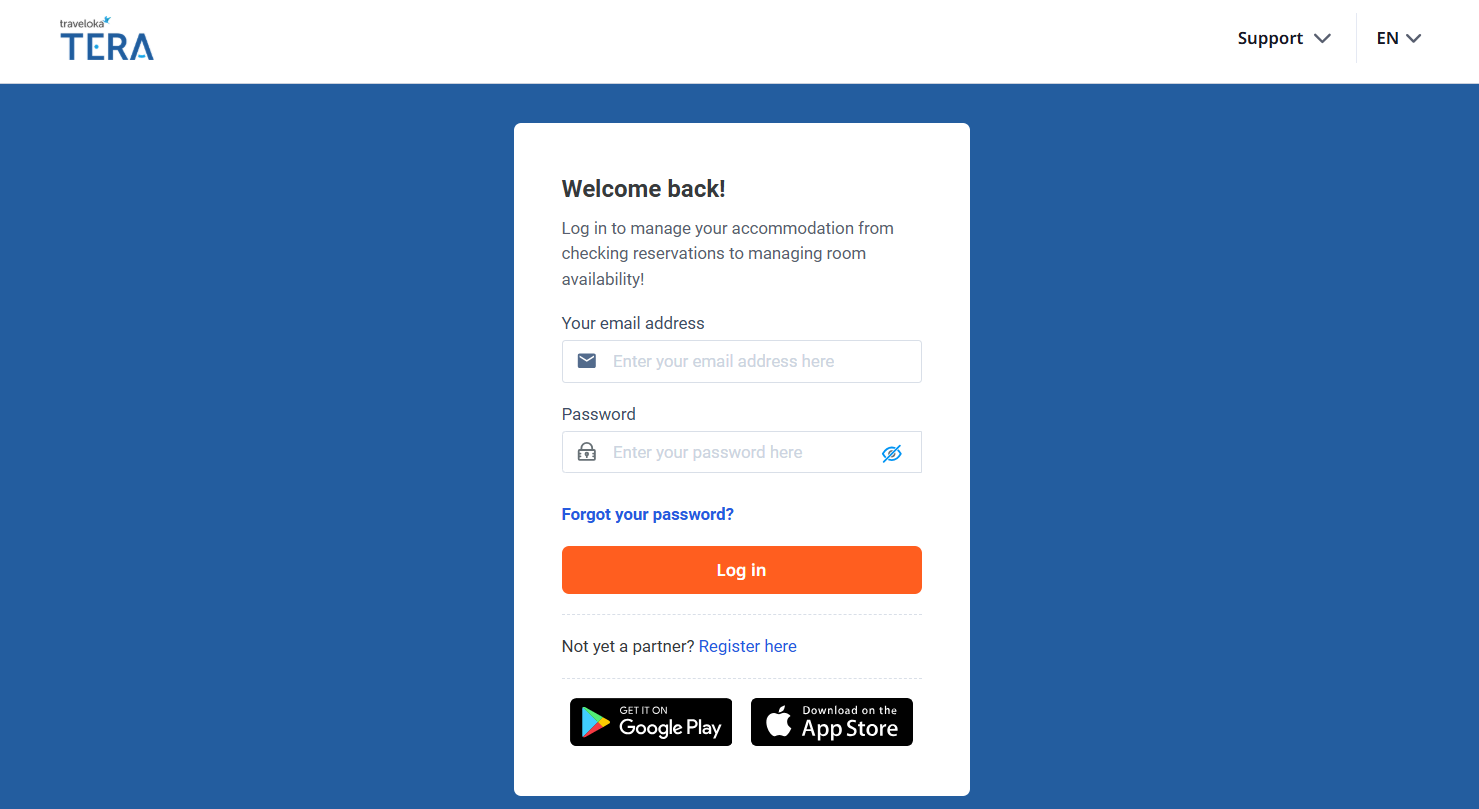
Step 2: Entering Your Registered Email and Password
After reaching the login screen, enter the email address and password used during the tera traveloka register process.
These credentials are created when a property first signs up for the platform. If the information is correct, the system will proceed to the security verification stage before allowing access to the partner dashboard.
Keeping login credentials secure is essential because the Traveloka TERA account controls pricing, reservations, and property data.
If you are a new staff member, ensure your manager has granted your email specific permissions within the user management section of the extranet.
Step 3: Completing Two-Factor Authentication (2FA) for Security
For additional protection, many accounts require two-factor authentication. During this step, the system sends a verification code to the registered email or mobile device.
Entering the code confirms the identity of the account holder and protects the Traveloka TERA extranet from unauthorized access. After verification, the dashboard opens and the hotel can begin managing listings and bookings.
Common Traveloka TERA Login Issues (and How to Fix Them)
Even experienced partners run into login problems. Here are the most common ones:
- Wrong email or password: Double-check you're using the partner account email, not your personal Traveloka traveler account.
- OTP not received: Check your spam folder, confirm your phone number is correct in account settings, or use the email OTP option if available.
- Account locked: Multiple failed login attempts may lock your account temporarily. Wait 30 minutes or contact Traveloka partner support to unlock.
- Browser compatibility issues: Clear your cache and cookies, or switch to Chrome or Firefox. Avoid logging in through private/incognito mode if 2FA behaves oddly.
- Account inactive: If your property was set to inactive or your registration was incomplete, you may be unable to log in fully. Contact TERA support to reactivate.
How to Register and List Your Property on Traveloka TERA
If you're a new partner, you'll need to complete the Traveloka TERA registration before you can log in. The process typically takes less than an hour to complete, though the listing review and approval may take a few business days.
Preparing Required Documents for Traveloka TERA Registration
Having these ready before you start will save you from stopping halfway through the form:
- Property name, full address, and contact number
- Owner or manager national ID (KTP for Indonesian partners, or equivalent government-issued ID)
- Bank account details for receiving booking payments
- At least 5–10 high-quality photos (rooms, lobby, bathrooms, common areas, exterior)
- A brief but specific description of your property and its key selling points
- Tax identification number (NPWP in Indonesia, or equivalent) if applicable
Step-by-Step Traveloka TERA Property Registration
1. Go to the Traveloka TERA registration page
- Path A: You can visit the TERA Traveloka register page directly
- Path B: Go to the Traveloka homepage, scroll the page to the bottom, click the "Register Your Accommodation" quick navigation
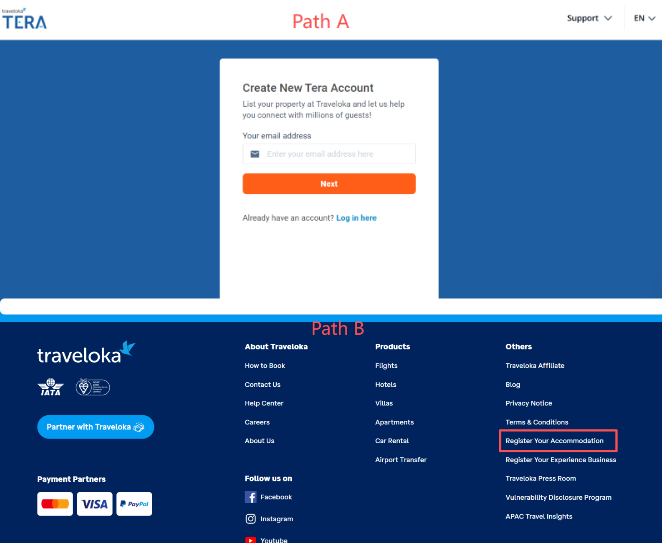
2. Create your partner account
Enter your email address, set a strong password. Verify your email by clicking the confirmation link Traveloka sends.
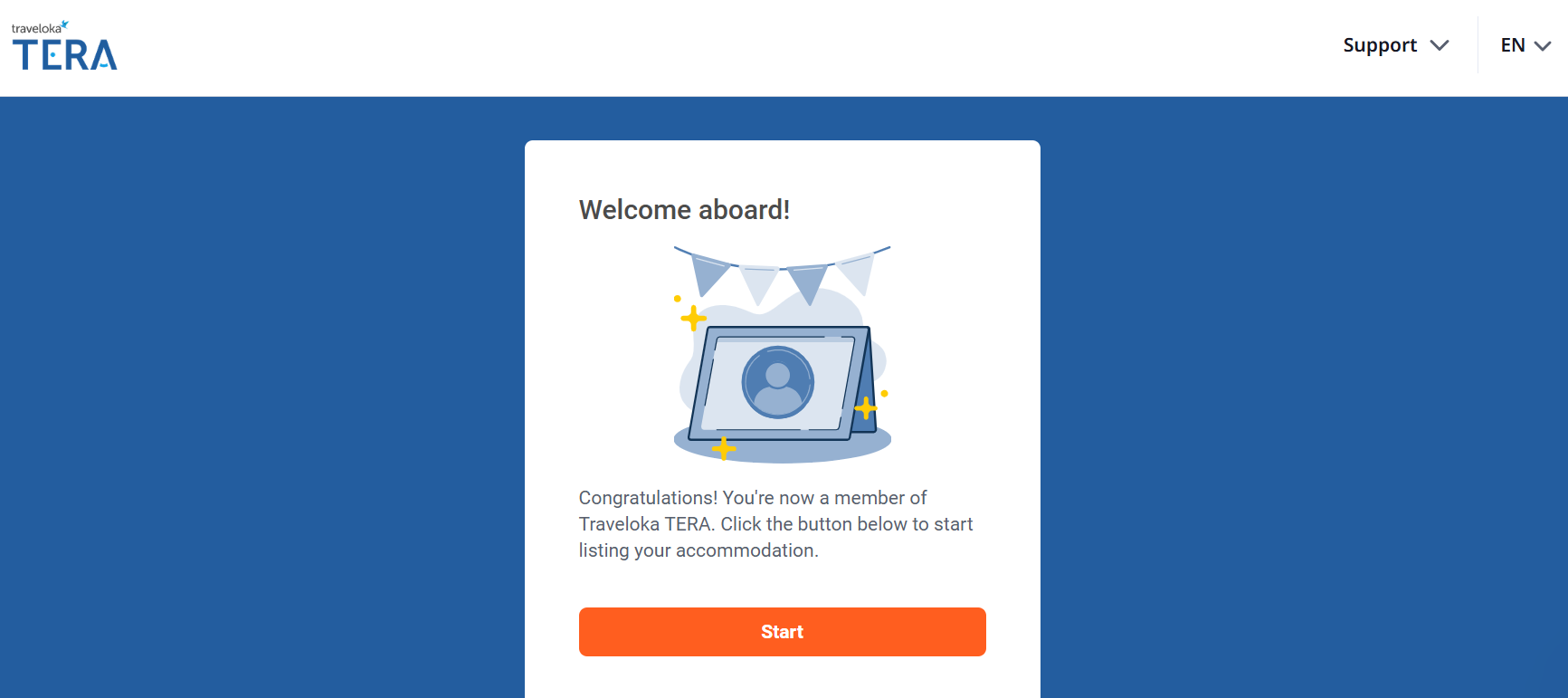
3. Fill in property information
Log in to the Traveloka TERA system by entering the verification code that Traveloka TERA sent via email to your email account. Enter property details such as name, address, and contact information. Be accurate — this information shows directly on your Traveloka listing.
4. Add room types and pricing
Define each room category you offer (Standard, Deluxe, Suite, etc.), set bed configurations, maximum occupancy, and base rates. You can always adjust pricing later from the TERA dashboard.
5. Upload property photos
Upload clear, well-lit images. Traveloka recommends a minimum resolution of 1024 x 683 pixels. Exterior shots, room interiors, and facility photos all matter for conversion.
6. Submit for review
Once all sections are complete, submit your registration. Traveloka's team will review the listing for accuracy and compliance. You'll receive an email notification when your property goes live.
Supported Property Types on Traveloka TERA
The Traveloka marketplace supports many accommodation categories. During the Traveloka TERA registration process, partners select the type that best matches their property.
Examples include:
- Hotels
- Resorts
- Apartments
- Villas
- Guesthouses
- Vacation rentals
This flexibility allows a wide range of accommodation providers to reach travelers through the platform.
Traveloka TERA Extranet Features: What You Can Manage After Login
Getting your Traveloka TERA login set up is just the beginning. The real value comes from learning what you can do inside the platform once you're in.
Booking Management
View and confirm all reservations in real time. TERA sends instant notifications for new bookings, cancellations, and guest modifications. You can filter by date, room type, or booking status.
Rate and Inventory Control
Set room rates manually or use TERA's rate recommendation tools. You can create special rates for weekends, public holidays, or early bird promotions without needing to call Traveloka.
Photo and Content Updates
Refresh your property description, update photos, and add new room types directly from TERA. Listings with more high-quality photos consistently rank higher in Traveloka search results.
Promotions and Advertising
TERA gives you access to Traveloka's promotional programs — discount campaigns, last-minute deals, and paid visibility boosts. You set the budget and target audience; TERA shows you the projected impact before you commit.
Performance Analytics
Track impressions, click-through rates, booking conversion, and revenue trends. This data helps you identify which room types perform well and which periods need a pricing adjustment.
Channel Manager Integration
TERA is built to connect with third-party channel managers. This means you can sync your Traveloka availability and rates with other OTAs — Booking.com, Agoda, Airbnb, and more — without double-entry or overbooking risk.
Manage Traveloka Bookings More Efficiently with a PMS
Logging into Traveloka TERA every day to manually update rates, confirm bookings, and check availability works fine when you're managing one small property. But as your bookings grow — or as you expand across multiple OTAs — manual management quickly becomes a bottleneck.
This is where a Property Management System (PMS) with a built-in channel manager changes the game. Instead of logging into TERA, Booking.com, Agoda, and Airbnb separately every day, everything flows through a single dashboard.
Smart Order PMS is a solution built specifically for independent hotels, guesthouses, and vacation rentals worldwide. It connects directly to Traveloka and 10+ other major OTAs, giving you a real-time unified view of all bookings, availability, and revenue — without switching tabs.
With Smart Order PMS, properties that previously spent hours on manual OTA management typically see:
- Up to 60% time savings for front desk and operations staff
- 25% average revenue increase through better rate optimization across channels
- Near-zero overbooking incidents thanks to automated availability sync
- A mobile app for managing bookings from anywhere — no laptop required
If you're already managing Traveloka through TERA and want to reduce manual work, you can explore Smart Order PMS by clicking the button below. It's free to start, with no setup fees.
Traveloka TERA Extranet FAQs
Is the Traveloka TERA App Available for Mobile?
Yes. Traveloka TERA has a mobile app available for both Android and iOS. You can manage bookings, update rates, and check performance data from your phone. The mobile app is especially useful for small property owners who don't always have access to a desktop. Note that some advanced features — like detailed reporting or promotional campaign setup — may be more conveniently handled on the desktop version.
How Long Does It Take for a New Traveloka Listing to Be Approved?
Approval typically takes 3–5 business days after you submit your completed registration. If your application has missing documents, incorrect information, or low-quality photos, Traveloka may request revisions, which can extend the timeline. To avoid delays, make sure all fields are complete, photos meet the resolution requirements, and your ID documents are clearly readable before submitting.
Can I Manage Multiple Properties Under One Traveloka TERA Account?
Yes, it is possible to manage multiple properties under one TERA account, particularly if they are registered under the same business entity. You can switch between properties from within the dashboard. That said, larger hotel groups or management companies with many properties often find it easier to use a channel manager or PMS that provides a consolidated multi-property view, rather than toggling between individual listings inside TERA.
Is There a Fee to Register a Property on Traveloka TERA?
Registration on Traveloka TERA is free. There are no upfront costs to create an account or list your property. Traveloka earns revenue through a commission model — a percentage of each completed booking is taken as a platform fee. Commission rates vary by property type, location, and any promotional programs you participate in. The exact rate is disclosed during the registration process and in your partner agreement.
What Is the Difference Between Traveloka TERA and Traveloka for Travelers?
The Traveloka app that travelers use to search and book flights, hotels, and activities is completely separate from Traveloka TERA. TERA is the partner-facing backend — it's only accessible to registered accommodation and travel providers. Your guests will never see TERA; they interact with Traveloka through the consumer app or website. Think of TERA as the engine room that powers what travelers see on the front end.
