
💠The Trip.com Extranet (also called eBooking) is the official host portal, where you manage rates, availability, reservations, guest reviews, and settlements for your Trip.com listing.
💠The Ctrip Extranet and Trip.com Extranet are the same platform — Ctrip rebranded internationally as Trip.com in 2019, and existing login credentials carry over.
💠To log in to Trip.com Extranet: go to ebooking.trip.com → select your language → enter your registered email and password → click Sign In → access your dashboard.
💠Manually logging into the eBooking portal every day becomes a liability once you list on multiple OTAs — connecting to a channel manager eliminates the risk of overbookings and saves significant admin time.
In the fast-moving world of global travel, Trip.com has emerged as a powerhouse, especially for properties looking to tap into the massive Asian and Chinese markets. As part of the Trip.com Group, which includes brands like Skyscanner and Ctrip, this platform connects over 400 million users to millions of hotels worldwide.
For property owners and managers, the gateway to this audience is the Trip.com Extranet. Whether you run a boutique guesthouse in Thailand or a luxury hotel in London, mastering this portal is the first step toward maximizing your global bookings.
What Is the Trip.com Extranet?
The Trip.com Extranet, often referred to within the industry as eBooking, is a specialized management portal designed exclusively for accommodation providers. Think of it as your control room: everything from room rates and availability to guest reviews and financial settlements is handled here.
It's not just a place to confirm bookings. The platform gives you real visibility into how your property is performing and real tools to act on that data.
How Does Trip.com Extranet Work?
When a traveler books your property on Trip.com, the reservation flows directly into your Extranet dashboard. From there, you can confirm or manage the booking, update your room availability calendar, adjust pricing, respond to guests, and pull performance reports.
The system runs on a commission-based model. You list your property for free, and Trip.com takes a percentage (defined in your contract) only when a booking is confirmed. No upfront cost, no monthly fee for the listing itself.
The Extranet also connects with external tools — channel managers and property management systems — so you don't necessarily have to log in manually every day to keep things updated.
Why Should You List Your Property on Trip.com?
The numbers make a strong case on their own: 55% of newly listed properties receive their first booking within 30 days. With 1.7 million hosts from over 200 countries already on the platform, Trip.com has become a go-to for travelers — particularly from China and Southeast Asia, markets that are notoriously hard to reach through Western OTAs alone.
Beyond reach, Trip.com offers promotional tools, featured listing placements, and marketing campaigns that can meaningfully lift your visibility. And if your target guest is a high-spending Chinese traveler, Trip.com is arguably the most direct path to that audience.
What's the Difference Between eBooking Extranet and Ctrip Extranet?
A common point of confusion for many hosts is the relationship between eBooking and Ctrip. While they fall under the same parent company umbrella, they serve different primary audiences.
- The Ctrip Extranet is the legacy system focused heavily on the domestic Chinese market, featuring tools and interfaces optimized for Chinese business practices.
- The eBooking Trip com Extranet, on the other hand, is the international version designed for global hosts.
Today, the systems are largely integrated, meaning when you manage your property through the international Trip.com Extranet, your listing is typically visible on both the global Trip.com site and the Chinese Ctrip site, allowing you to manage global and Chinese guests through a single point of entry.
How to Register for a Trip.com Extranet Account
Before you can log in, you need an account. Registration is free and takes about 15–30 minutes if you have your information ready.
What to prepare before you start:
- Property name and address in English
- Property type (hotel, apartment, homestay, villa, etc.)
- High-resolution photos of rooms and common areas
- Contact email for ongoing correspondence
- Bank or VCC details for payment settlement
- Breakfast and child policies
- Any local licensing or registration documents
Registration steps:
Step 1: Go to Trip.com and find the host registration entry
Open trip.com in your browser. You'll see two ways to get started from the homepage:
- Click "List your property" in the top navigation bar (Path A) — this takes you directly to the host sign-up landing page.
- Or click "Sign in / register" in the top-right corner (Path B) — then select the option to create a new host account.
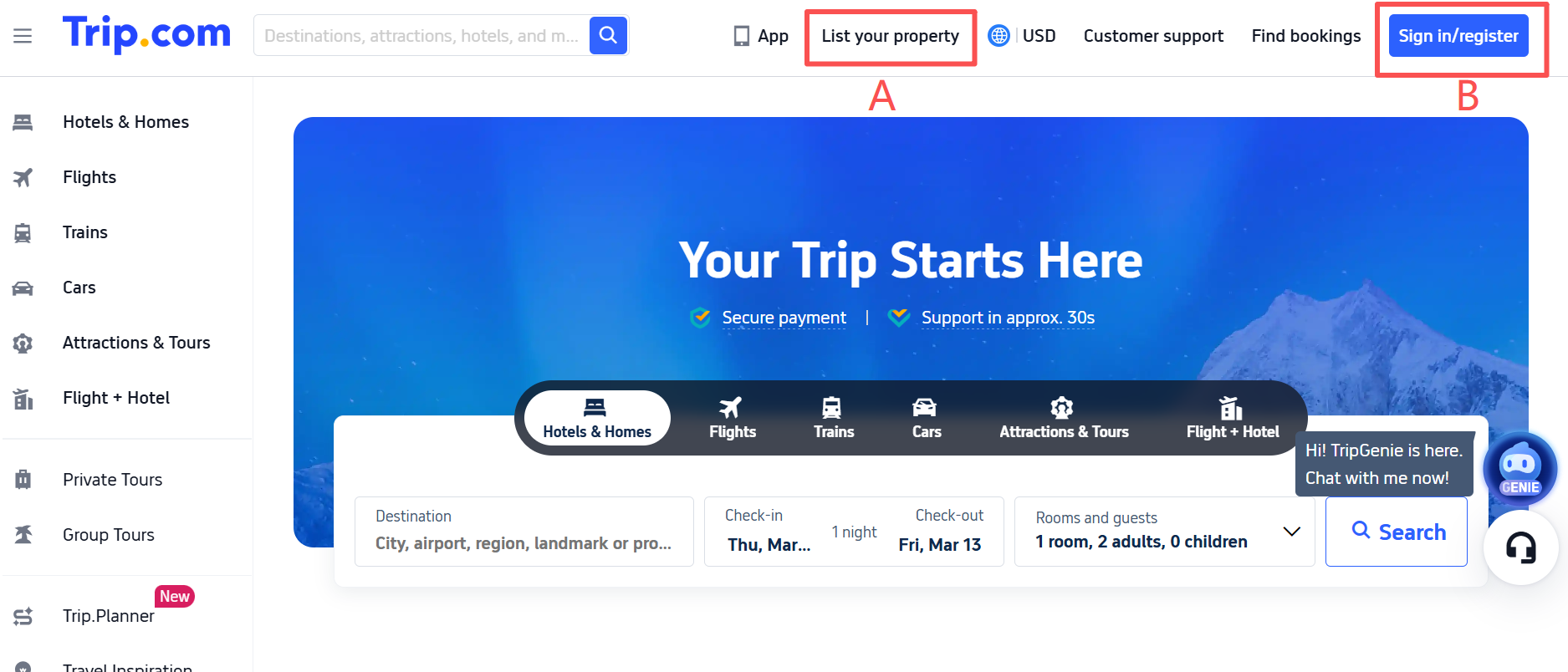
Either path leads to the same eBooking registration flow.
Step 2: Enter Your Property Information
Fill in the required details about your property, including the property name, location, contact information, property type, and basic room information.
Step 3: Submit Your Application
After completing the form, submit the application for review. Trip.com will check the information and confirm whether your property meets the platform requirements.
Step 4: Activate Your Trip.com Extranet Account
Once approved, you will receive login credentials and can access the Trip.com Extranet login page to start managing your listing, rates, and reservations.
Trip.com Extranet Login – Step-by-Step Guide
Step 1: Go to the Official Login Page
Open your browser and navigate to the official eBooking Trip com Extranet login portal. This page is designed specifically for property partners rather than travelers.
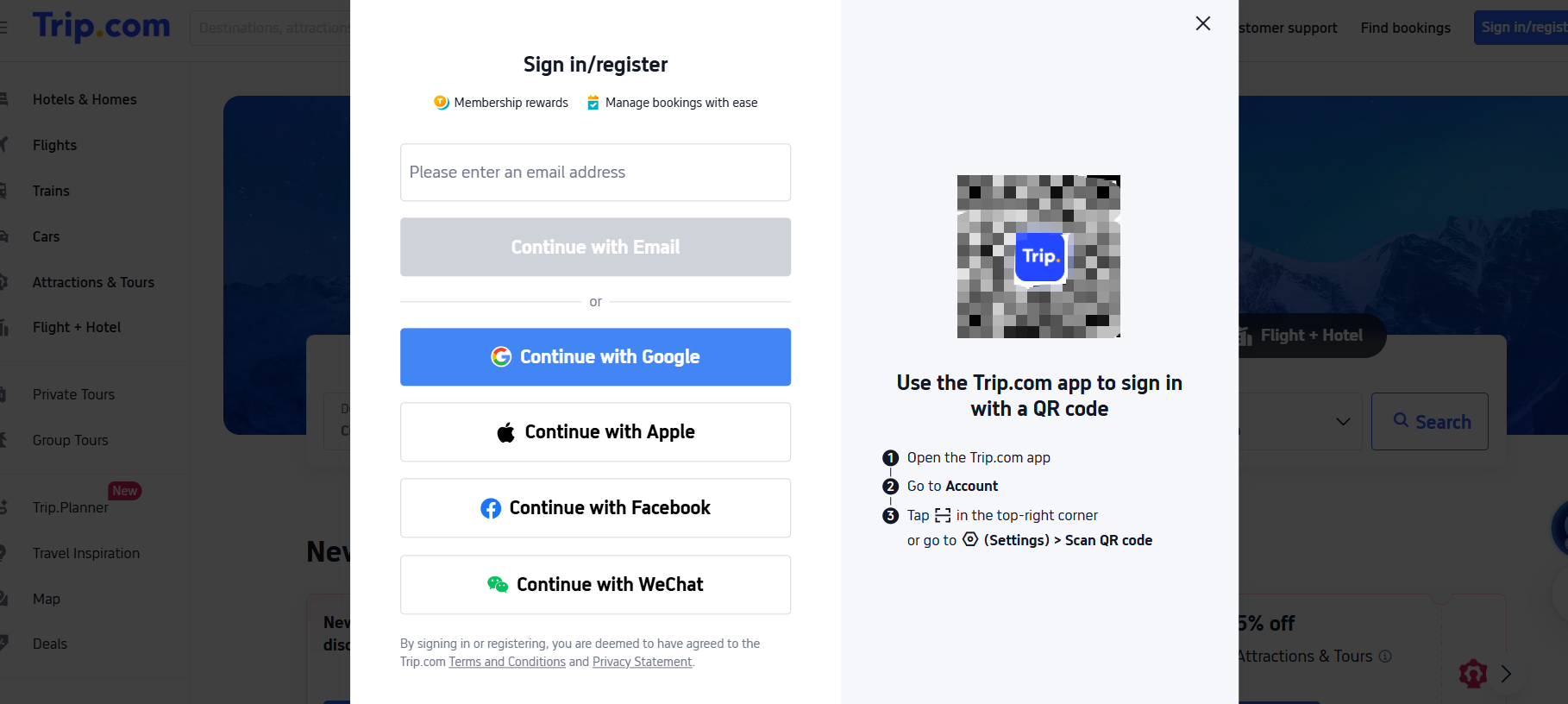
Alternatively, log in from the Trip.com homepage by clicking: "Sign in/register".
Step 2: Select Your Language
The login page supports multiple languages. Choose your preferred language from the dropdown in the top-right corner before entering your credentials.
Step 3: Enter Your Registered Email
Type the email address you used during registration. This is your username — it cannot be changed after account creation, so use a business email from the start.
Step 4: Enter Your Password
Type your password carefully. Passwords are case-sensitive. If you're using a shared computer, avoid saving your password in the browser for security reasons.
Step 5: Click Sign In and Access Your Dashboard
Once authenticated, you'll land on the main Extranet dashboard. The layout shows today's arrivals, pending tasks, and a summary of recent booking activity.
What You Can Do Inside the Trip.com Extranet Dashboard
Once logged into the Trip.com Extranet, hosts gain access to several management tools designed for daily operations.
Key capabilities inside the dashboard include:
- Managing room inventory and availability
- Updating pricing strategies
- Viewing reservation details
- Responding to guest inquiries
- Monitoring booking performance
The Trip.com Extranet dashboard is designed to help property managers keep listings accurate and competitive. Regular updates improve search visibility and increase booking potential.
Common Trip.com Extranet Login Problems and Fixes
Forgot Your Trip.com Extranet Password
On the login page, click "Forgot Password?" below the password field. Enter your registered email address and Trip.com will send a reset link. Check your spam folder if it doesn't arrive within 5 minutes. The link expires after 24 hours — request a new one if needed. Once reset, log in with your new password immediately and update it somewhere secure.
Trip.com Extranet Login Page Not Loading
This is usually a browser or network issue, not an account problem. Try clearing your browser cache and cookies, then reload the page. If that doesn't work, switch to a different browser (Chrome and Firefox tend to be the most compatible). Disable any VPN if you have one running — some VPN exit nodes are blocked by Trip.com's security filters. If the page still won't load, check Trip.com's status page or contact support at Lodgingsupport@trip.com.
Trip.com Extranet Account Locked
Accounts get locked after several consecutive failed login attempts. If this happens, don't keep trying — you'll extend the lockout period. Instead, use the "Forgot Password" flow to reset your credentials, or contact Trip.com partner support directly with your property ID and registered email. Resolution is usually within one business day.
How to Optimize Your Listing on Trip.com Extranet After Login
Getting listed is just step one. Getting bookings consistently requires active management.
Keep your availability accurate.
Gaps in your calendar — dates that show as available but aren't — damage your reliability score and can lead to forced cancellations that hurt your ranking. Update your calendar at least weekly, or connect a channel manager to handle this automatically.
Price dynamically, not statically.
A fixed rate 365 days a year leaves money on the table. Use Trip.com's rate plan tools to set higher prices during local events, holidays, and peak seasons. Even small adjustments (10–15%) based on demand can significantly improve your revenue per available room.
Write descriptions that actually inform.
Vague phrases like "comfortable rooms" don't help travelers make decisions. Be specific: room size in square meters, bed type, floor level, view, noise level, and what's within walking distance. Guests who book with accurate expectations leave better reviews.
Invest in photography.
Properties with professional photos receive significantly more clicks than those with phone snapshots. Cover the room from multiple angles, capture natural light, show the bathroom clearly, and include shots of shared spaces. Update photos after any renovation.
Respond to every review.
Trip.com's algorithm factors in review response rate. Beyond the algorithm, responding to negative reviews publicly shows future guests that you take feedback seriously. Keep responses under 100 words — acknowledge the issue, explain what changed, and thank them for staying.
Use Trip.com's promotional tools.
Flash sales, early bird discounts, and featured listing programs are available inside the Extranet's marketing section. These can give you a short-term visibility boost during slow periods.
How to Manage Trip.com Extranet with a Channel Manager
Logging into the eBooking portal manually every day works when you have one property and two room types. Once you scale — or even if you're listing on more than two OTAs at once — manual management becomes a real risk. A single missed update can cause an overbooking, and one overbooking complaint on Trip.com can take weeks to recover from in terms of ranking and reviews.
A channel manager solves this by syncing your availability and rates across all connected platforms in real time. When a room is booked on Booking.com, it disappears instantly from Trip.com and every other channel. No double bookings, no manual updates, no waking up to conflicting reservations.
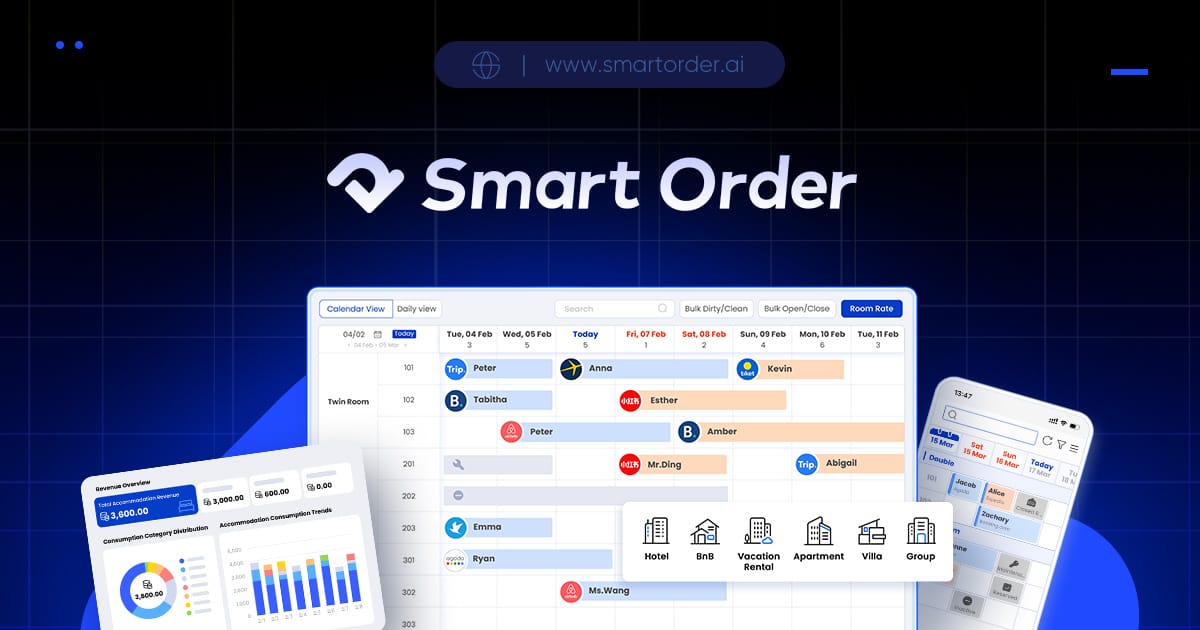
Smart Order PMS Channel Manager
Smart Order is a free all-in-one property management system that includes a built-in channel manager with direct Trip.com integration. It's already used by over 200,000 properties worldwide, and what makes it particularly relevant for Trip.com hosts is that it also connects to Chinese platforms like Tujia and Rednote — channels that most Western PMS tools don't support.
Beyond the channel manager, Smart Order includes a front desk system, direct booking engine, unified inbox for guest messages, payment processing, and performance reports — all in one dashboard. For hosts who want to grow on Trip.com without drowning in admin work, it's worth looking at seriously.
Trip.com Extranet FAQs
Is listing on Trip.com Extranet free?
Yes. Creating an account and listing your property on Trip.com costs nothing upfront. Trip.com charges a commission fee — a percentage of the booking value — only after a guest completes a stay. The exact rate is outlined in your digital contract during registration.
Can I manage multiple properties in the Trip.com Extranet?
Yes, but each property requires its own registered account unless you're working under a group or chain agreement with Trip.com. If you manage several properties, a channel manager like Smart Order is strongly recommended — it lets you oversee all properties from a single dashboard without juggling multiple Extranet logins.
Is there a Trip.com Extranet mobile app?
Yes. The "Trip eBooking" app is available on Google Play and the iPhone App Store. It allows hosts to manage reservations, respond to guest inquiries, and change rates while on the move.
Can I connect Trip.com Extranet to a PMS or channel manager?
Yes. The system supports API connectivity with approved third-party property management systems and channel managers. The connection is typically set up by generating API credentials in your Extranet settings and entering them into your PMS. For those doing a Trip.com Extranet login daily just to push rate updates, this integration alone saves significant time. Smart Order, for example, has a direct and verified Trip.com connection that syncs rates, availability, and reservations in real time.
How do I change my hotel's financial and settlement details?
Log in to your Trip.com Extranet account and navigate to the Finance or Account Settings section (exact menu label may vary by region). There you can update your bank account number, VCC details, or billing contact. Changes to financial information may require reverification by Trip.com for security purposes, which can take 1–3 business days. Contact Trip.com partner support if the update doesn't process within that window.
