For hosts who plan to list their homestay on Tujia or have already started managing their properties, the Tujia Host Center is the core operational hub. It not only supports login and account management but also covers the entire process from homestay registration to listing launch.
This guide details the Tujia login process, and combines the key steps of homestay launch preparation, account registration, information filling, image upload, and review waiting, providing actionable solutions for both new and experienced hosts to ensure a smooth login and listing process.
1. Preparations Before Tujia Login & Homestay Launch
Before logging into the Tujia Host Center, hosts need to complete two types of preparations: one for smooth login and the other for homestay listing. These preparations are the foundation for efficient operation and successful listing, and any omissions may lead to login failures or listing delays.
1.1 Login Preparation: Ensure Account and Device Readiness
To log into Tujia as a host smoothly, hosts must confirm the following prerequisites:
- First, a registered Tujia host account is required—this is different from a guest account and cannot be used interchangeably. Hosts can register through Tujia’s official website or the Tujia Homestay app (detailed in Section 2), with registration and login only supporting mobile phone number verification or third-party accounts (QQ, WeChat, Weibo).
- Second, confirm the correctness of the account password (for mobile phone number registration): Tujia host passwords must be 6-12 characters long, combining uppercase letters, lowercase letters, numbers, and symbols to avoid simple combinations such as "123456" for account security.
- Third, ensure a stable internet connection and compatible devices: Desktop users are advised to use mainstream browsers with the latest version, while mobile users should download the official Tujia Homestay app.
- Finally, prepare a registered mobile phone: Tujia may send a verification code to the bound mobile phone when logging in from a new device or detecting abnormal operations, so keep the mobile phone handy to complete the verification process.
1.2 Homestay Launch Preparation: Collect Required Materials
Before listing the homestay, hosts need to prepare relevant materials in advance to avoid delays in the subsequent information filling and image upload steps. The key materials include:
① Homestay photos: The images must be exquisite and clear, with a pixel requirement of 1440x1080 to ensure that potential guests can clearly understand the homestay’s environment and layout.
② Homestay introduction: Prepare a detailed introduction, including a title tag (which should include the homestay price to attract guests) and a description of the surrounding environment (such as nearby transportation, scenic spots, restaurants, and convenience facilities) to highlight the homestay’s advantages.
③ Basic homestay information: Confirm the homestay’s address, rental type (entire house or private room), unique features, available equipment, and requirements for guests, which will be filled in the subsequent steps.
2. Tujia Host Account Registration (For New Hosts)
If you are a new host who has not yet registered a Tujia host account, you need to complete the registration first before logging into the Host Center. The registration process is simple and can be completed through the official website or mobile app, as follows:
2.1 Choose the Registration Channel
Hosts can choose either of the two official channels for registration:
- Tujia official website: Open a browser and visit www.tujia.com, the official website of Tujia, to avoid third-party links to prevent phishing risks.
- Tujia Homestay app: Download and install the official "Tujia Homestay" app from the App Store (iOS) or Google Play (Android), which is more convenient for on-the-go operation and management.
2.2 Complete Account Registration
After accessing the registration channel, follow these steps to register:
① Click the "register" button on the homepage.
② Choose your preferred registration method: either enter a valid mobile phone number and receive the SMS verification code to complete identity verification, or log in directly via third-party accounts (QQ, WeChat, Weibo) for quick registration without additional password setting.
③ If registering via mobile phone number, set a login password that meets the requirements (6-12 characters, combining uppercase, lowercase, numbers, and symbols); third-party account registrants can bind a mobile phone number later for password reset and security verification.
④ After completing the basic information, click "Submit" to successfully register a Tujia host account.
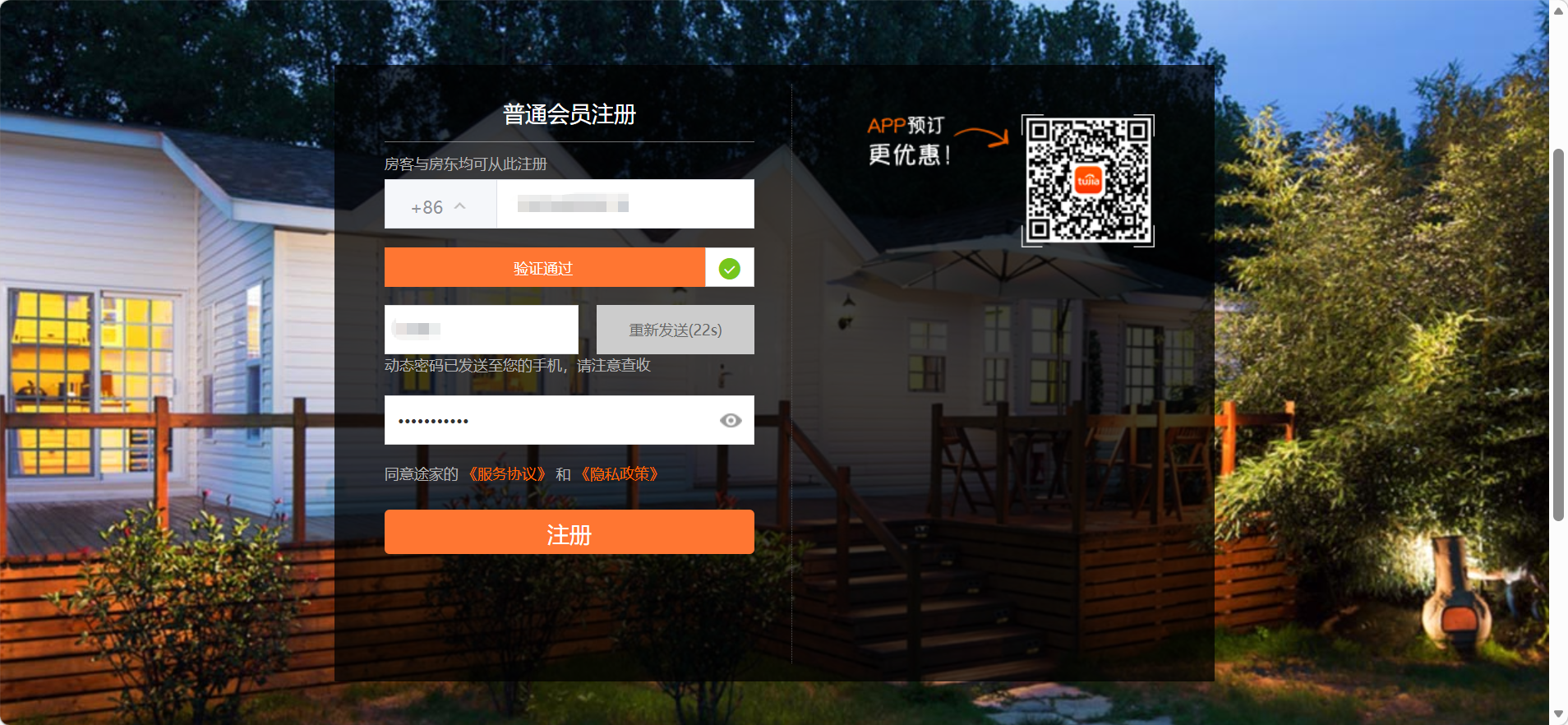
After registration, you can visit the link overseas page and fill in the required form as prompted, which is the prerequisite for subsequent homestay listing.
3. Step-by-Step Tujia Login Guide (Web & Mobile)
After completing the account registration and preparation work, hosts can log into the Tujia Host Center to start the homestay listing process. The login process supports both web and mobile terminals, and the specific steps are as follows:
3.1 Web Version Login (Suitable for Detailed Operation)
- Open a compatible browser and enter Tujia’s official website.
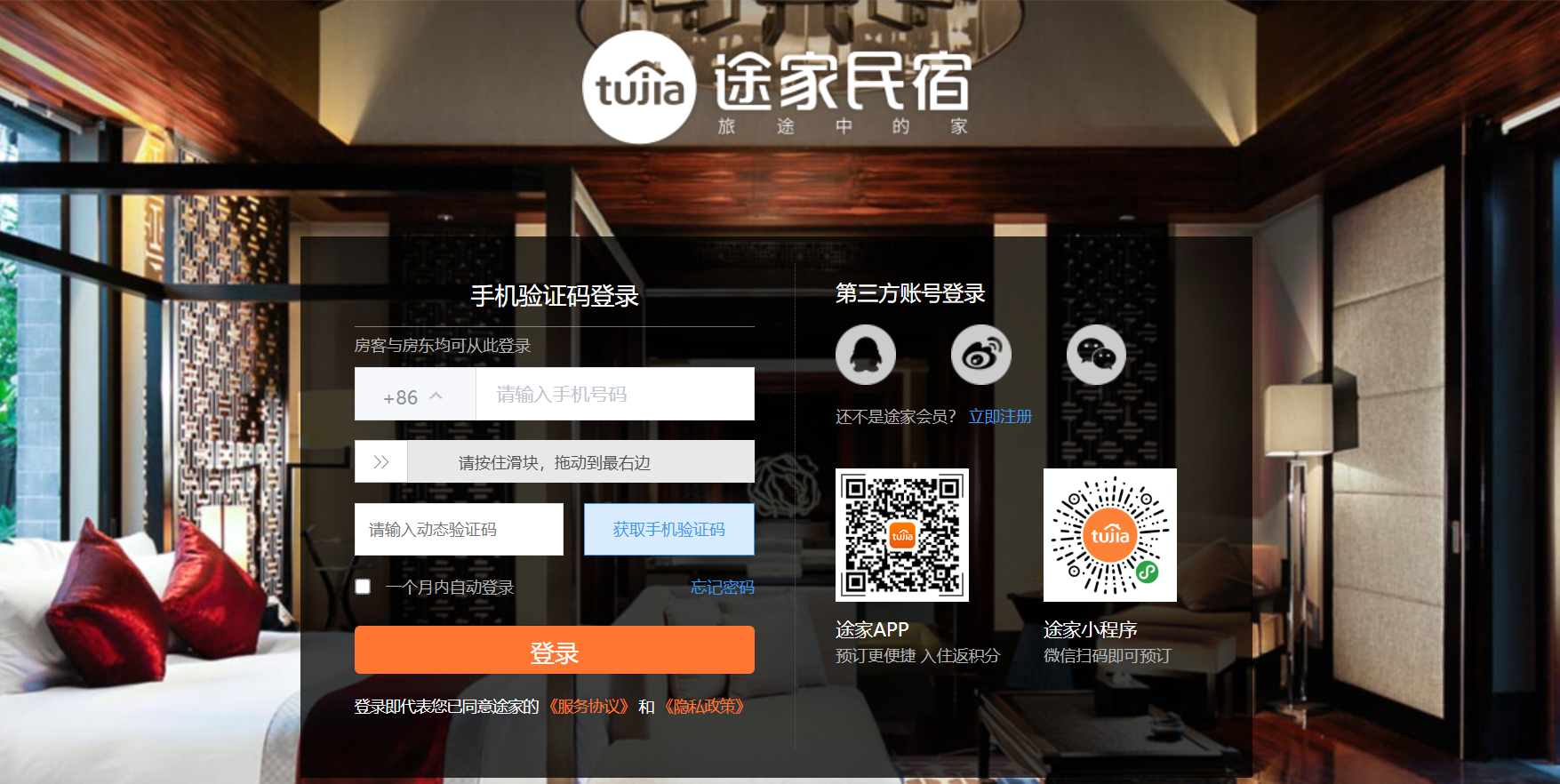
- Locate the "Login" button in the upper right corner of the homepage and click it. Or visit the Tujia login page directly via the button below.
- In the pop-up login window, select the "Host Login" option to avoid logging into the guest interface by mistake.
- Choose your login method: either enter the registered mobile phone number and corresponding password, or click the icons of third-party accounts (QQ, WeChat, Weibo) to complete quick login directly; double-check the mobile phone number and password for typos if using the mobile phone number login.
- If the system prompts for a verification code (usually for mobile phone number login from a new device), enter the 6-digit code sent to the bound mobile phone within the validity period, then click "Login".
- After successful verification, the system will automatically redirect to the Tujia Host Center dashboard, where hosts can start filling in homestay information and uploading images.
3.2 Mobile App Login (Suitable for On-the-Go Management)
- Open the installed Tujia Homestay app, and the login interface will be displayed by default.
- Select the "Host Login" tab, then choose your login method: enter the registered mobile phone number and password, or tap the third-party account icons (QQ, WeChat, Weibo) for quick login.
- If security verification is required (for mobile phone number login from a new device), enter the SMS verification code and tap "Login"; third-party account login usually requires authorization on the corresponding app to complete verification.
- After successful login, enter the mobile version of the Host Center, which supports quick operations such as viewing messages, modifying homestay information, and checking review status.
4. Fill in Homestay Information & Upload Images
After logging into the Tujia Host Center, hosts need to complete homestay information filling and image upload to complete the listing application. This step directly affects the homestay’s exposure and guest booking rate, so it is necessary to fill in and upload carefully according to the requirements.
4.1 Fill in Homestay Basic Information
In the Host Center, find the "List Homestay" or "Add Property" option and enter the information filling page. The key steps include:
- Fill in the homestay address: Enter the detailed address accurately, including the community name, building number, and room number, to facilitate guests to find the property.
- Select the rental type: Choose between "entire house" or "private room" according to the actual situation of the homestay.
- Fill in the homestay name and characteristics: Set a distinctive homestay name, and describe the unique features (such as decoration style, supporting facilities, and personalized services) in detail to attract guests.
- Fill in the house service information: Clearly list the available equipment (such as air conditioning, TV, washing machine, Wi-Fi, and kitchen utensils) and the requirements for guests (such as no smoking, no pets, and check-in time rules) to avoid disputes during the stay.
4.2 Set Homestay Price & Upload Images
- Set the homestay price: According to the homestay’s location, supporting facilities, and market conditions, set a reasonable price, and mark the price in the homestay title tag as required to improve the attractiveness to guests.
- Upload homestay images: Select the prepared exquisite and clear photos, ensuring that the pixel meets the 1440x1080 requirement. It is recommended to upload multiple photos covering the living room, bedroom, bathroom, kitchen, and surrounding environment to fully display the homestay’s style and advantages. After uploading, sort the images in a logical order to provide a better viewing experience for guests.
5. Common Login Problems & Fixes
During the login, registration, and listing process, hosts may encounter some common problems. Timely troubleshooting can ensure the smooth progress of the process. The following are the most common problems and corresponding solutions:
5.1 "Invalid Username or Password" Error
This error is mainly caused by incorrect account information input. Hosts should first recheck the registered mobile phone number and password (for mobile phone number login), paying attention to password case sensitivity and avoiding extra spaces; for third-party account login, confirm that the account used for login is the same as the one bound during registration. If the password for mobile phone number login is forgotten, click the "Forgot Password?" link on the login page, enter the registered mobile phone number, receive the verification code, and reset the password according to the prompts.
5.2 "Account Not Found" Error
This error usually occurs when the login portal is selected incorrectly or the account is not registered as a host. Hosts should confirm that they have selected the "Host Login" option instead of "Guest Login". If the account is a new one, check whether the registration is completed (mobile phone number verification or third-party account authorization) and the identity verification is passed. If not, complete the registration and verification first.
5.3 Login Page Loading Failure or Image Upload Failure
Login page loading failure is mostly caused by network instability. Hosts can switch between Wi-Fi and mobile data, or clear the browser cache and cookies to try again. Image upload failure is usually due to unqualified image pixels or excessive size. Ensure that the image pixel is 1440x1080, compress the image size if necessary, and upload again.
In summary, logging into the Tujia Host Center and completing the homestay listing is a systematic process that requires careful preparation, standardized operation, and timely troubleshooting. By following the steps in this guide, hosts can smoothly complete the login, registration, information filling, and listing process, and start their homestay operation on Tujia.
Streamline Homestay Management with SmartOrder PMS
For more efficient property management, leverage Smart Order PMS, the official integrated PMS of Tujia. It enables real-time sync of room status, rates and bookings between Tujia and multiple channels, minimizing manual work and double bookings. If you encounter unsolvable problems during the process, you can contact Tujia’s official customer support for professional help. With the right operation and Smart Order PMS’s efficient management tools, your homestay will quickly gain exposure and attract more high-value Chinese guests, especially in Japan and Thailand—Tujia’s core international markets.
