If you have activated a booking engine website (reservations channels: Booking engine, Chinese Site, Red), and the payment gateway is set to "Smart Order Payment," then all related reservations revenue will be temporarily collected by the system.You need to initiate a withdrawal request through the system wallet for the reservations revenue to be transferred to your designated bank account.
一、Confirm the payment gateway configuration of your Booking Engine website
Confirmation path: [Channel] - [Booking Engine] - [Payments]
![[Channel] - [Booking Engine] - [Payments]](https://www.smartorder.ai/content/images/2026/02/image.png)
(1) Booking Engine
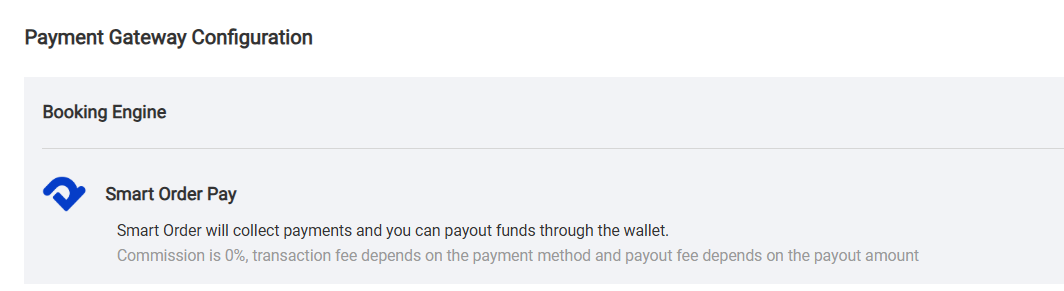
If the Booking Engine payment gateway is configured as Smart Order:The revenue from reservations placed through the Booking Engine channel will be temporarily collected by the system. You need to process the payout in the "Wallet" section of PMS.
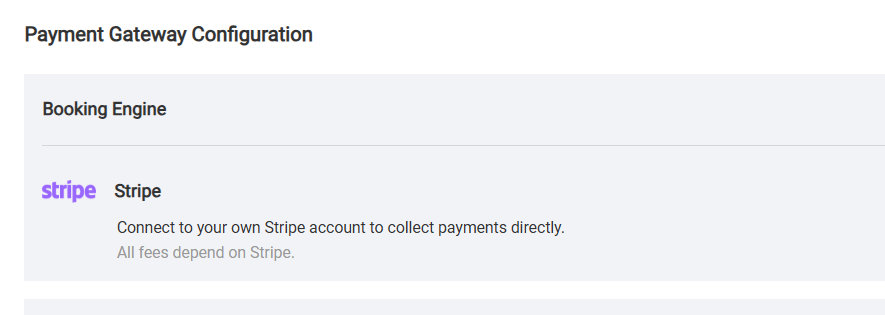
• If the Booking Engine payment gateway is configured to use the third-party payment platform Stripe:The revenue from reservations placed through the Booking Engine channel will be directly deposited into the Stripe account connected to the PMS, without requiring any withdrawal operations within the system. Please check your Stripe account dashboard to confirm the revenue and deposit status of reservations from this channel.
(2) Chinese Site and Red
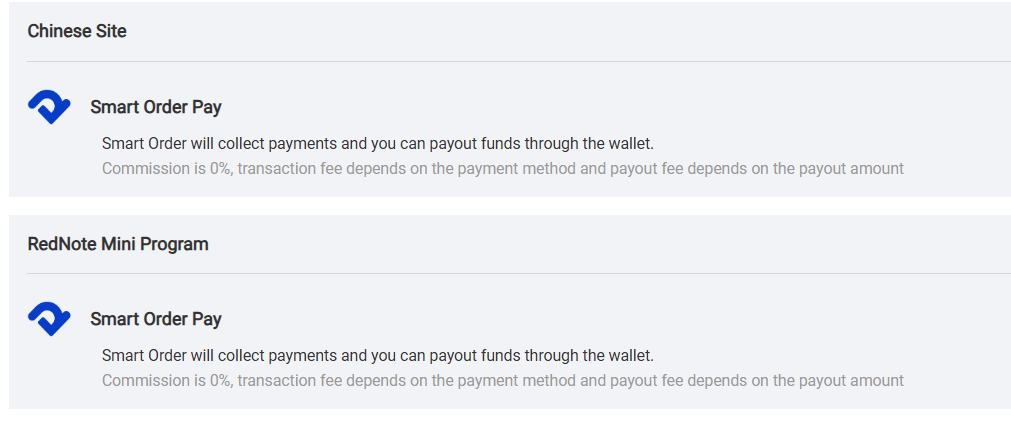
Chinese Site and Red (Xiaohongshu) do not currently support separate payment gateway settings; the system defaults to using Smart Order Pay.reservations revenue from the above channels will be collected by the system and needs to be payout through the [Wallet] section.
二、Confirm the wallet account balance
Viewing path: [Wallet] - [Account] in the upper right corner of the system

(1)Funding Account
The reservations will be settled on the 11th day after the check-out date, and the amount will be transferred from the clearing account to the [Funding Account].• Once the balance in the fund account reaches the minimum withdrawal amount set by the system, you can initiate a withdrawal request.
(2)Clearing Account
After the guest completes payment and the booking is successful, the reservations amount will first be deposited into the [Clearing Account].• The funds in the clearing account are temporarily unavailable for withdrawal.

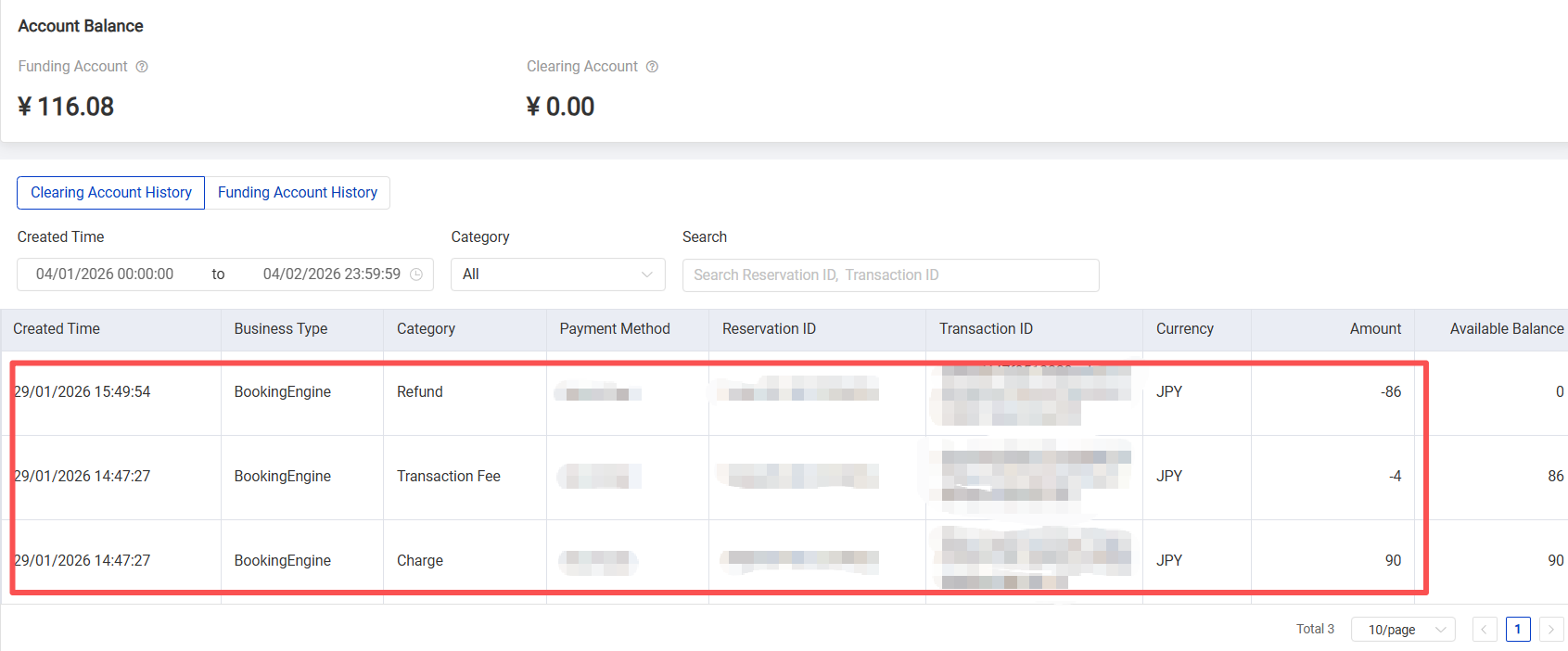
(3)Clearing Account History
Supports searching by created time, category, channel reservation ID, and transaction ID.
Typically, each booking engine generates 3 clearing account history records:
(1)reservations amount paid by the customer
•Category: Payment received
•Amount: Positive number
•Funds are coming in to the clearing account balance.
(2)Payment processing fee deducted by the system
• Category: Transaction fee
• Amount: negative number
• Deducted from the clearing account balance
(3)reservations amount settled to the funding account
• Category: Settlemen
• Amount: negative number
• Deducted from the clearing account balance
(4)Fund Account History
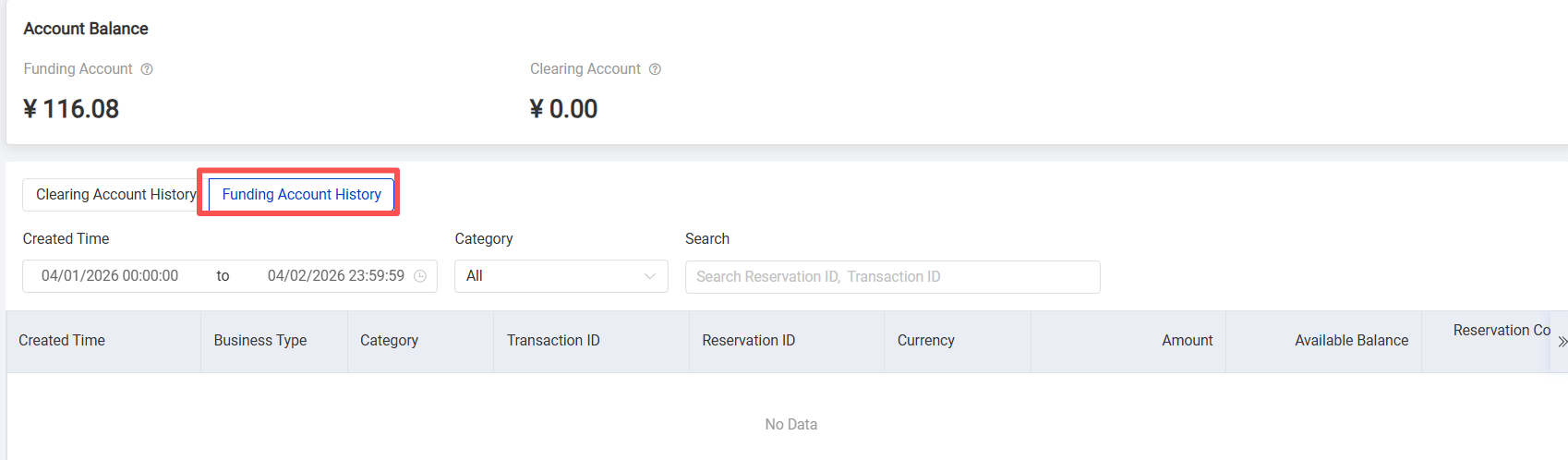
Supports searching by created time, category, channel reservations ID, and transaction ID.Typically, each booking engine reservations generates 2 funding account history records:
- Amount transferred from the clearing account to the funding account
• Category: Settlement
• Amount: Positive number
• Added to the funding account balance
- Withdrawal transaction record
• Category: Payout
• Amount: negative number
• Deducted from the funding account balance
三、Withdrawing Funds
Operation path: [Wallet] in the upper right corner of the system - [Payout]
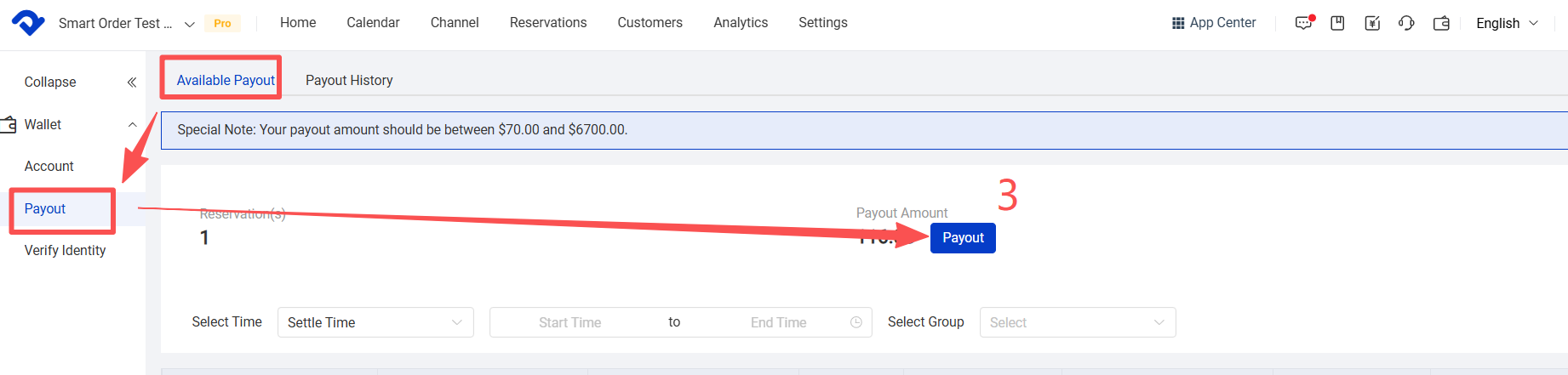
After entering the Payout page, you can view:
• The current remaining payout amount
• The number of settled reservations
※ The payout amount must be within the limits specified by the system.
Records can be filtered based on the following criteria:
• reservations settle time, reservation created/completed time
• Select Group
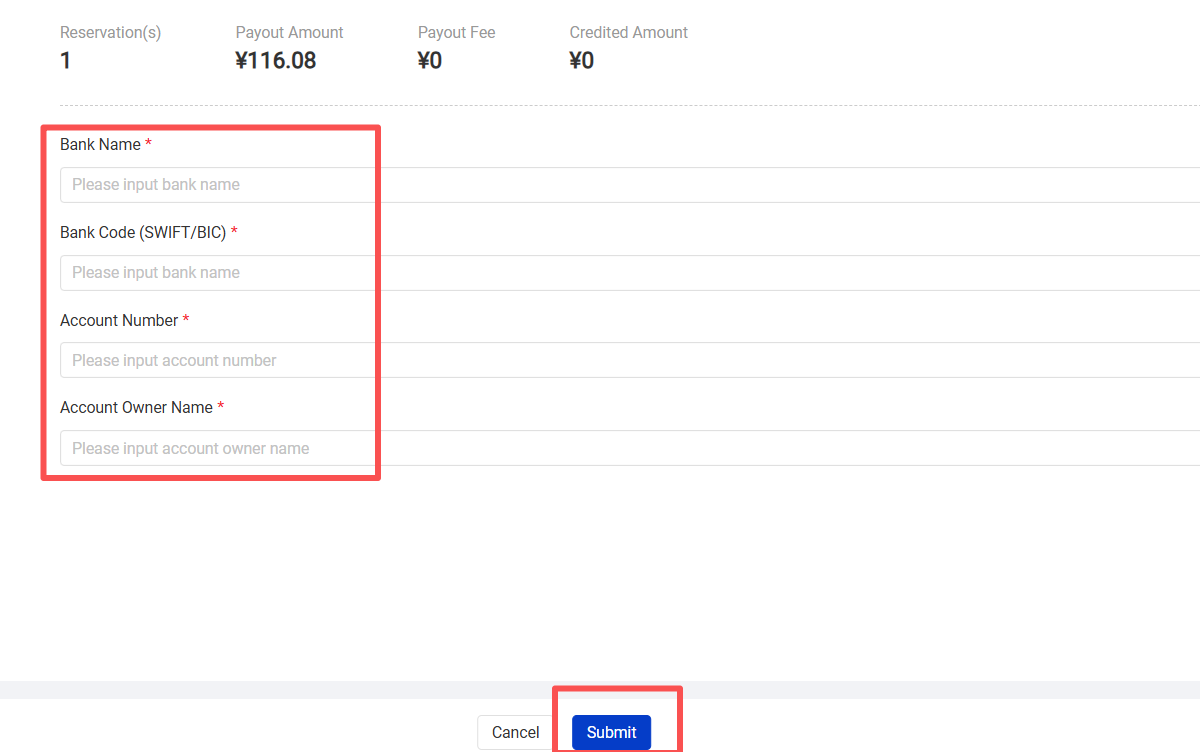
Click [Payout], fill in your bank account information, and submit to completed the payout application.After submitting the payout application, it will take some time for the funds to arrive. Please refer to the actual arrival time provided by your bank; if you have any questions, please contact Smart Order customer service.
四、 Viewing Payout Progress and Records
Viewing path: System upper right corner [Wallet] → [Payout] → [Payout history]Records can be filtered based on the following criteria:
• Payout operation time
• Payout progress status
• Transaction ID
![[Payout] → [Payout history]](https://www.smartorder.ai/content/images/2026/02/image-15.png)
Payout Status Explanation:
• Pending: The payout request has been submitted and is being processed by the system.
• Success: The payout request has been approved, and the funds have been transferred to your designated bank account (the actual arrival time depends on the bank).
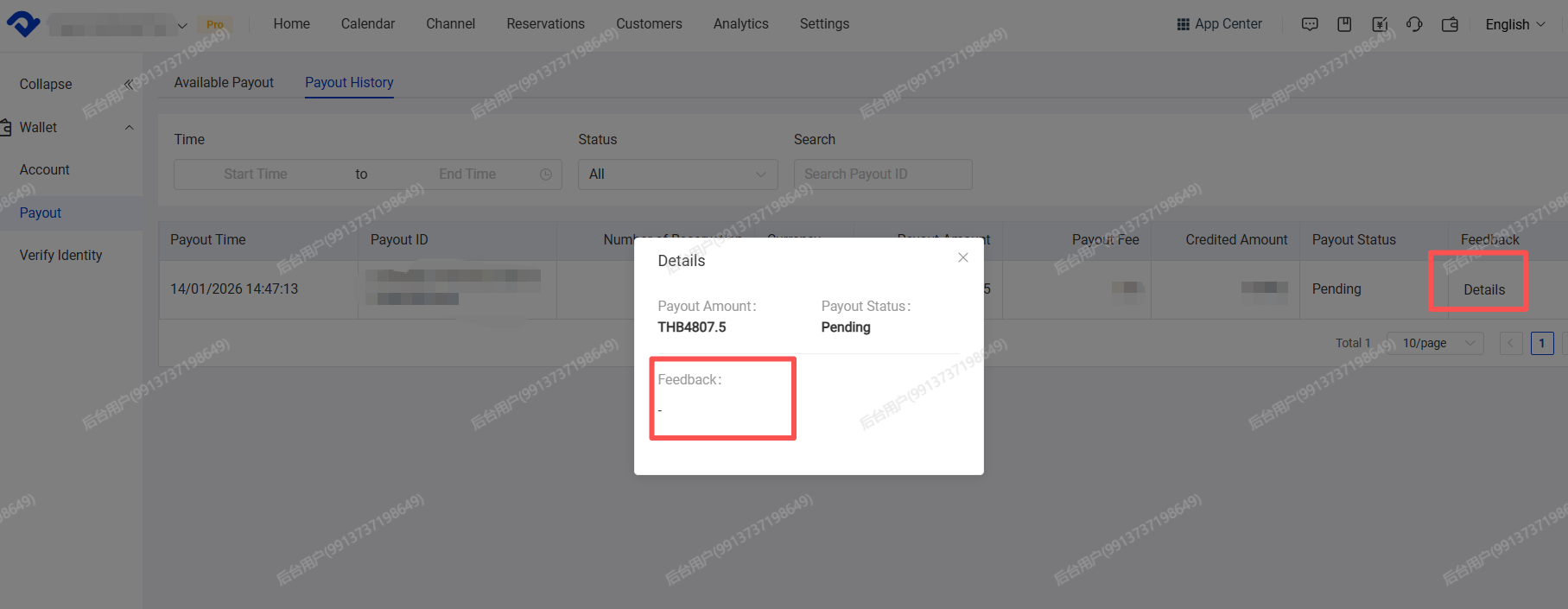
• Failed: The payout request failed. Please resubmit the payout request. The reason for failure may be incorrect bank account information. Click [Details] to view specific feedback information.