Create and manage cancel policy

Access the Cancellation Policy Page

  1. Click Booking Engine
  2. Click the Rate Plan in the ARI drop down
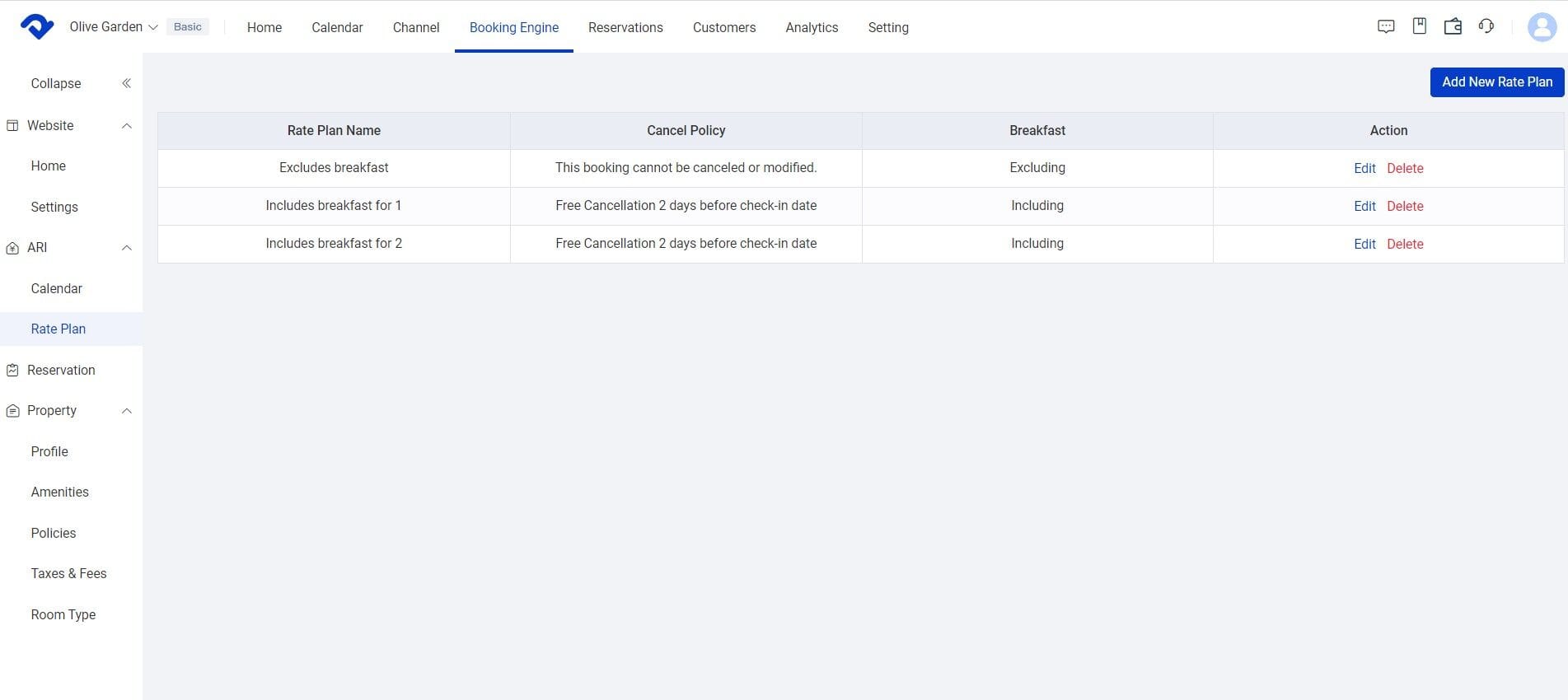
Booking Engine-Rate Plan

3.Click Add New Rate Plan

  1. The cancel policy will be displayed inside the rate plan list
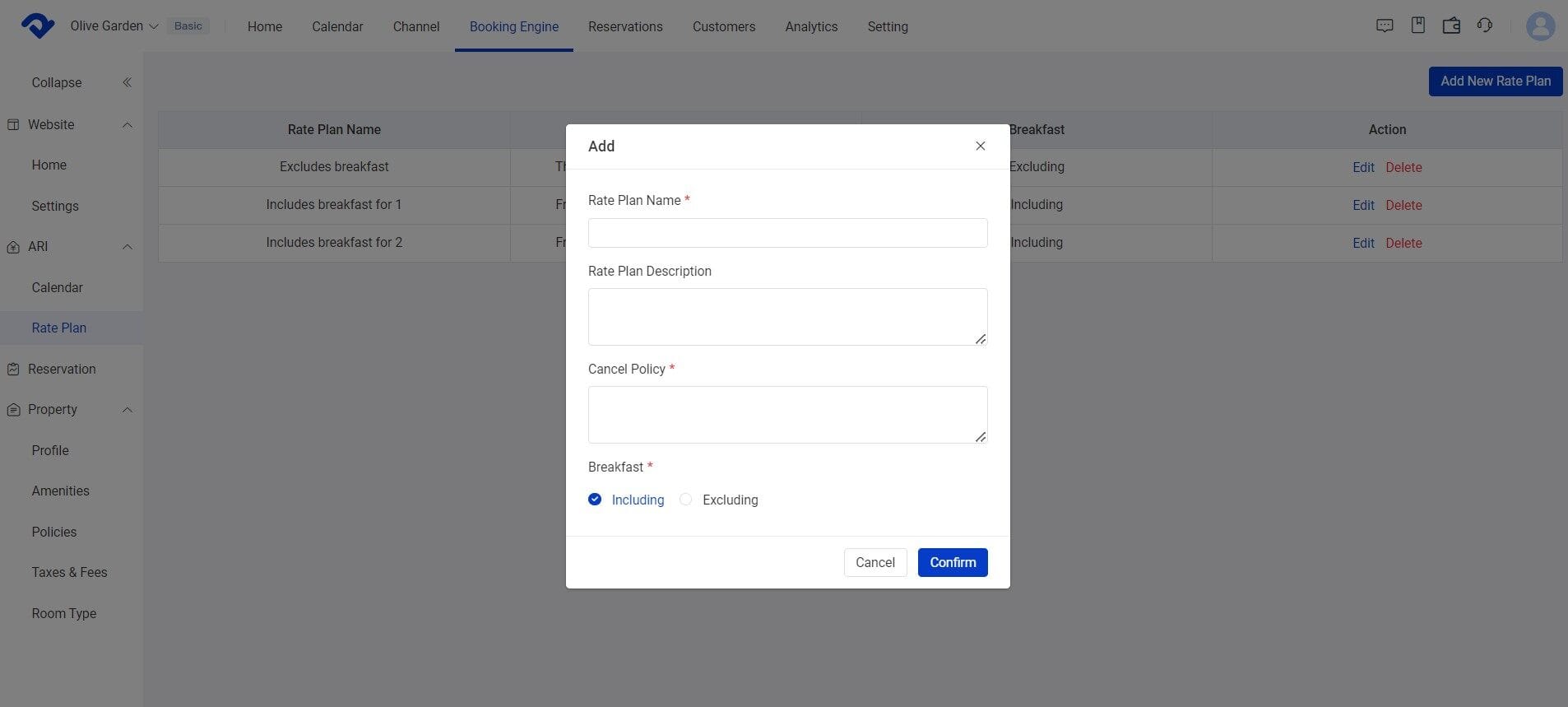
Add New Rate Plan

Note:

  • If the guest needs to cancel their reservation it will be up to them to call you and you to provide the refund under the terms you have provided.
  • You can update the status of the reservation in your control panel anytime a reservation has been canceled. That room will be opened to be sold online again.

Related Articles

New Booking Engine Migration Process

The new version of Booking Engine includes several upgrades covering both B-end configuration optimization and C-end user experience improvements. For example, it now supports independent configuration for multiple sites, product listing, batch listing, simple page customization, custom cancellation policies, and domain settings, while also optimizing the overall configuration workflow.On

Booking Engine Reservations Revenue Withdrawal

If you have activated a booking engine website (reservations channels: Booking engine, Chinese Site, Red), and the payment gateway is set to "Smart Order Payment," then all related reservations revenue will be temporarily collected by the system.You need to initiate a withdrawal request through the system wallet

How to cancel Booking Engine reservation

Step 1. Check your cancellation policy Step 2. Change the reservation status to Cancelled 1. Click Reservation and access Booking Engine and search for the reservation(s) that you wish to cancel 2. Click cancel reservation to switch the reservation status from Confirmed to Cancelled. 3. The guest will receive

Create and manage hotel policies

Operation Guide 1. Click Booking Engine 2. Click the property drop-down menu to select Policies 3. The default settings are shown below. Click Edit to edit policies

Create and manage taxes & fees

Operation Guide 1. Click on Booking Engine 2. Click the property drop-down menu to select Taxes and Fees  3. Click on Add 4. Name the tax/fee 5. Select the Category of your Tax/Fee   6. Enter the Amount 7. Click Confirm

Create and delete room types

Create /Edit / Delete room types 1. Click the Room type in the Setting 2. Click New Room Type or click edit/delete next to the room type  Add room type details for Booking Engine 1. Click Details button 2. Enter the required information 3. Choose Amenities and Photos of the