Key Takeaways
- The Vrbo owner login uses the same credentials as a traveler account — one email, one password, two different views.
- You can access your Vrbo owner login page on desktop at vrbo.com or via the dedicated Vrbo Owner mobile app.
- Two-factor authentication is optional but strongly recommended to protect your rental business.
- The Vrbo owner dashboard lets you manage listings, track bookings, respond to guests, and monitor earnings — all from one place.
- Responding to guest messages within 24 hours improves your account standing and guest experience.
- If the Vrbo owner login is not working, clearing your browser cache or disabling VPN usually resolves the issue.
- Hosts managing multiple properties benefit from using a property management system (PMS) to stay organized across platforms.
Introduction
If you've just listed a vacation rental on Vrbo — or you're thinking about it — one of the first things you'll need to figure out is how to actually get into your account. The Vrbo owner login process is simple once you know where to look, but a lot of new hosts get confused because the platform shares a login system with travelers.
This guide covers everything: how to create your account, how to log in on desktop and mobile, what you'll find inside the dashboard, and how to fix it when things go wrong. Whether you're a first-time host or managing multiple properties, you'll find practical steps here that you can act on right away.
What Is a Vrbo Owner Account?
A Vrbo owner account is what you need to list and manage vacation rental properties on the platform. It gives you access to the owner dashboard, where you can update your listings, handle bookings, communicate with guests, and track your income.
Here's something that trips up a lot of people: there is no separate Vrbo owner login page in the sense of a completely different system. Vrbo uses a single account per person, shared between hosts and travelers. When you sign in, you choose your role — owner or traveler — and the platform shows you the relevant view.
So if you already have a Vrbo traveler account, you don't need to create a new one. You can use those same credentials to access the Vrbo login for owners side of the platform. The key difference is what you see after logging in: the owner dashboard instead of your trips.
How to Create a Vrbo Owner Account (Step-by-Step)
Getting started with a new Vrbo property owner login takes less than 30 minutes if you have your details ready.
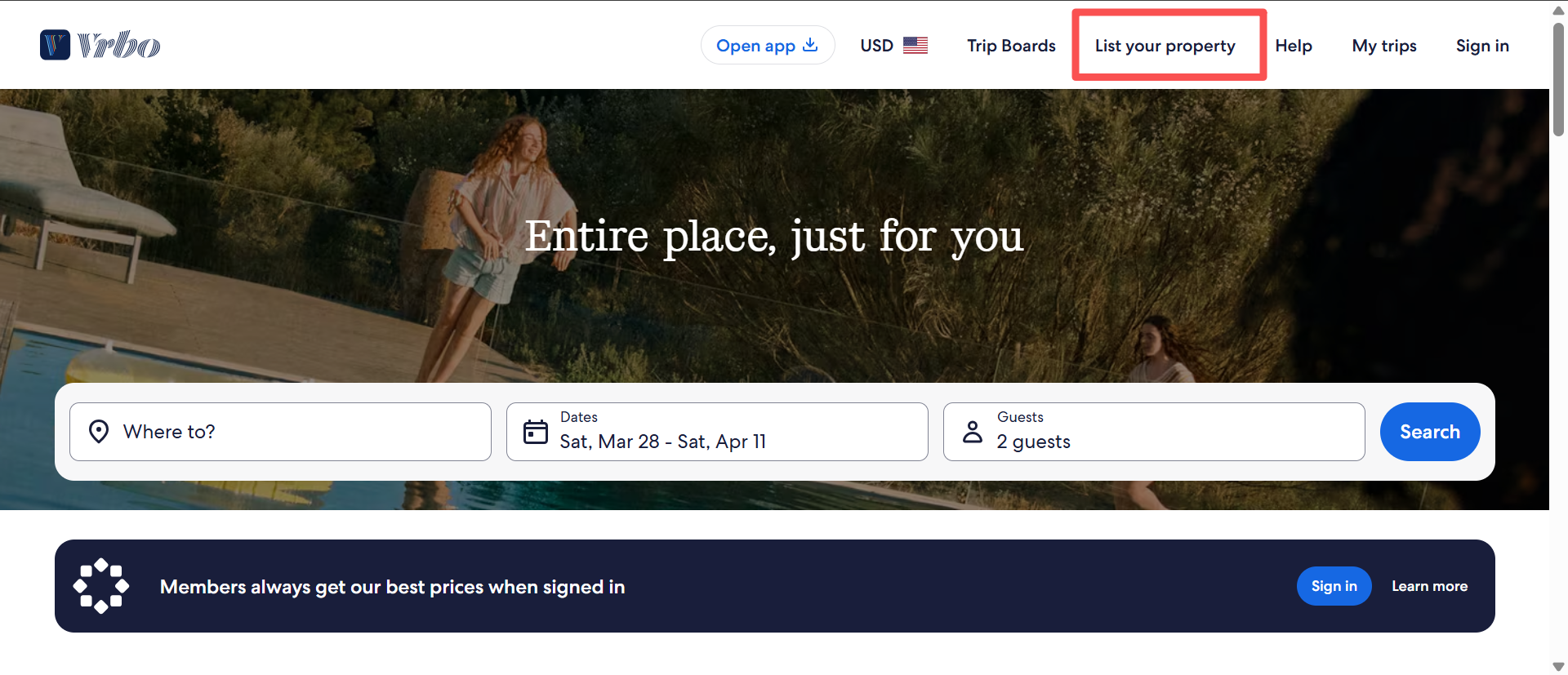
1. Go to vrbo.com and click "List Your Property" — You'll find this button in the top-right corner of the homepage. It takes you to the host registration flow.
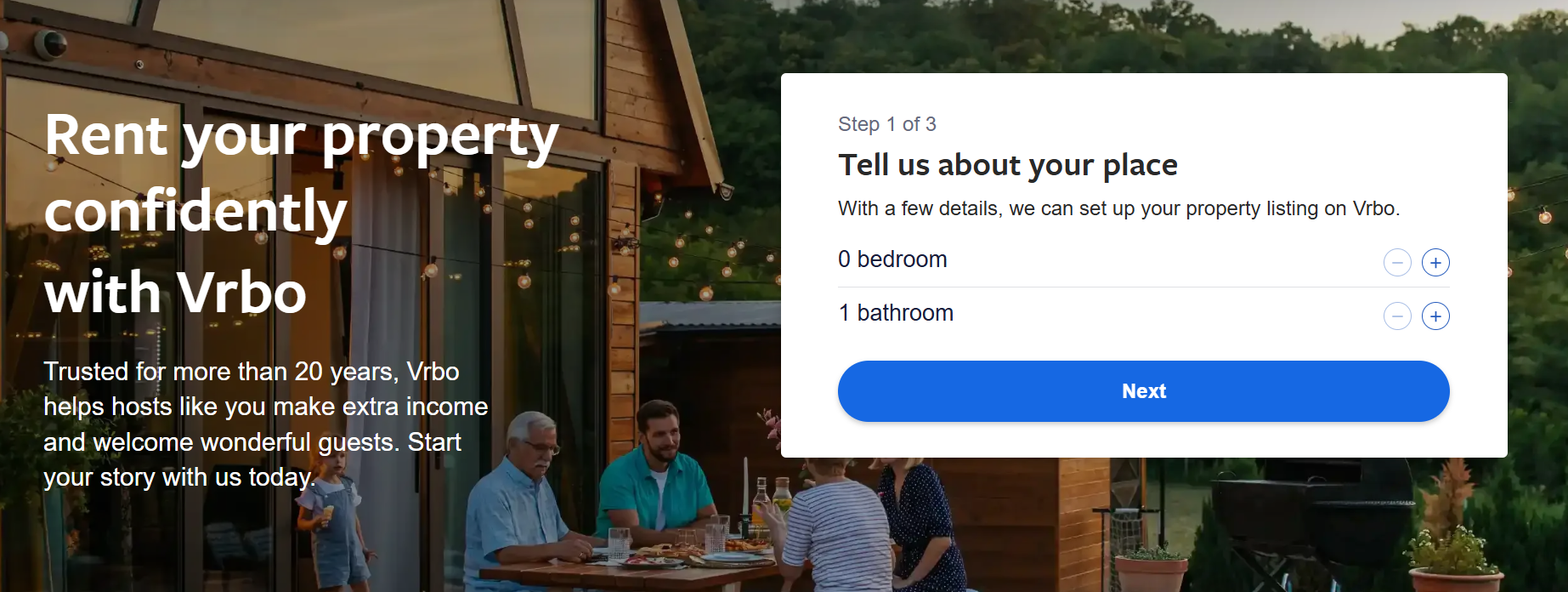
2. Enter your property basics — Vrbo will ask for your property's counts, address, type, and size. This information also gets used to generate a rough earnings estimate, which is actually a nice touch for new hosts trying to set expectations.
3. Fill in your personal details — Name, email address, phone number, and a password. Use an email you check regularly, since booking alerts and guest messages come here.
4. Verify your identity — You'll receive a confirmation link by email and a code by text. Both need to be completed before your account is active.
5. Build out your listing — Upload at least 6 photos (minimum resolution: 1024 x 683 pixels), write a property description, and set your house rules. Vrbo can suspend listings that don't meet the photo minimum, so don't skip this.
6. Set pricing and payment details — Add your bank account for payouts, set your nightly rate and fees (cleaning, pets, extra guests), and configure your cancellation policy.
7. Publish — Once everything is reviewed, hit publish. Vrbo typically takes 1–2 days to review new listings before they appear in search results. After publishing, Vrbo may also ask for proof of identity and property ownership documents — have these ready.
How to Access the Vrbo Owner Login Page
Vrbo Owner Login on Desktop (Step-by-Step)
The vrbo.com owner login process on desktop is quick:
- Open your browser and go to vrbo.com
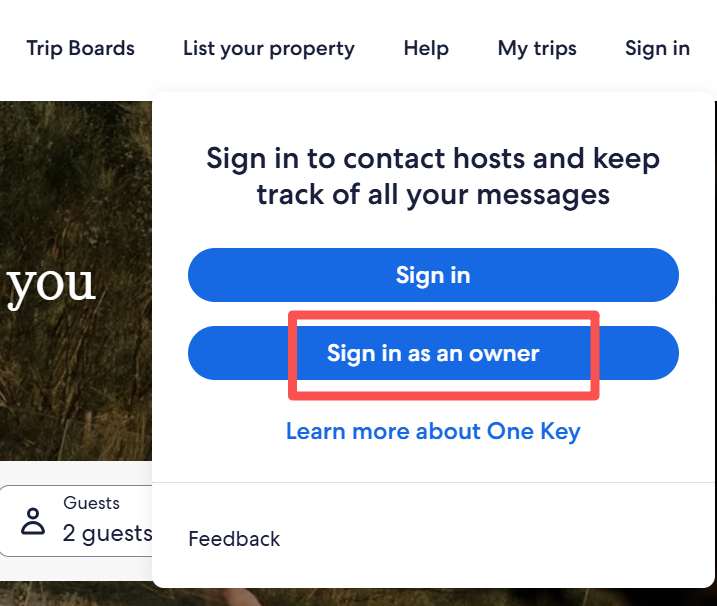
- Click "Sign in" in the top-right corner
- Select "Sign in as an owner" from the dropdown menu — this takes you to the vrbo owner login page
- Enter your registered email and password
- Click "Log in" or press Enter
- If prompted, complete two-factor authentication
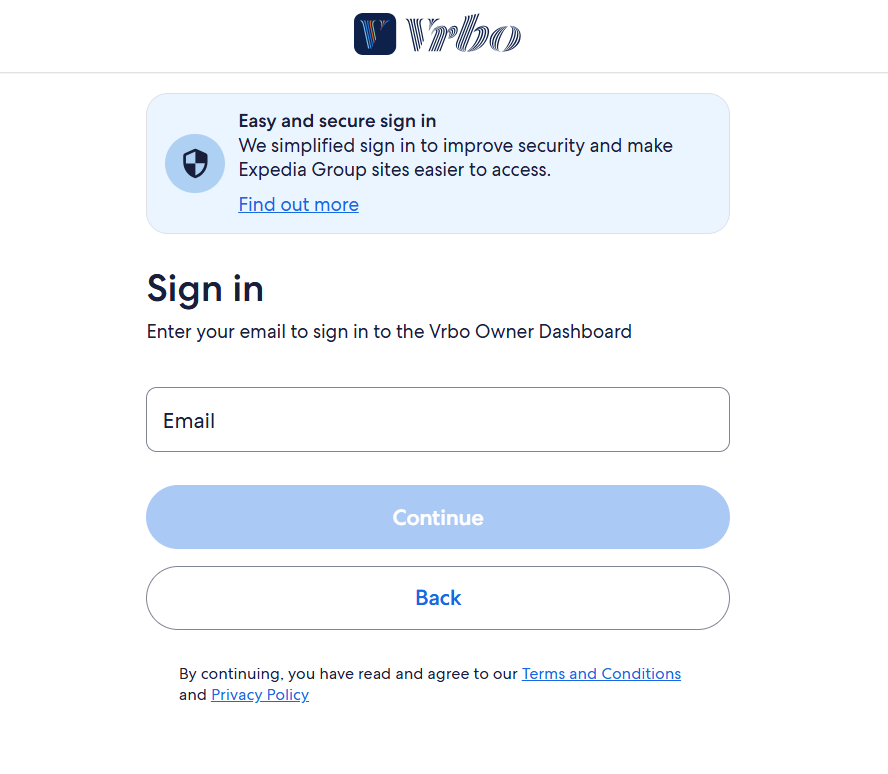
Bookmark the direct owner login URL so you're not hunting for it every time.
Vrbo Owner Login on the Mobile App
This is where many hosts get confused: the Vrbo Owner app and the regular Vrbo traveler app are two completely separate apps. Downloading the wrong one means you won't see your dashboard.
To use the Vrbo owner login app:
- Search for "Vrbo Owner" (not just "Vrbo") in the App Store or Google Play
- Download and open the app
- Tap "Sign In" and enter your host credentials
- Complete 2FA if prompted — you'll need access to your verified phone number
The owner app lets you manage bookings, message guests, update availability, and check performance — all from your phone. If you're managing a property remotely, it's practically essential.
Understanding the Vrbo Owner Dashboard After Login
Once you're through the Vrbo owner login, the dashboard is your home base. Here's what each section actually does.
Managing and Updating Your Vrbo Listing
From the dashboard, you can edit your property description, update amenities, swap out photos, change your cancellation policy, and adjust house rules at any time. If you manage more than one property, a "See all properties" link lets you switch between them. Keep your listing current — outdated descriptions are one of the most common reasons guests leave disappointed reviews.
Viewing Bookings and Calendar Availability on Vrbo
The calendar view gives you a real-time picture of confirmed reservations, guest check-in and check-out dates, and open windows. The "Top Tasks" panel on the dashboard highlights urgent items: unread messages, pending booking requests, and action items that need attention. Use the calendar to block off dates proactively when your property isn't available — even for maintenance — to avoid last-minute cancellation situations.
Responding to Guest Messages via Vrbo Dashboard
Vrbo tracks two communication metrics in your dashboard: response rate (the percentage of messages you reply to within 24 hours) and response time (your average reply speed). While these don't directly affect your search ranking, they do show up on your public listing profile. Guests absolutely notice — a slow response before booking often means no booking at all. Aim to reply within a few hours, not just within the 24-hour window. Setting up quick reply templates for common questions (check-in details, parking, Wi-Fi) saves real time here.
Tracking Performance Metrics and Earnings on Vrbo
The "How you're doing" section is where you get honest data about your listing's performance: search impressions and property views over the last 30 days, completed bookings, and estimated revenue for the next 60 days. You'll also see "Earnings paid" — your net deposits after Vrbo's service fee and payment processing charges. Check this section weekly, not just when a booking comes in. Tracking trends helps you spot when to adjust pricing or update your photos.
Vrbo Owner Login Troubleshooting — Common Issues & Fixes
Forgot Your Vrbo Owner Login Password? Here's How to Reset It
On the vrbo.com owner login page, click "Forgot your password?" below the login fields. Enter your registered email address and check your inbox for a reset link — it's valid for 24 hours. Follow the link, create a new password that meets Vrbo's security requirements, and you're back in. You may be asked a security question during this process.
What to Do If You're Locked Out of Your Vrbo Account
After five incorrect login attempts, Vrbo locks your account automatically. Before calling support, try these steps first:
- Clear your browser's cache and cookies, then reload the login page
- Open an incognito or private browsing window and attempt the login there
- Check whether Vrbo sent a lockout or suspicious activity email to your registered address
If none of that works, contact Vrbo's customer support at 1-877-202-4291 (available 24/7). Have your account email and a recent booking or listing ID ready to verify your identity.
Vrbo Owner Login Not Working — Other Common Causes
A few other issues that commonly cause vrbo owner login problems:
- VPN interference — Vrbo sometimes blocks logins from VPN-masked IP addresses. Disable your VPN and try again.
- Browser compatibility — Try Chrome or Firefox if you're using an older browser. Safari sometimes has session issues with Vrbo.
- Incorrect app — Make sure you're in the Vrbo Owner app, not the traveler app. The login flow looks similar but leads to a different dashboard.
- Unverified account — If you never clicked the verification link from your signup email, your account may be inactive. Check your spam folder for the original email.
Tips for Managing Your Vrbo Owner Account More Efficiently
Logging into Vrbo every day works fine when you have one property. Once you have two or three — or you're also listed on Airbnb or Booking.com — juggling separate logins gets messy fast. Double bookings happen. Messages get missed. Pricing falls out of sync.
This is where a property management system makes a real difference. Smart Order PMS is a free all-in-one platform built for vacation rental owners and hoteliers who want to run their business from a single dashboard. It connects directly with major OTAs including Expedia (Vrbo's parent company), Airbnb, Booking.com, and others — syncing your calendars and rates automatically so you're never manually updating each platform.
Smart Order's unified inbox pulls all guest messages from every channel into one place, so you're not missing Vrbo conversations while you're replying to someone on Airbnb. The channel manager handles real-time inventory updates across platforms, which eliminates overbooking. And the built-in reports give you a clearer revenue picture than logging into each OTA separately.
Vrbo Owner Login FAQs
Is the Vrbo owner login the same as the traveler login?
Yes. Vrbo uses one account per person for both roles. You log in with the same email and password, then navigate to either the owner dashboard or your traveler trips view depending on what you need.
Can I manage multiple properties under one Vrbo owner account?
Yes. The Vrbo owner dashboard supports multiple listings under a single login. Use the "See all properties" option to switch between them. If you're managing several properties across different platforms, a channel manager like Smart Order PMS makes this much easier.
Does Vrbo require two-factor authentication to log in?
2FA is not mandatory by default, but Vrbo will trigger it automatically when you sign in from a new or unrecognized device. You can also enable it manually in Account Settings under the Security section. Verification codes expire after 30 minutes.
Can I add a co-host or property manager to my Vrbo account?
Vrbo doesn't have a built-in co-host feature like Airbnb does. The common workaround is sharing your login credentials directly — which carries obvious security risks. A safer option is to manage shared access through a third-party PMS that supports team permissions without exposing your Vrbo password.
How do I switch between the Vrbo owner and traveler views?
After logging in, look for the account menu in the top-right corner. You can toggle between "Traveling" and "Hosting" views from there. Your account data stays the same — only the dashboard layout changes.
How long does it take for a new Vrbo listing to go live?
Most listings are reviewed within 1–2 business days after publishing. After your listing goes live, Vrbo may follow up with a request for identity verification documents (passport or driver's license) and proof of property ownership. Having these ready in advance avoids delays.
