Authorize and publish Rednote mini-program


1. Register/Upgrade Rednote Brand Account on Rednote platform

First go to RED backend to upgrade RED account to a Brand account and then apply for RED applet store whitelist permissions.
RED brand account platform: 

https://pro.xiaohongshu.com/enterprise/home

2. Create Rednote mini-program on Rednote platform

Log in RED brand account platform, and click 'store' on the top, then click the 'Create Mini Program' button on the right side of the page.

https://pro.xiaohongshu.com/mini/outdoorHome

3. Authorization to publish Rednote mini-program

Click 'Authorize Now' button on PMS to scan and complete the authorization with the already applied RED brand account.
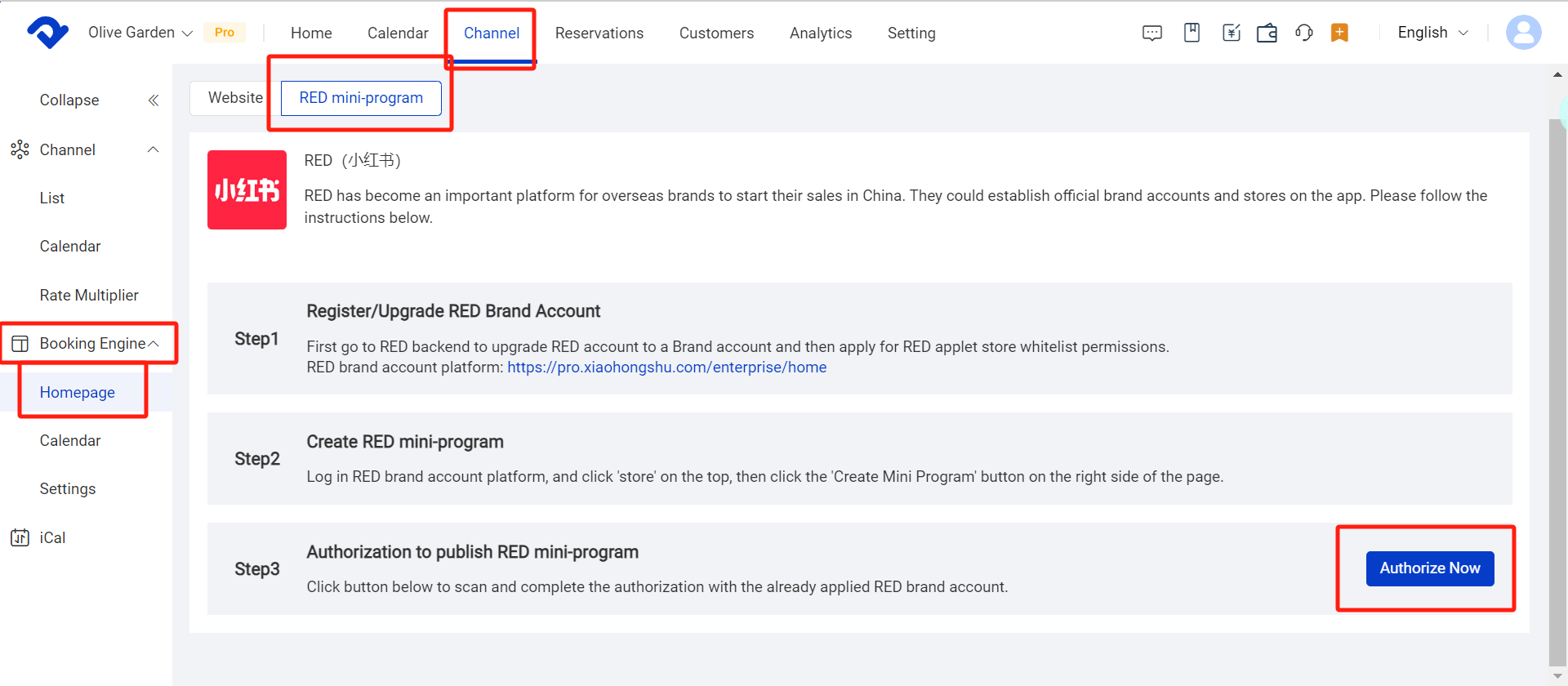
Click 'Authorize Now' button on PMS
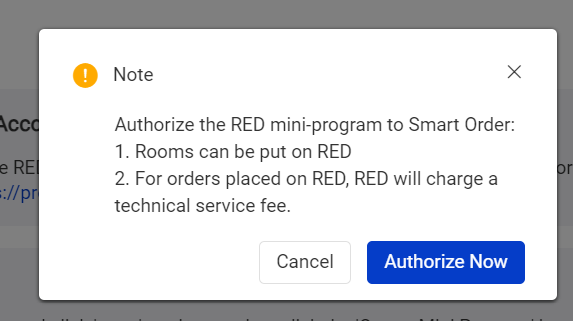
Click 'Authorize Now'

Please use Rednote brand account to scan the code for authorization.
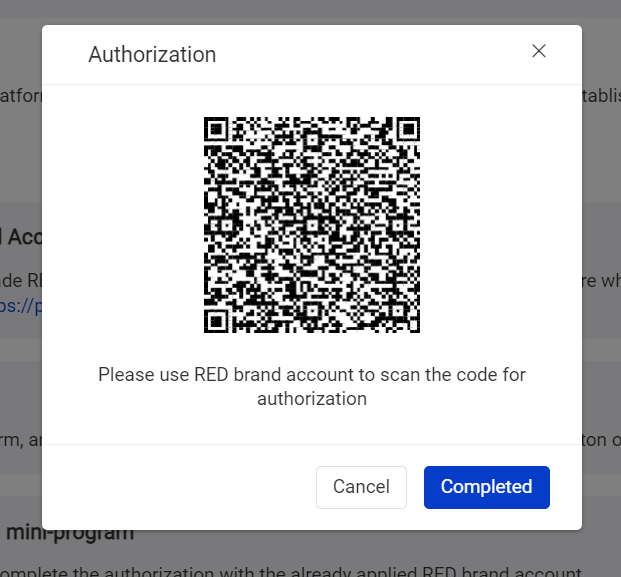
scan the code for authorization
finish

4. Add Product in Rednote mini-program store

4.1 Select Product

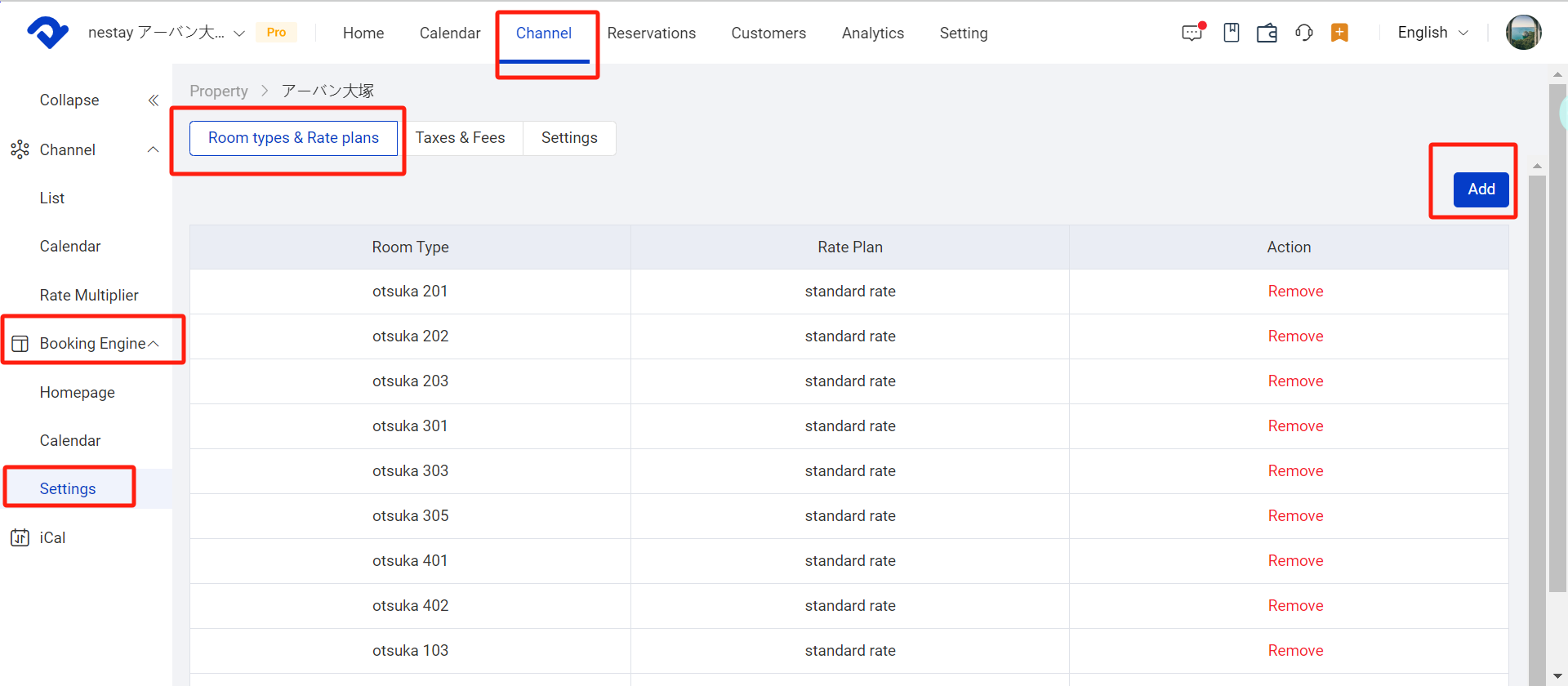
Add the products that need to be sold in Rednote mini-program store.

The rooms & rate plans on Red mini program will be the same as Booking Engine rooms & rate plans.
💡
Note: Don't forget to add room typesdetails and rate plans details before adding.
Channel-Booking Engine-Setting-room types&rate plans-add

4.2 Product Review

Enable the status toggle to submit products to Red for review.

If the review success, it can be displayed in the Red mini-program store. If the review fails, you can modify the content and review again.
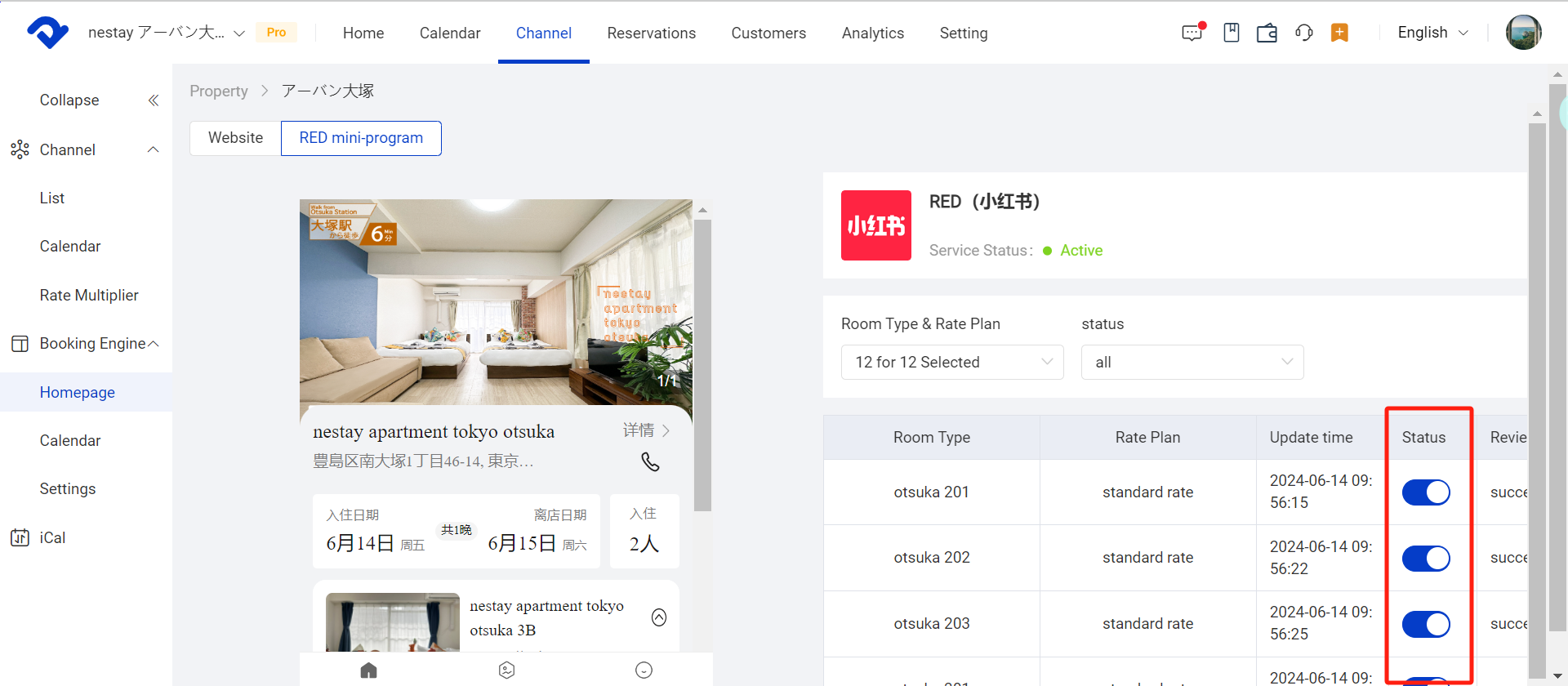

status on

5. Contact Smart Order to get the Rednote mini-program trial code and notify Smart Order to officially release the mini-program on Red

Related Articles

How to cancel Booking Engine reservation

Step 1. Check your cancellation policy Step 2. Change the reservation status to Cancelled 1. Click Reservation and access Booking Engine and search for the reservation(s) that you wish to cancel 2. Click cancel reservation to switch the reservation status from Confirmed to Cancelled. 3. The guest will receive

Create and manage hotel policies

1. Click Booking Engine 2. Click the property drop-down menu to select Policies 3. The default settings are shown below. Click Edit to edit policies

Create and manage taxes & fees

1. Click on Booking Engine 2. Click the property drop-down menu to select Taxes and Fees  3. Click on Add 4. Name the tax/fee 5. Select the Category of your Tax/Fee   6. Enter the Amount 7. Click Confirm

Create and manage cancel policy

Access the Cancellation Policy Page 1. Click Booking Engine 2. Click the Rate Plan in the ARI drop down 3.Click Add New Rate Plan 4. The cancel policy will be displayed inside the rate plan list Note: * If the guest needs to cancel their reservation it will be up

Create and delete room types

Create /Edit / Delete room types 1. Click the Room type in the Setting 2. Click New Room Type or click edit/delete next to the room type  Add room type details for Booking Engine 1. Click Details button 2. Enter the required information 3. Choose Amenities and Photos of the

How to set up booking engine

What is Booking Engine? Smart Order’s direct booking engine allows you to get secure direct online reservations. Your direct booking engine displays your rates and availability in real-time so that your guests can book by themselves, making it easy for you and them. Set up Booking Engine Step 1: