Add Reminder in a Reservation

No matter for a newly created reservation or a reserved one, the reminders help to take notes of the customer's needs.

Steps on PC:

Step for a newly created reservation: When you are creating the new reservation, you select Add Reminder. Fill in the Reminder Time, Reminder Content. Click Done.
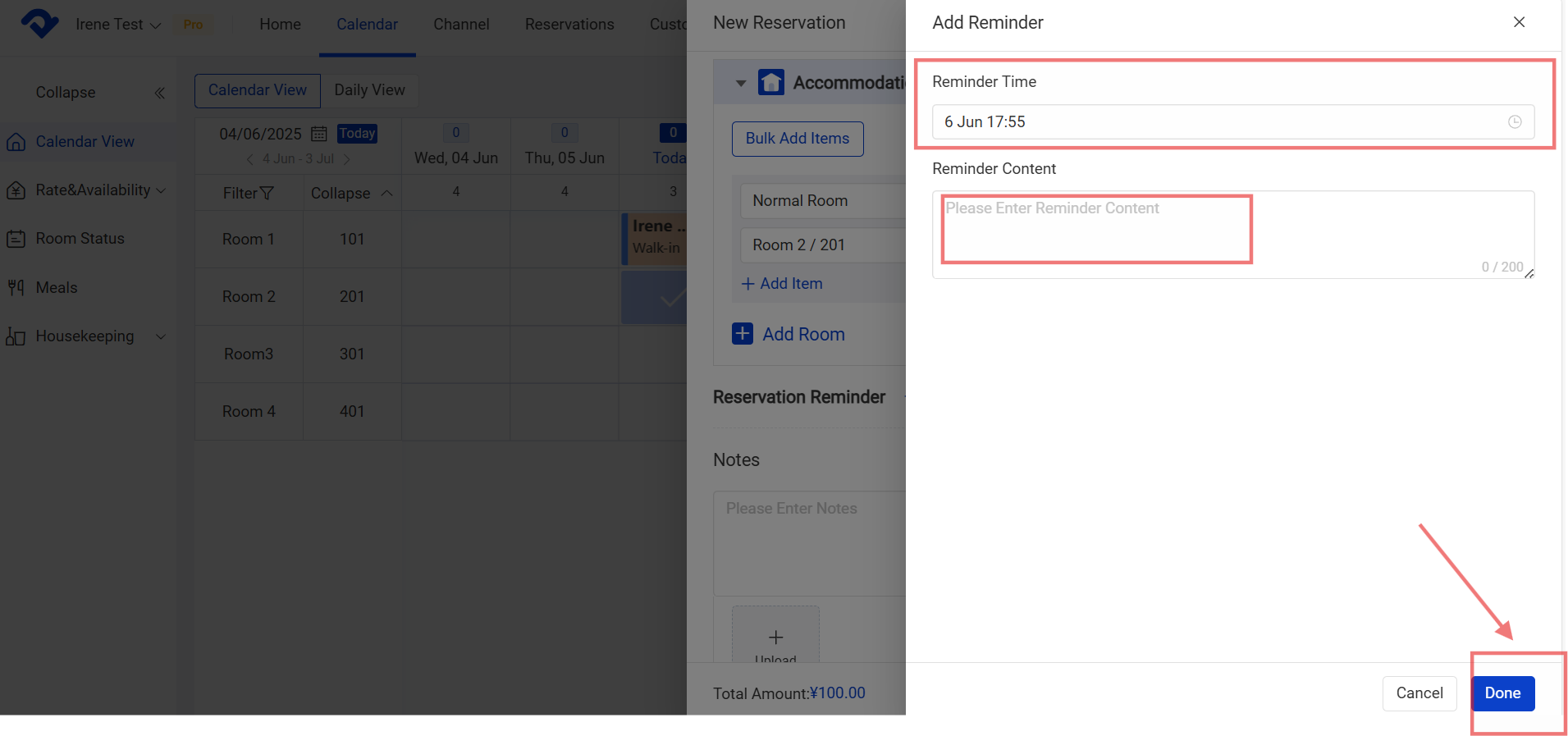
Reminder Time, Reminder Content

Step for a reserved one: Click the Add Reminder on the Details page. Fill in the Reminder Time and Reminder Content. Click Done.
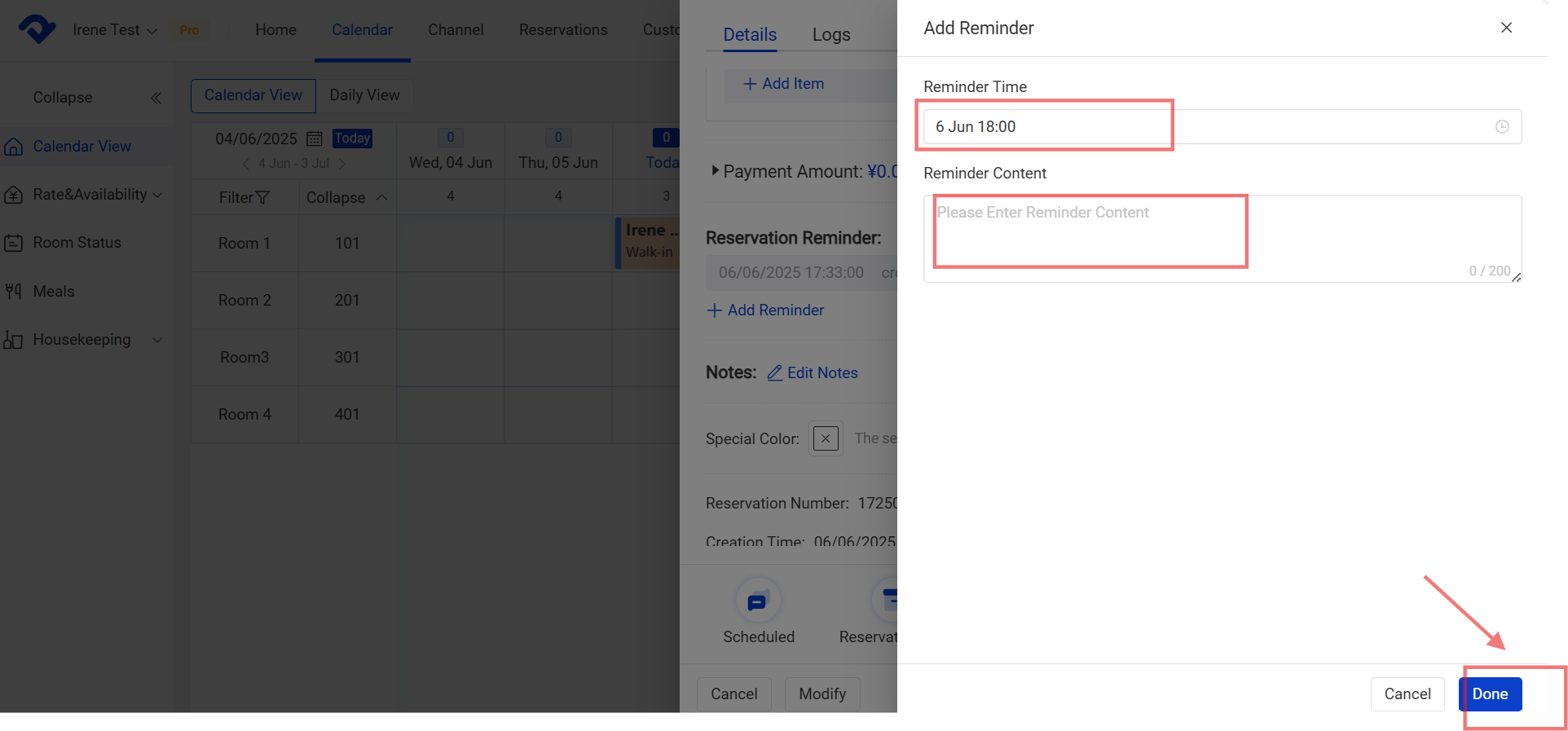
Add Reminder

Note:

Once the reminder has been added, there will be a pop-up box to show the content, customer name and phone number, reservation room type and room number, and the reminder time. You can click the Review to go directly to the reservation details.
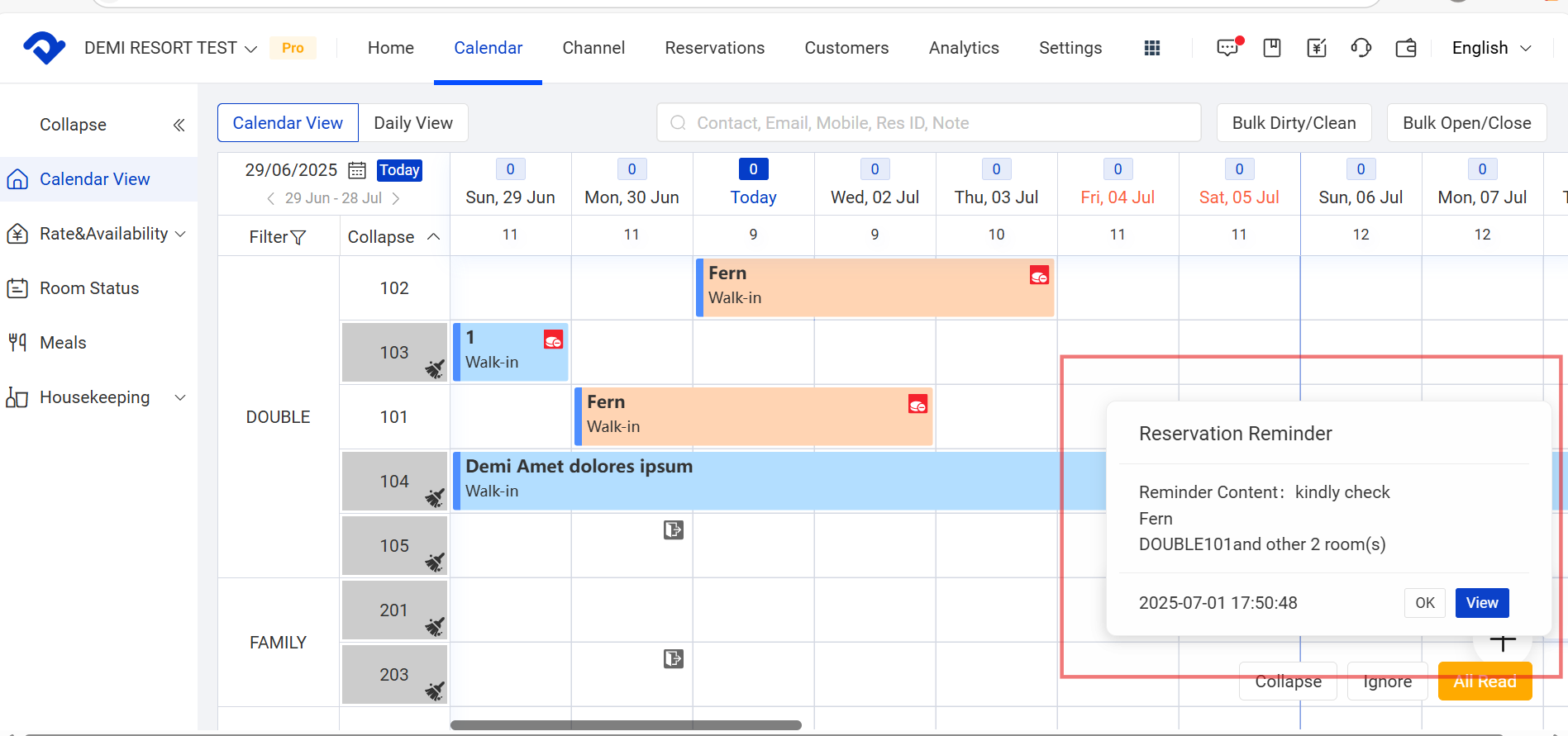

pop-up box to show the content

Related Articles

Reservation Box

Overview You can move the reservation to the Reservation Box manually when you have no room for the reserved one. The OTA reservations may also automatically enter the Reservation Box when there is no room at the confirmation. As for the reservations in the Reservation Box, you need to assign

Settings of Sort, Group and Calendar View

Overview To manage the room assignment more flexibly, we support moving a room easily and setting up the rooms by group. To monitor the room status, we can operate it on Calendar View. Change the Order of A Room Type or Room: Step1: Go to the Settings page. Select Sort

Create and check in an hourly room reservation

Overview We don't connect an hourly room type with the OTA channels. Thus, you have to manually create an hourly room reservation. Create/ Check in An Hourly Room Reservation: Step1: Go to the Calendar page and select Calendar View. Select an available room from the hourly room type.

Create A Reservation and Manually Edit the Reservation Details

Overview As you have connected to OTA channels, all the reservations will be recorded automatically from the channels. However, you may still have some walk-in reservations or edit some information on them. Create A New Reservation: Way1: Go to the Calendar page and select Calendar View. Click the room and

Check in/ check out/ settle a reservation

Overview If it is the check-in date, the Check-in icon will be shown on the reservation page. After the reservation has been checked in, the checkout icon will be shown. And only when the Balance Due has been paid off, the reservation can be settled. Check in a reservation Step1:

Restore A Canceled Reservation

Overview If you want to restore a canceled reservation, you can go to the Reservations page to search for it and then restore it. Search for a canceled reservation/room on PC : Go to the Reservation page and select Accommodation from the Reservation drop-down list. Select Canceled from the Reservation