Use Role Management to preset multiple roles with different permissions, such as housekeeping, Property A staff, or administrators, and then assign those roles to different accounts in batches.
I.Modify Role Permissions
You can add or remove permissions for all accounts assigned to the same role at once.
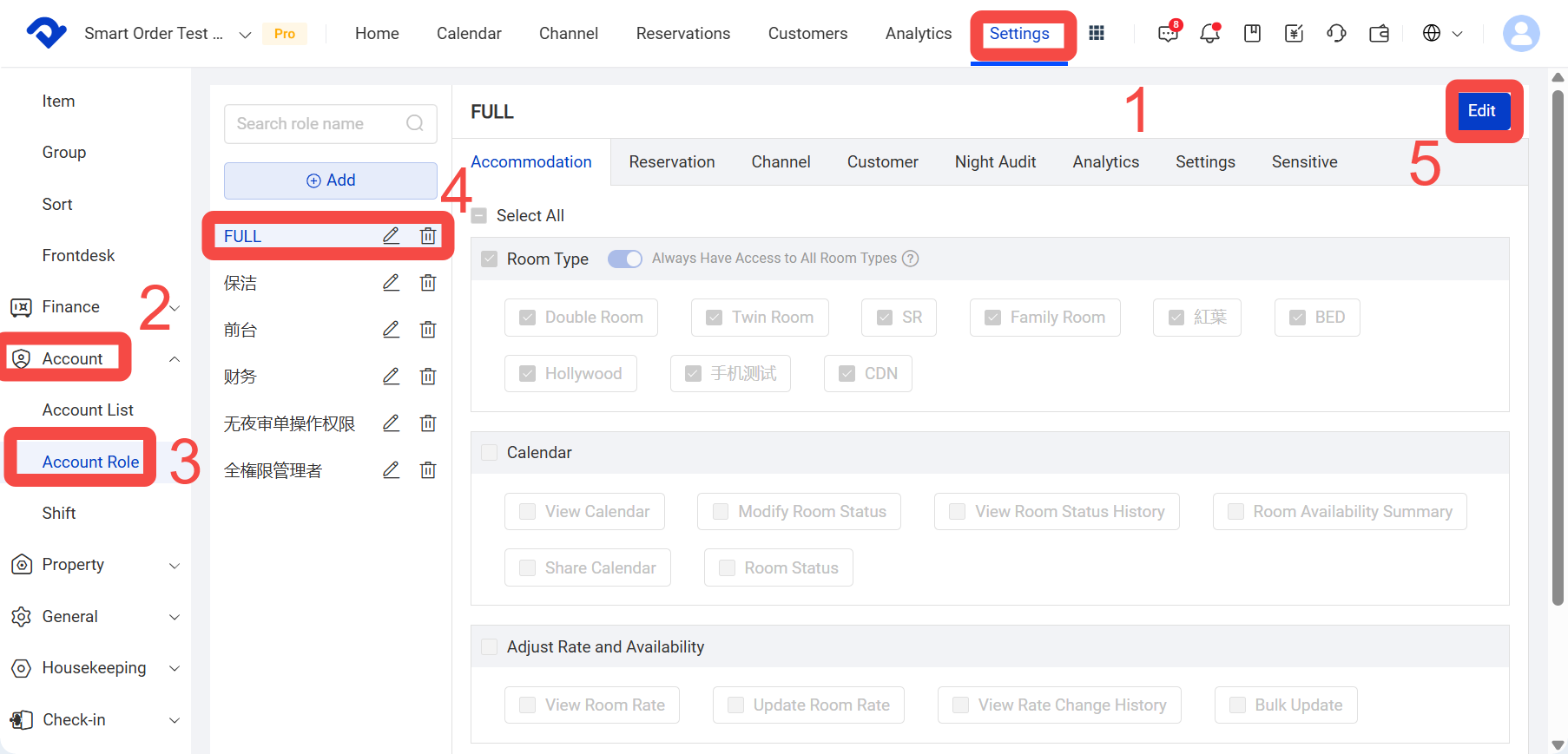
- Navigate to Settings > Account > Account Role > Edit
- On the Role Management page, click Add to create a new role.
- Click the new role, such as [FULL].
- Click Edit.
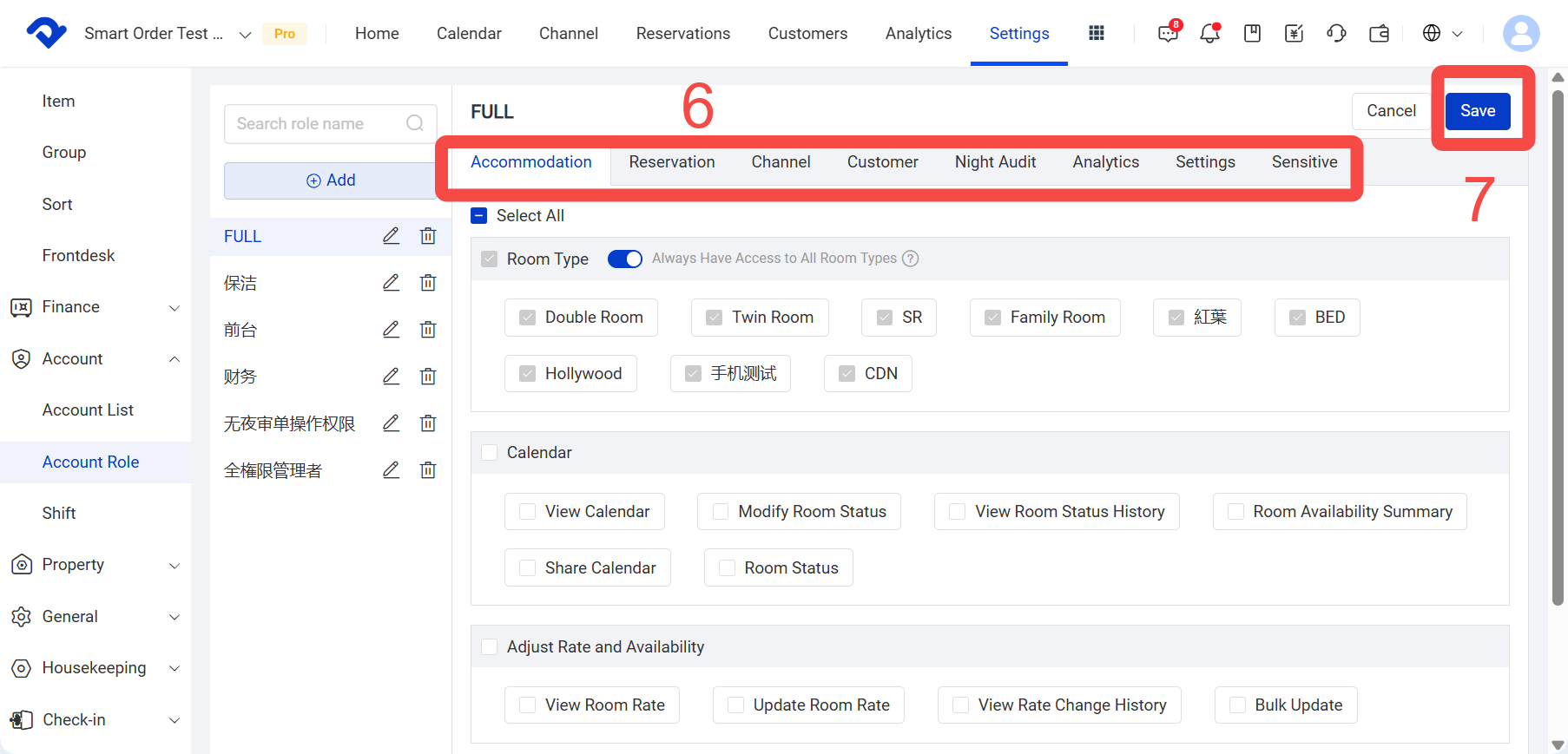
- Select each permission section and check the permissions you want.
- Click Save. After saving, the updated permissions will be applied to all accounts assigned to this role.
※ To add a new role or assign roles to employees, please refer to the article "Role Management/Adding Employees" under 【I. Role Management】.
 Dina
Dina
II. Modify Account Permissions
You can also modify permissions for an individual account.
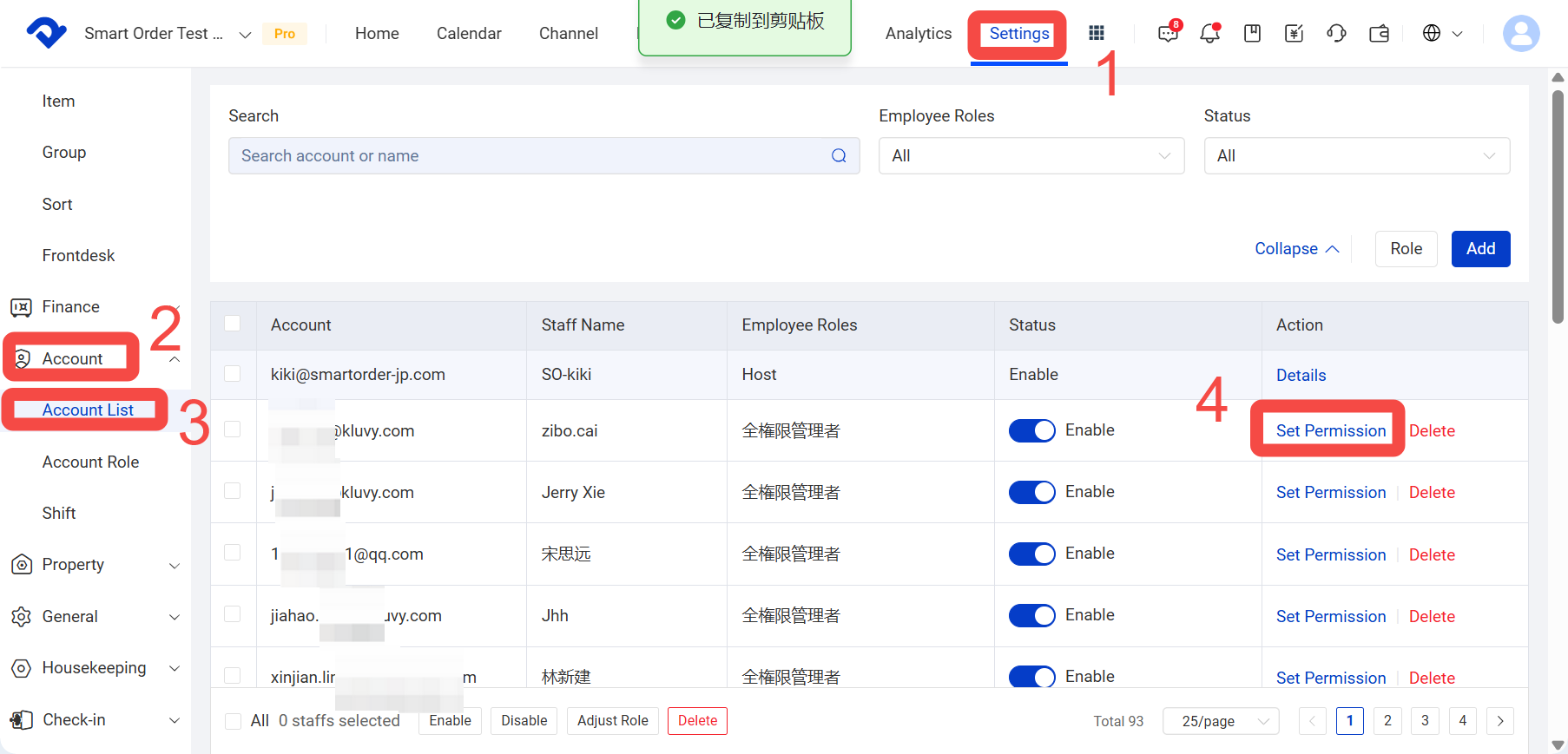
Path: Settings > Account > Account List > Set permissiont > Edit
- Click Settings.
- Click Account Management.
- Click Account List.
- Click Set Permissions for the account you want to modify.
- Click Edit in the upper-right corner.
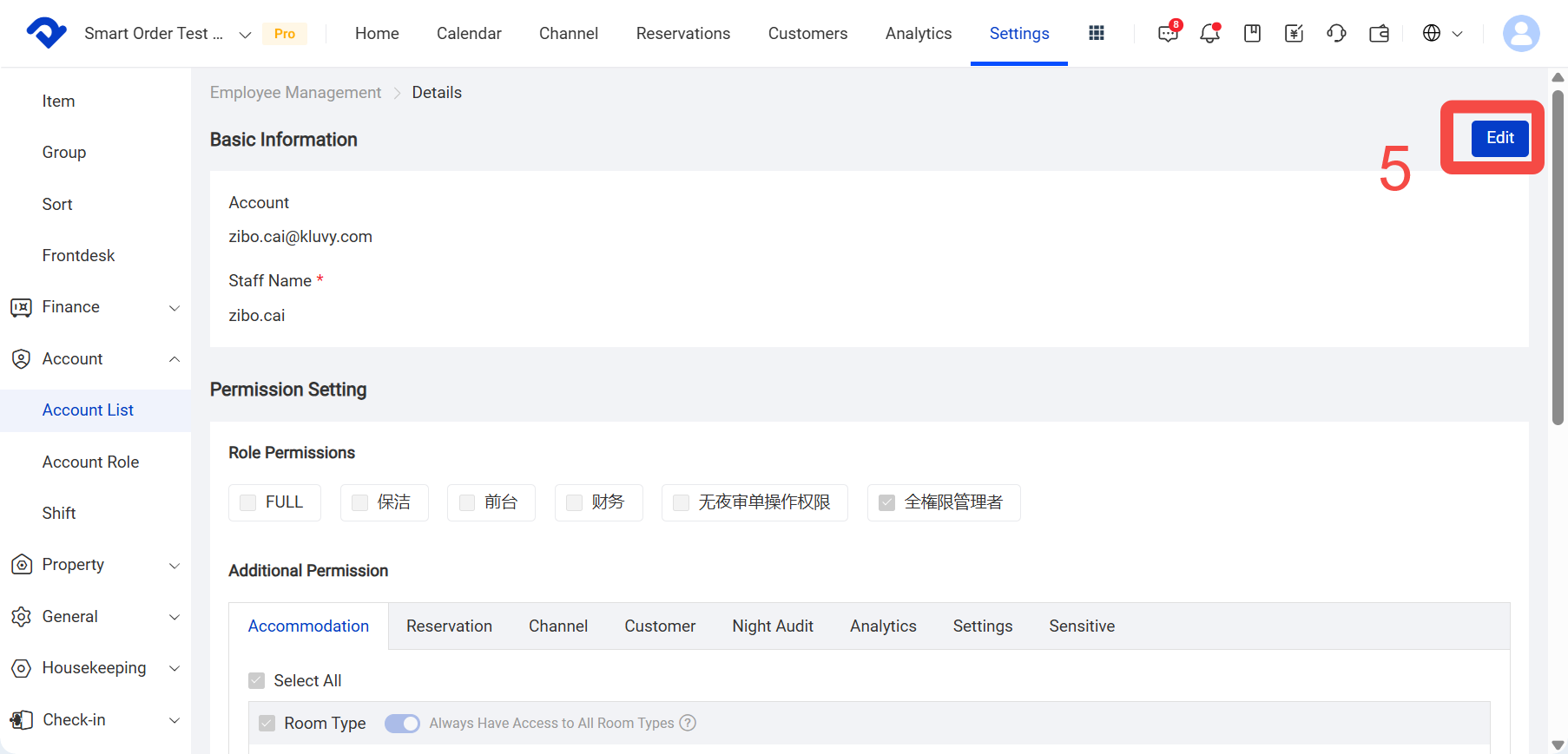
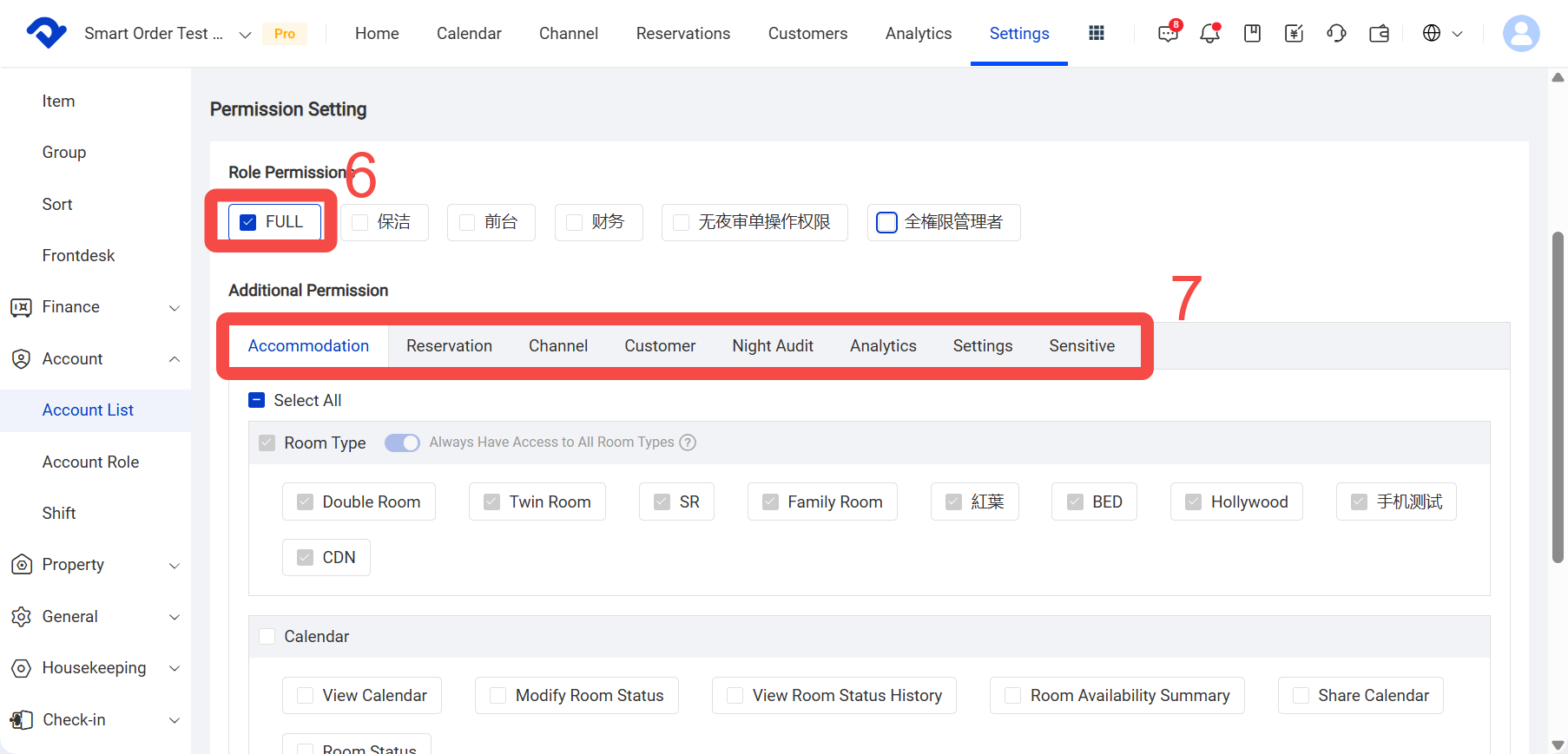
- You can remove the role permissions assigned to the account. If you uncheck the assigned role, all permissions provided by that role will be removed from the account.
- You can also adjust the account's permissions individually.
If the role remains selected, you can modify permissions in addition to the permissions provided by the role.
If you uncheck the role, you can remove the role settings and configure all permissions individually for that account.