The Holiday Settings feature displays national holidays, source market holidays, custom holidays, and events in the PMS calendar.
This helps businesses identify special dates in advance and check pricing, inventory, channel sales, and staffing arrangements based on actual operations.
This feature is only used for calendar labels and reminders. It does not automatically change prices, room availability, stay restrictions, channel settings, orders, room status, or housekeeping tasks.
Popularity levels are currently only used to control how labels are displayed.
1. Navigate to the Holiday Settings Page
Navigate to:
Settings → General Settings → Holiday Settings
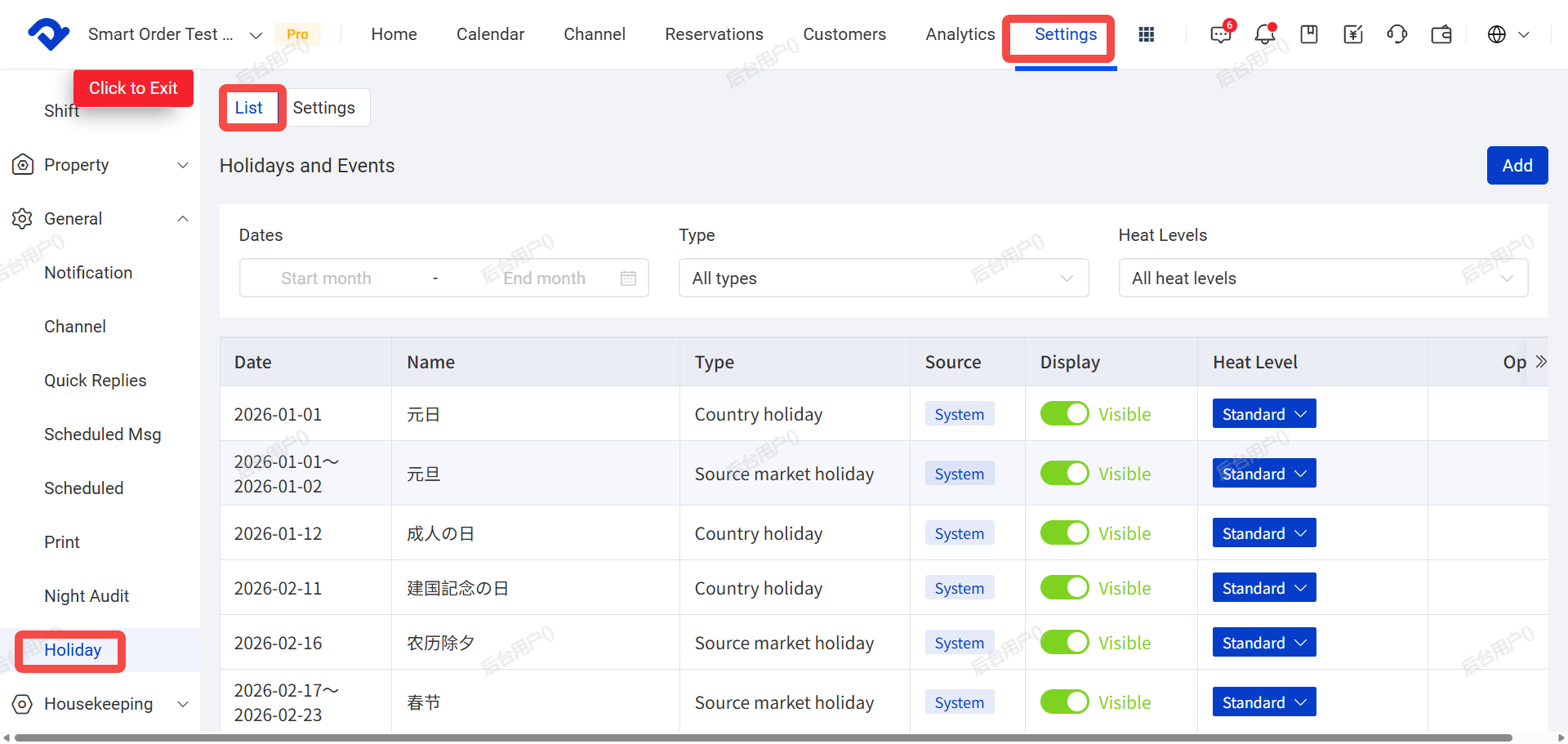
※If you do not see this option, check whether the required permission has been enabled for your account.
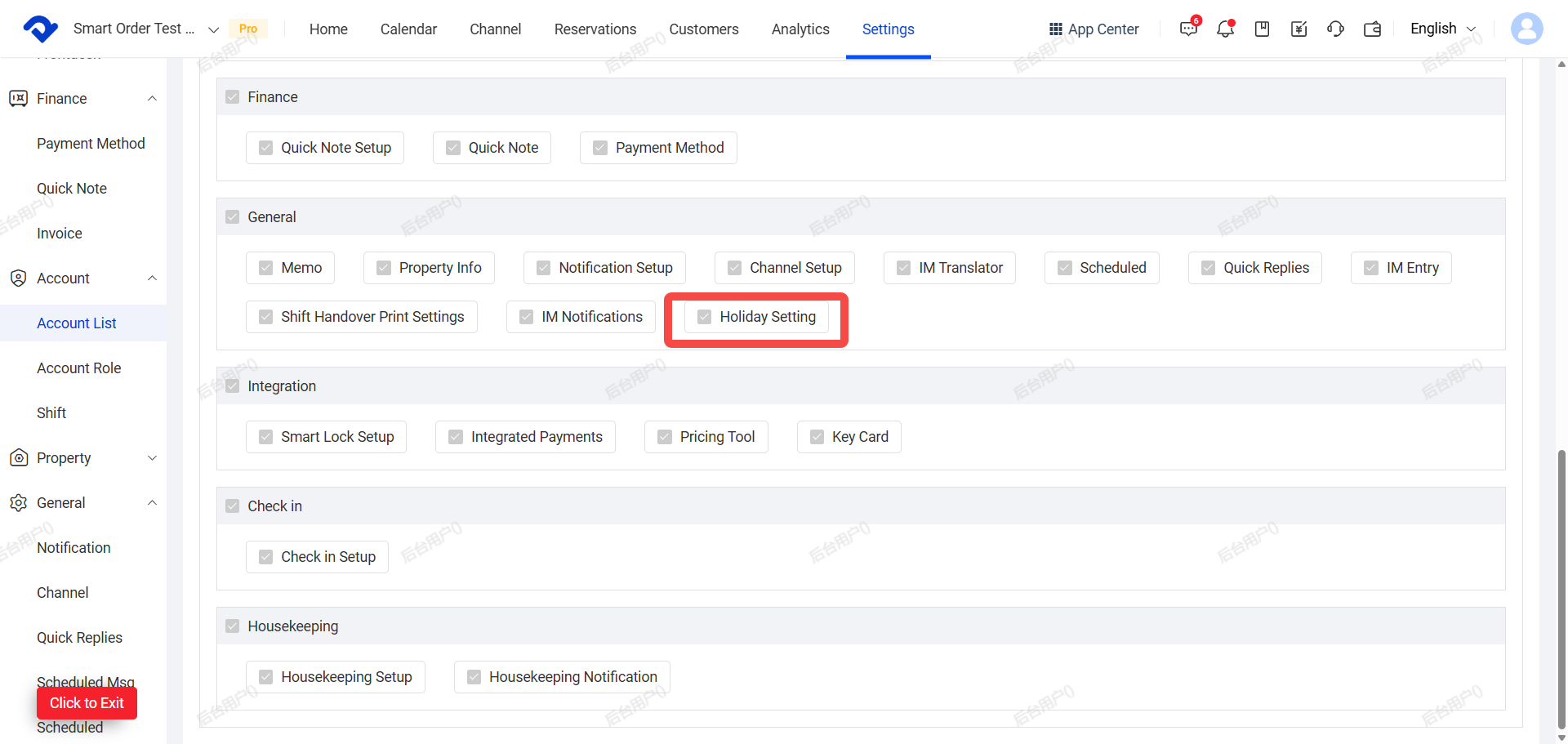
For instructions on adding account permissions, refer to the permission settings guide in Setting
 Dina
Dina
The Holiday Settings page includes two tabs:
- List: View, filter, and manage holidays and events
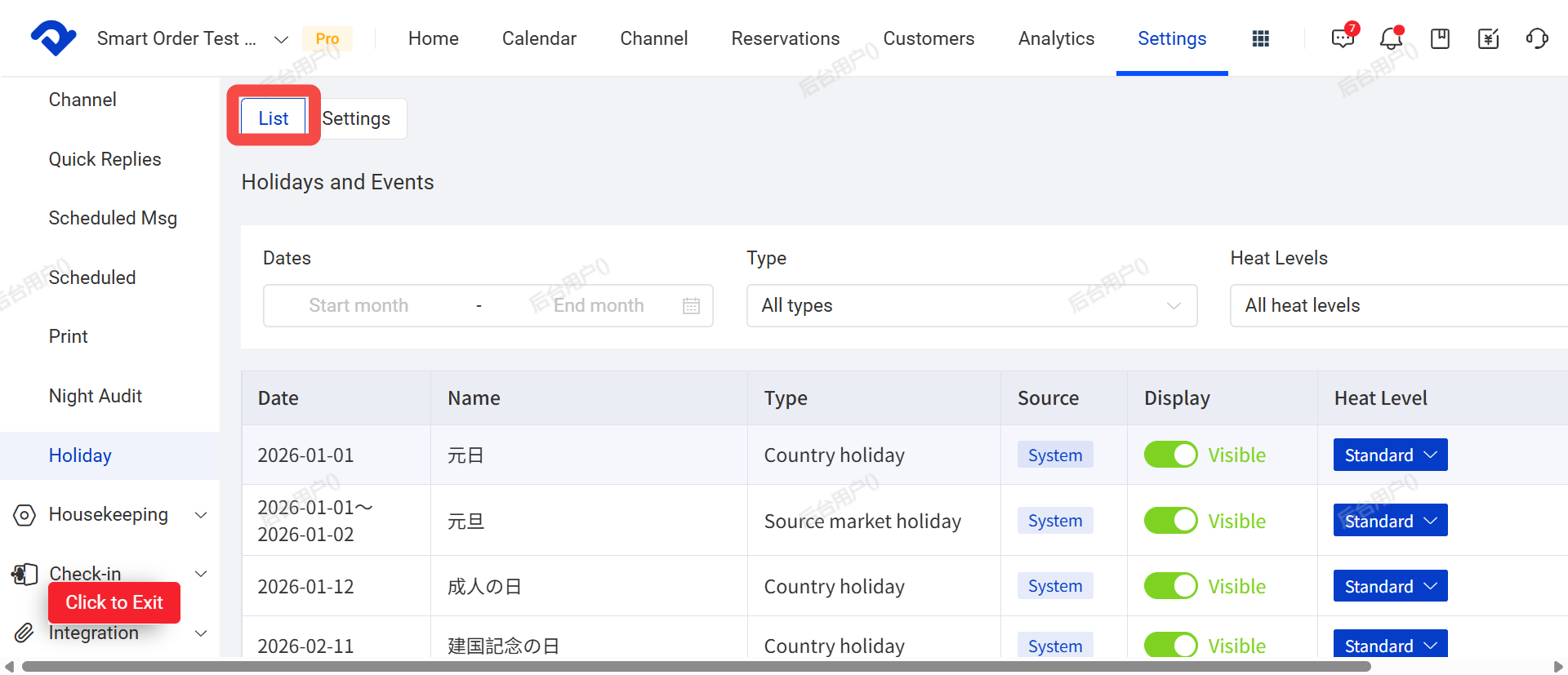
- Settings: Set display rules for calendar labels
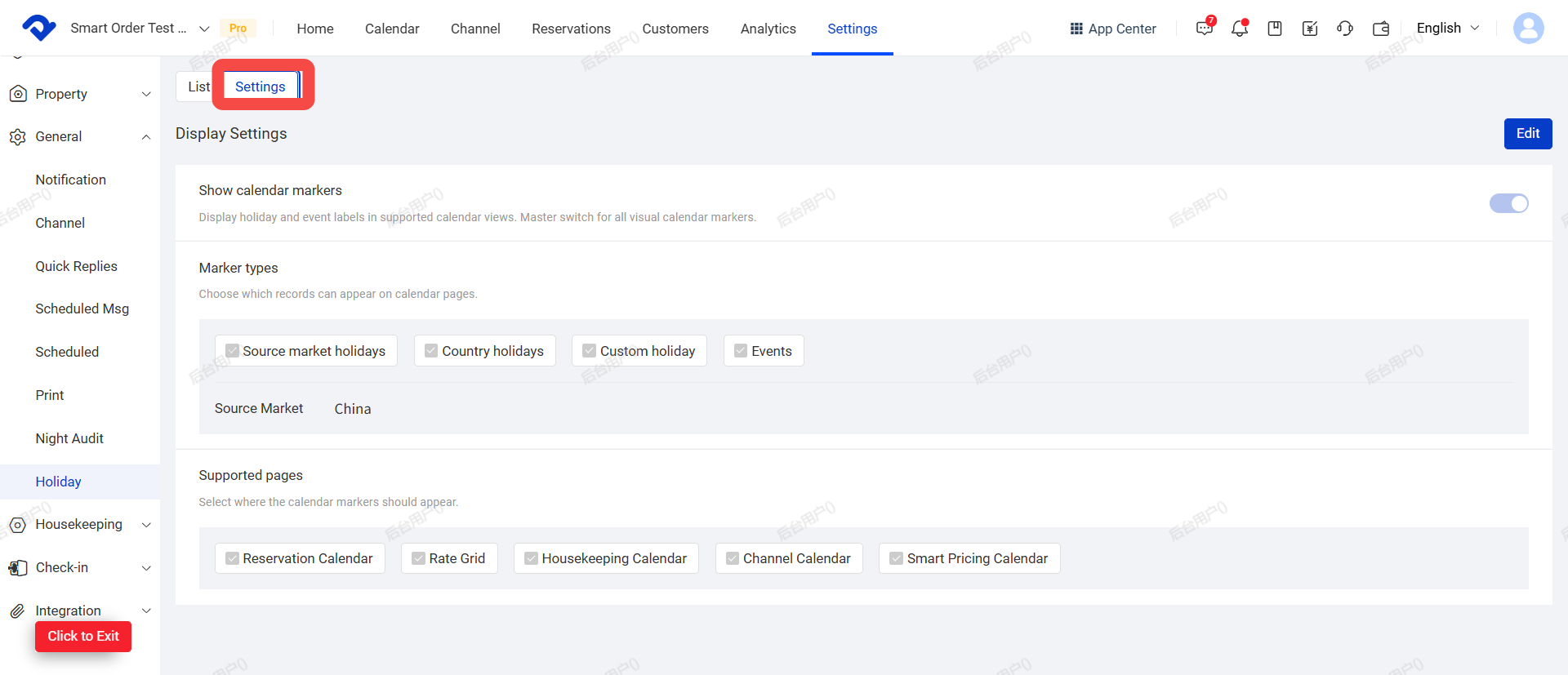
After you enter the page, the List tab opens by default.
2. View the Holiday and Event List
In the List tab, you can view system holidays and holidays or events added by your business.
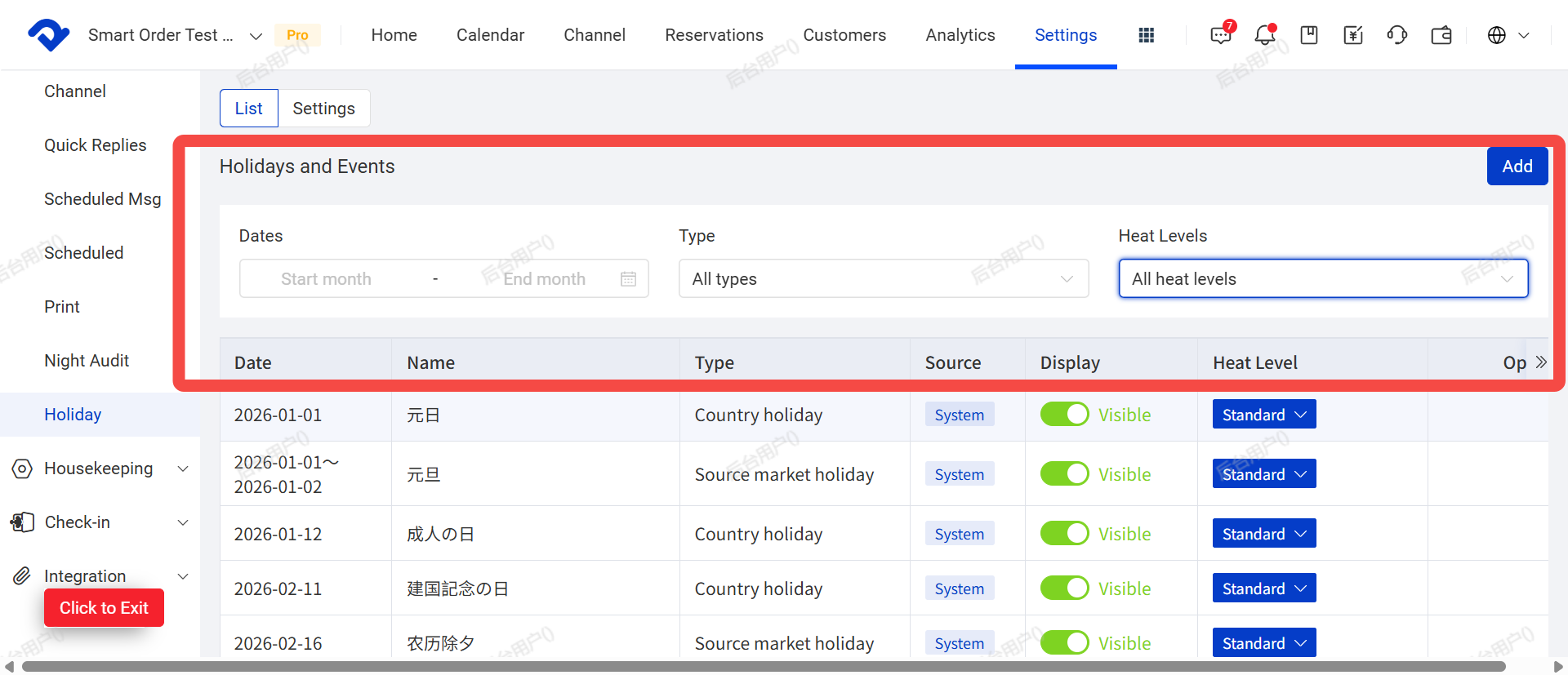
The list displays the following information:
- Date
- Name
- Type
- Source
- Display status
- Popularity level
- Actions
You can filter records by:
- Date range
- Type
- Popularity level
Type Description
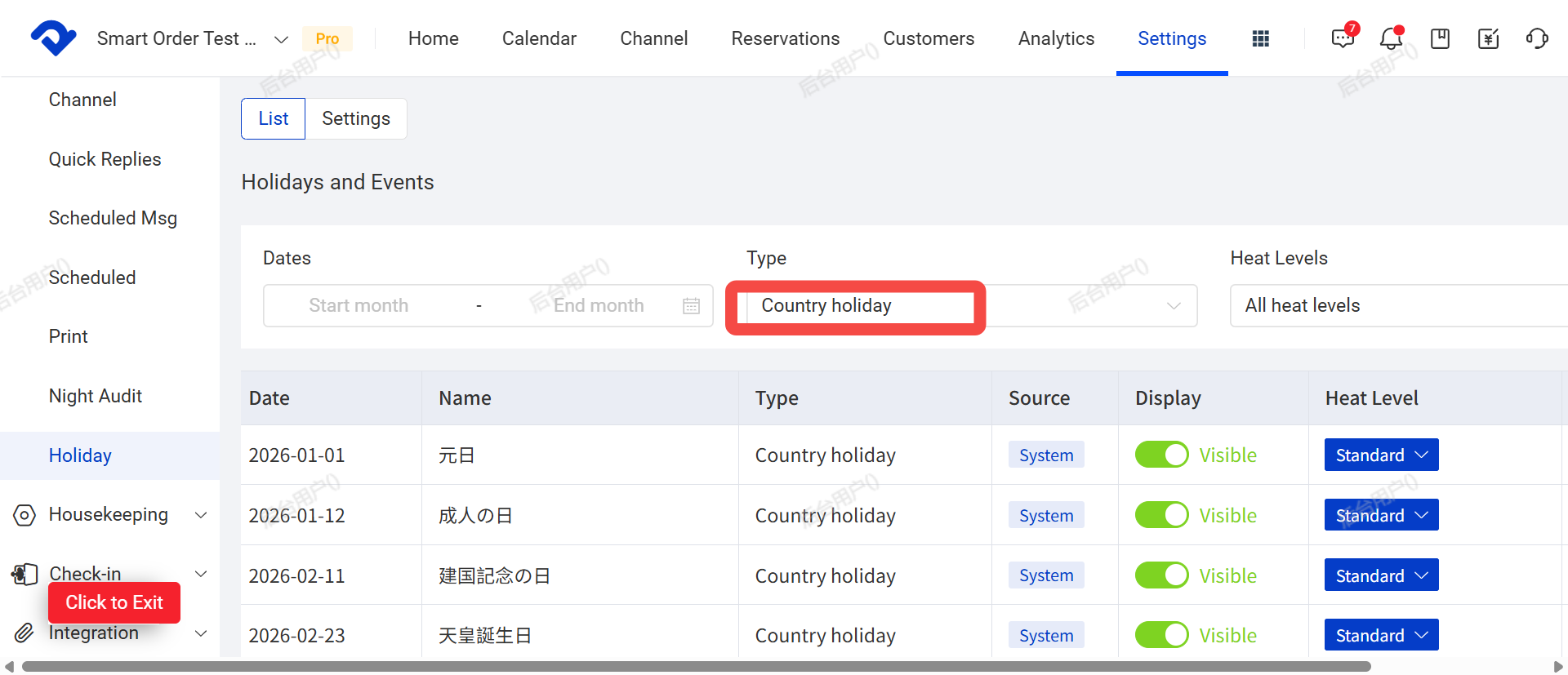
Country Holiday
System holidays for the country or region where the property is located.
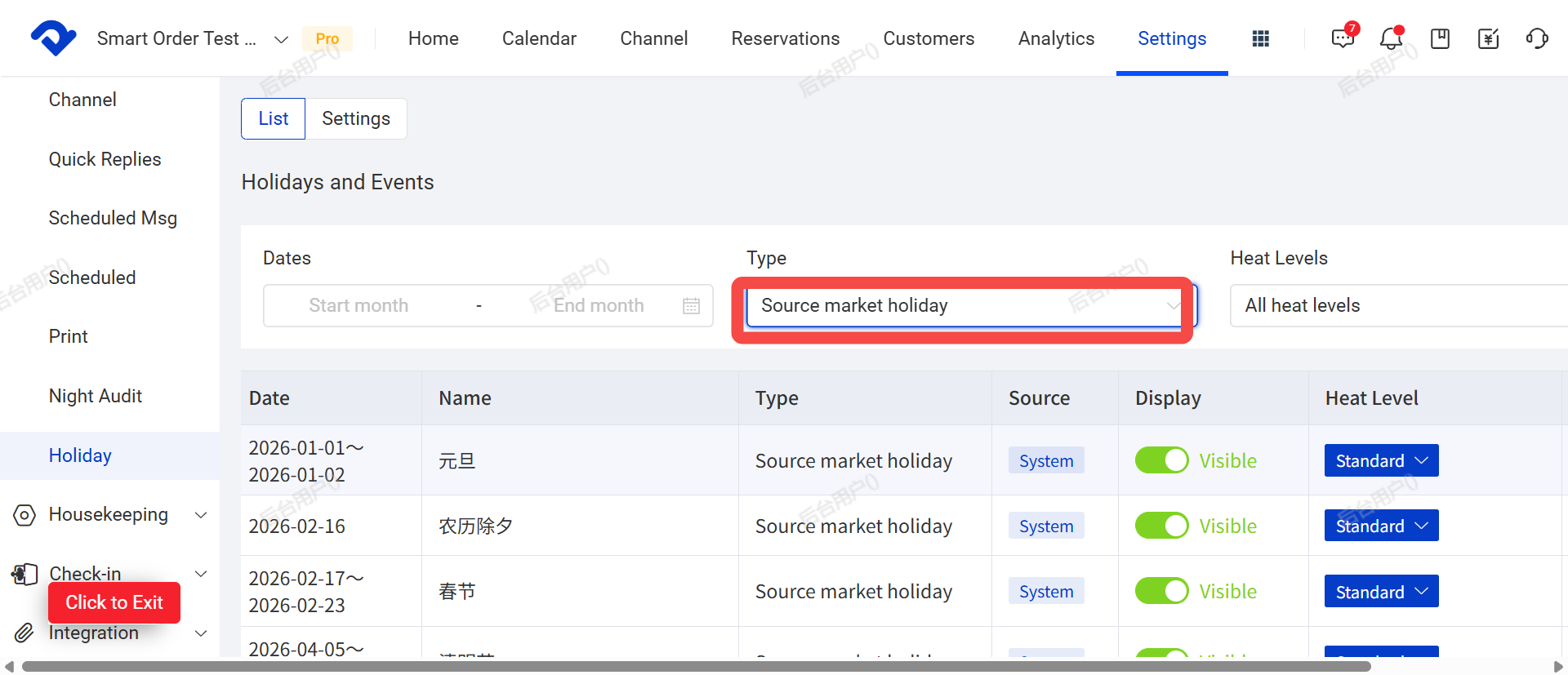
Source Market Holiday
System holidays for the source country or region selected by the business in settings.
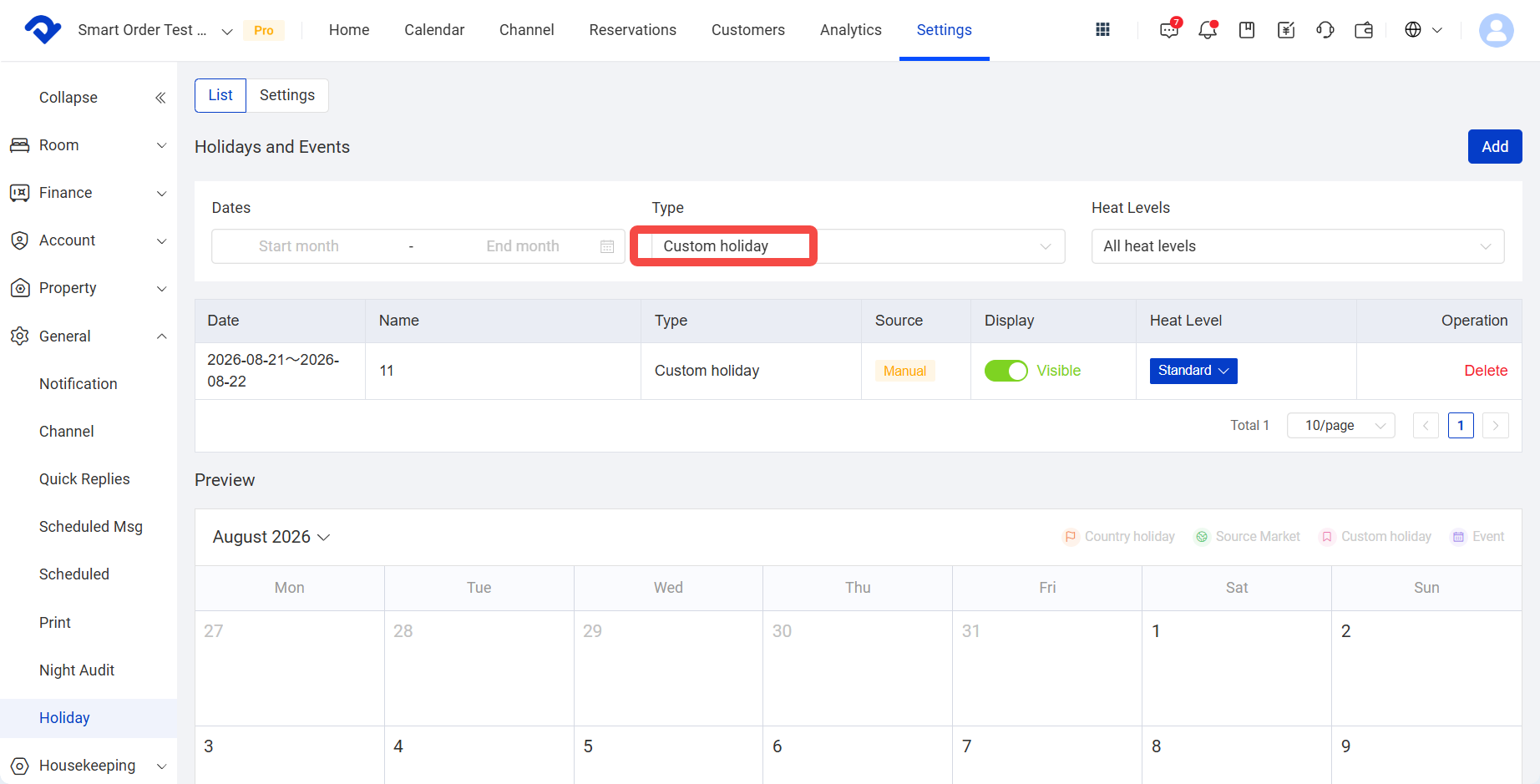
Custom Holiday
Special dates added by the business, such as an anniversary, peak season, or local special date.
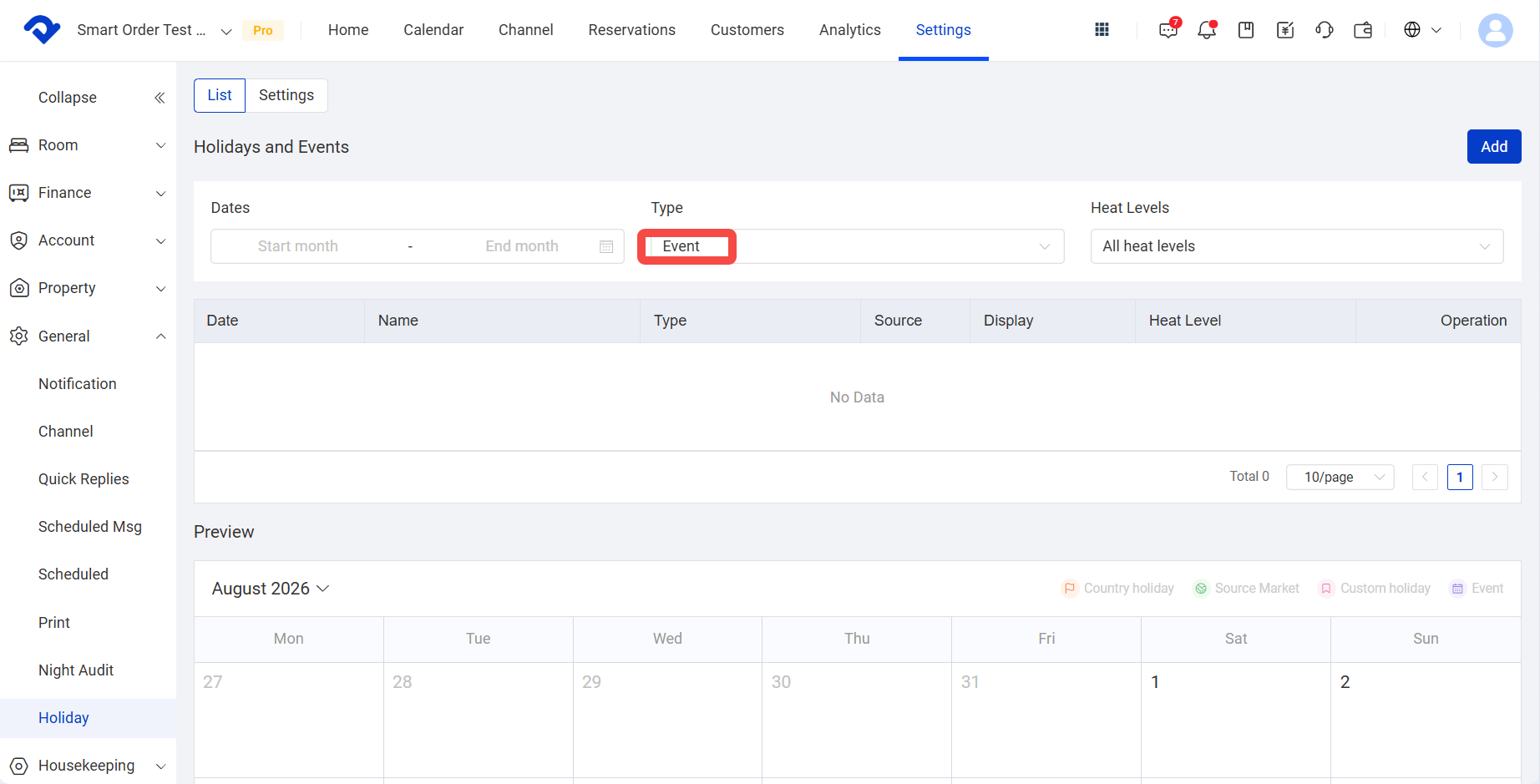
Event
Activities or events added by the business, such as local celebrations, concerts, or major exhibitions.
3. Set the Popularity Level
Each holiday or event record can have a popularity level:
- Standard: Normal display
- High: Displayed more prominently in the calendar
You can change the popularity level directly in the list.
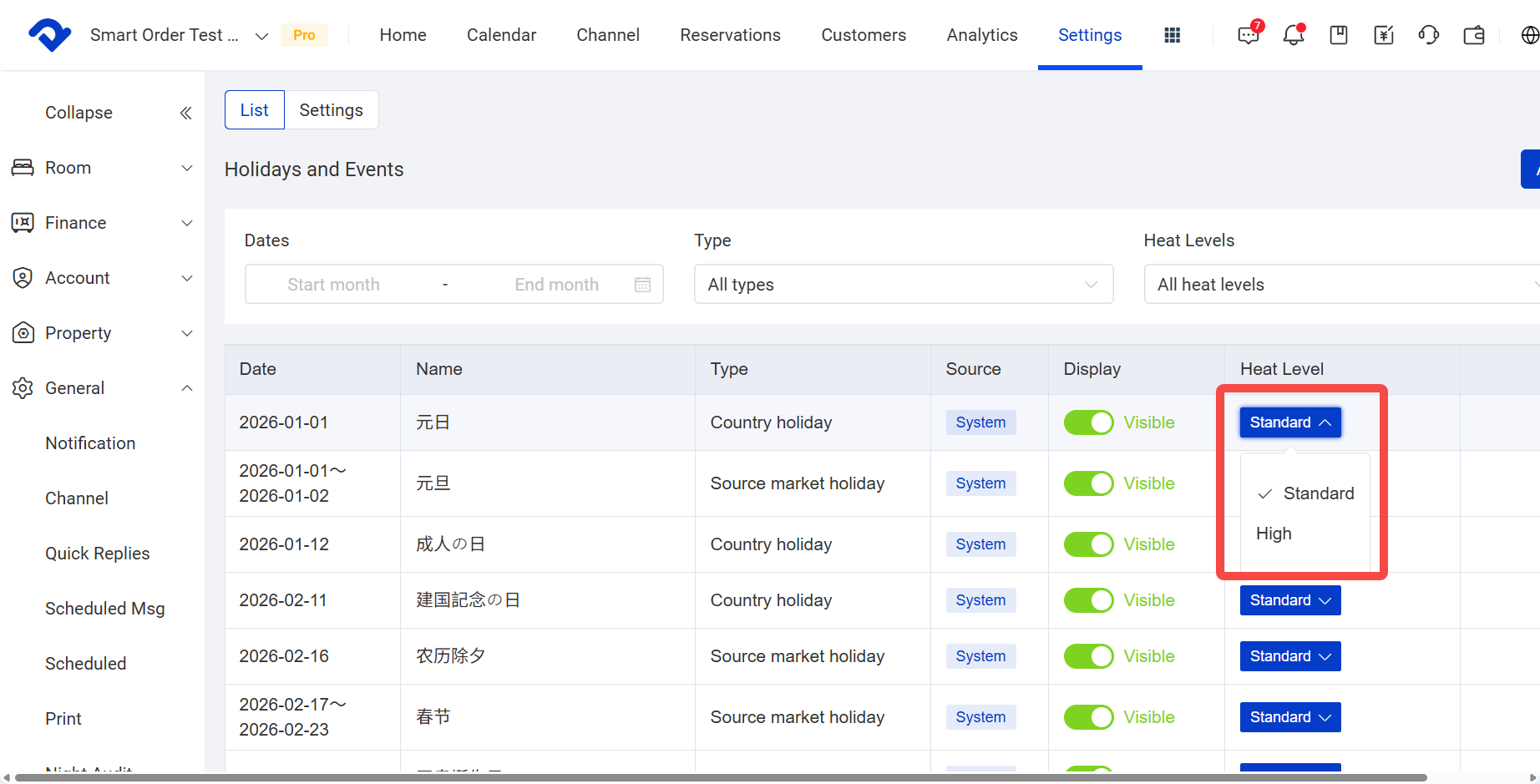
For multi-day holidays or events added by the business, you can set different popularity levels for different dates as needed.
Note: The popularity level does not automatically affect pricing, inventory, or channel settings.
4. Show or Hide Holidays
Use the Display toggle in the list to control whether a holiday or event appears in the calendar.
After the toggle is turned off, the record remains in the list, but it will not appear in the preview calendar or other PMS calendar pages.
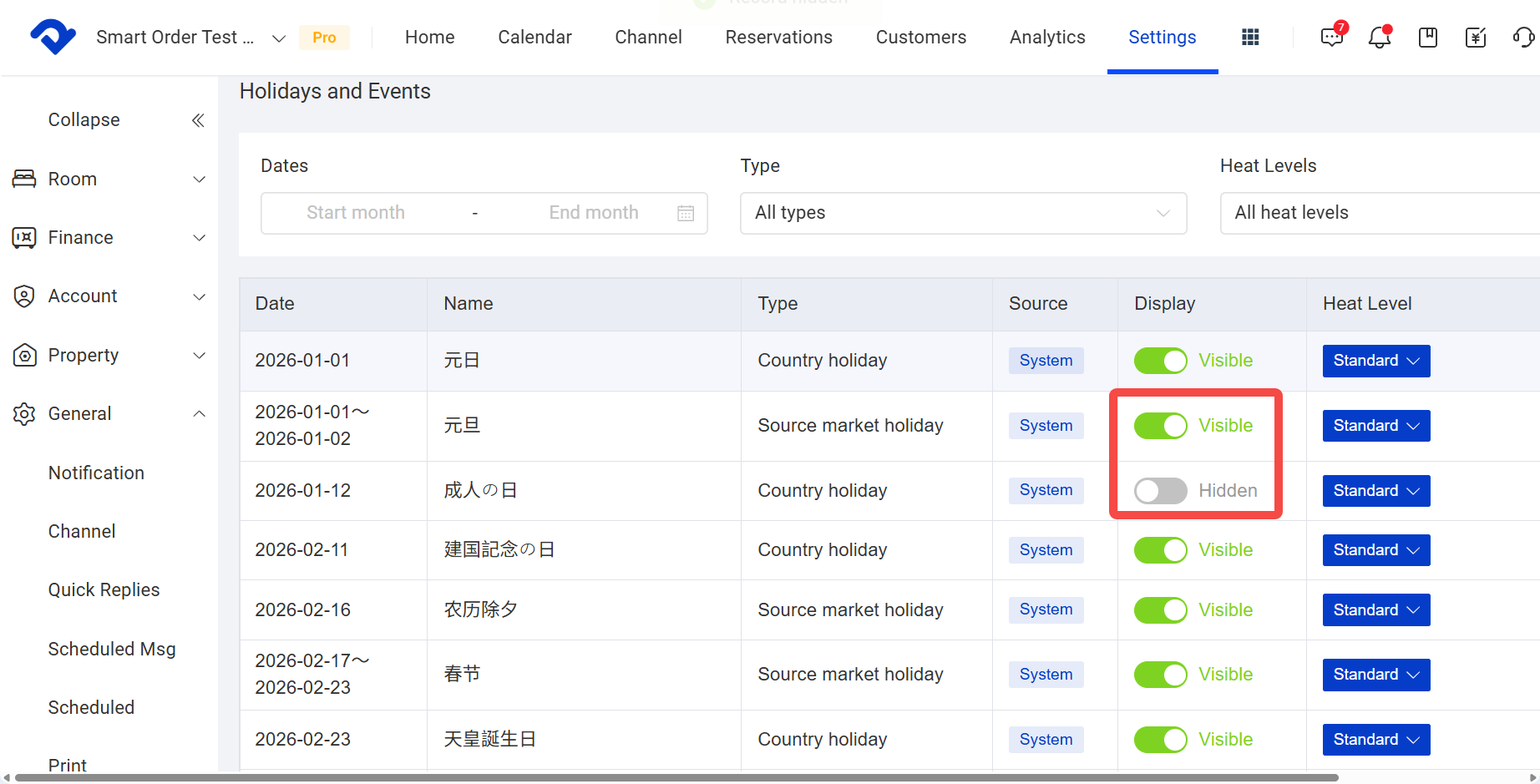
System-provided Country holidays cannot be deleted, but they can be hidden or assigned a different popularity level.
Holidays and events added by the business can be deleted.
5. Add a Custom Holiday or Event
Click Add in the upper-right corner of the page to create a custom holiday or event.
You need to set the following information:
- Name
- Start date
- End date
- Type
- Display status
- Popularity level
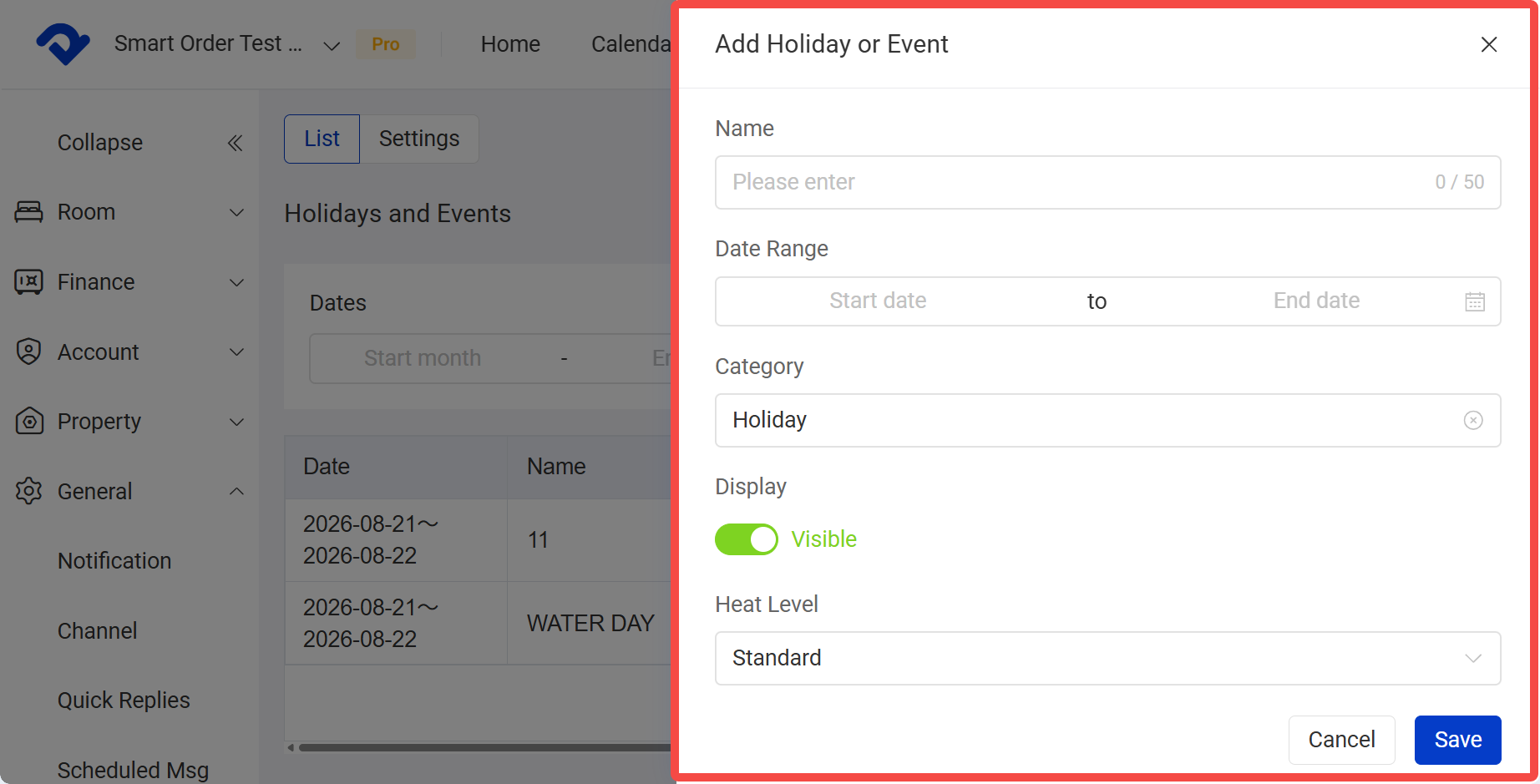
The date can be set as a single day or a continuous multi-day period.
You can add up to 10 consecutive days at one time, and dates can only be selected for the current year and the next year.
After you save, the new item appears immediately in the list and preview calendar.
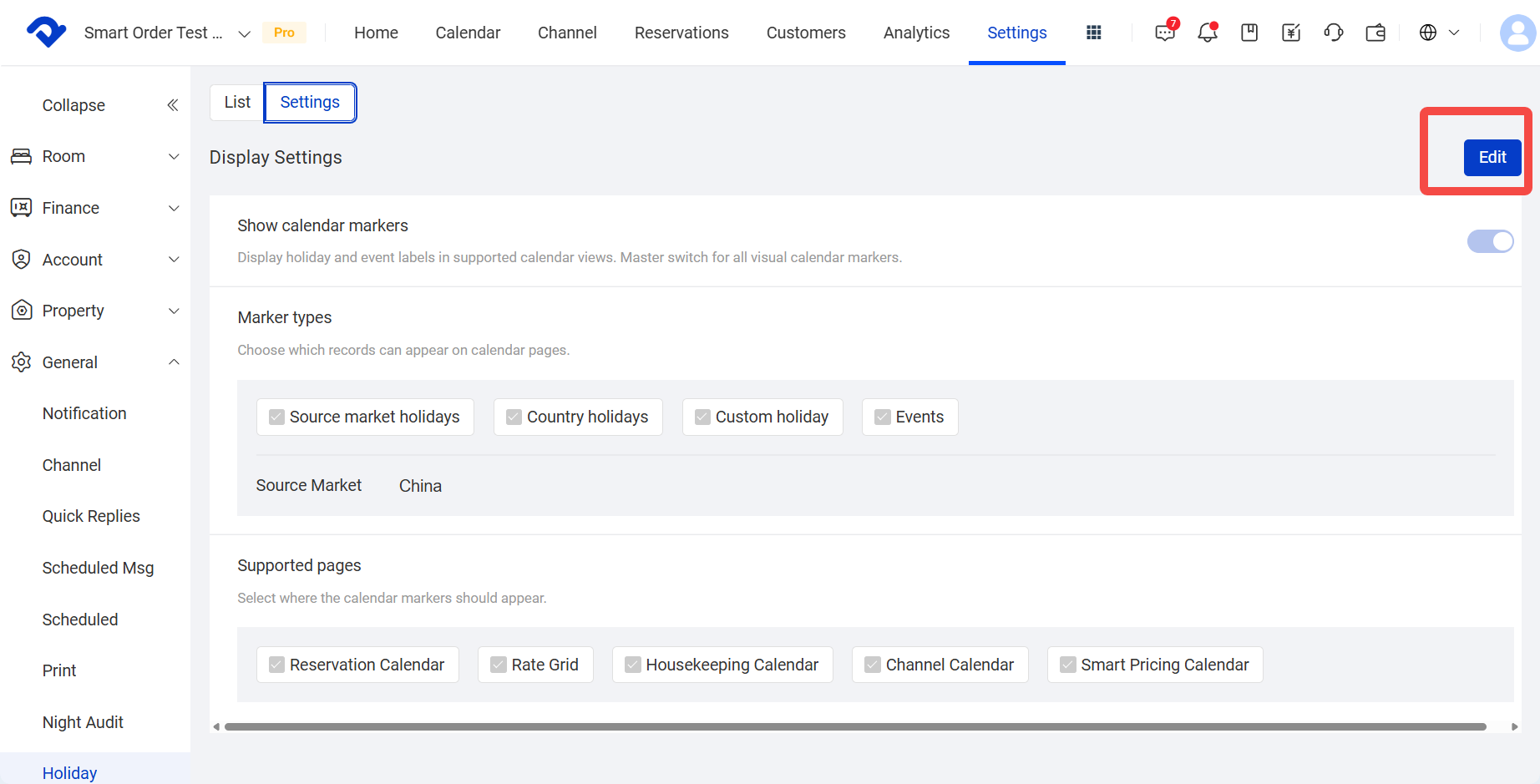
6. Set Calendar Label Display Rules
Navigate to the Settings tab to set where holiday labels are displayed.
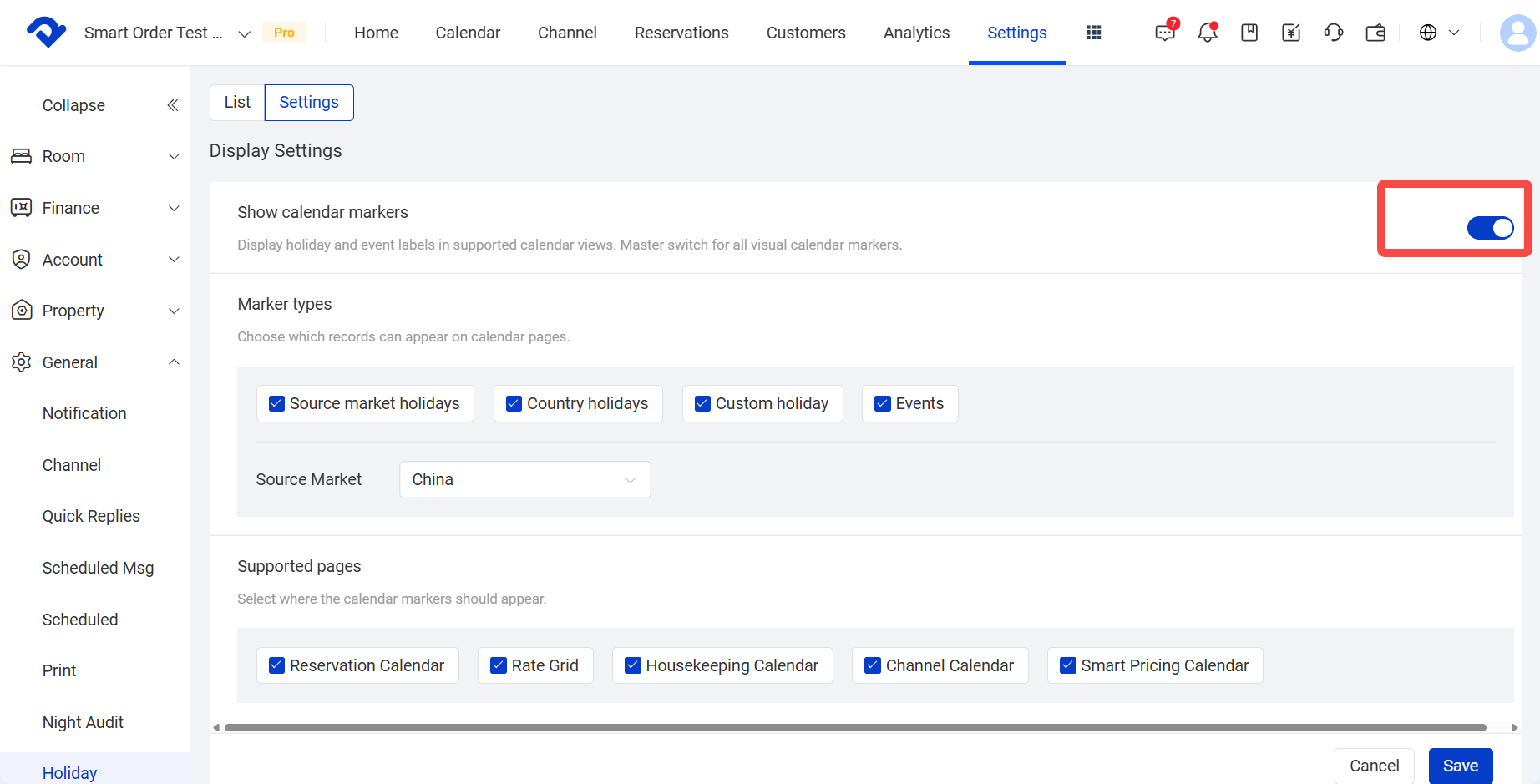
Display Calendar Labels
Toggle this on to display holiday and event labels in PMS calendars.
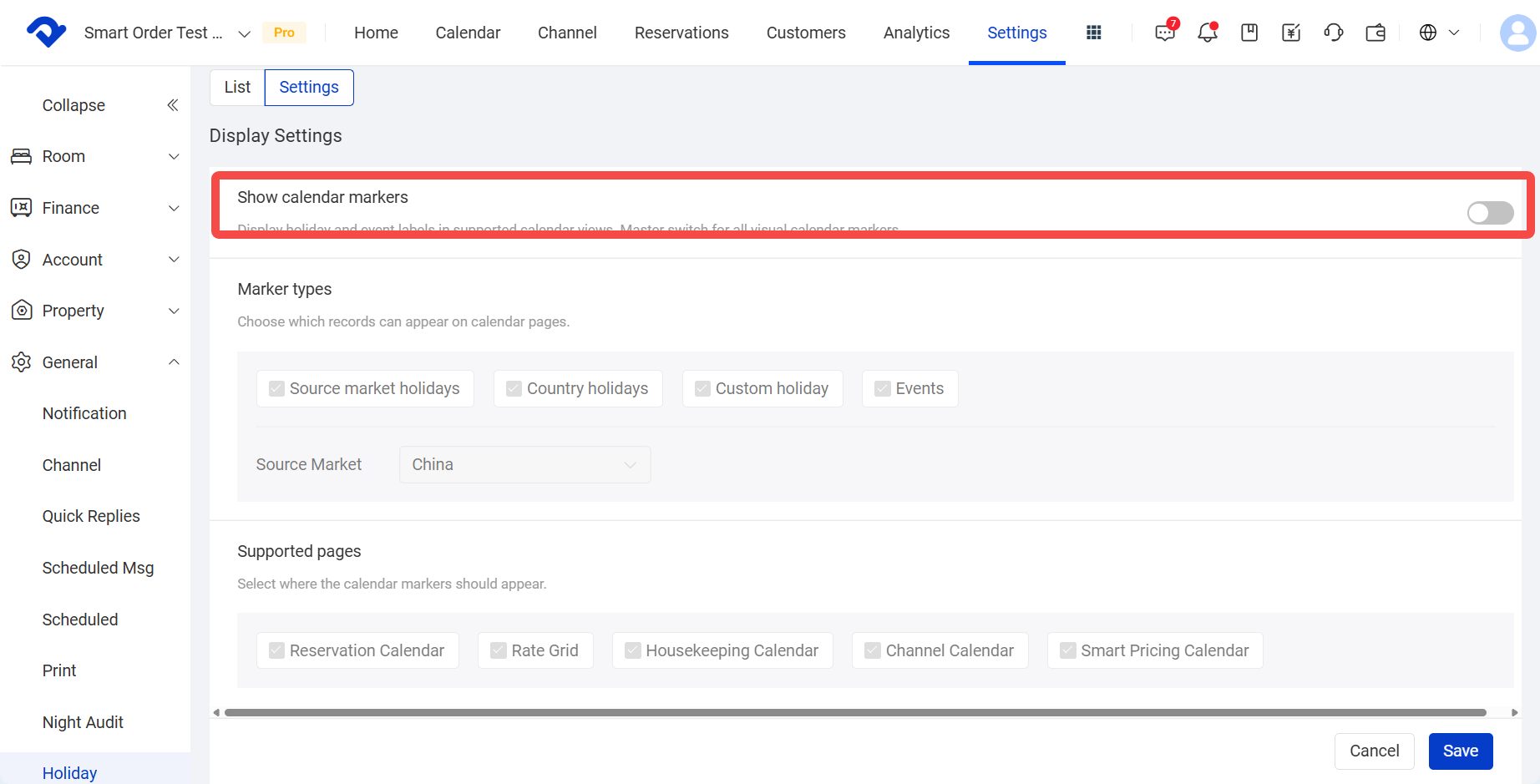
After it is turned off:
- Other settings become unavailable
- The preview calendar no longer displays labels
- PMS calendar pages no longer display holidays or events
Saved settings and records will not be deleted.
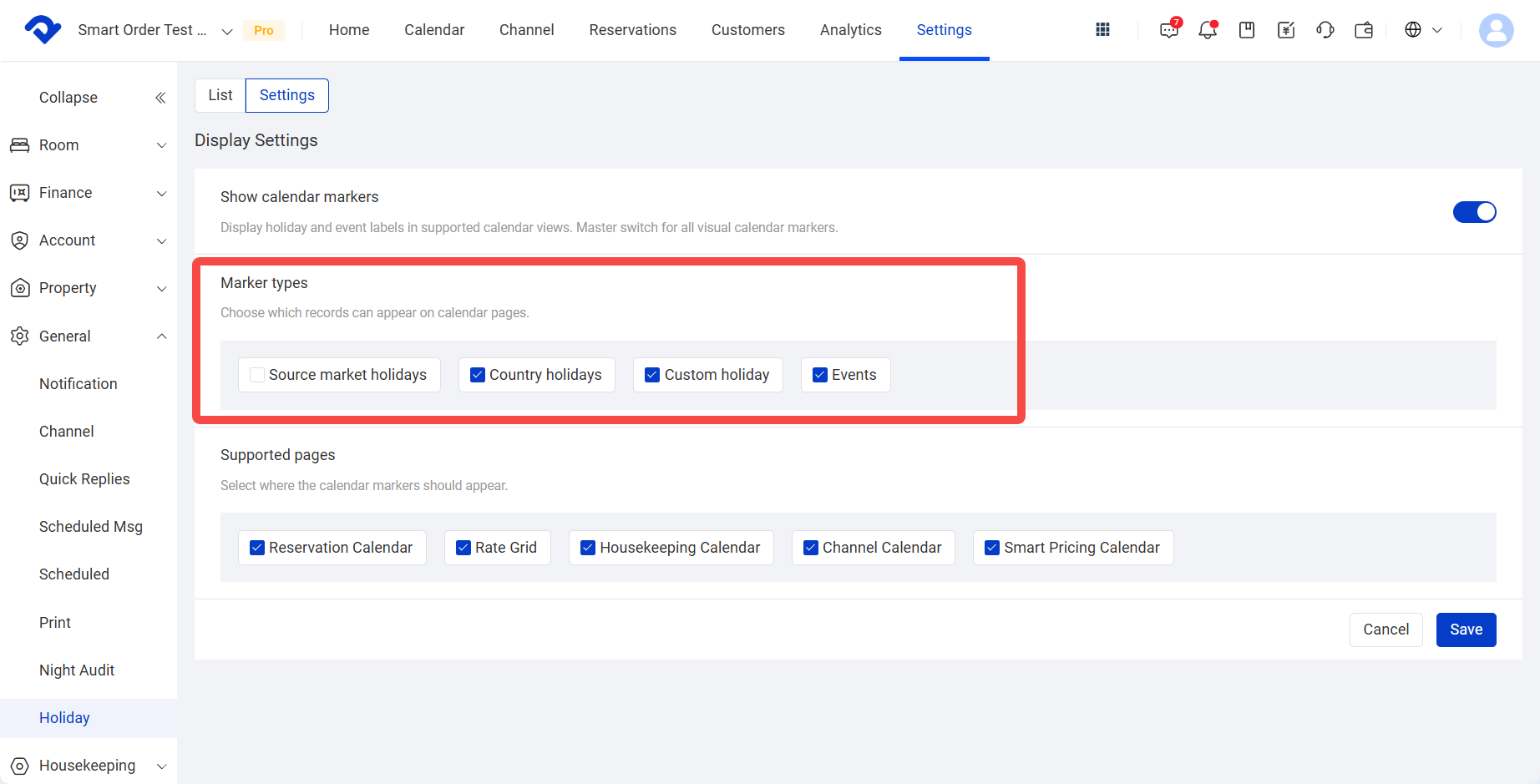
Select Label Types
You can select which label types to display:
- National Holiday
- Source Market Holiday
- Custom Holiday
- Event
After a type is turned off, records of that type will not be displayed in the calendar.
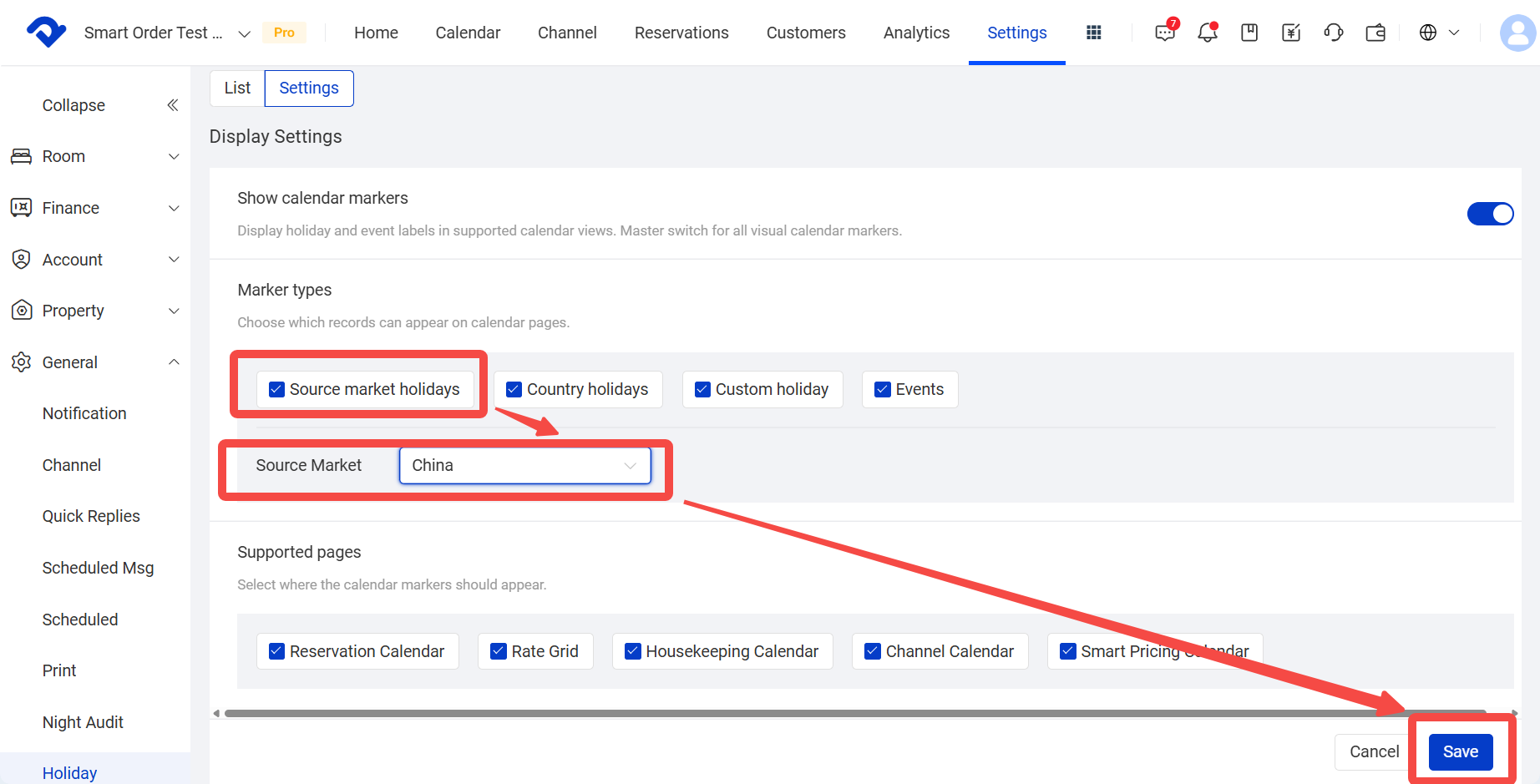
Set Source Market
You can add one main source country or region.
After it is set, the system displays holidays from that source market in the calendar, helping you identify potential demand peaks.
Only one source market can be added.
If no source market is set, source market holidays will not be displayed.
For example: select Source Market Holiday, then choose China as the country. The system will automatically subscribe to China holidays.
Select Display Pages
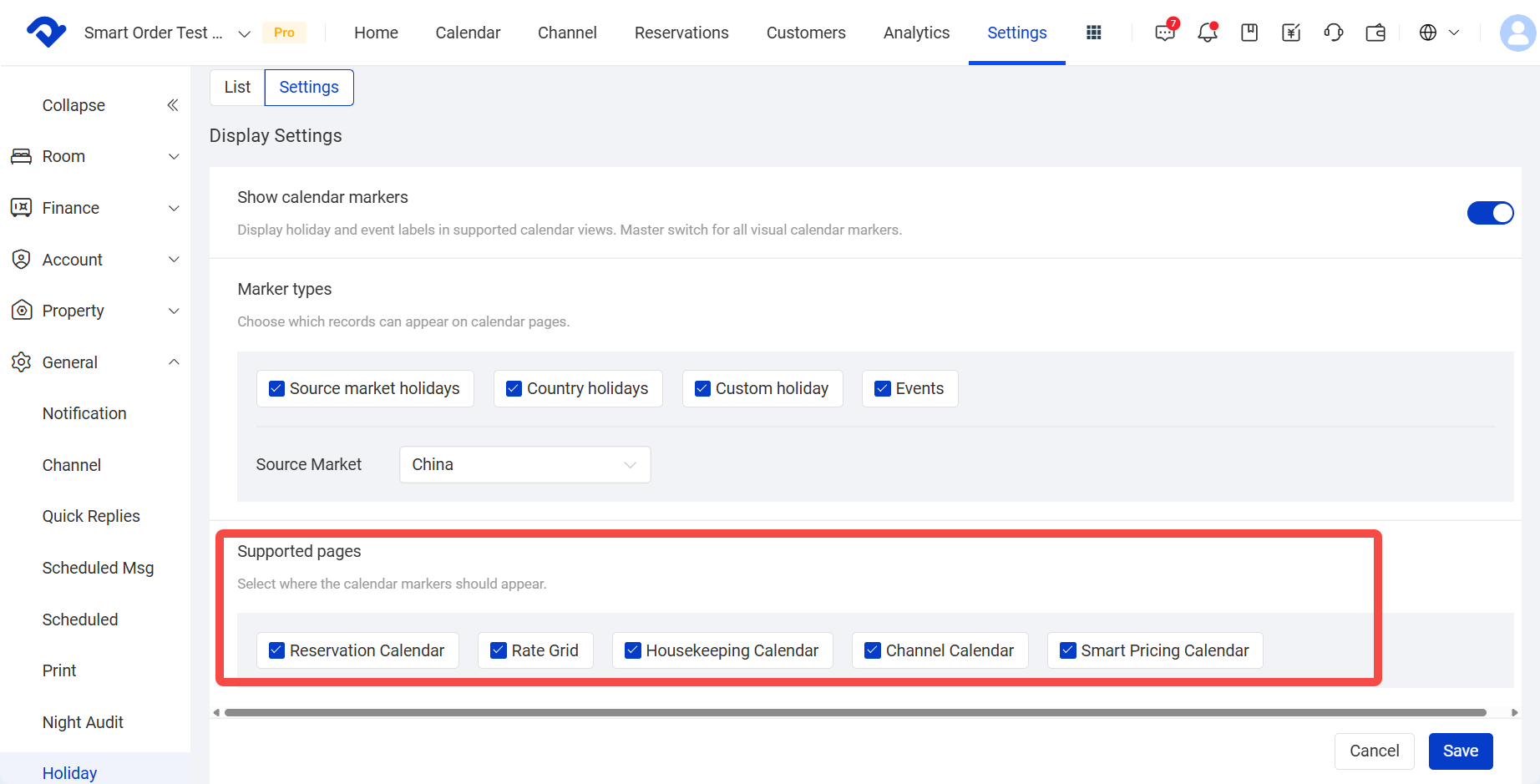
You can set which PMS pages display holiday labels, such as:
- Room Status Calendar
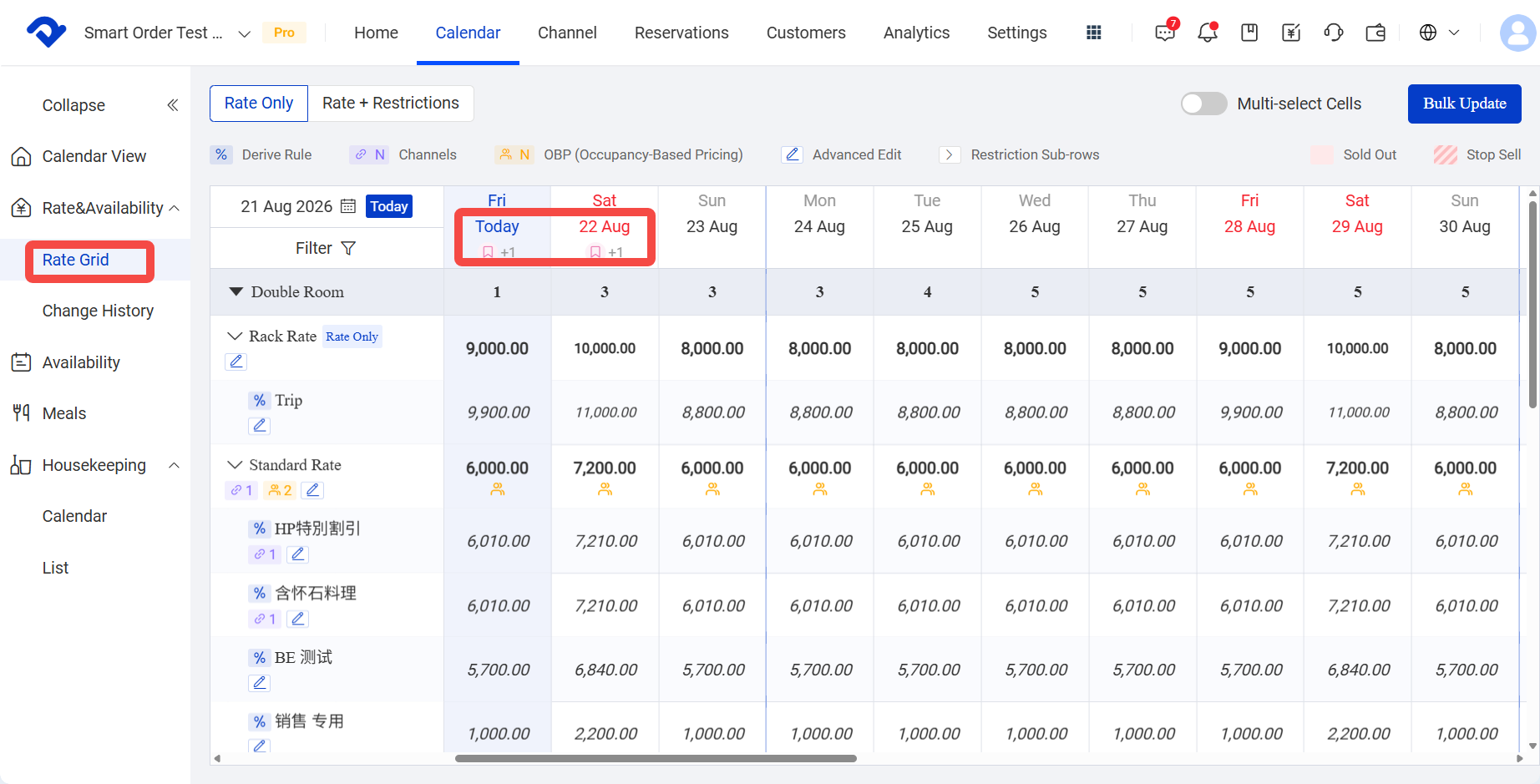
- Rate Management
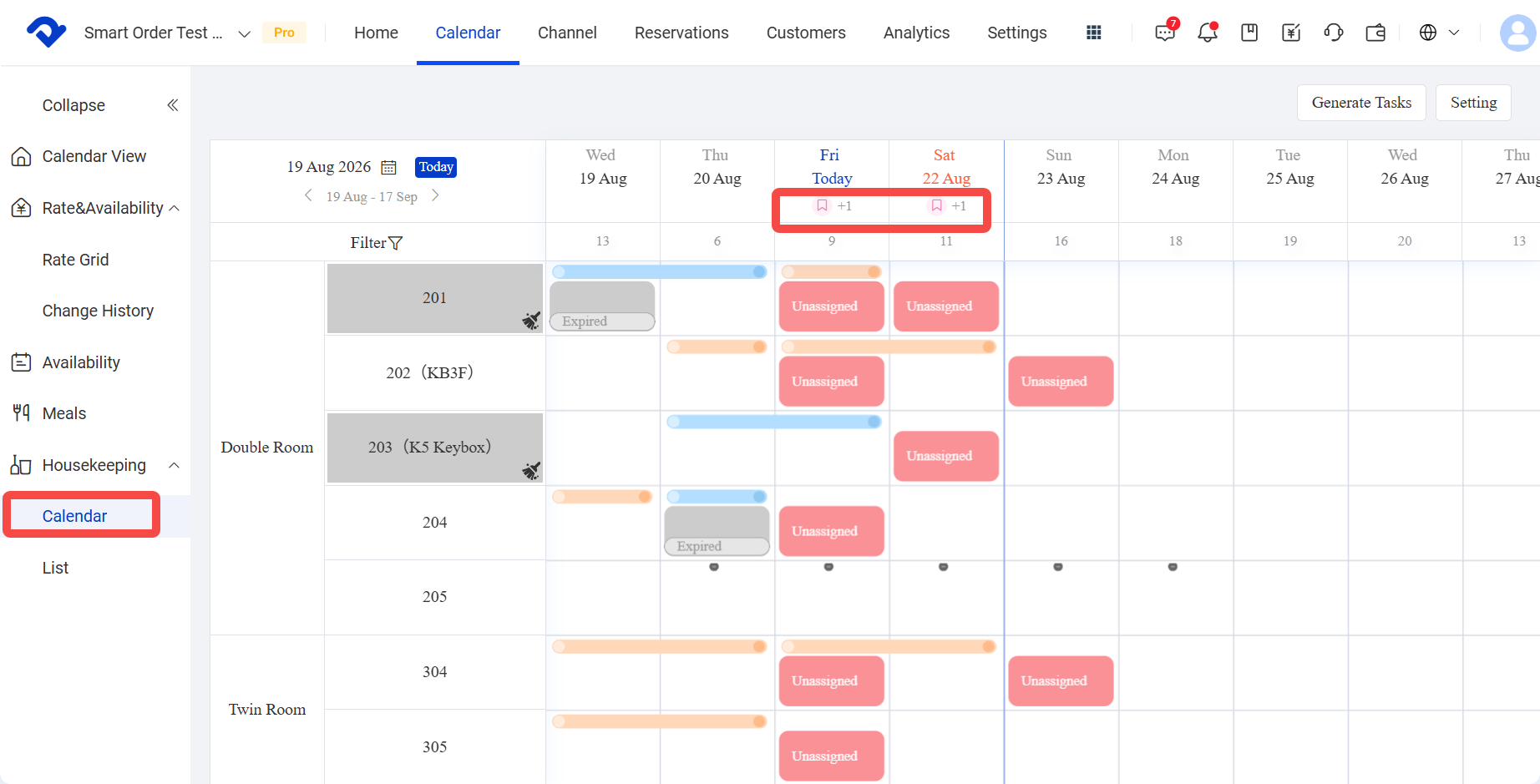
- Housekeeping Calendar
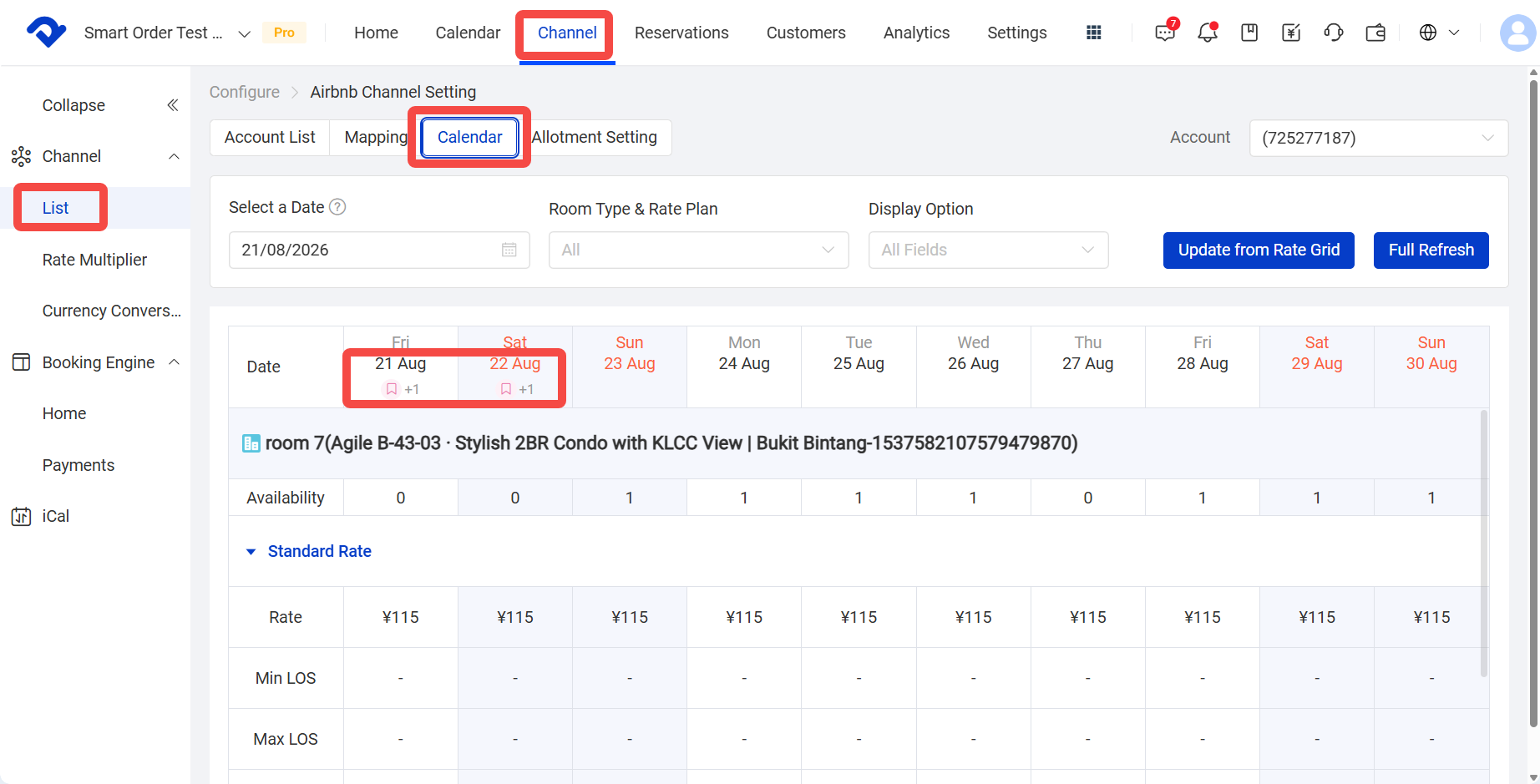
- Channel Calendar
After a page is turned off, holiday labels stop showing only on that page. Other pages are not affected.
After completing the settings, click Save.
7. Filter by Date and Month
On the list page, use the date filter to select the month range you want to view.
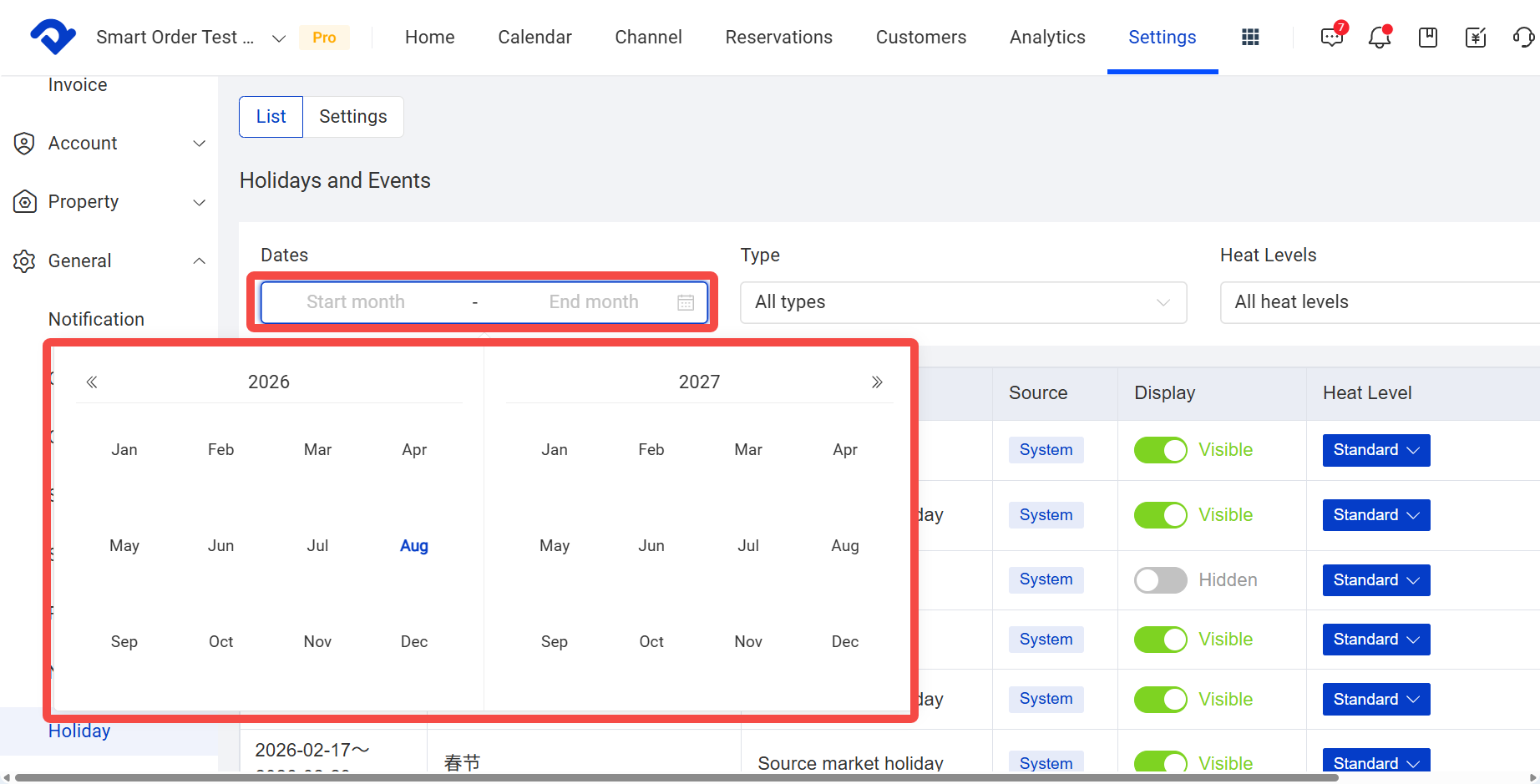
This is useful for:
- Viewing holidays in specific months
- Checking future peak seasons and event dates
- Quickly finding records that need changes to popularity level or display status
After filtering, the list only shows holidays and events that match the selected conditions.
8. Preview Calendar
A holiday preview calendar is available below the list.
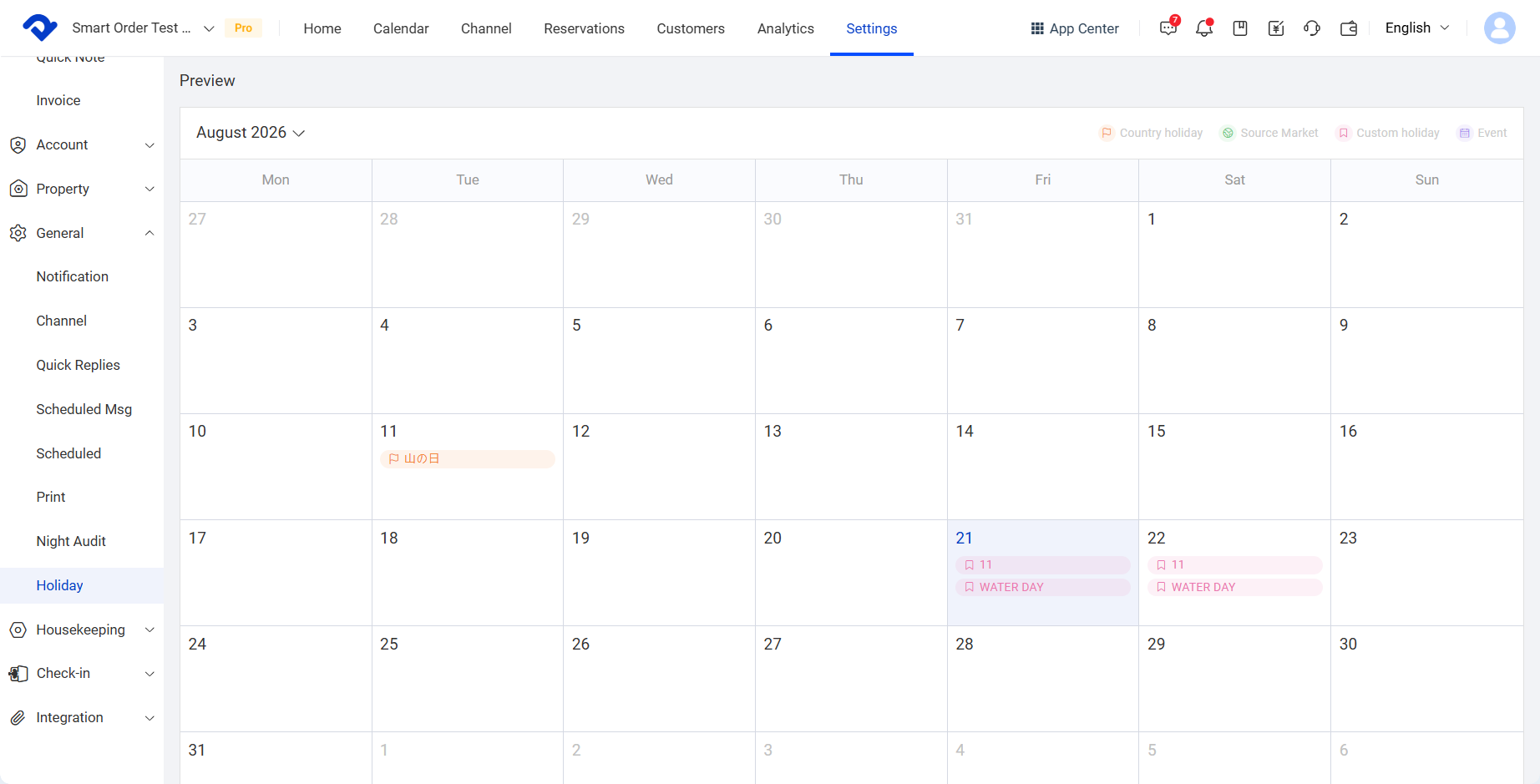
The preview calendar displays the following based on the current settings:
- National holidays
- Source market holidays
- Custom holidays
- Events
- High popularity labels
You can switch months to confirm how holidays and events will appear in the calendar in advance.
If multiple holidays or events exist on the same day, the calendar may display multiple labels at the same time.
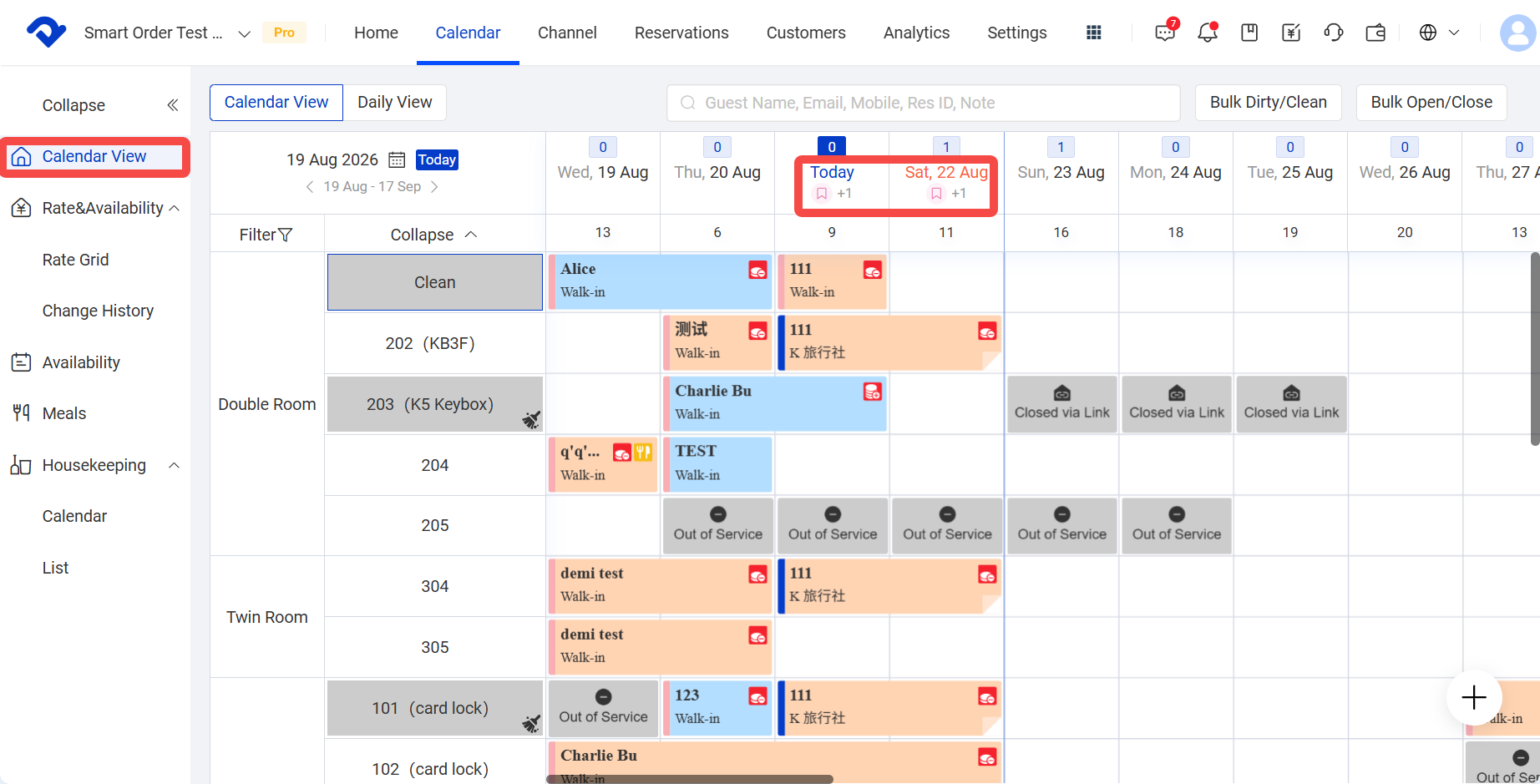
9. Display Effect in Calendars
After settings are completed, holidays and events will appear on the relevant PMS calendar pages.
You can use the labels to decide whether you need to manually:
- Adjust prices
- Check inventory
- Set minimum stay requirements
- Check channel sales status
- Arrange housekeeping or operations staff in advance
Note: Holiday labels are reminders only and do not automatically perform the actions above.
Notes
- System holidays are provided by the system and cannot be deleted.
- Custom holidays and events can be deleted.
- After a record is hidden, it will not be displayed in the preview calendar or PMS calendars.
- After the popularity level is changed, the preview calendar and other calendar pages update accordingly.
- Custom names are not automatically translated based on the system language.
- Holiday dates are displayed according to the property’s local time.
- Turning off the holiday feature does not delete existing records.
