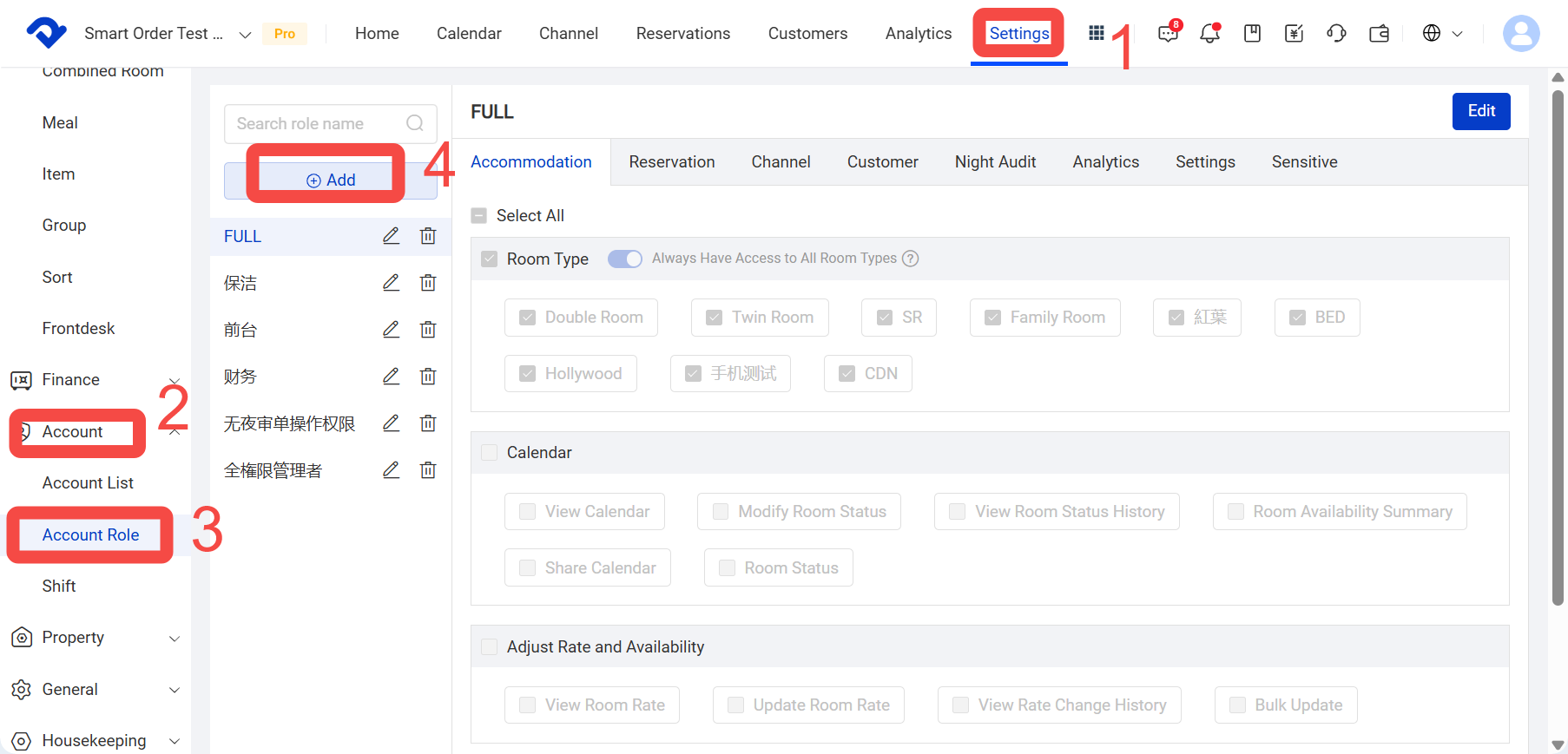
Path: Settings - - Account - Account Role
I. Role Management
Role Management lets you preset multiple roles with different permissions, such as housekeeping, Property A staff, or administrators, and then assign those roles to different accounts in batches.
- Navigate to Settings - - Account - Account Role
- On the Account Role page, click Add to create a new role.
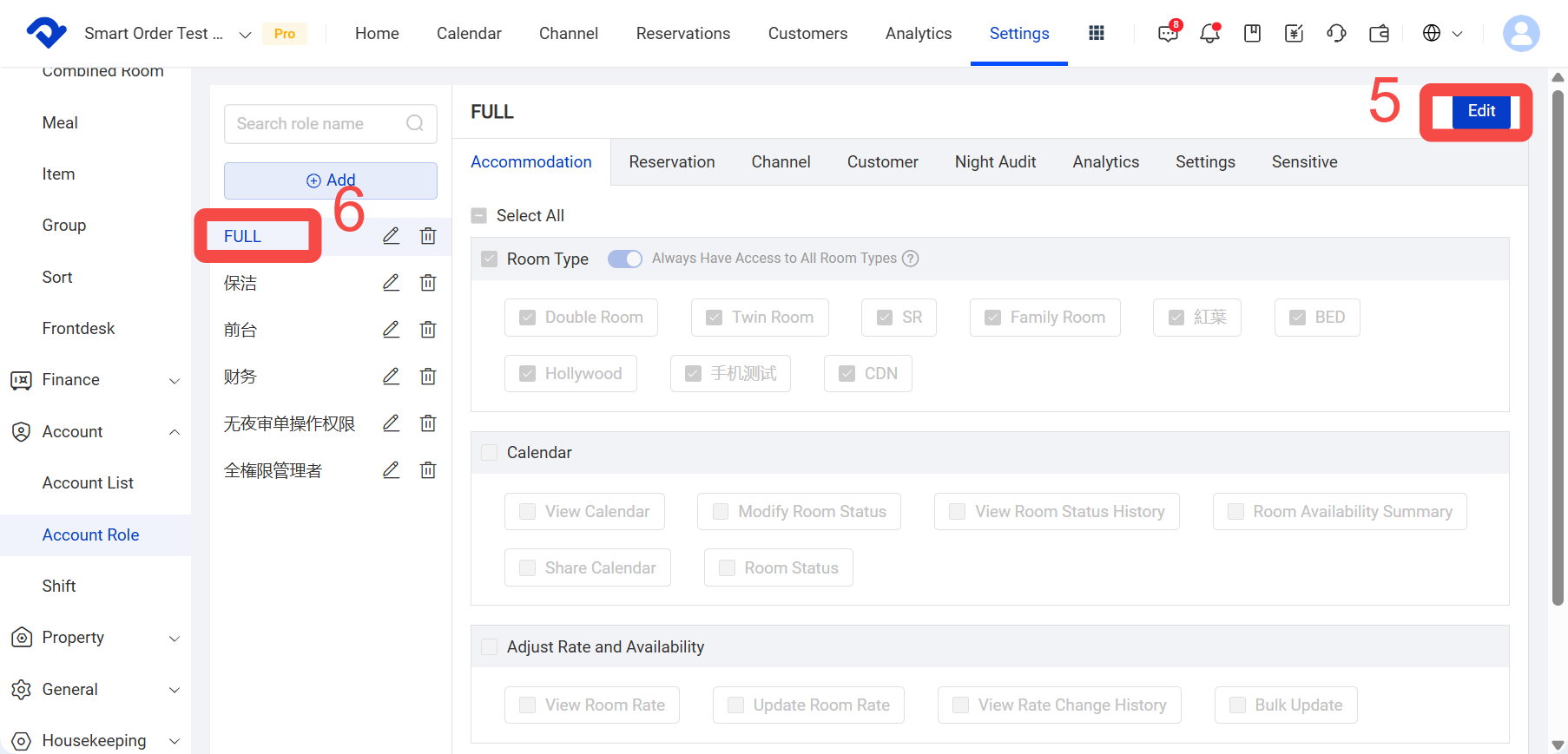
- Click the new role, such as [FULL].
- Click Edit.
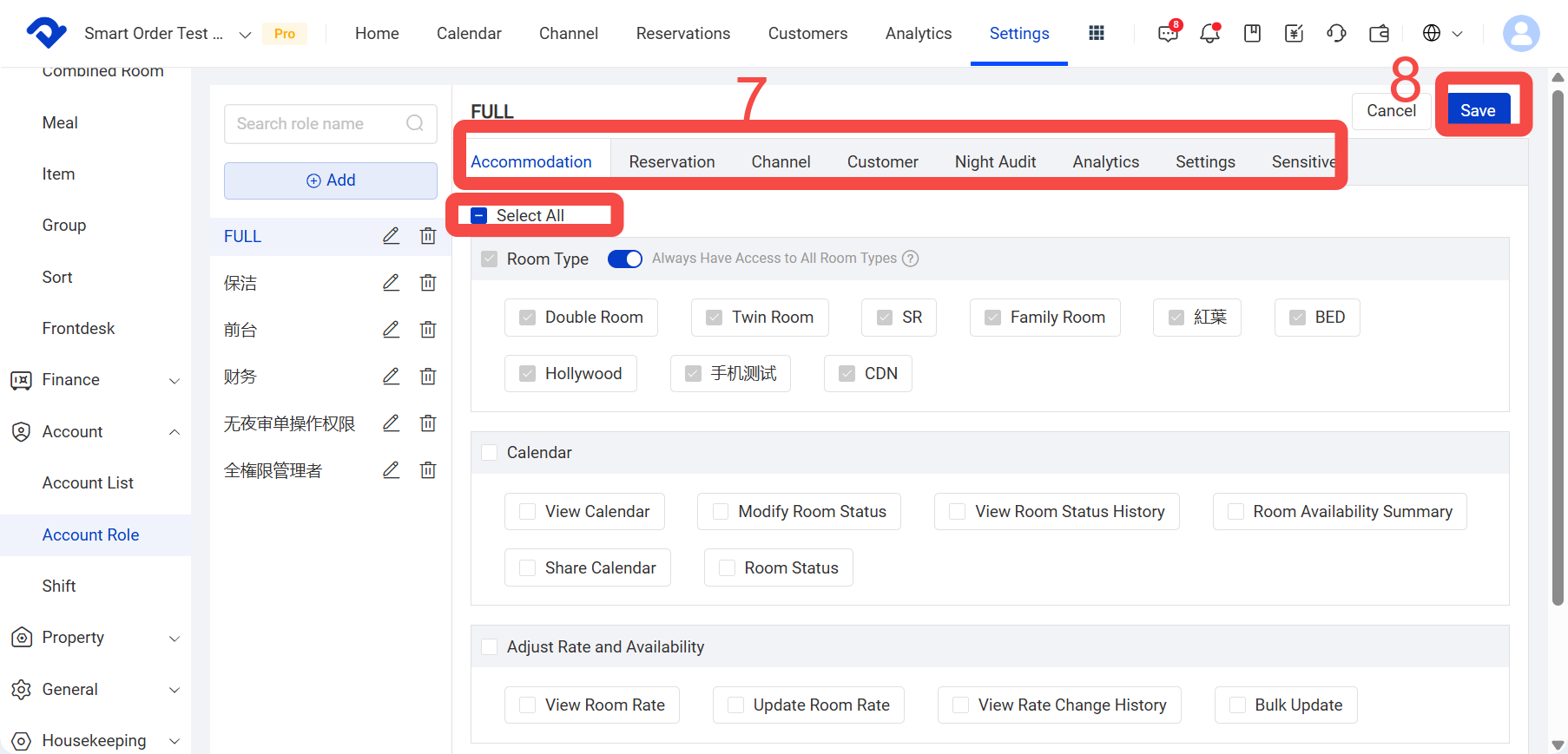
- Select each module and check the permissions you want.
- Click Save.
II. Add Employees
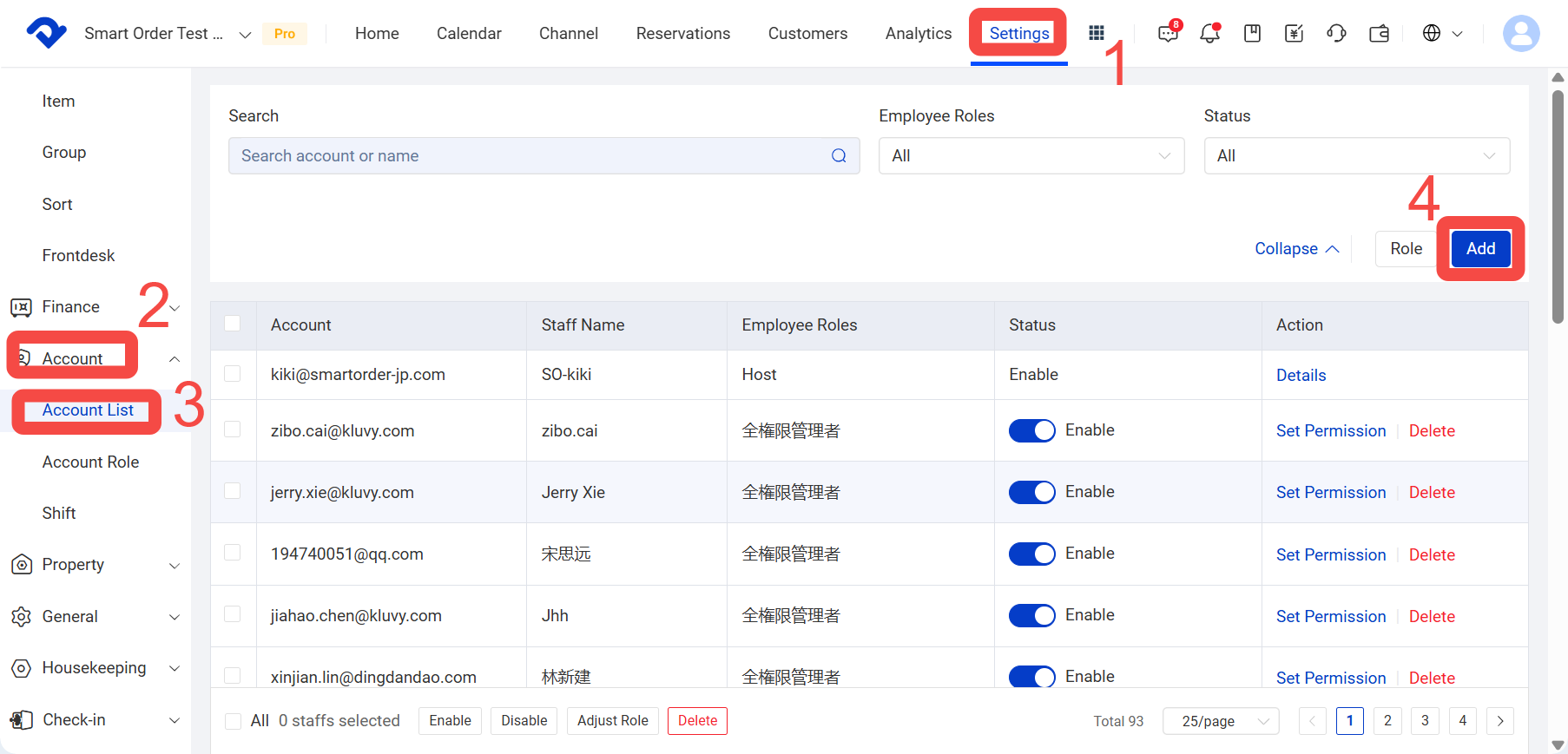
Path: Settings > Account > Account List > Add
- Click Settings.
- Click Account
- Click Account List.
- Click Add.
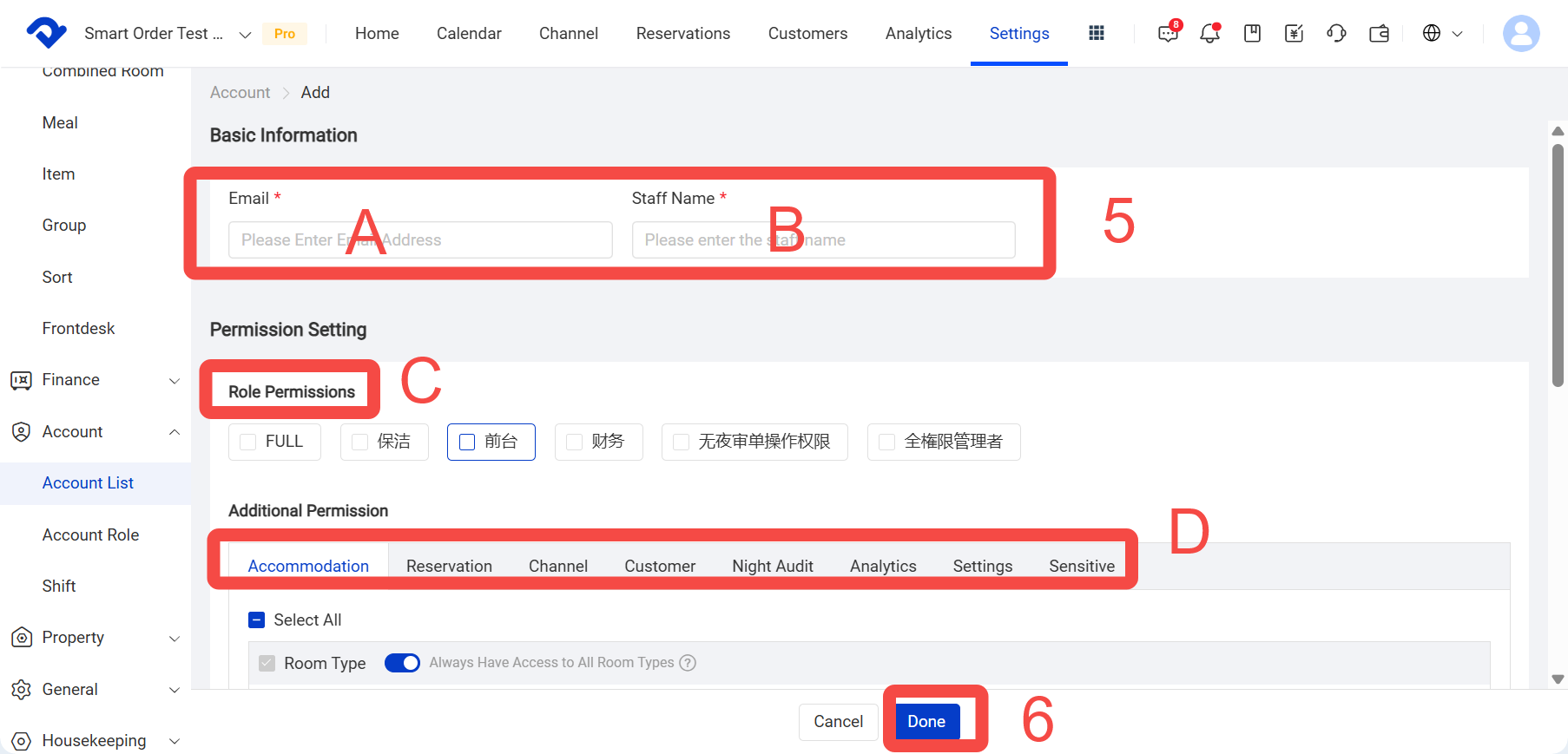
- Enter the employee’s email, name, and the required permissions, then click Save.
A. Employee email
B. Employee name
C or D. Select a role directly, or add other permissions - Click Done.
Note: If the email address has not been registered as a system account before adding the employee, the employee will need to select Log in with Verification Code or Forgot Password when logging in for the first time, and then set a password before logging in.