There are two methods to manually create bookings for Non-Channel / Offline Orders.
Method 1:
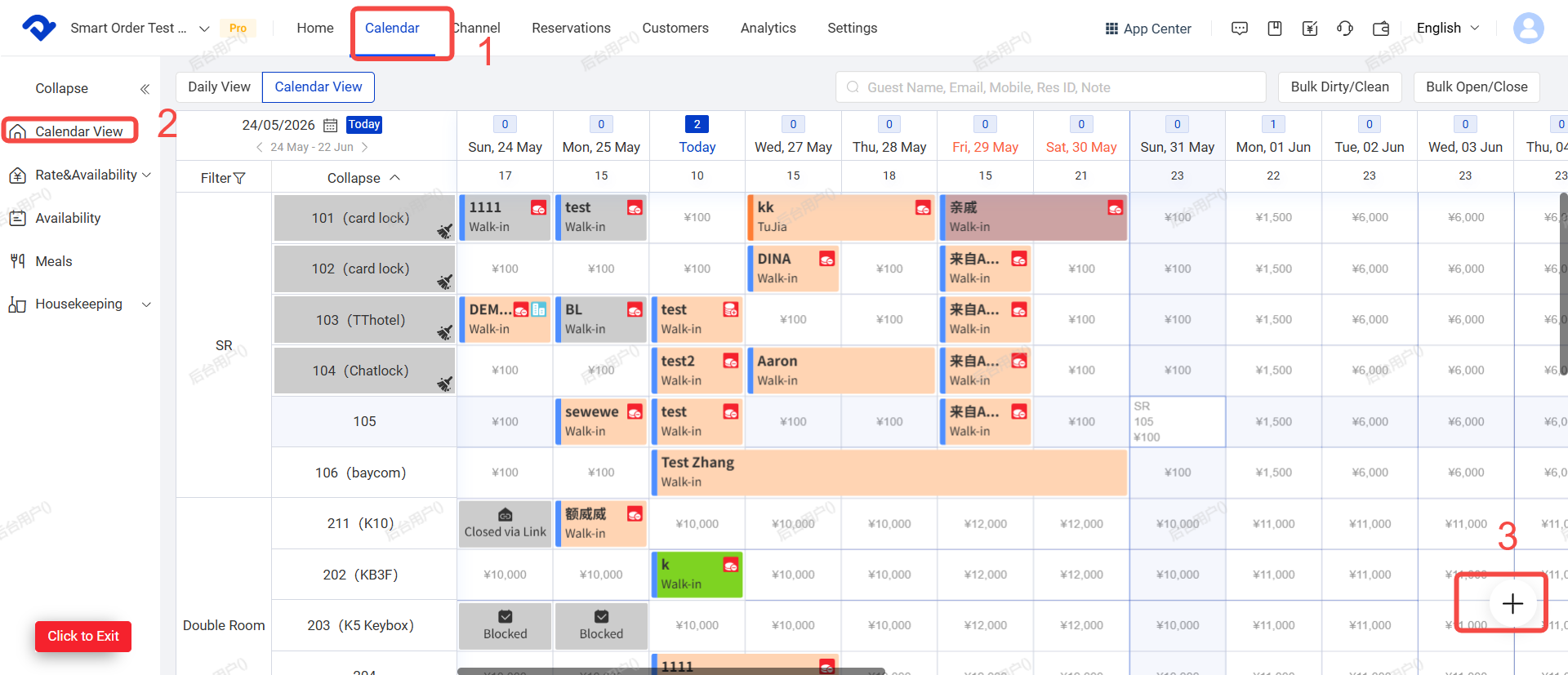
Path: Calendar → Click on an right empty blocks→ Reserve→ Submit
Steps:
- Go to Calendar page.
- Click on the empty blocks of the desired room and date.
- To select multiple nights: Click and drag left to right.
- To select multiple rooms: Click and drag top to bottom, or click each room individually.
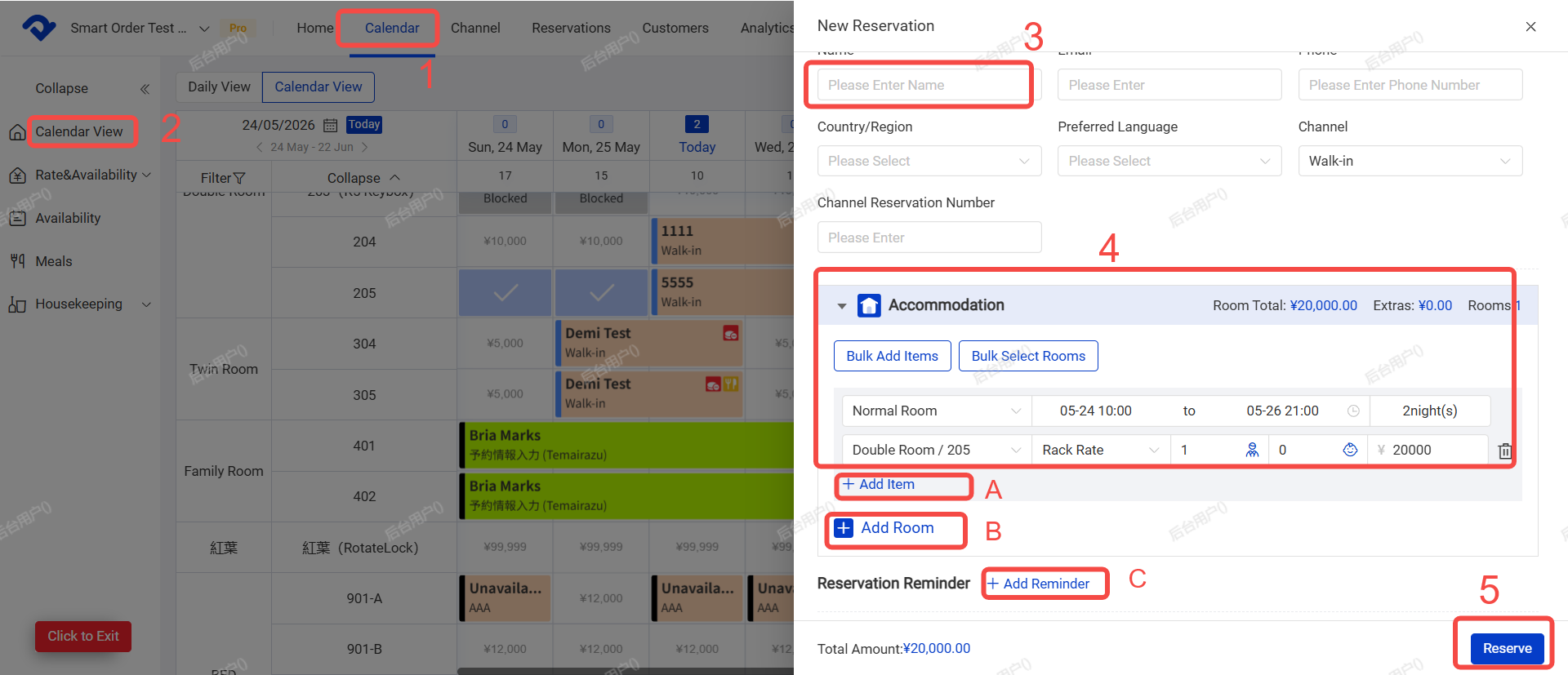
- Enter the guest’s name (other fields are optional).
- Set Check-in and check-out dates & times/Room type and room number/Number of guests/Room rate
A. You can add extra charges (e.g. cleaning fee, breakfast, etc.)
B. For multi-room bookings, click "+ Add Room "to add more rooms
C. You can set a system reminder (a popup will appear at the scheduled time)
- Click Submit Reservation.
Tip: If you are creating a same-day reservation, a "Direct Check-in" button will appear. You can click it to check the guest in immediately.
Method 2:
Path: Calendar → Bottom right "+" → Reserve→ Submit
Steps:
- Click Calendar.
- Click the "+" button at the bottom right corner.
- Click Reserve
- Enter the booking details (same as Method 1 for next step)
This method is more convenient when the booking date is far in the future, as you don’t need to scroll the calendar.