Payment Collection(Refund)/ Settle

Payment Collection (Refund)

This function is used to record payments or refunds for room fees, extra charges, deposits, etc.

Note: Orders that have not been fully paid will show a red mark in the top right corner. You can add payment or refund records to balance the order.
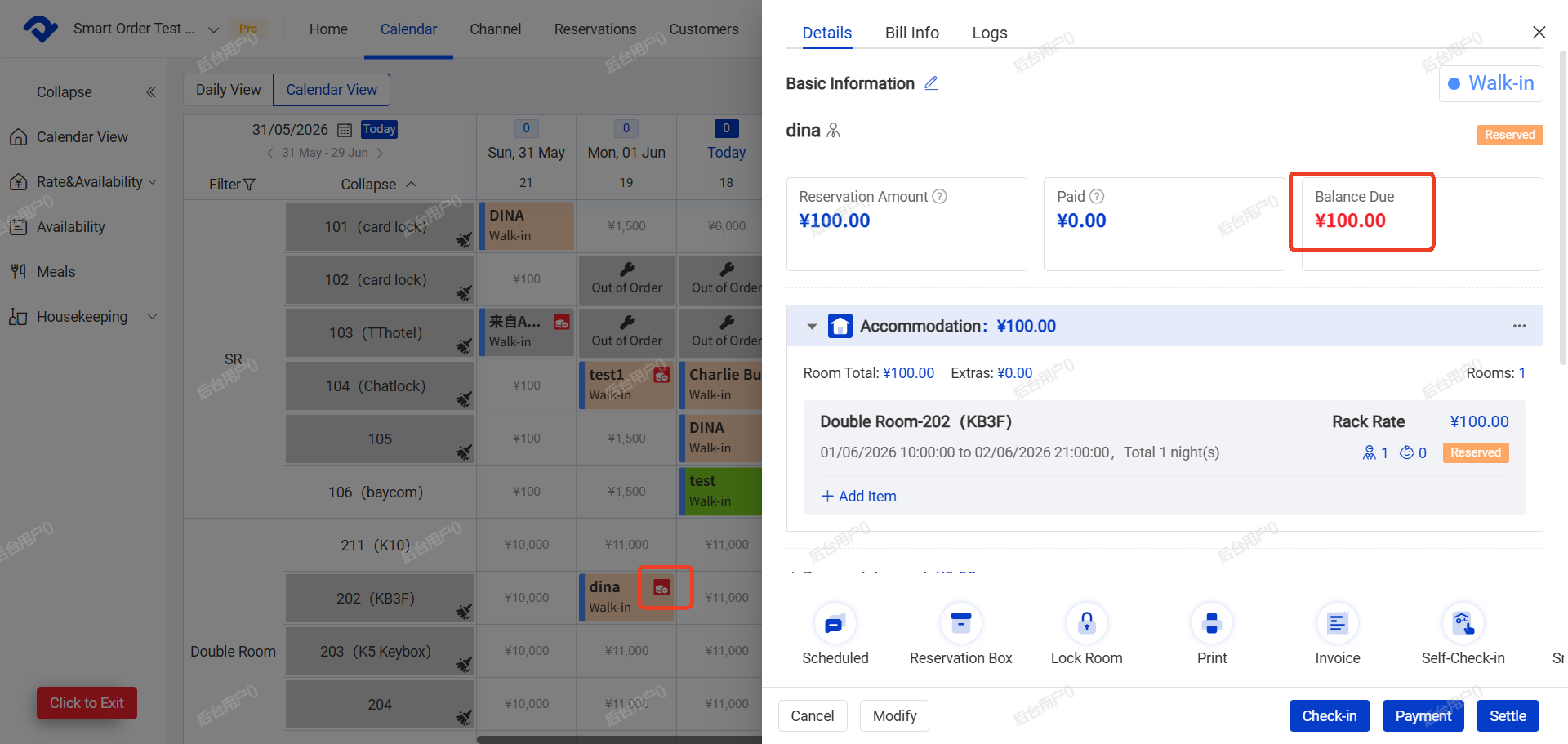
Payment Collection (Refund)

Steps:

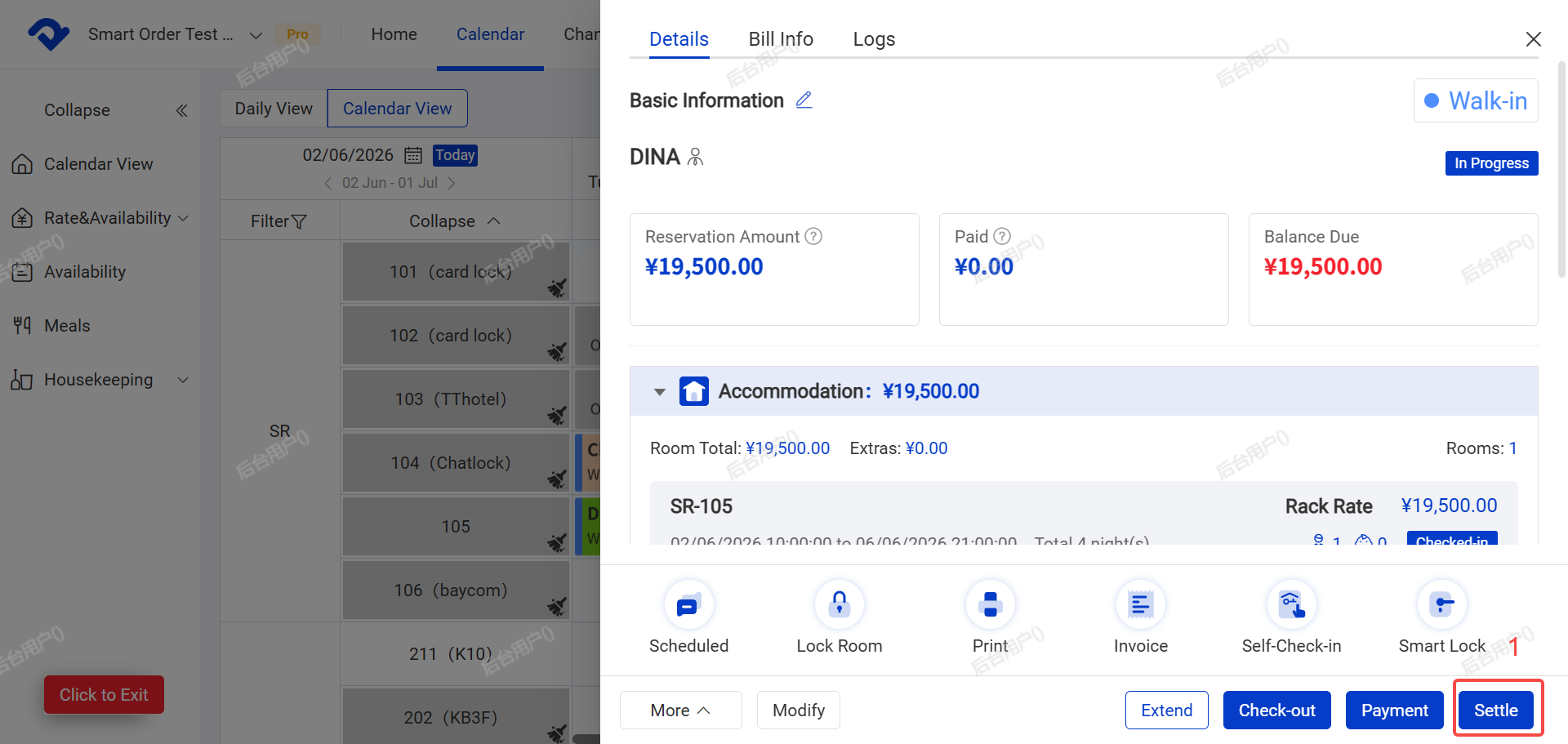
  1. Click Payment or Settle on the order.
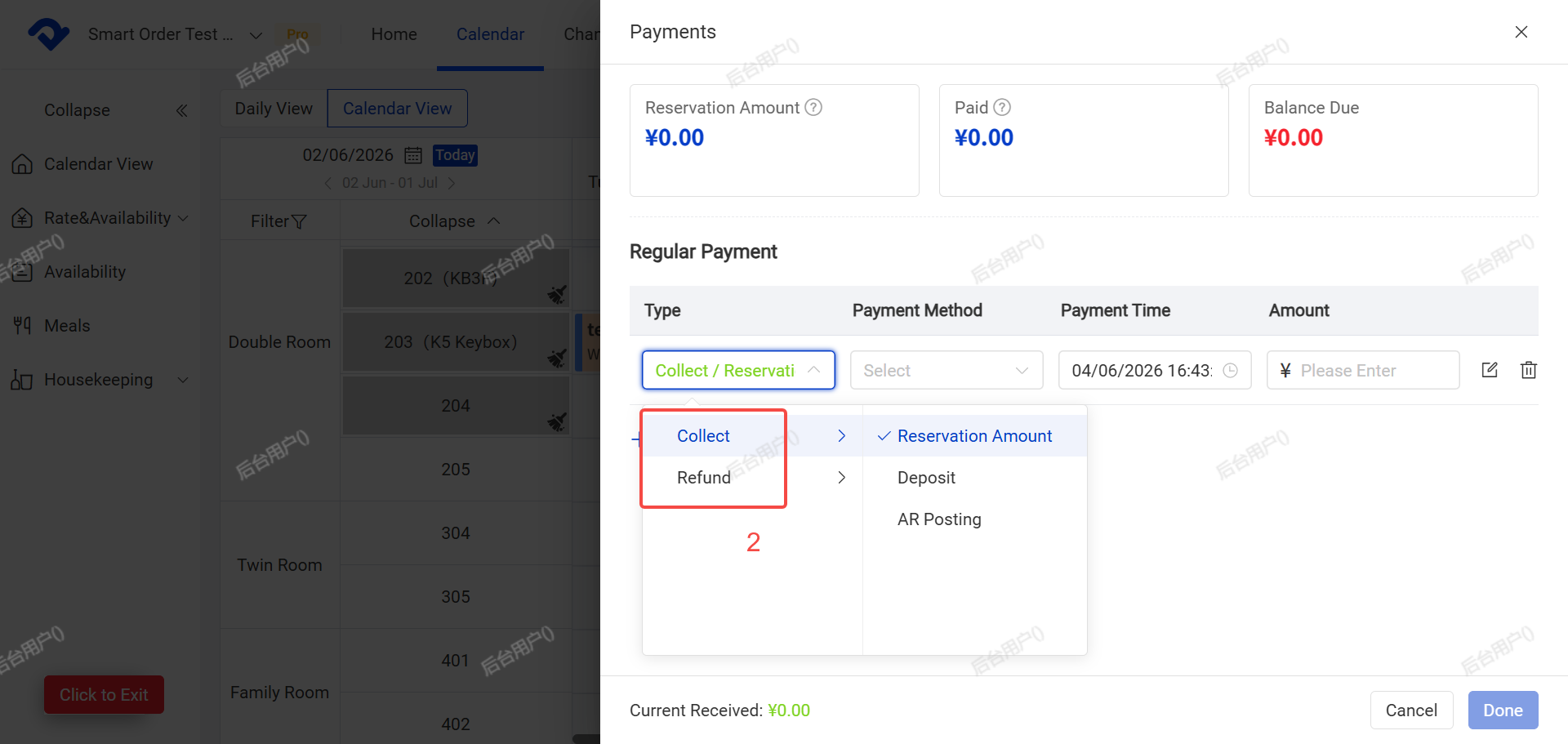
  2. Select the category:Payment (reservation amount, Deposit, etc.)or Refund
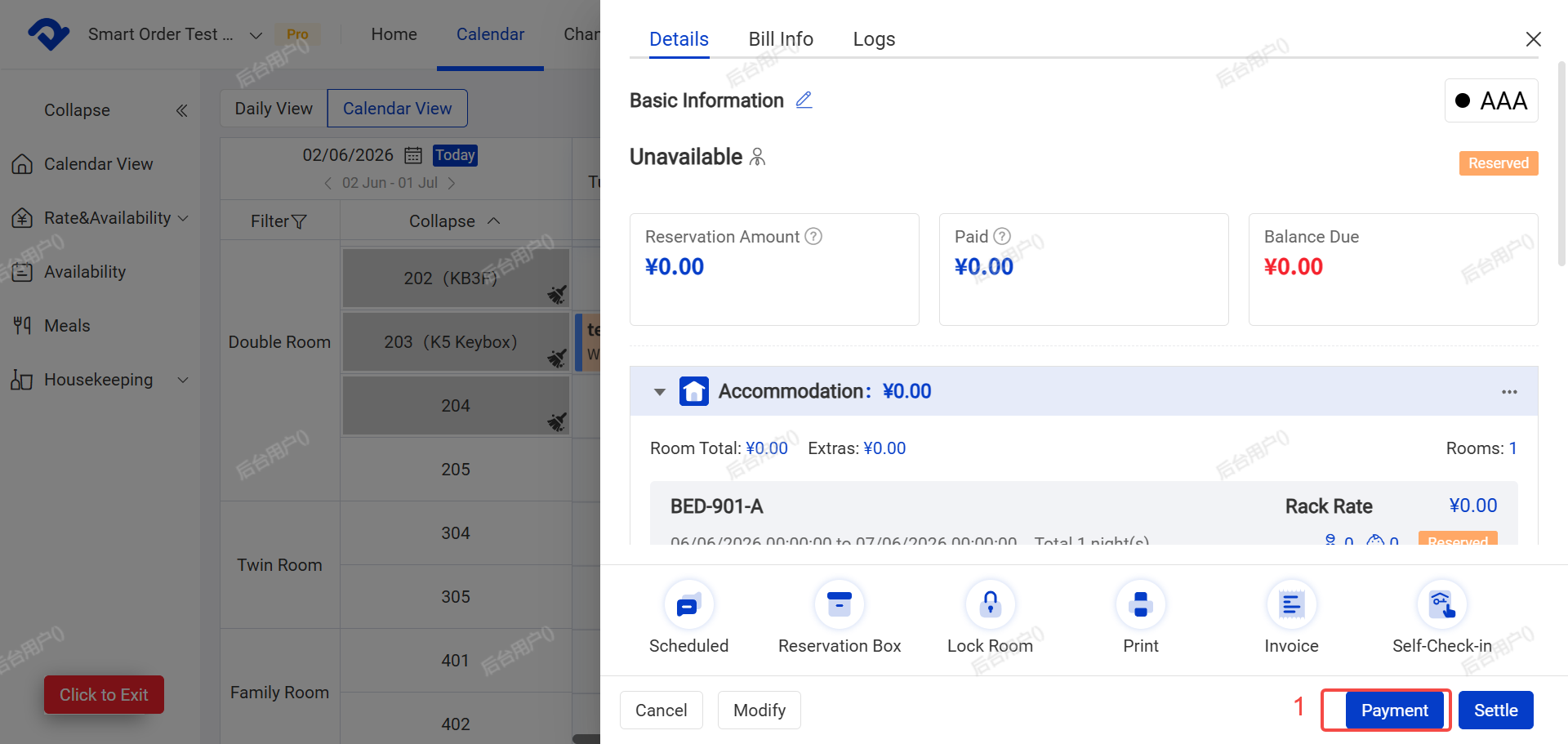
Select the category
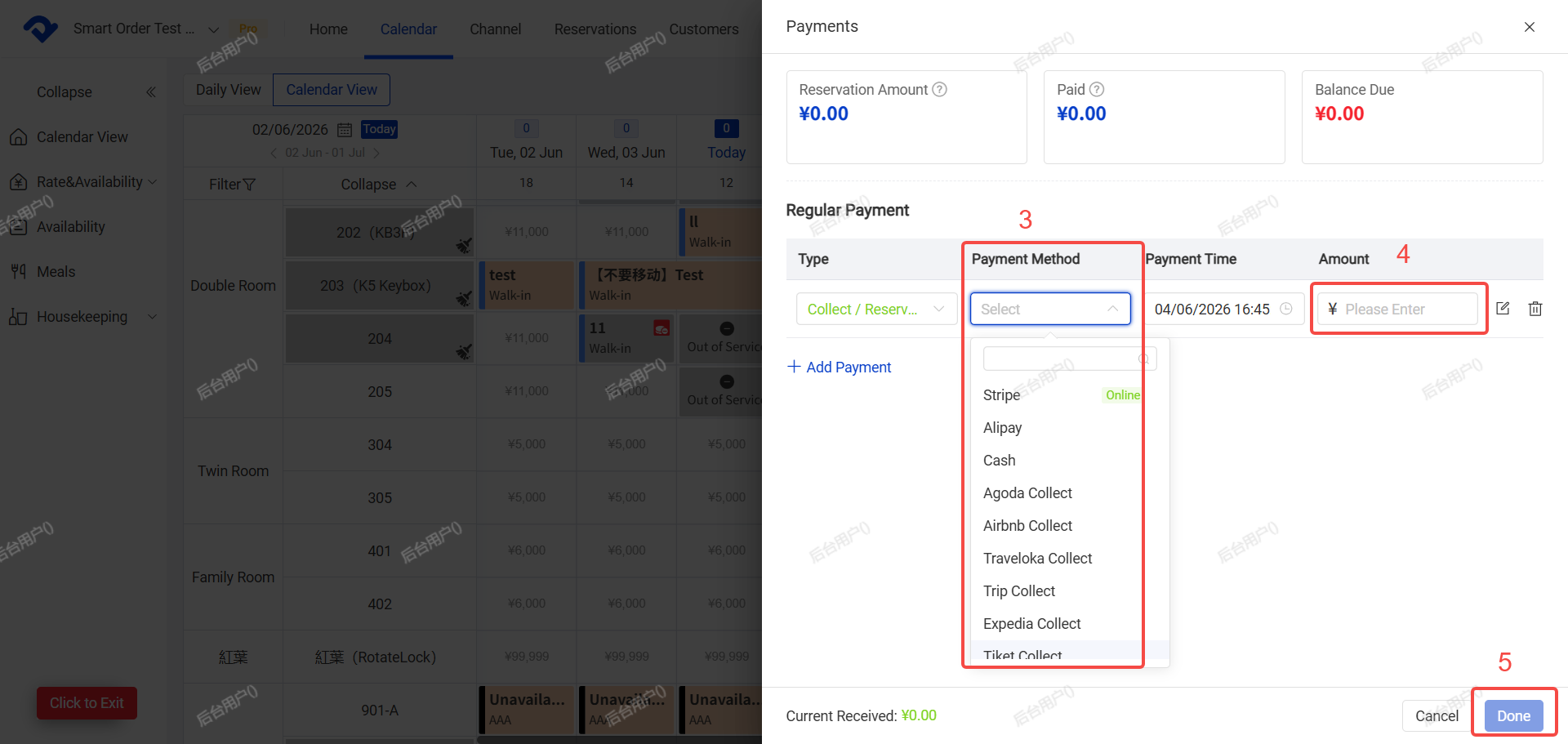
  1. Choose the payment method (supports custom payment methods).
  2. Enter and verify the amount.

A.You can add remarks if needed.

  1. Click Complete.
Choose the payment method (supports custom payment methods). Enter and verify the amount.

2. Settle

Important: You can only perform Settle after the guest has checked in. This function calculates the total order amount and closes the booking.

Steps:

  1. Click Settle on the order.
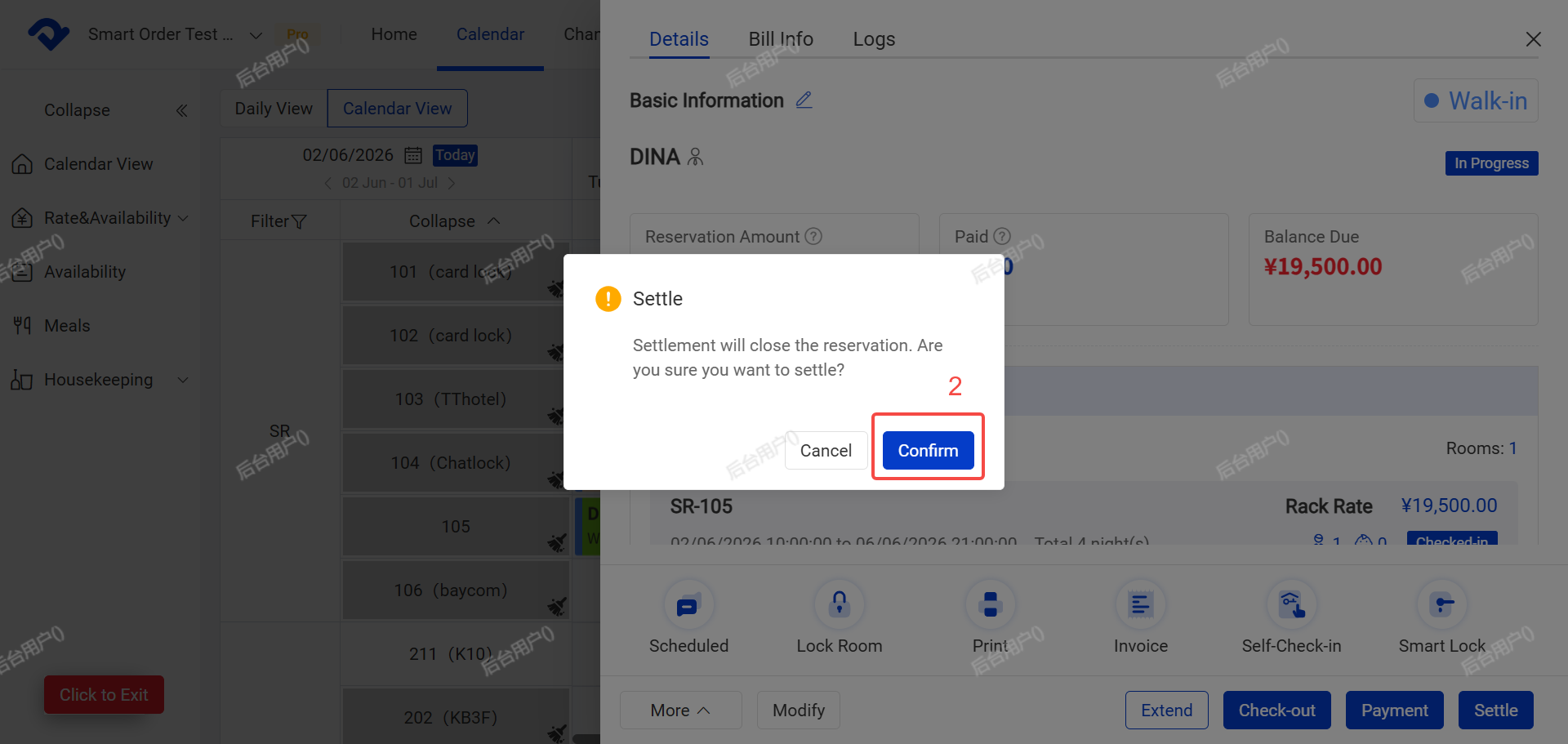
  2. Click Confirm.
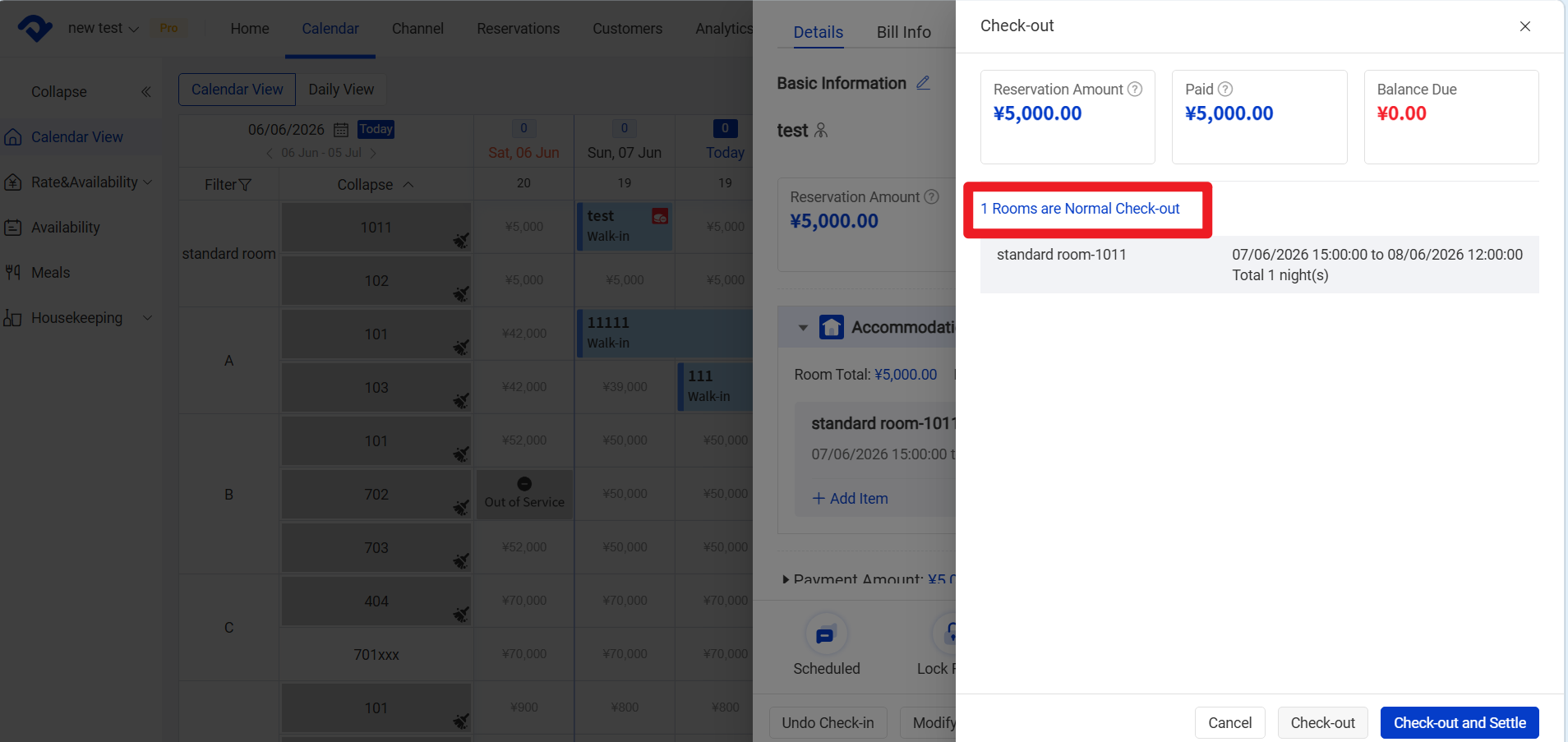
Click Confirm
  1. The system will show different options depending on the actual checkout date vs. the scheduled checkout date

3.1 Early Checkout:You need to select how to charge for the room fee, confirm the amount, and then complete the checkout.
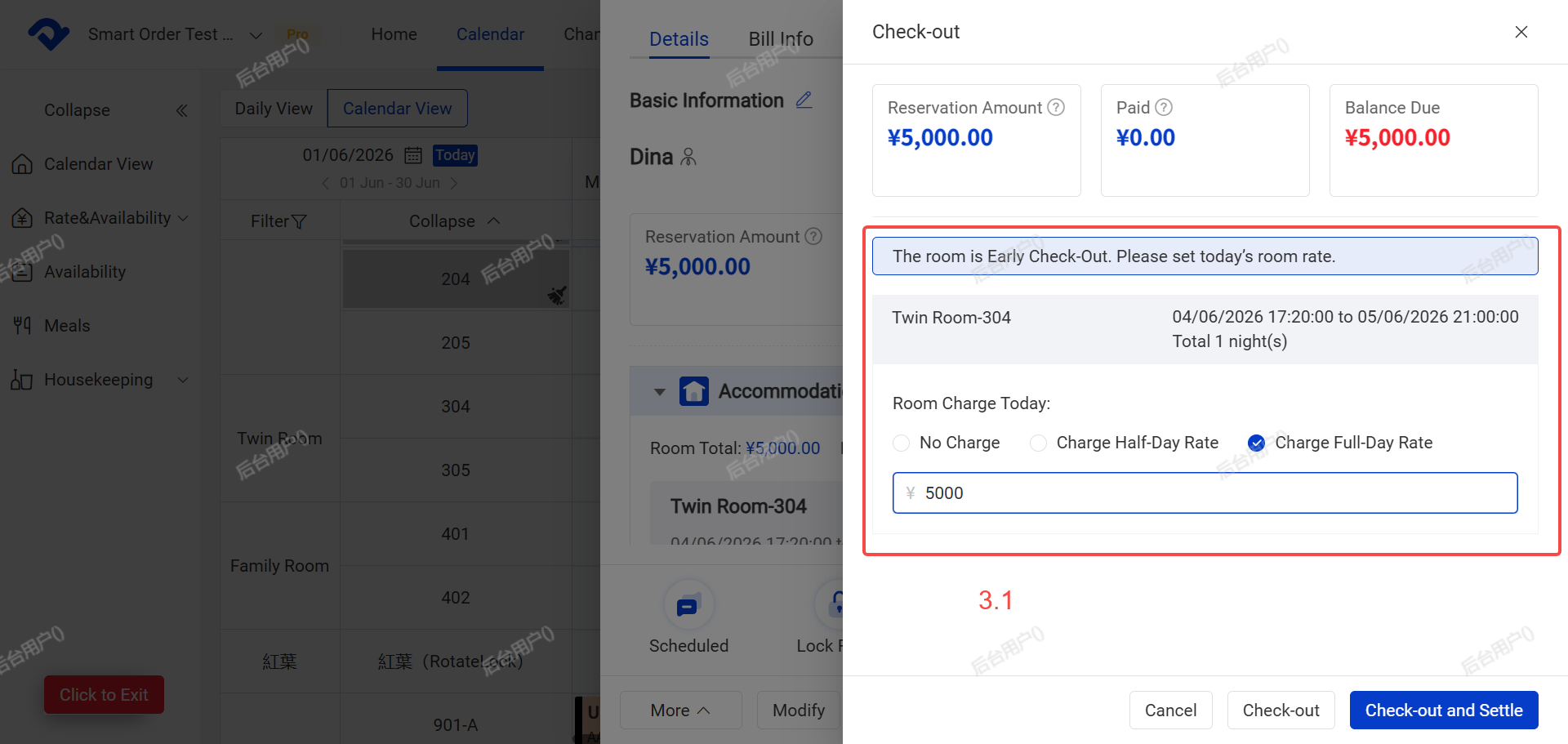
 Early Checkout

3.2 Normal Checkout

Normal Checkout
  1. Click Check out and Settle to finish.

After Settle:

  • The order status on the calendar will automatically change to Checked Out (default color is gray).
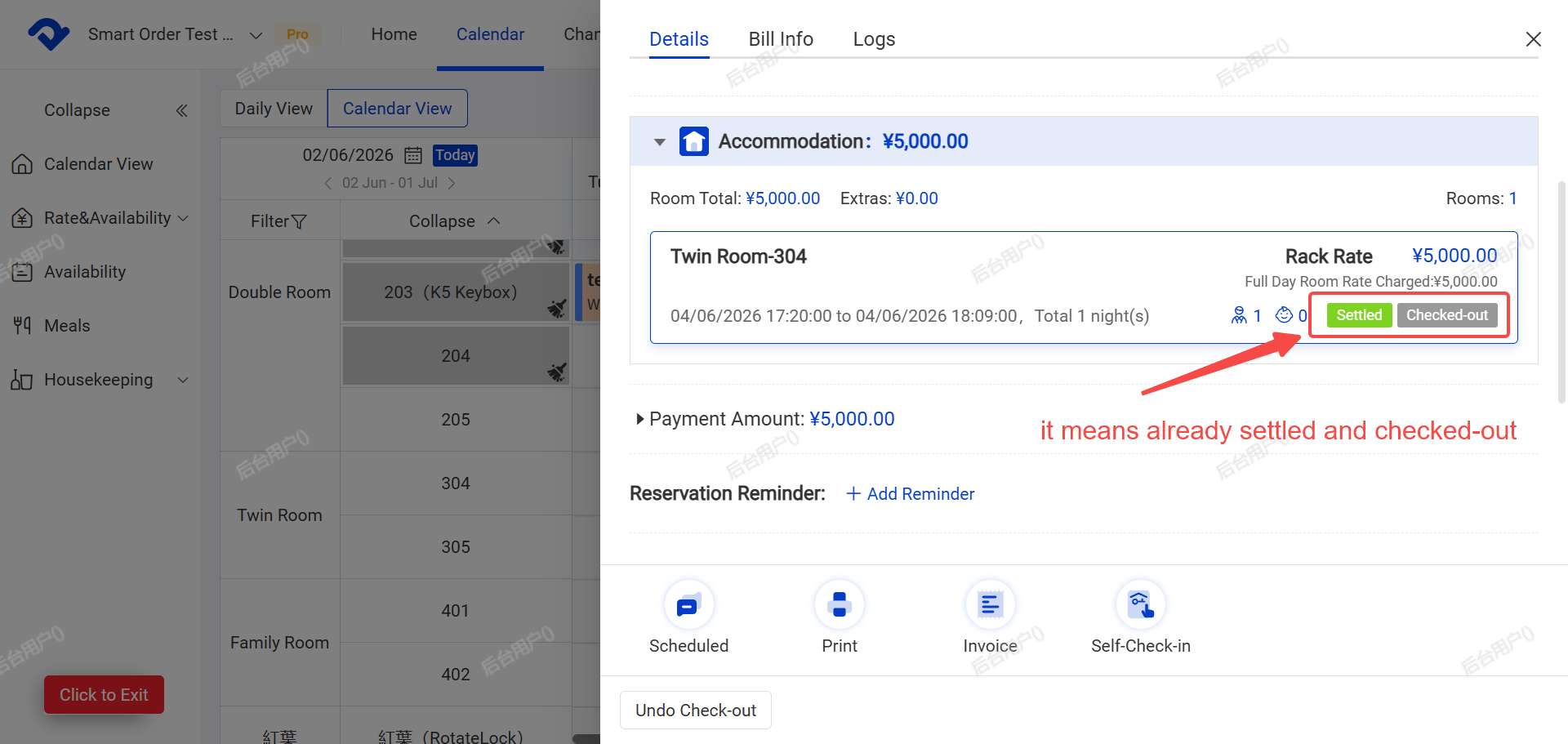
After Settle

Related Articles

Add or Remove Meals / Extra Items to Orders

After setting up items (refer to the article [Consumption Item Settings]), you can add the corresponding items to orders. Path: Calendar > Calendar View >Select an Order > Add Item Steps: 1. Open the order and click [Add item]. 2. Confirm the following information, then click [Done]: * A. Item

How to Connect PriceLabs

PriceLabs is a third-party dynamic pricing tool that helps you optimize your pricing strategy. Once connected with Smart Order PMS, it can automatically sync prices, minimum stay rules, and other settings to your connected OTAs (Airbnb, Booking.com, Trip.com, etc.). Note: PriceLabs integration is a third-party feature and is

How to Update Store and Property Information

Operation Path: Settings → Property→ Basic Information / Property Details → Edit 一. System Property Basic Information Follow these steps to update your store’s basic details: 1. Click Settings 2. Click Property 3. Click Basic Information 4. Click Edit 5. Update the information as needed, then click Save Key Fields: * A. Store

TT LOCK Door Lock connection

Door lock connection is a third-party feature and is not included in the standard Professional Edition. Please purchase the add-on if you need this function. I. Pre-Setup for TT LOCK 1. Add Locks in the TT LOCK App First Please add your locks in the TT LOCK App backend before

Self Check-in Setup Guide

Before setting up Self Check-in, please complete the property information first. I. Prepare the Self Check-in Email(Scheduled Msg) The foundation of Self Check-in is the message guests will receive. You should configure this first. 1. Go to Settings → General Settings → Scheduled Msg → Find Self Check-in Confirmation Email (it has

How to Manually Create a Reservation

There are two methods to manually create bookings for Non-Channel / Offline Orders. Method 1: Path: Calendar → Click on an right empty blocks→ Reserve→ Submit Steps: 1. Go to Calendar page. 2. Click on the empty blocks of the desired room and date. * To select multiple nights: Click and drag left