Convert the Dirty Room to Clean Room

Overview

Once the reservation has been settled, the room will be made dirty. After the housekeeping task has been completed, you need to convert the dirty room to a clean room.

Steps in Calendar View to convert to a clean room:

Go to the Calendar View and move to the dirty room, you will see Clean in the room. After you click the room, the status will become
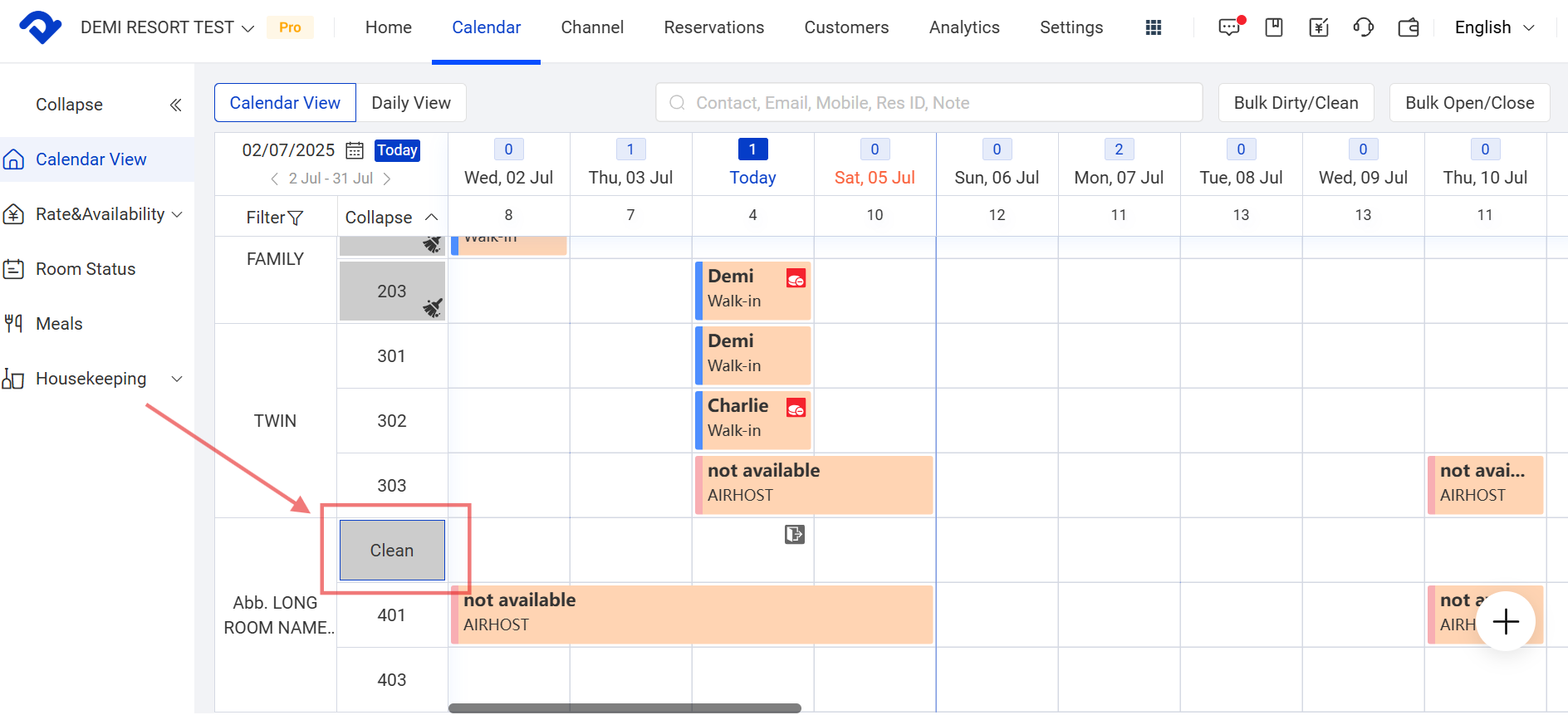
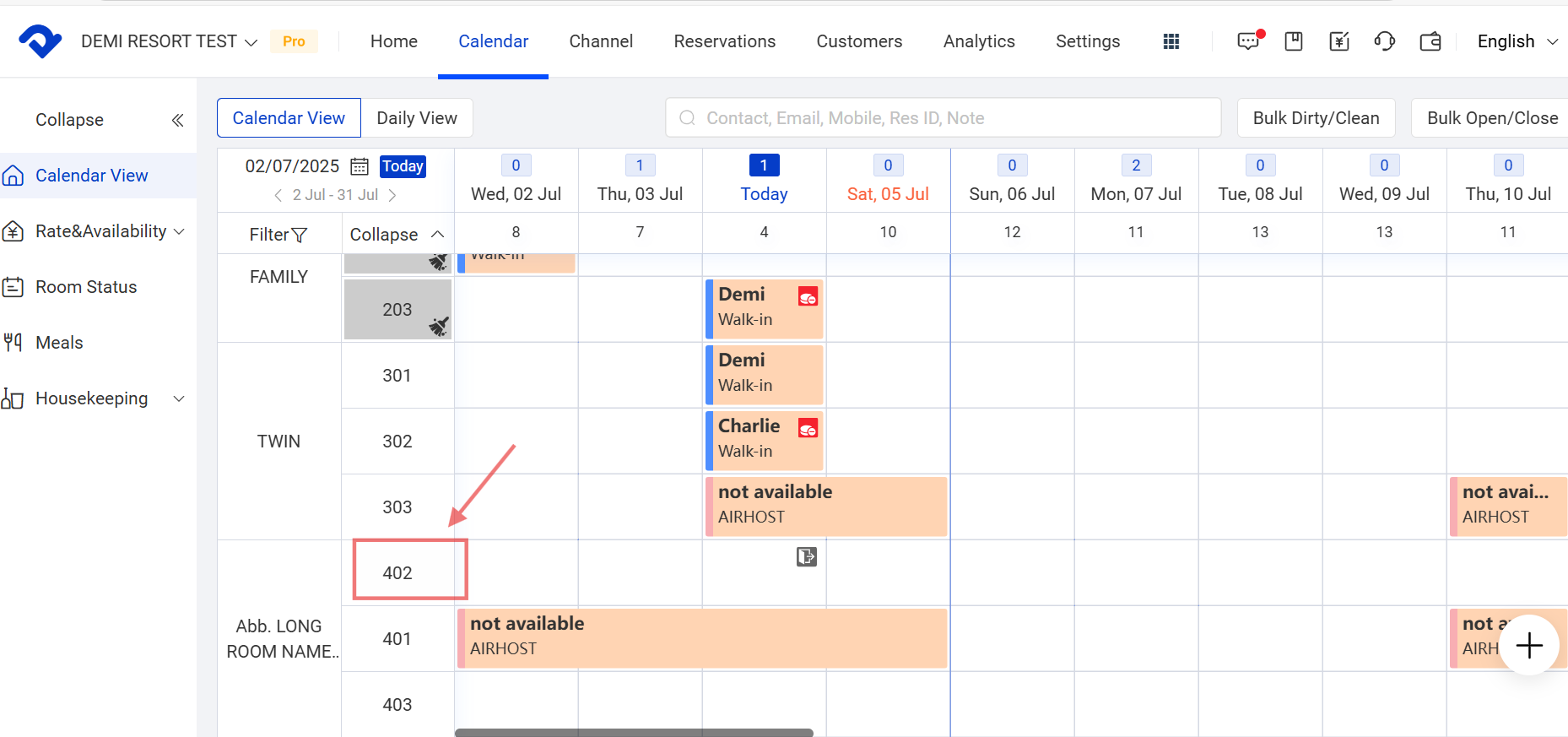
Calendar View
Clean room

Steps in Daily View to convert to a dirty/clean room:

Go to the Daily View, for the clean room, click it and it will show Dirty button. After you click it, the room will become dirty.
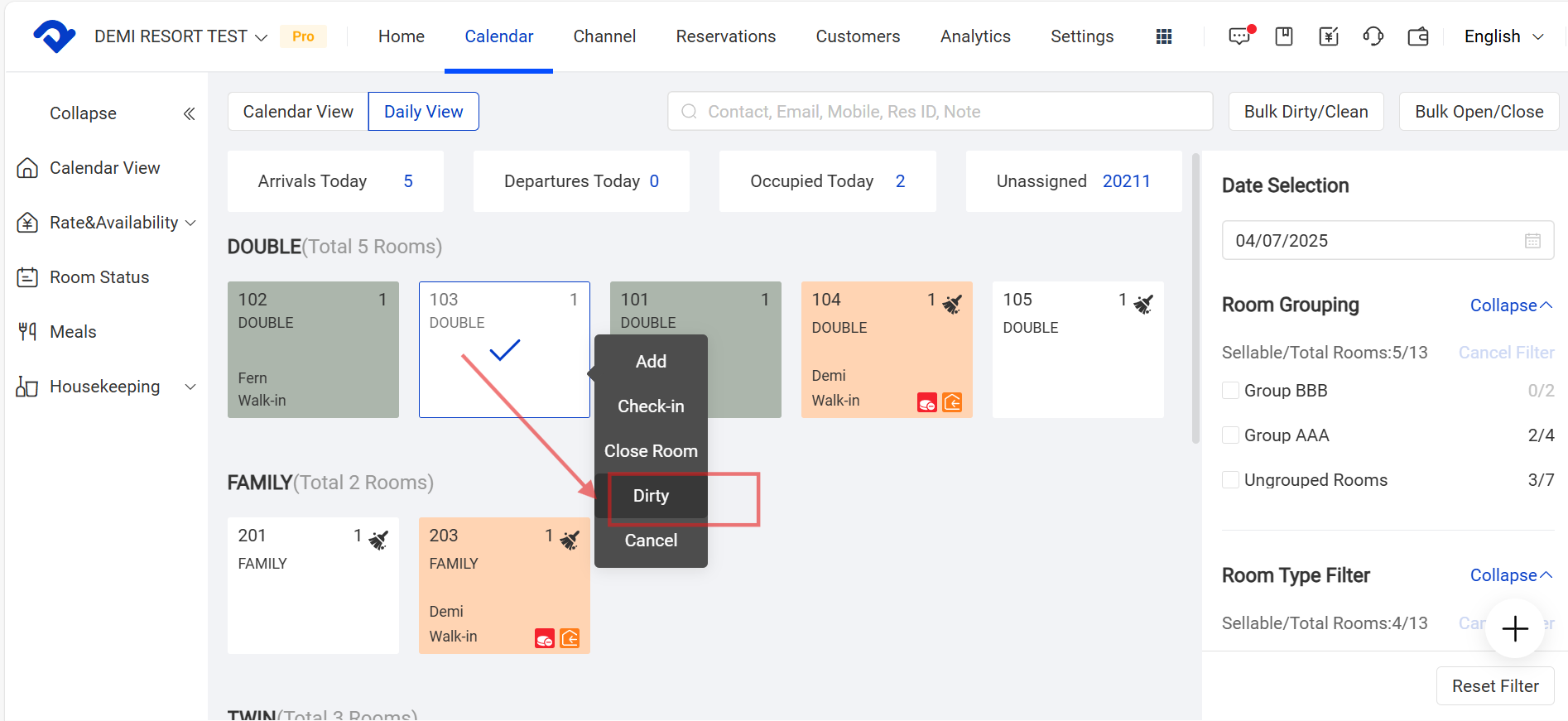
Dirty button

For the dirty room, you hover to the room and the pop-up box will show the Clean button. Click the button and the room will become clean.
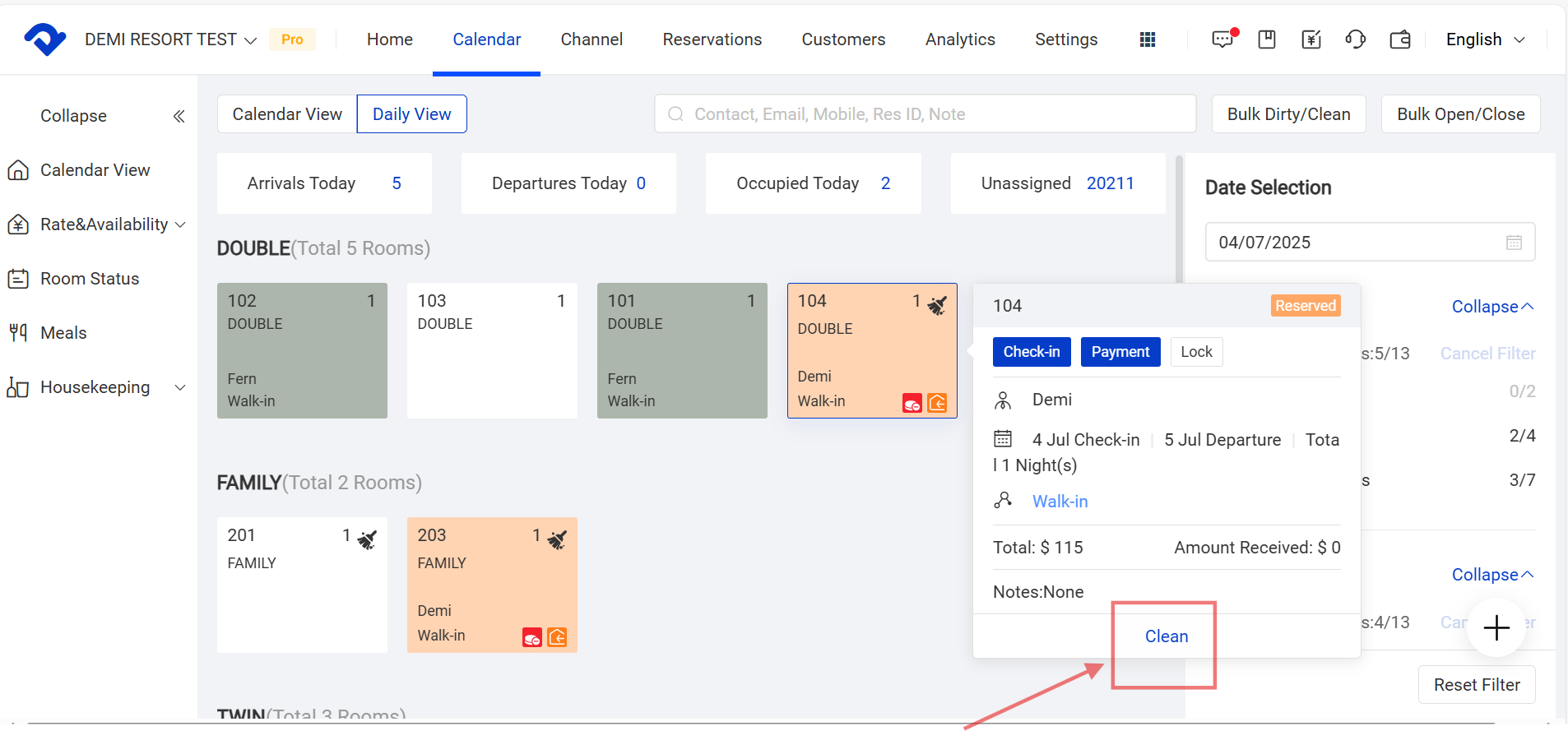

Clean button

Related Articles

Subscribe to the Professional Plan

Steps 1. Log in to your Smart Order account. ※If you were invited to join a property, you do not need to register an account. On your first login, select Log in with verification code or click Forgot Password to set a password, then log in to the property. Log

Agoda Direct Connect

After direct connection, the current PMS room status and rates will be pushed immediately to each connected channel. Please review the notes below and make sure the PMS pre-setup is completed before connecting. Pre-Connection Checklist – PMS Initial Setup | Smart OrderComplete the pre-connection checklist for PMS initial setup to ensure accurate

Holiday Settings Feature Guide

The Holiday Settings feature displays national holidays, source market holidays, custom holidays, and events in the PMS calendar. This helps businesses identify special dates in advance and check pricing, inventory, channel sales, and staffing arrangements based on actual operations. This feature is only used for calendar labels and reminders. It

Add New Staff Members

Path: Settings > Account > Account List > Add Steps 1. Click Settings. 2. Click Account 3. Click Account List. 4. Click Add. 5. Enter the employee’s email, name, and the required permissions, then click Save. A. Employee email B. Employee name C or D. Select a role directly,

How to Modify Role and Account Permissions

Use Role Management to preset multiple roles with different permissions, such as housekeeping, Property A staff, or administrators, and then assign those roles to different accounts in batches. I.Modify Role Permissions You can add or remove permissions for all accounts assigned to the same role at once. 1. Navigate

Role Management / Add Employees

Path: Settings - - Account - Account Role I. Role Management Role Management lets you preset multiple roles with different permissions, such as housekeeping, Property A staff, or administrators, and then assign those roles to different accounts in batches. 1. Navigate to Settings - - Account - Account Role 2.