Getting started with your Property

Create Property

1. Click on Property Name in the upper left corner of the page

2. Click Create a Property

Click Create a Property

3. Fill in the hotel information

Note: The following information cannot be modified after creation

• Property Type

• Country

• Currency
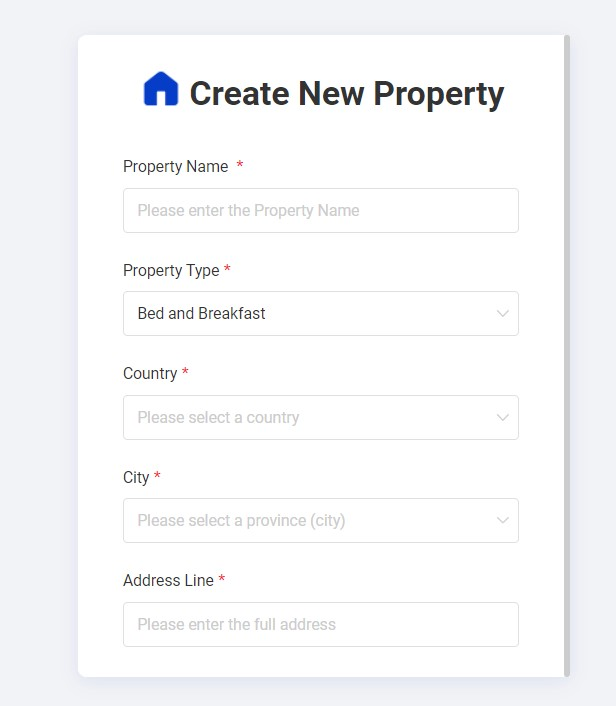
Create New Property

4. The new property has been created

Edit Property Info

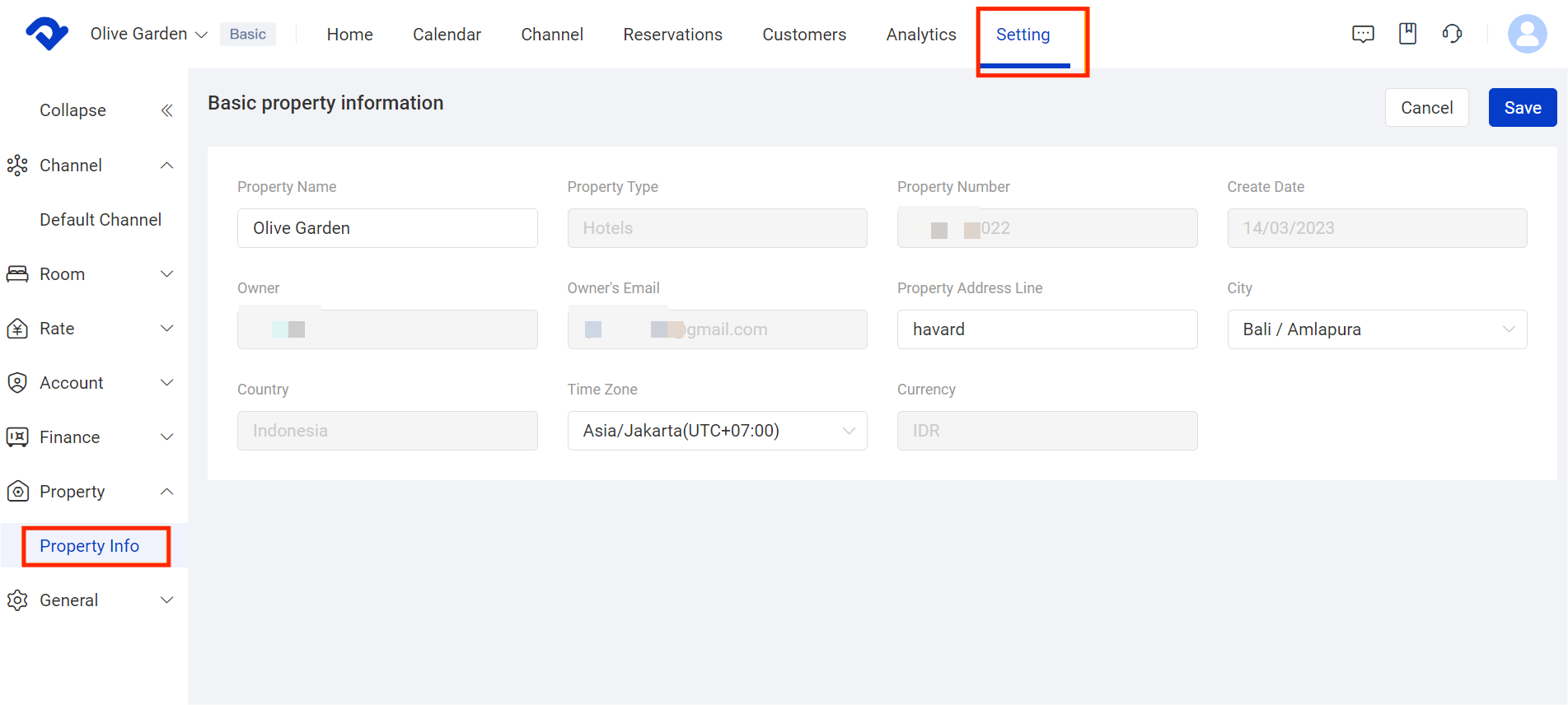
  1. Go to Settings
  2. Open the Property drop-down
  3. Click on Property Info
  4. Edit property information
  5. Click on Save
Edit Property Info

Delete Property

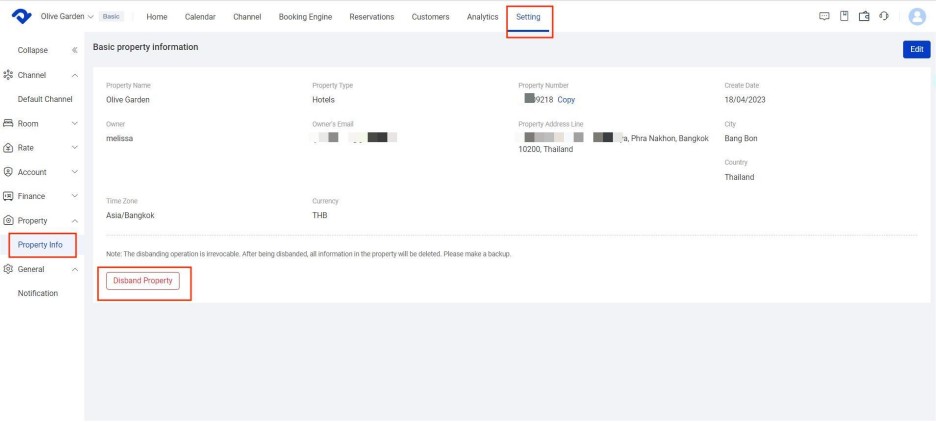
  1. Go to Settings
  2. Open the Property drop-down
  3. Click on Property Info
  4. Click on Disband Property
How To Delete Property

5. This will prompt a warning message, where you can click on Disband to confirm the removal. Read this warning message carefully before proceeding further.
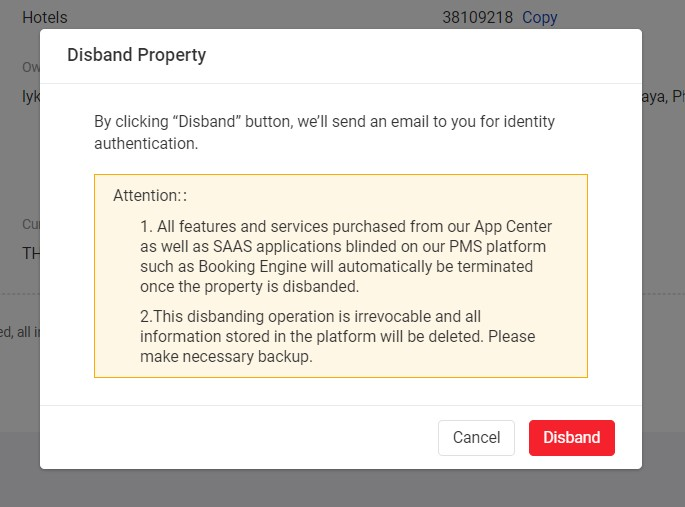
Disband Property

6. Our system will automatically send the confirmation email to you. Click confirm to disband your property.
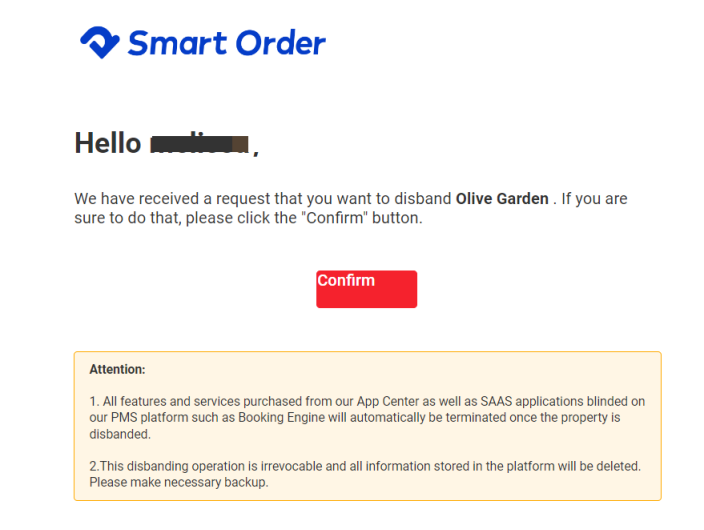
Confirm Email

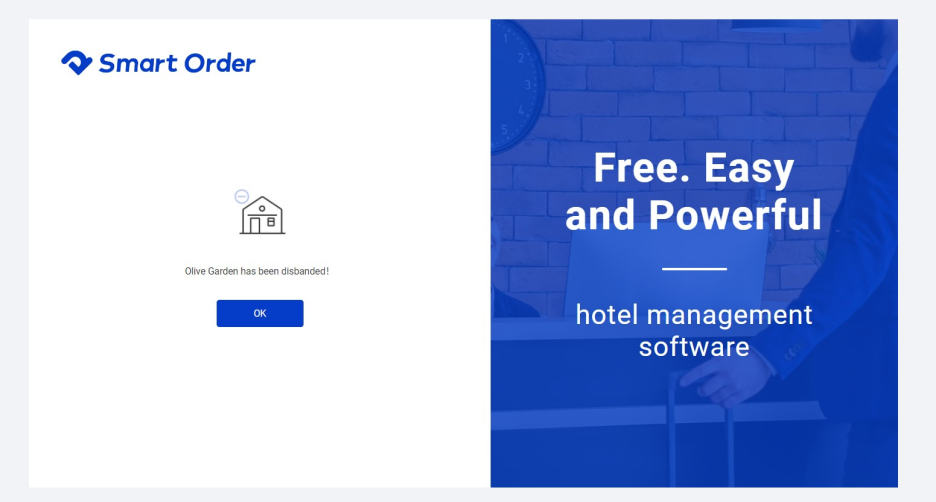
7. The property has been disbanded.

Disbanded Property

Related Articles

Consumption Item Settings

Path: Settings > Room > Item > Add Operation Steps: 1. Click [Settings] 2. Click [Room ] 3. Click [Item] 4. Click [Add ] 5. Fill in the information below, then click [Complete] * A. Category * B. Name (e.g., Cleaning Fee) * C. Rate Note: For instructions on how to add more extra

Add or Remove Meals / Extra Items to Orders

After setting up items (refer to the article [Consumption Item Settings]), you can add the corresponding items to orders. Path: Calendar > Calendar View >Select an Order > Add Item Steps: 1. Open the order and click [Add item]. 2. Confirm the following information, then click [Done]: * A. Item

How to Connect PriceLabs

PriceLabs is a third-party dynamic pricing tool that helps you optimize your pricing strategy. Once connected with Smart Order PMS, it can automatically sync prices, minimum stay rules, and other settings to your connected OTAs (Airbnb, Booking.com, Trip.com, etc.). Note: PriceLabs integration is a third-party feature and is

How to Update Store and Property Information

Operation Path: Settings → Property→ Basic Information / Property Details → Edit 一. System Property Basic Information Follow these steps to update your store’s basic details: 1. Click Settings 2. Click Property 3. Click Basic Information 4. Click Edit 5. Update the information as needed, then click Save Key Fields: * A. Store

TT LOCK Door Lock connection

Door lock connection is a third-party feature and is not included in the standard Professional Edition. Please purchase the add-on if you need this function. I. Pre-Setup for TT LOCK 1. Add Locks in the TT LOCK App First Please add your locks in the TT LOCK App backend before

Self Check-in Setup Guide

Before setting up Self Check-in, please complete the property information first. I. Prepare the Self Check-in Email(Scheduled Msg) The foundation of Self Check-in is the message guests will receive. You should configure this first. 1. Go to Settings → General Settings → Scheduled Msg → Find Self Check-in Confirmation Email (it has