User invitation & permissions

User invitation

In the Account module, users can add new users to their property account.

Permissions

The user's permissions will determine which features the user can access in the Smart Order.

How to invite?

1. By clicking the "Add" button in account page, the page will jump to the add account page.
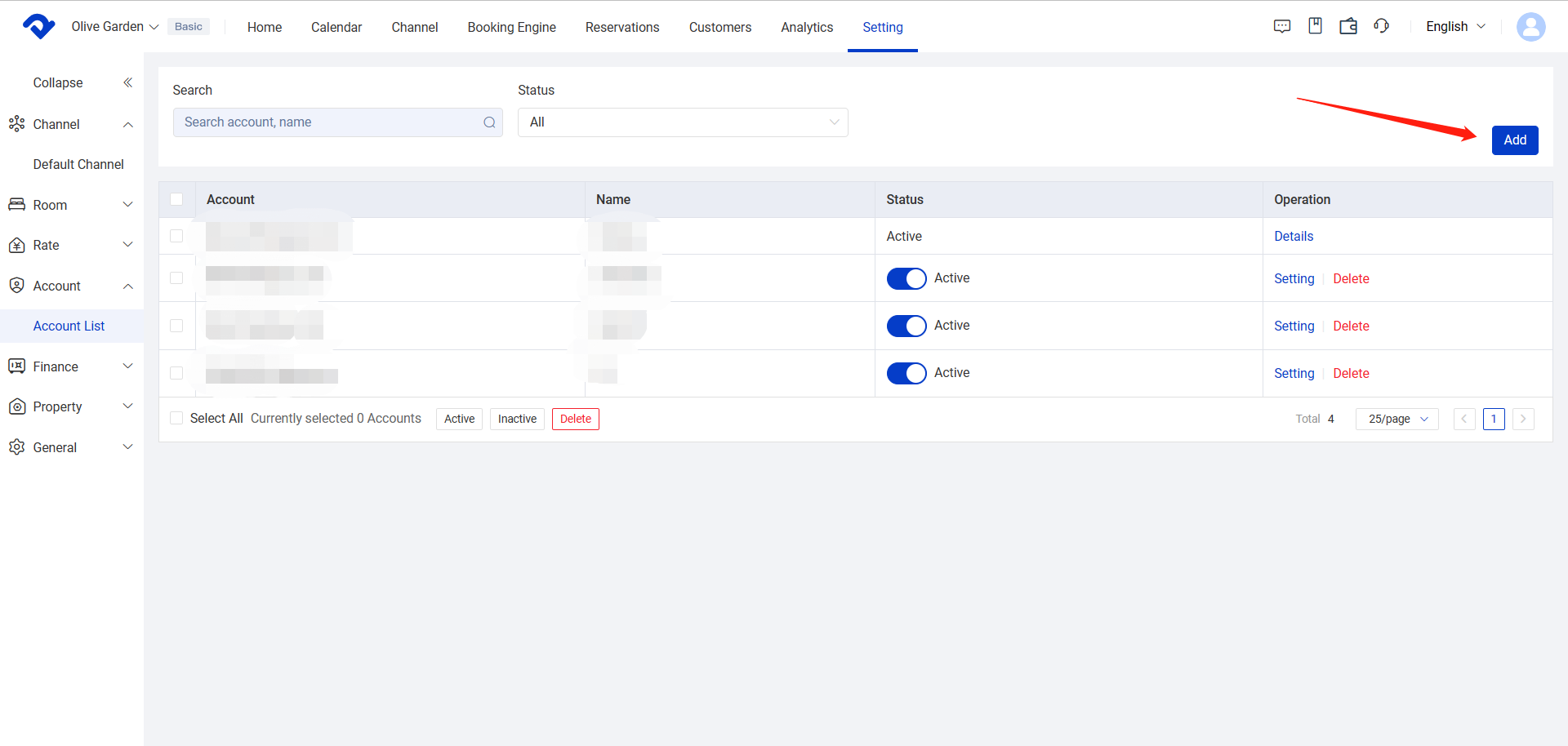
2.pngclicking the "Add" button in account page

2. Users need to enter the email and name of the person being invited, as well as set the user's permissions.

3. After entering the user's email, name, and configuring their permissions, click the "Save" button to confirm the invitation.

Noted:

In order to ensure all features are available, please select all permission settings, including "Accomodation, Channel, Customers, Statistics, Others."
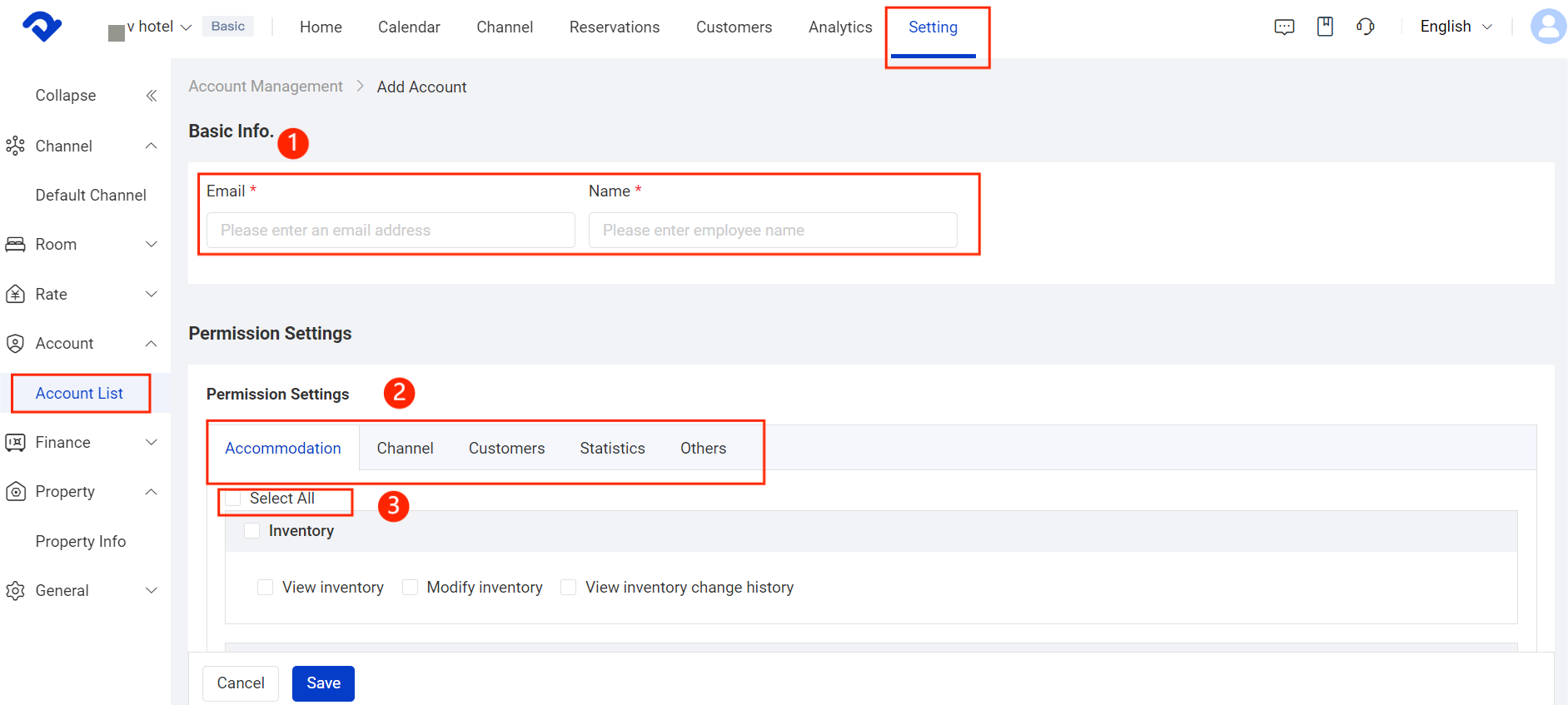
enter the email, name; select permission setting

4. An invitation email will be sent to the invited user's email address. When the invited user clicks the "Accept the invitation" button in the email, they will be redirected to the login page.
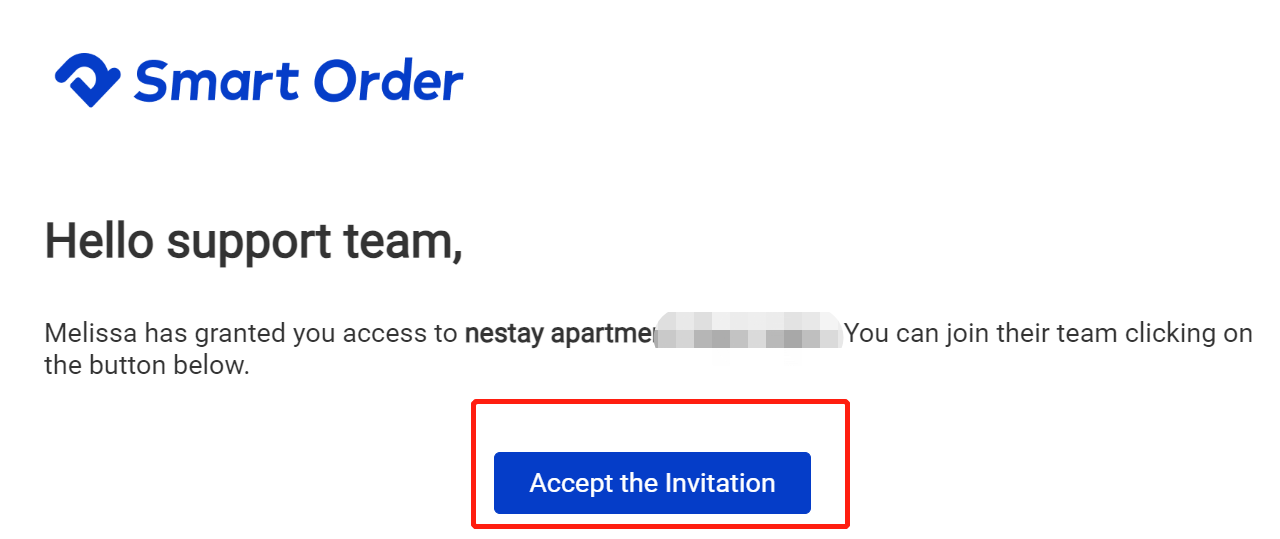
Accept the invitation

5. If the user already has an account, they can log in to the Smart Order and access the property they were invited to. If the user does not have an account, they must first register for an account before logging in to the Smart Order and accessing the property they were invited to.
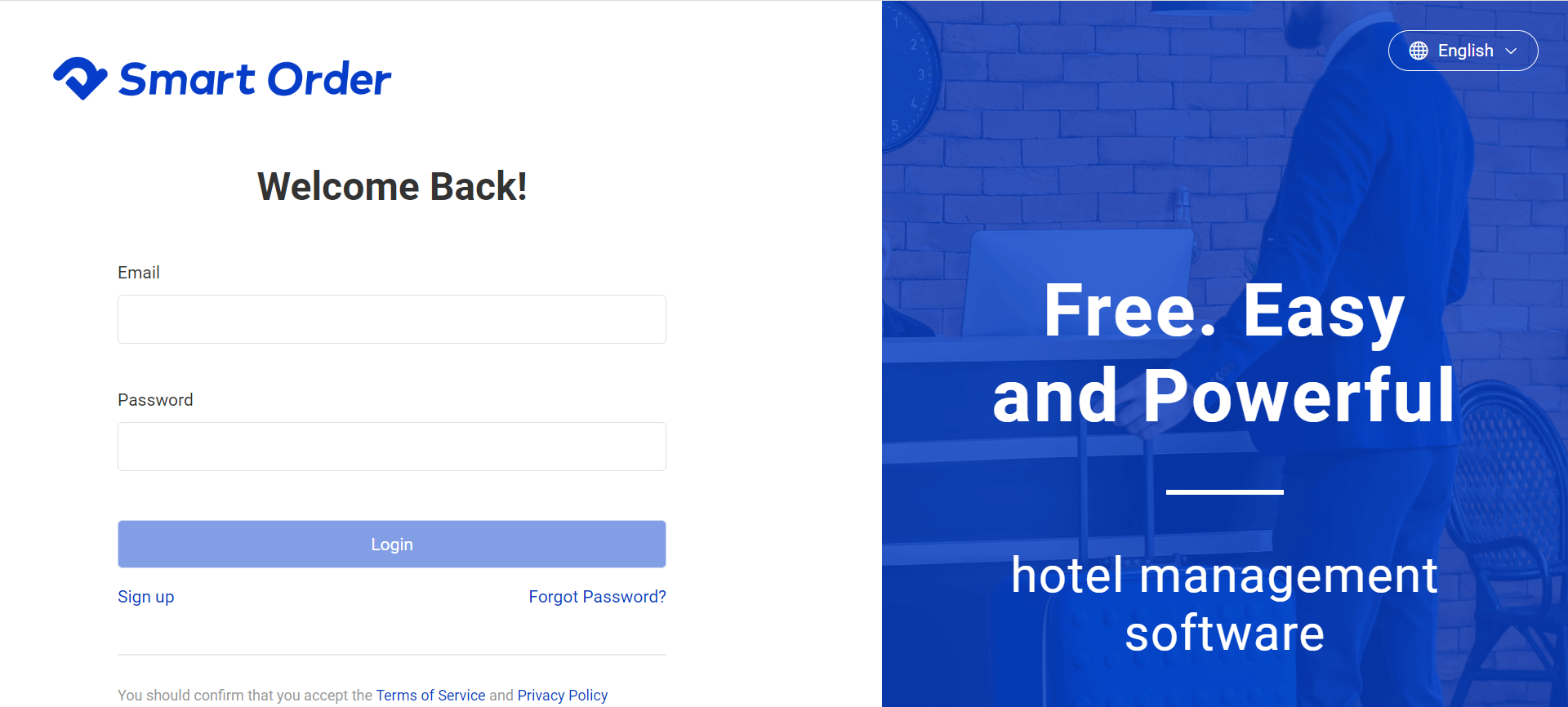

log in

Related Articles

Close / Open Rooms

Managing room availability is essential to ensure accurate inventory and avoid overbooking. Method 1 Close & open room(Manual for specific Selection) Close room Path: Calendar → Calendar View → Close Room 1. Go to Calendar 2. Select the room you want to close 3. Click Close Room 4. Then Choose the

How to set up Multiple Occupancy Rates (OBP)

A. What is OBP? Occupancy Based Pricing (OBP) is a pricing mode that automatically adjusts room rate based on the number of guests. If you need to set additional charges based on the number of guests (e.g., charge extra when guests exceed the base occupancy).You can set up

Automated Messaging – Simple & Clear Guide

I. What This Feature Does? “Automated messages ”let system Automatically sends messages to your guests at the right time. • You just write the message once. • Set when it should be sent. • The system sends it automatically to every guest that matches your rule. For example :If you set a rule

Convert the Dirty Room to Clean Room

Overview Once the reservation has been settled, the room will be made dirty. After the housekeeping task has been completed, you need to convert the dirty room to a clean room. Steps in Calendar View to convert to a clean room: Go to the Calendar View and move to the

Set up Calendar Display Settings

To satisfy your idea calendar view, you may set up the calendar display settings. You can set up the view by room type, room number, or group. You may view the daily calendar by Daily View settings. You may also change the color to display. Steps to Set up the

Set Up An Hourly Room and Its Night Count

Overview We support hourly room set-up if you need it. The hourly room night count can be set at your convenience. Let's set up the proper design to match your preference. Set Up An Hourly Room: Step1: Go to the Settings page. Select Hourly Room from the Room