Initial Set Up

Before you map the Smart Order channel manager to any channel, please make sure you have completed the instructions in this guide.


Step 1 - Set up room type and rate plan in the PMS

  1. Please set up room type before connecting to any channel.
Click on Settings > Room > Room Type > New Room Type
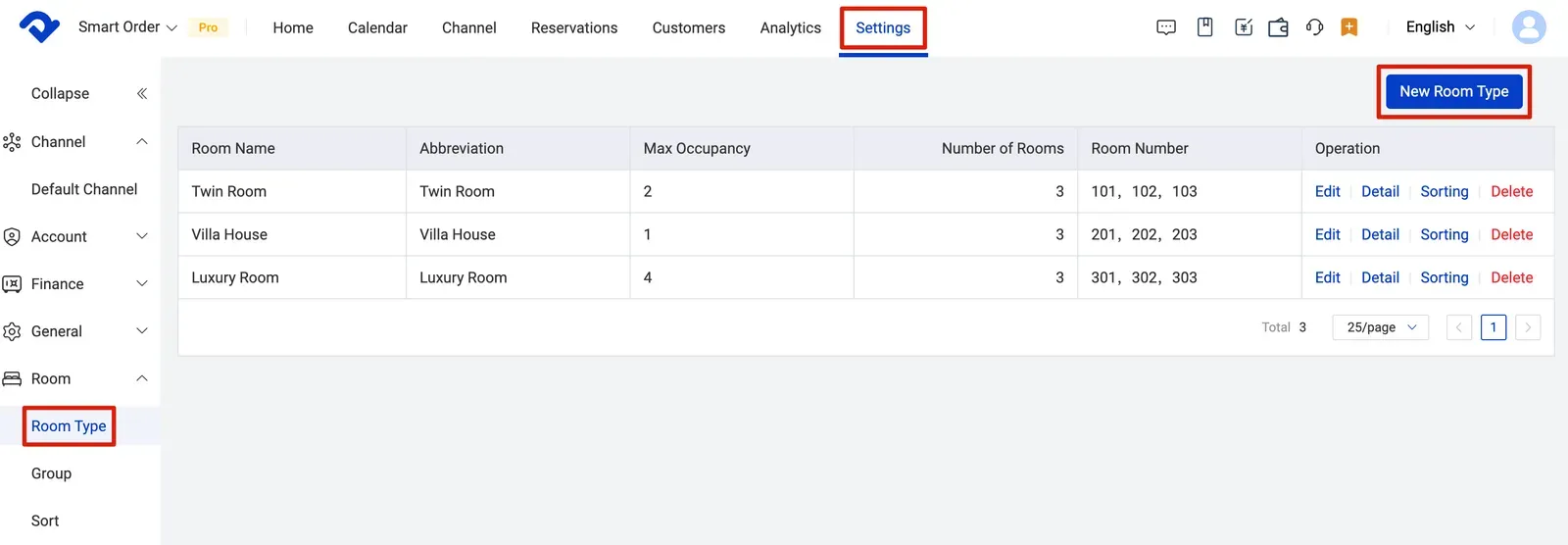
Set up room type before connecting to any channel in Smart Order PMS

  1. Please set up rate plan as well before connecting to any channel.
Click on Settings > Rate > Rate Plan > Add New Room Type
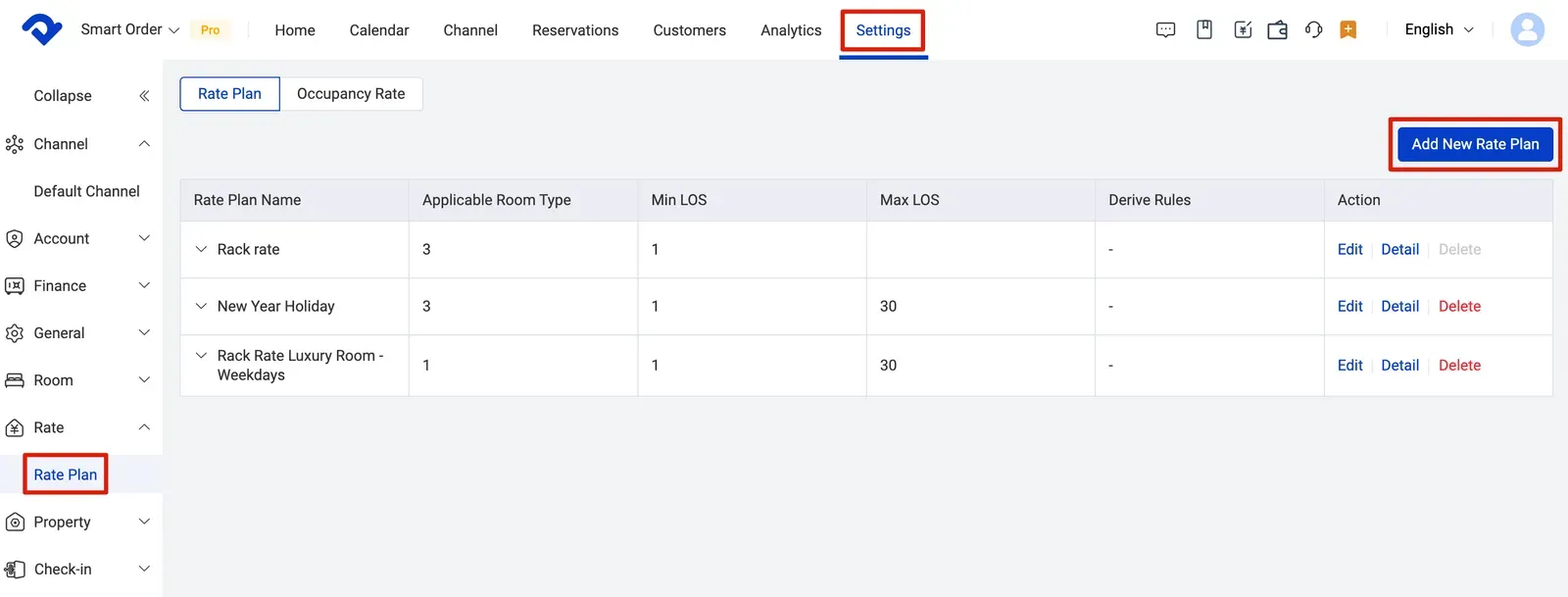
Set up rate plan before connecting to any channel in Smart Order PMS

Step 2 - Import reservations into Smart Order PMS

  1. Please follow the steps below to ensure that all future reservations made are imported into the Smart Order PMS calendar before connecting to any channels. This will affect availability accuracy.
For Airbnb: Please follow Step 4 in Airbnb Connection Guide.
For Booking.com: Please follow Step 4 in Booking.com Connection Guide.

For other channels, please follow the steps below:

Manually export future reservations from your OTA channels. > Download the Excel sheet reservation order import template.xlsx and sort the reservation info into the sheet > Contact our Support Team to upload the sheet info
💡
Please contact us in case you need any help.

Step 3 - Set up rates & availability in the PMS

Set up Rates & Availability in the PMS.

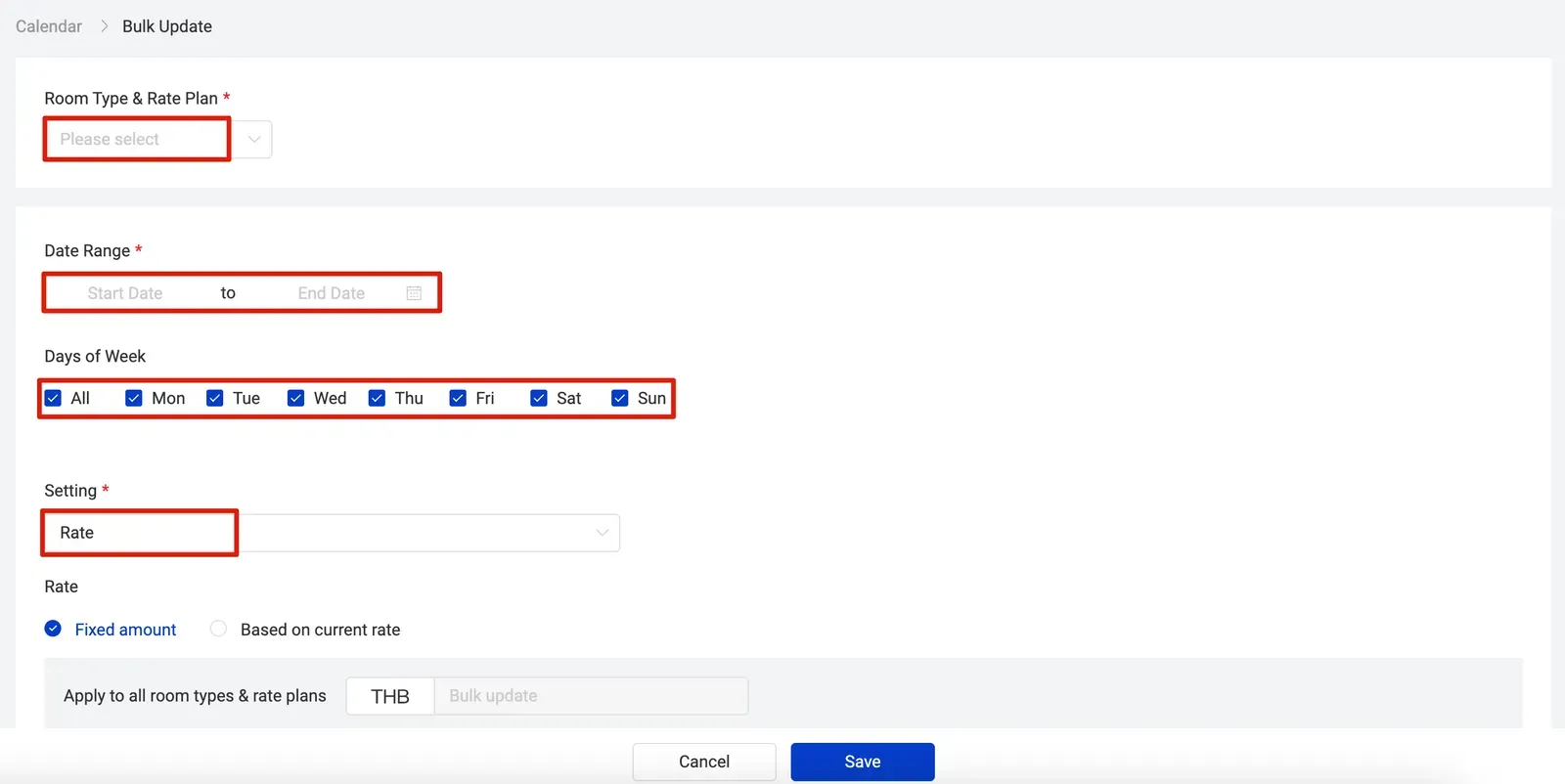
Click on Calendar > Rates & Availability > Bulk Update > Set up Room Type & Rate Plan > Set up Date Range > Select the Days of Week you want > Choose the Setting > And Save the plan.
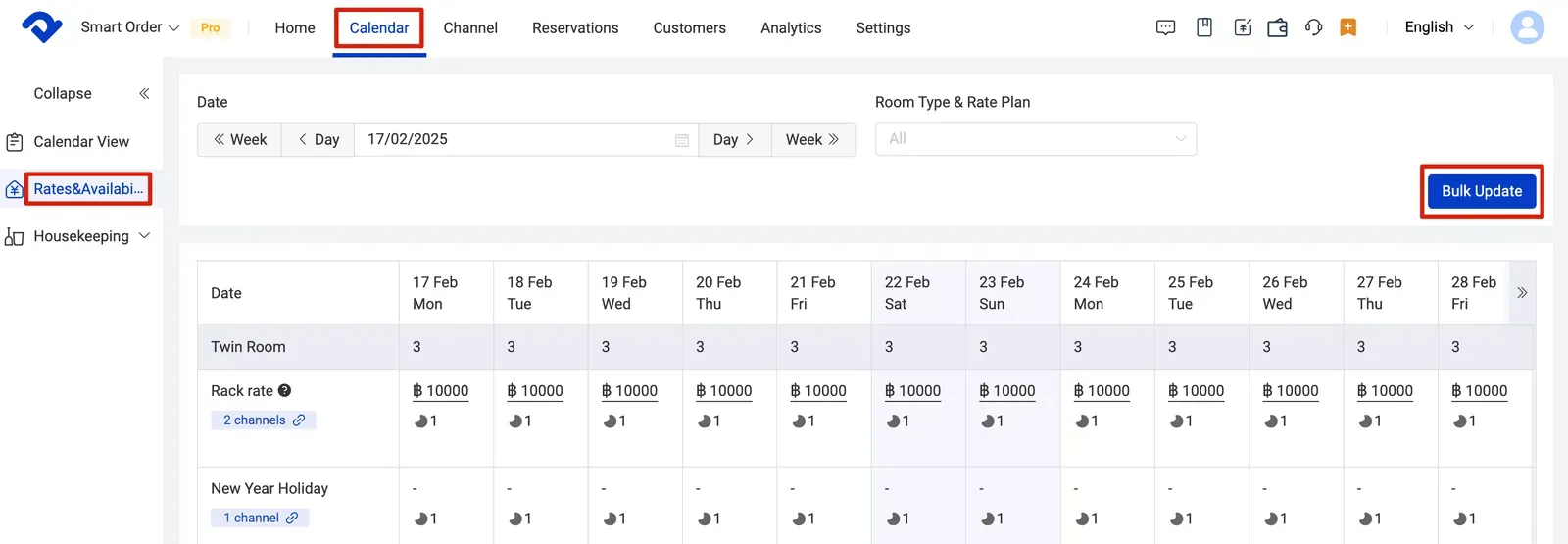
Set up Rates & Availability connecting to any channel in Smart Order PMS

Related Articles

Create and delete rate plans
Create a Rate Plan 1. Click Settings 2. Click the Rate Plan in the Rate drop down 3. Click Add New Rate Plan 4. Enter the rate plan name and connect to room types that you'd like to apply to and click Confirm Edit/Delete a Rate Plan
Rack Rate
What is a rack rate? The rack rate for a hotel room is the published rate for one night’s stay without any discounts or premiums included. Rack rates are the highest price that a hotel will charge for a room. Your room type price defaults to the price you
Create or delete room types
Room Types A room type represents a type of accommodation available to your guests, which have unique occupancy and features, and whose descriptions and photos are promoted as similar. You can edit the room type information at any time or delete a particular room type if needed. Notes: Creating a
Getting started with your Property
Create Property 1. Click on Property Name in the upper left corner of the page 2. Click Create a Property 3. Fill in the hotel information Note: The following information cannot be modified after creation • Property Type • Country • Currency 4. The new property has been created Edit Property Info 1.
Manage room availability
What is a room closure? A room closure is a temporary block that you can put in a room for a certain range of dates so that it won't be available for booking during those days. For example you can create a room closure for reasons like out