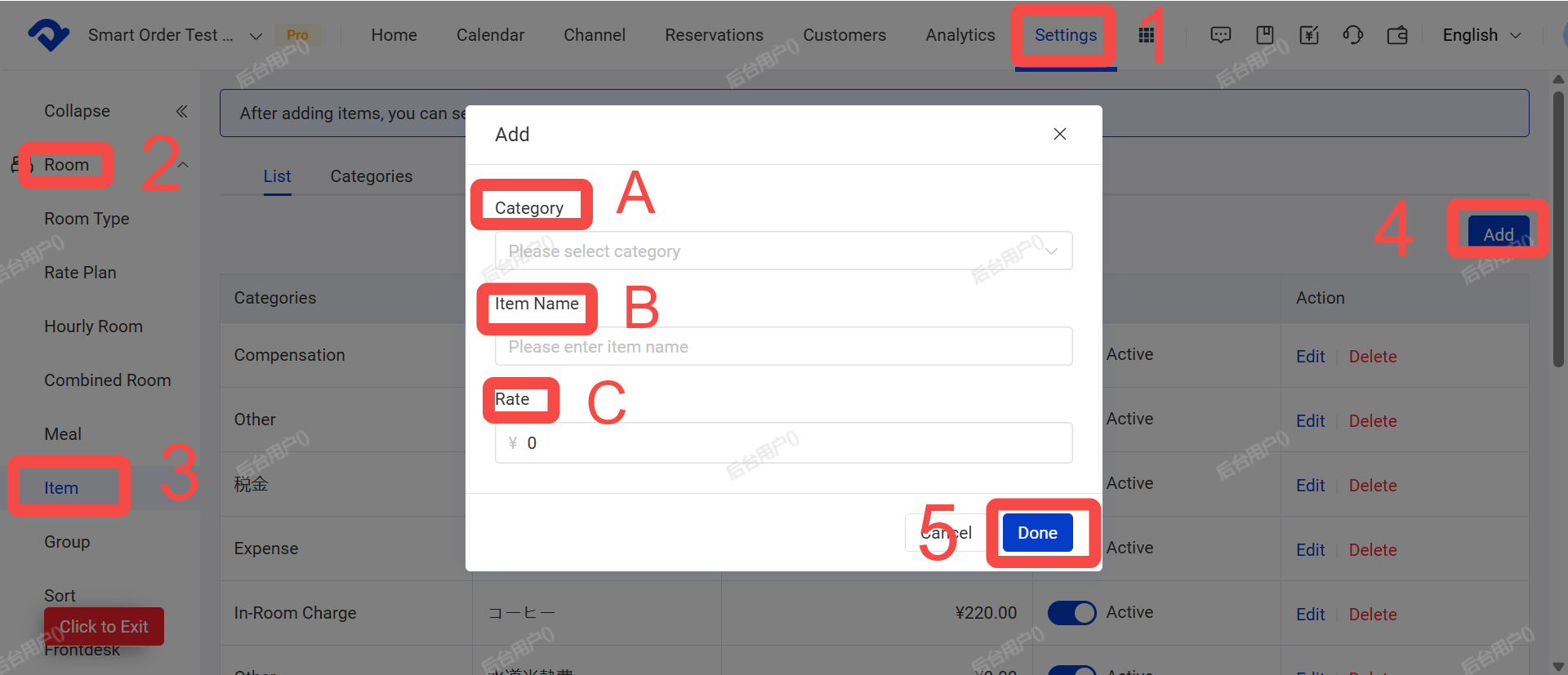
Path: Settings > Room > Item > Add
Operation Steps:
- Click [Settings]
- Click [Room ]
- Click [Item]
- Click [Add ]
- Fill in the information below, then click [Complete]
- A. Category
- B. Name (e.g., Cleaning Fee)
- C. Rate
Note: For instructions on how to add more extra items (such as cleaning fees) to an order, please refer to the article [Add or Remove Meals / Additional Consumption Items to Orders].
Add or Remove Meals / Extra Items to Orders
After setting up items (refer to the article [Consumption Item Settings]), you can add the corresponding items to orders. Path: Calendar > Calendar View >Select an Order > Add Item Steps: 1. Open the order and click [Add item]. 2. Confirm the following information, then click [Done]: * A. Item * B. Quantity * C.
 Dina
Dina