What is a room closure?
A room closure is a temporary block that you can put in a room for a certain range of dates so that it won't be available for booking during those days.
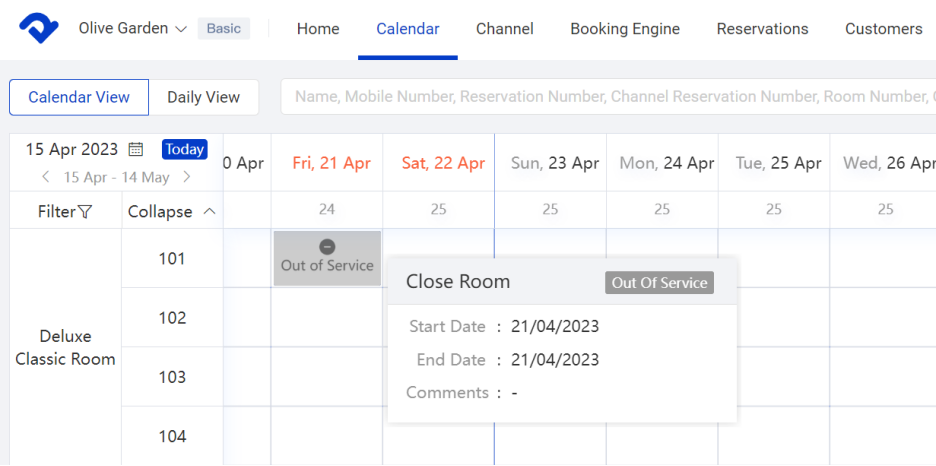
For example you can create a room closure for reasons like out of service, out of order, or block a room while waiting to add a reservation later. With the room closure, the system blocks a room type from being sold on the Booking Engine and connected channels. (Example: on the screenshot below Deluxe Classic Room will not be bookable on the Booking Engine or connected channels)
If you want a room to be fully closed for the entire calendar forever, then rather than a room closure you will need to fully delete the room.
Close Room
1. Click on the Calendar tab
2. Select a room, and click Close Room
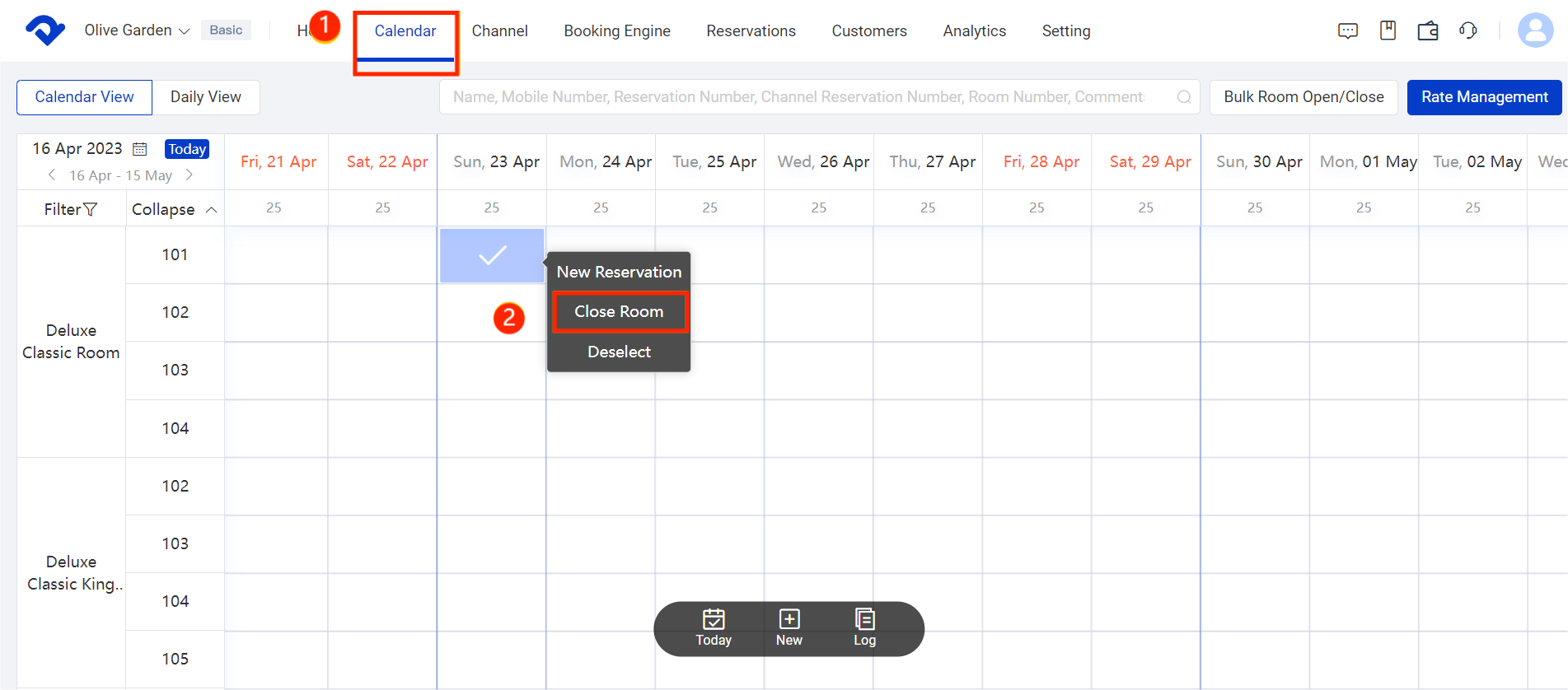
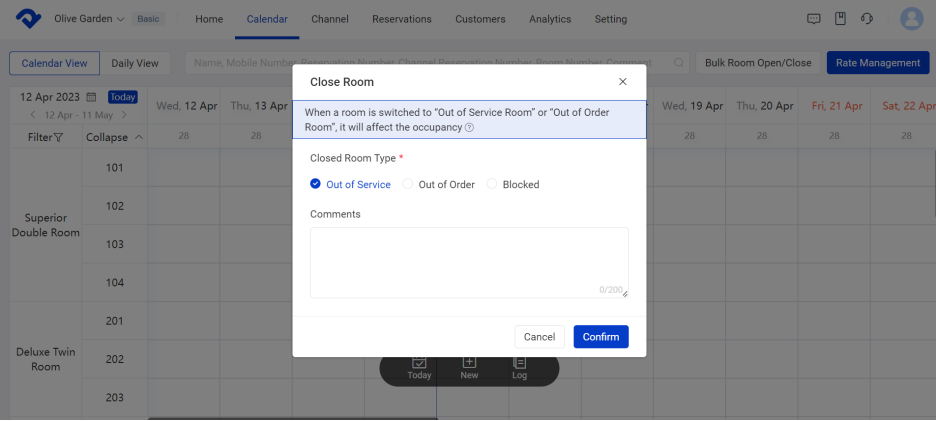
3. In the Room Closure Details pop-up window, choose a reason for closing
4. The selected room has been closed
Close rooms in bulk
- Click on Bulk Close
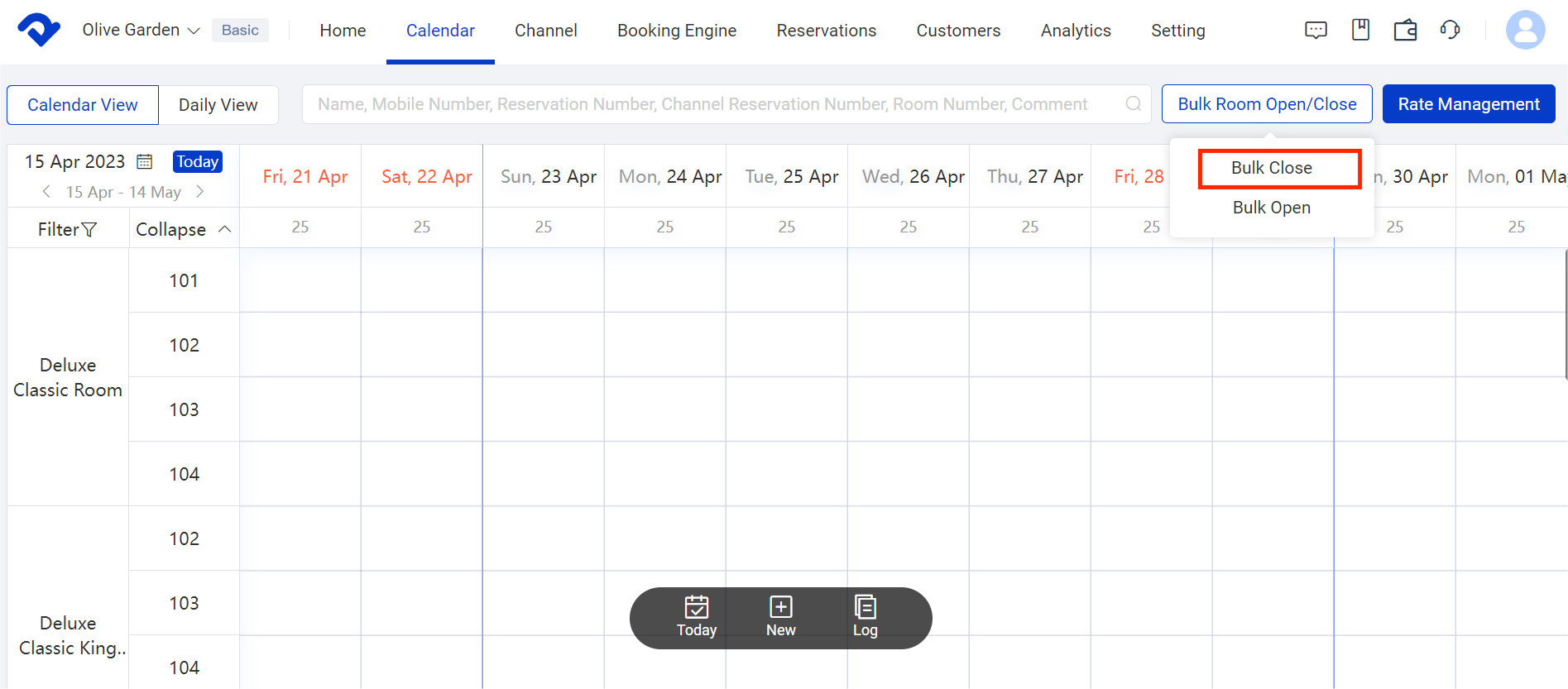
- Select the room/room type to be closed
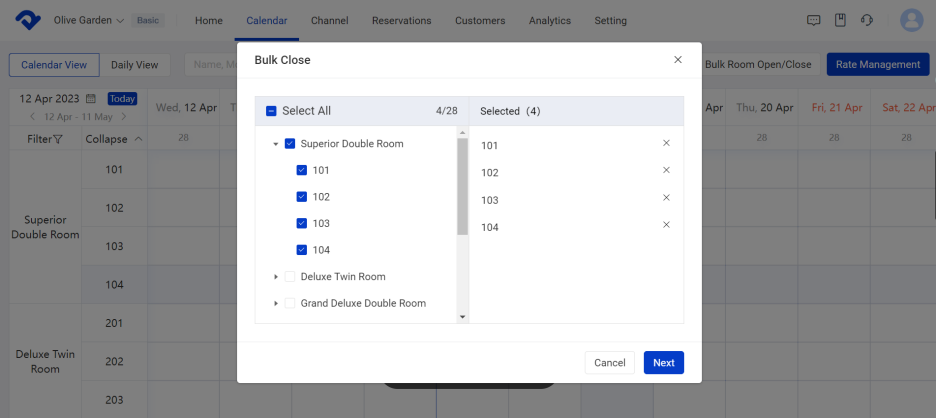
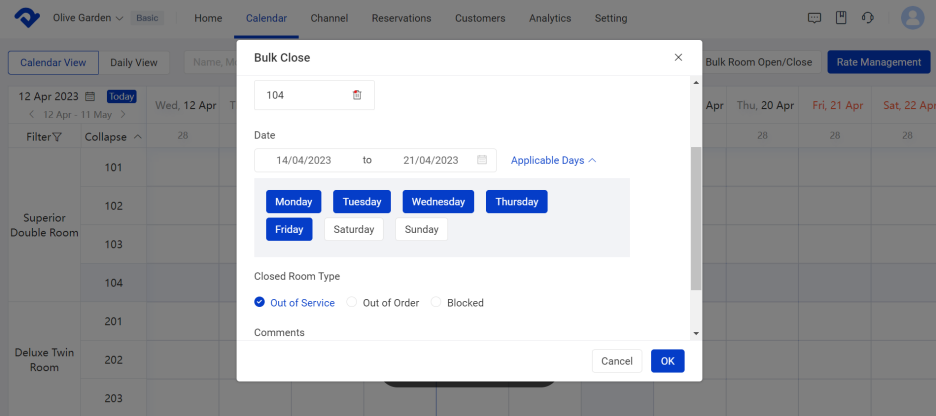
3.Set start and end date for closeout period
4.Choose a reason for closing
5.Click OK to add the closure interval
Re-open a room closure
Reopening a room closure will increase the room availability of the room type in your inventory.
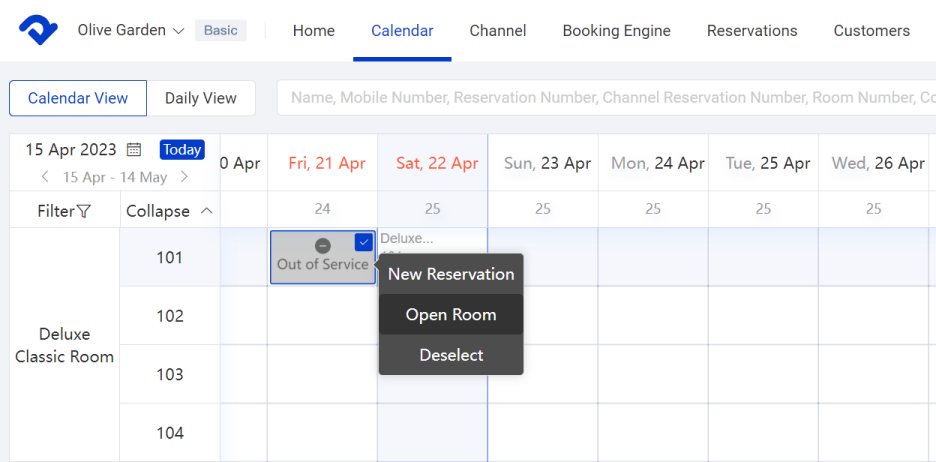
To edit or reopen a room closure:
- Click on the Calendar tab
- Click on the room closure bar (in grey) that you want to edit or reopen and select Open Room.
- The closed room has been reopenned
Difference between room closure in PMS, close rooms in Booking Engine / channels
Engine/channels
- Room Closure in PMS removes a physical room from availability, on all channels and your Smart Order booking engine. It allows you to reduce the room availability in your inventory.
- Closing rooms in Booking Engine / channels allows you to stop a rate plan from being sold on your Booking Engine/channels only.
