Meal Rules Setting

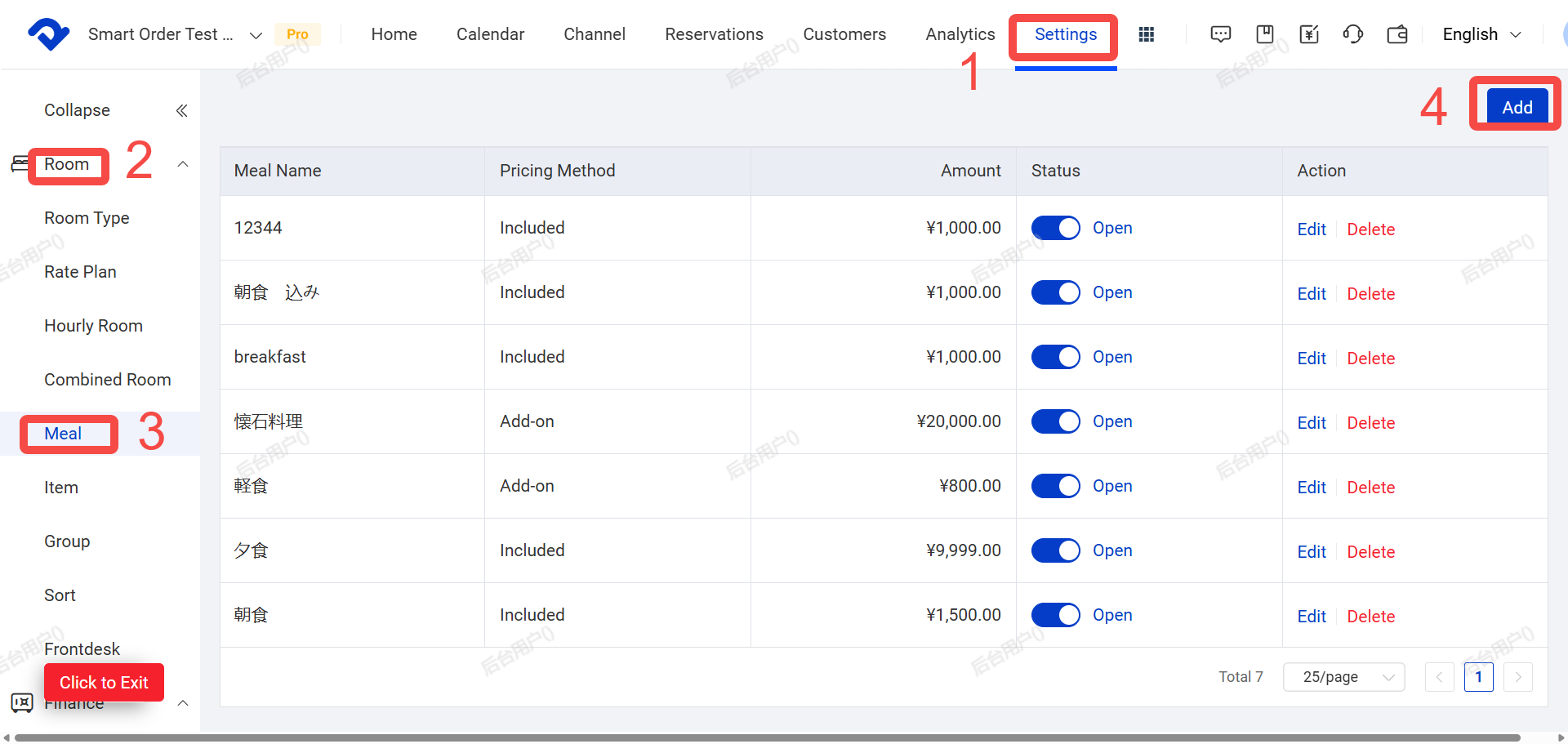
Path: Settings > Room > Meal > Add New

Steps

  1. Click [Settings]
  2. Click [ Room]
  3. Click [Meal ]
  4. Click [Add New] and configure the following fields:

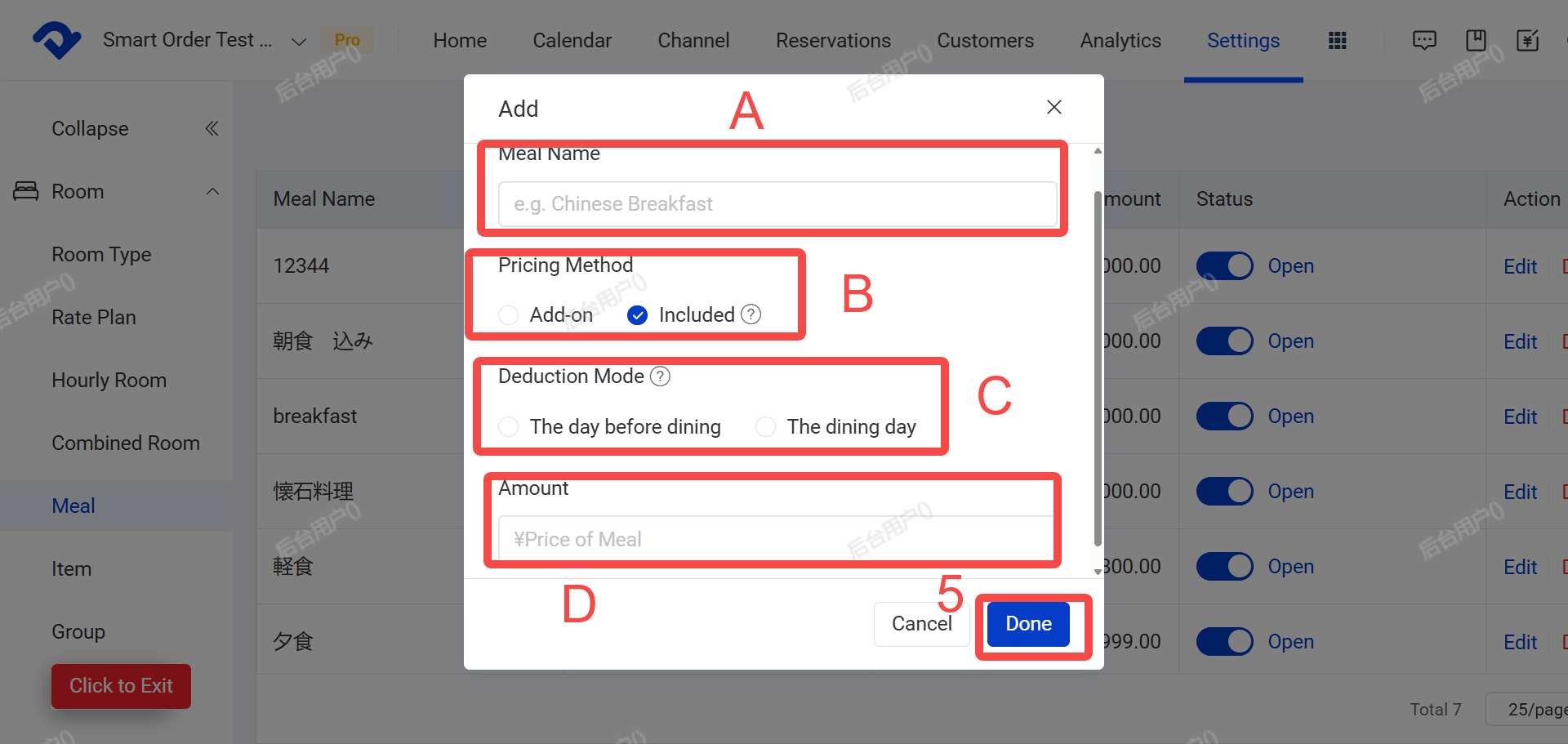
A. Meal Name
B. Pricing Method:

  • Select Add-on as Separate Pricing if the meal is not included in the room rate. Adding this meal to an order will create an additional charge.
  • Select Included in Room Rate if the meal is part of the room rate. The meal fee will be deducted from the room rate while the total order amount remains unchanged.

C. Deduction Mode:
Modifying this setting will not affect meals that have already been added to orders.

Example: When adding a ¥20 breakfast of the “Included in Room Rate” type for March 2:

  • If the day before dining (Deduct from Previous Day) is selected, ¥20 will be deducted from the room rate on March 1, and the ¥20 meal fee will be recorded on March 2.
  • If The dining day (Deduct from Same Day ) is selected, ¥20 will be deducted from the room rate on March 2, and the ¥20 meal fee will also be recorded on March 2.

D. Amount

  1. Click [Done] to finish adding the meal.
Note: For instructions on how to add more extra items (such as cleaning fees) to an order, please refer to the article [Add or Remove Meals / Additional Consumption Items to Orders].

Add or Remove Meals / Extra Items to Orders
After setting up items (refer to the article [Consumption Item Settings]), you can add the corresponding items to orders. Path: Calendar > Calendar View >Select an Order > Add Item Steps: 1. Open the order and click [Add item]. 2. Confirm the following information, then click [Done]: * A. Item * B. Quantity * C.

Related Articles

Close / Open Rooms

Managing room availability is essential to ensure accurate inventory and avoid overbooking. Method 1 Close & open room(Manual for specific Selection) Close room Path: Calendar → Calendar View → Close Room 1. Go to Calendar 2. Select the room you want to close 3. Click Close Room 4. Then Choose the

How to set up Multiple Occupancy Rates (OBP)

A. What is OBP? Occupancy Based Pricing (OBP) is a pricing mode that automatically adjusts room rate based on the number of guests. If you need to set additional charges based on the number of guests (e.g., charge extra when guests exceed the base occupancy).You can set up

Automated Messaging – Simple & Clear Guide

I. What This Feature Does? “Automated messages ”let system Automatically sends messages to your guests at the right time. • You just write the message once. • Set when it should be sent. • The system sends it automatically to every guest that matches your rule. For example :If you set a rule

Convert the Dirty Room to Clean Room

Overview Once the reservation has been settled, the room will be made dirty. After the housekeeping task has been completed, you need to convert the dirty room to a clean room. Steps in Calendar View to convert to a clean room: Go to the Calendar View and move to the

Set up Calendar Display Settings

To satisfy your idea calendar view, you may set up the calendar display settings. You can set up the view by room type, room number, or group. You may view the daily calendar by Daily View settings. You may also change the color to display. Steps to Set up the

Set Up An Hourly Room and Its Night Count

Overview We support hourly room set-up if you need it. The hourly room night count can be set at your convenience. Let's set up the proper design to match your preference. Set Up An Hourly Room: Step1: Go to the Settings page. Select Hourly Room from the Room